67.4 Adding a Video Device Input
Adding a video device input source is similar to adding a network stream input source. Select “Video device input” in the Input Type parameter. The configuration of the video device input would mainly depend on the video board input available in the Multiviewer console.
Etere Multi viewer 1
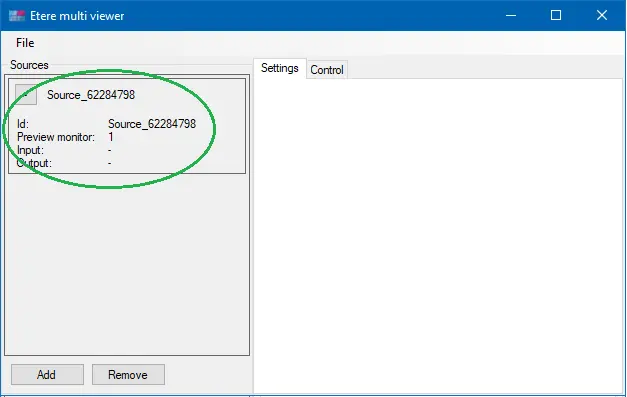
A new input source is inserted into Multiviewer and pending configuration.
Etere Multi viewer 2
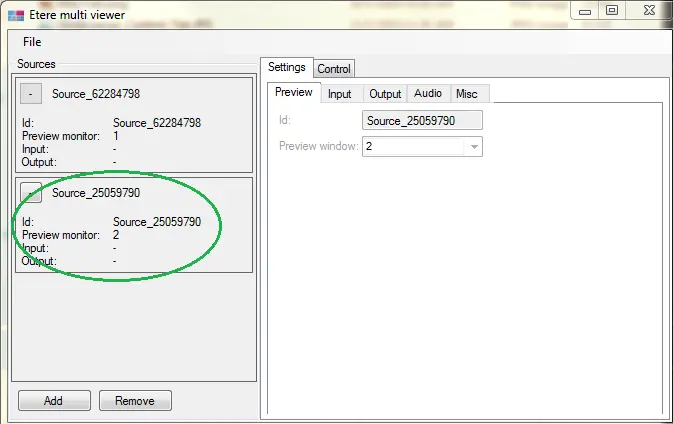
Double-click the new input source – Preview Monitor: 2, and start the configuration.
Etere Multi viewer 3
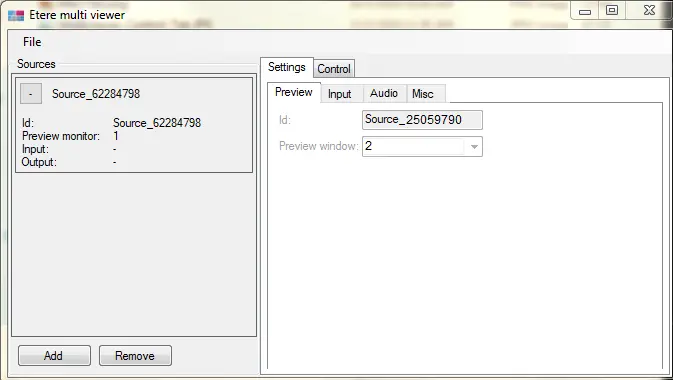
Preview Settings
Etere Multi viewer 4
•ID: A source ID would be auto-assigned to the new input source. You can edit the ID to suit your requirements.
•Preview window: Select one of the preview windows (total of 24 windows) in Multiviewer to preview the input source.
By setting the Preview Window display to “0” (zero), you can stream an NDI input source to a UDP output stream in Automation without the preview window displayed in Multiviewer.
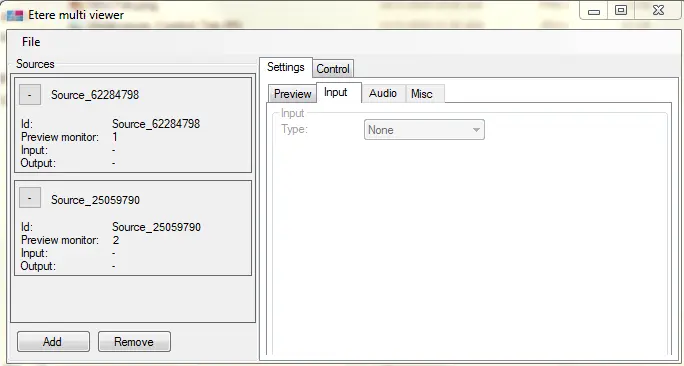
Input settings
Etere Multi viewer 5
•Type: Select an input type to identify the input source, e.g. Video Device input.
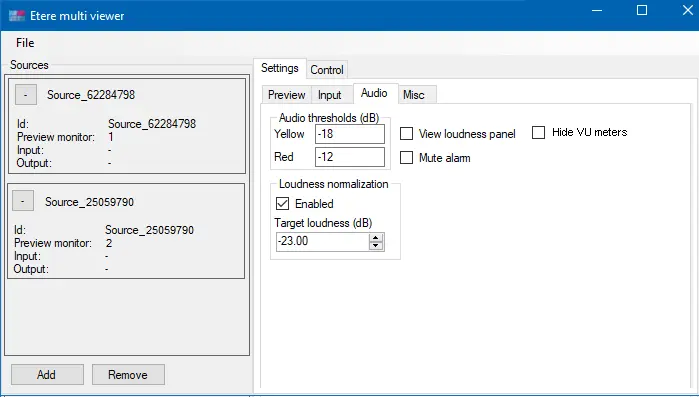
Audio settings
Etere Multi viewer 6
- Audio Threshold (dB)
Specify the Audio Threshold (dB). The loudness of audio is measured in decibels (dB) to express the relative intensity of sounds on a scale from zero (0).
•Yellow: Set the threshold value for measuring the loudness indicated in yellow (see details below)
•Red: Set the threshold value for measuring the loudness indicated in red (see details below)
(Yellow and red refer to VU meters. The audio level on the VU meter is shown in green if it is under the yellow value and shown in “green + yellow” if it is under the red value. When it exceeds the red value, it is shown in “green + yellow + red”.)
View loudness panel: Enable this option to view the loudness unit in the preview panel.
Mute alarm: Enable this option to silence the alarm.
Hide VU meters: Enable this option to hide the audio VU meter in the Preview window.
- Loudness normalisation:
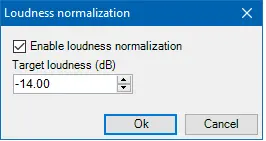
Loudness normalisation
Turn the loudness normalisation feature on/off.
•Target loudness (dB): If loudness normalisation is enabled, set a loudness unit to normalise the loudness to a target level. For example, when the reference normalise level is set at -14.00 LUFS, if a program is analysed to be -10.00 LUFS, the level would be lower by 4 dB to match the target loudness of -14.00 LUFS.
NB: The new loudness unit would take effect immediately without restarting the Multiviewer.
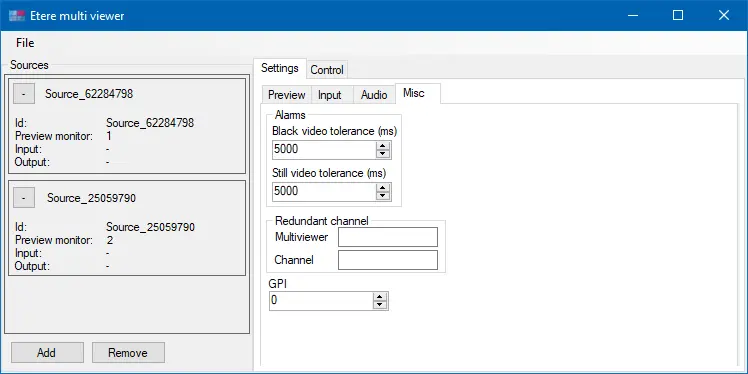
Misc settings
Etere Multi viewer 7
- Alarm
•Black video tolerance (ms): Set the threshold (in milliseconds) to trigger a sound alarm when a black screen occurs in the video file exceeds the threshold.
•Still video tolerance (ms): Set the threshold (in milliseconds) to trigger a sound alarm when a still image occurring in the video file exceeds the threshold. You can disable the still image alarm by setting the value to “0”.
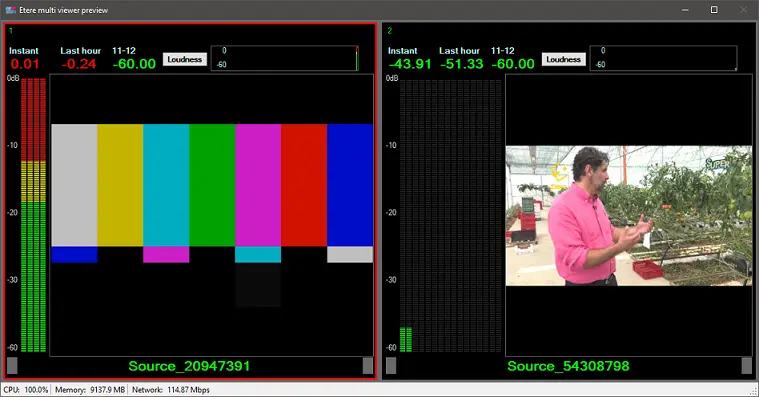
When an alarm is triggered in any preview, the border of the preview window will be outlined in red, as indicated below.
Etere Multi viewer 8
- Redundant Channel
•Multiviewer: Specify the preview monitor ID in Multiviewer.
•Channel: Specify the redundant channel number.
•GPI: When a GPI device is used, specify the GPI number used for input.
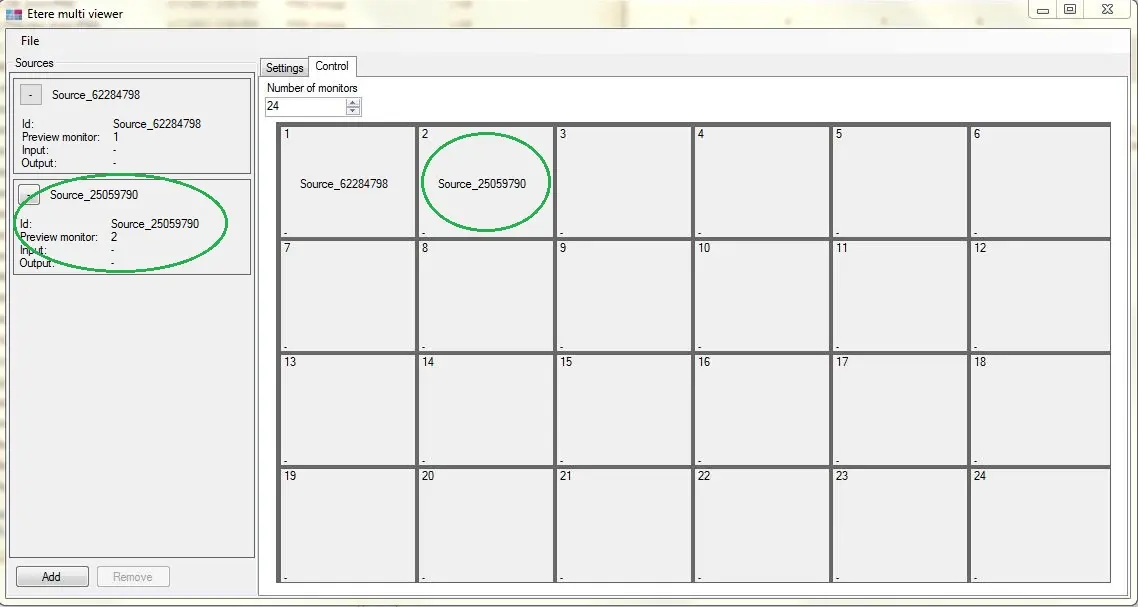
Once configured, the input would be updated in the <Control> tab as indicated below.
Etere Multi viewer 9
You can repeat the steps described above to add multiple video device stream inputs to Multiviewer by specifying a different Preview ID and different Preview window.
 Etere_Multi_viewer_5
 Etere_Multi_viewer_4
 Etere_Multi_viewer_9
 Etere_Multi_viewer_3
 Etere_Multi_viewer_7
 Etere_Multi_viewer_2
 Etere_Multi_viewer_6
 Etere_Multi_viewer_1
 Loudness_normalization
 Etere_Multi_viewer_8