17.2.1 New container
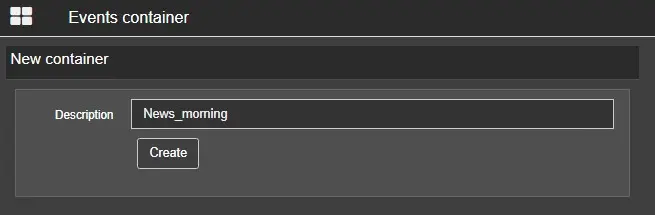
Creating a new container is very simple; just select the proper section in the Radio menu and insert the container's name (description).
new_container
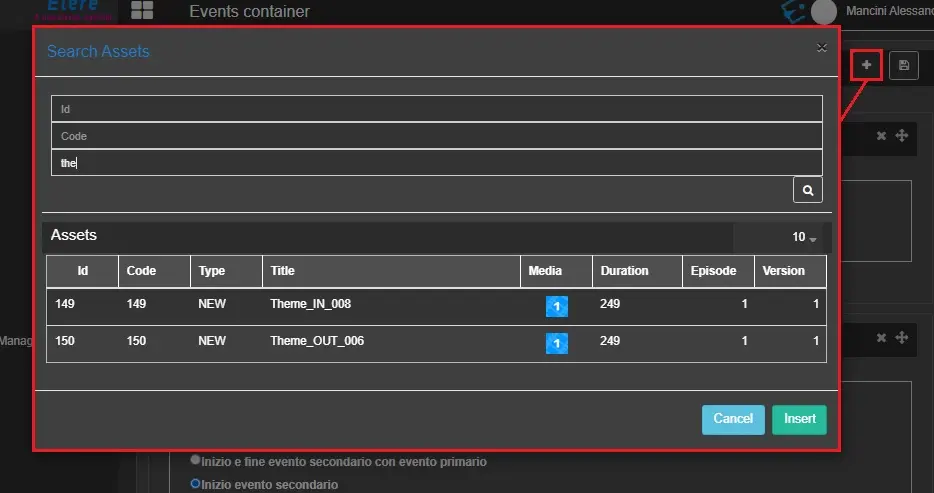
The container is now created and ready to be filled with events. Click the Add asset button and look for assets in the db through the search form.
search_form
Once the events are inserted, it will be possible to see some of their properties, such as the Duration, the Asset ID and the Title, as shown in the image below.
Events can be quickly deleted and moved using the two buttons placed in the top-right corner of the event box.
Event type
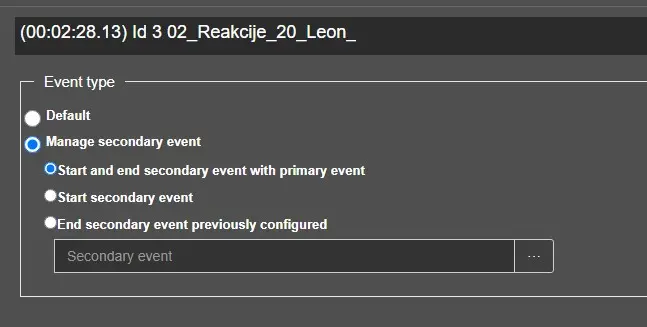
For each event, the user can choose if they will be scheduled as default, without secondary events, or if a secondary event should be associated with them.
Choosing the option "Manage secondary event", three other options will appear, as well as another field where the secondary event has to be specified.
- Start and end secondary event with primary event: this option, if enabled, indicates that the secondary event goes onair along with the primary event, its start and end times match with the primary event's ones.
- Start secondary event: If enabled, the secondary event will start in this primary event and will last until there is another asset with the option "End secondary event previously configured".
- End secondary event previously configured: The secondary event with the option "Start secondary event" set, will end in the primary event which has this option enabled.
container_event_type
Eventually, when the modifications to the container are done, save it by clicking on the button at the top-right corner of the page.
 new_container
 search_form
 container_event_type