70.4.4 Check and Repair LTFS Tape
If you use LTFS tapes in your environment, you can perform “check-and-repair” on tape medium when the tape performance is inconsistent.
First, close the Etere HSM Data Pump if the application has been activated in the station.
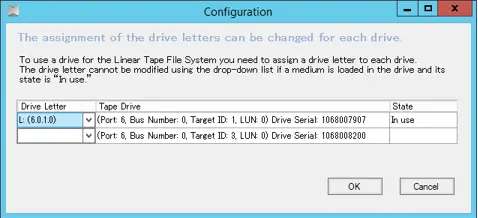
Mount the LTFS tape to the tape drive and launch the LTFS Configuration menu. If you have not done so, you must assign an unused drive letter to the tape drive.
Configuration
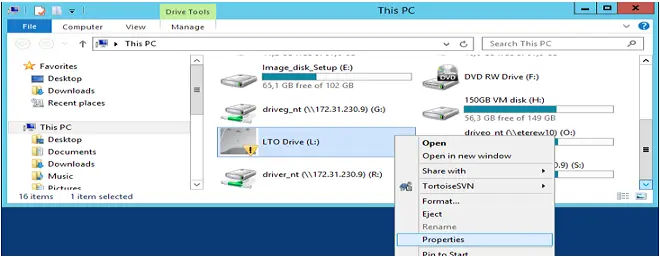
Next, launch Windows Explorer and locate the Tape Drive; right-click on the drive and select “Properties” to view the tape properties.
Drive Tools
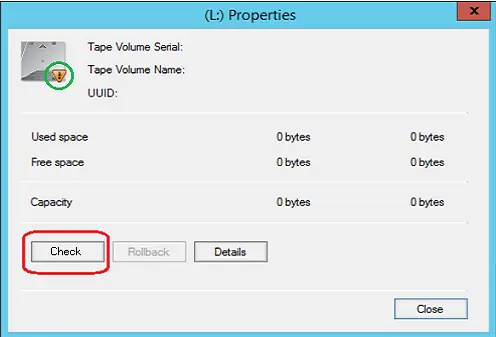
The Tape device status would appear “invalid” on the Properties page.
Properties
Now click the <Check> button to perform a “check-and-repair” operation on the mounted tape medium. This function would probably fix the errors in LTFS tape.
After repair, you must re-catalogue on tape medium to align the content with the database.
Recover Data in corrupted LTFS Tape
If the LTFS tape is corrupted and no longer accessible during a restore operation, you can try the following procedures to retrieve the data in the tape:
1. Set tape as “not use” using the advanced tool in HSM Advanced Tools
2. Move LTFS tape to an unused Mediapool
3. In Media Library, use the Search function to extract all archived assets on LTFS tape
4. Restore all assets from unused Mediapool to disk
5. Launch Archive workflow to archive all assets from disk
6. Try to restore data from the new archived tape
 Configuration
 Drive_Tools
 properties