91.4.11 Scene and Graphics section
In Radio Live interface, the four panels displays all resources connected to Radio Live system.
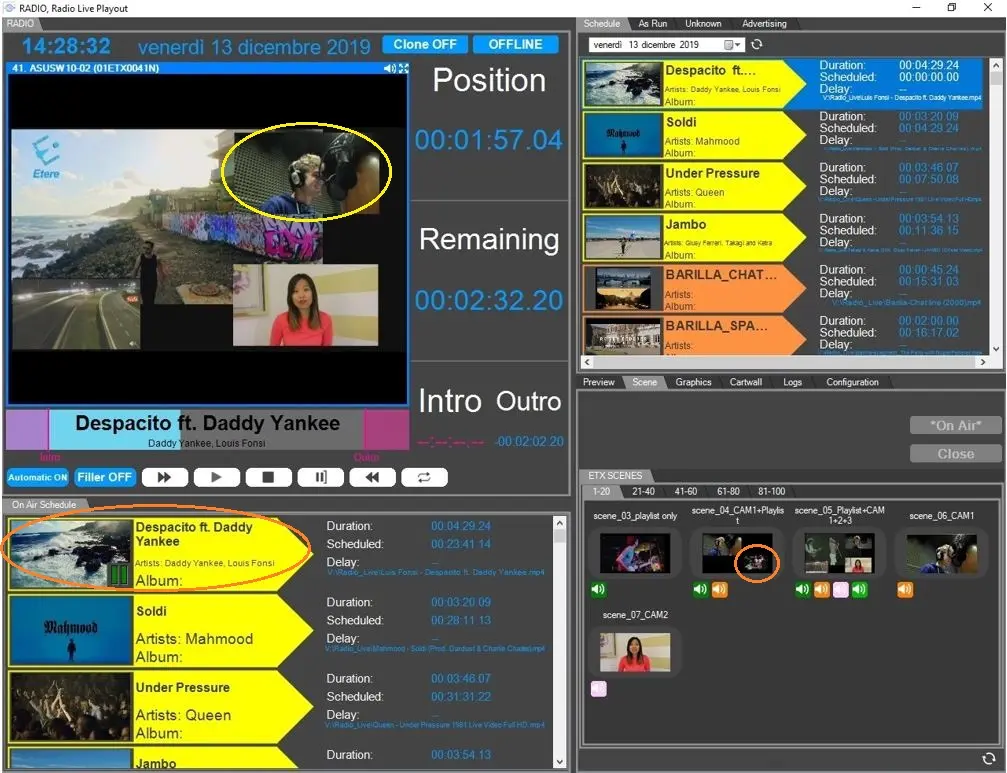
In the left panel, you can view the events currently on-air.
Radio-live_playout_graphic_scene
In above example, when the speaker is talking we can see a scene with previously configured graphic in the left-bottom panel. If you select the "Intro" in the middle platform it would activate the image of the song conductor indicated on the bottom-right panel. When the Intro ends, the video of the song would expand into full-screen.
The rules of the above example are set and programmed in the Scene section.
Scenes
Following are some examples of scenes:
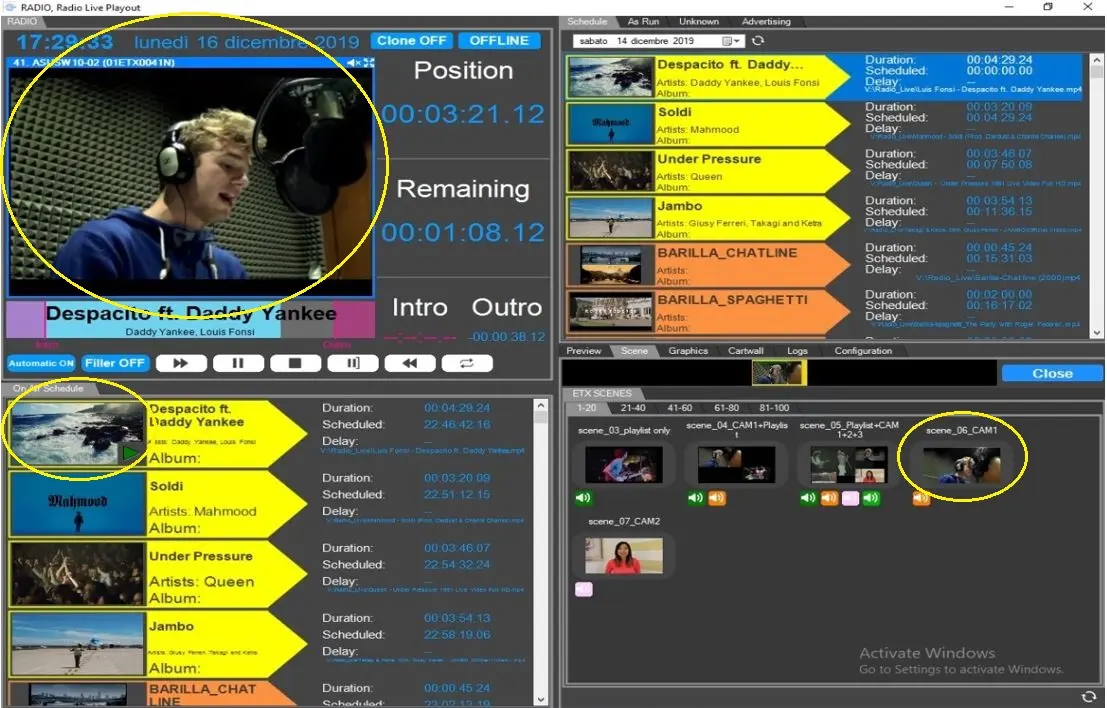
Example # 1
In the selected Live Cam1 scene, camera 1 is shown as being broadcast.
Radio-live_playout_graphic_scene_1
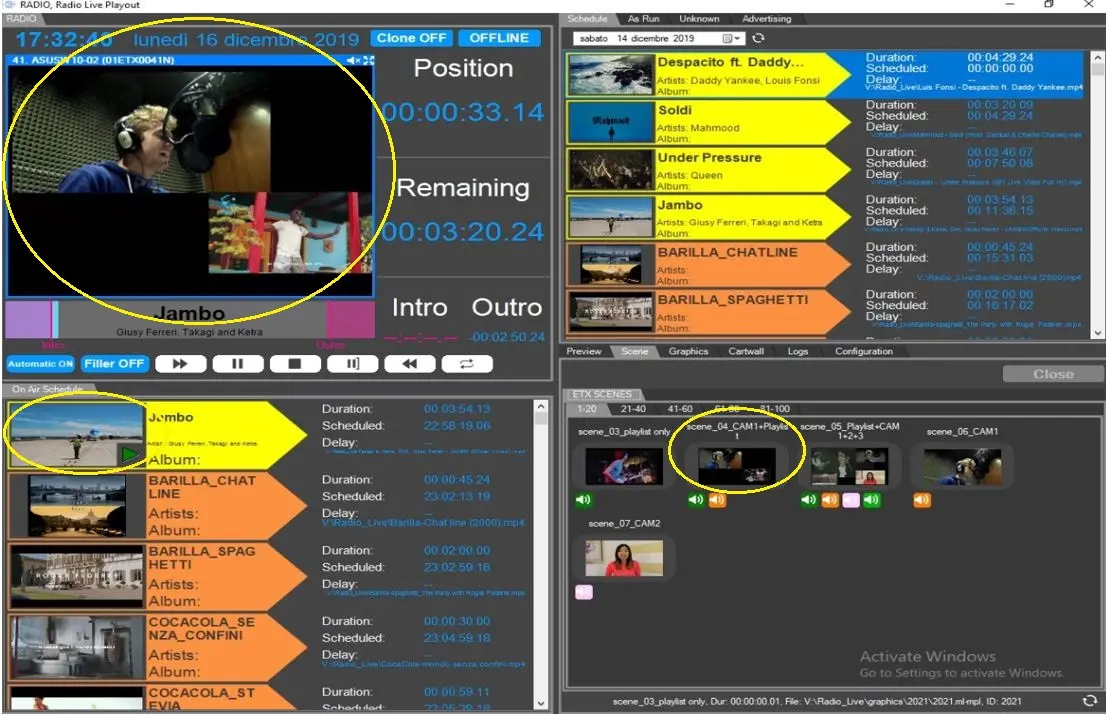
Example # 2
A Live Combo scene "scene_04_CAM1+Playlist" is selected, two mixed scenes are shown, one is the output of the playout and the other is the camera 1 that takes over studio.
Radio-live_playout_graphic_scene_2
Example # 3
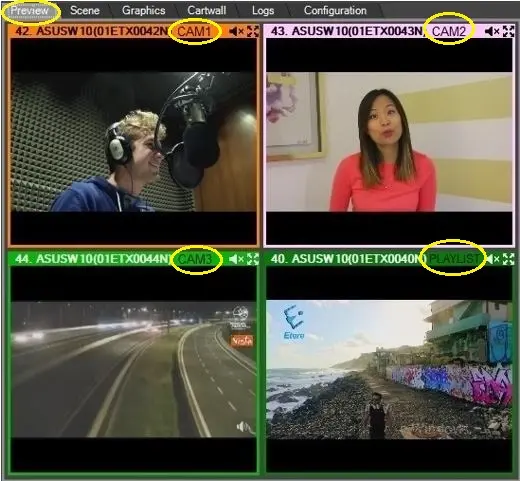
When you click on the Preview tab, the scenes of all cameras and on-air Playlist would be present.
Radio-live_playout_preview_scenes
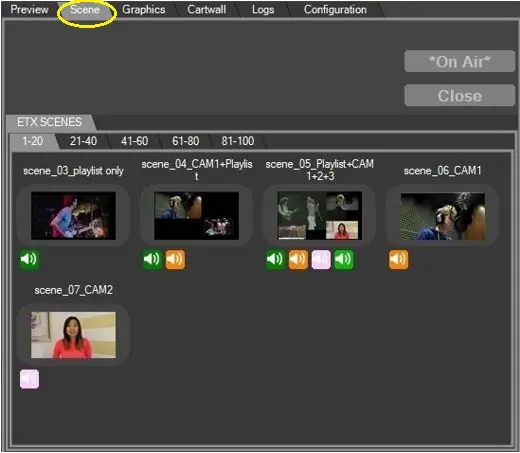
In the Scene tab, you can preview all available scenes in numbering orders.
Radio-live_playout_preview_scene_tab
Graphics
Similarly, you can preview all available graphics objects in the Graphics tab.
Radio-live_playout_preview_graphics_tab
In the Graphics section you can create and displays News, articles and various information with scrolling and rotation effects in any part of the screen.
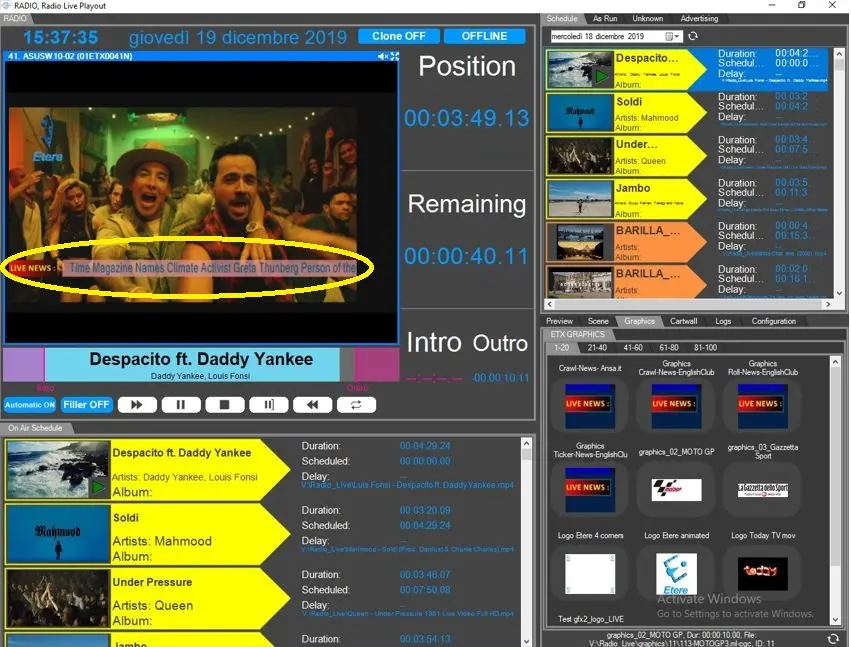
A News ticker (sometimes called a "crawler", "crawl" or "slide") is a primarily horizontal, text-based graphic that display in the form of graphic that typically appear in the lower portion of the screen of television station or network (usually during News programming). The following image illustrate a crawling ticker.
Radio-live_playout_graphic_ticker
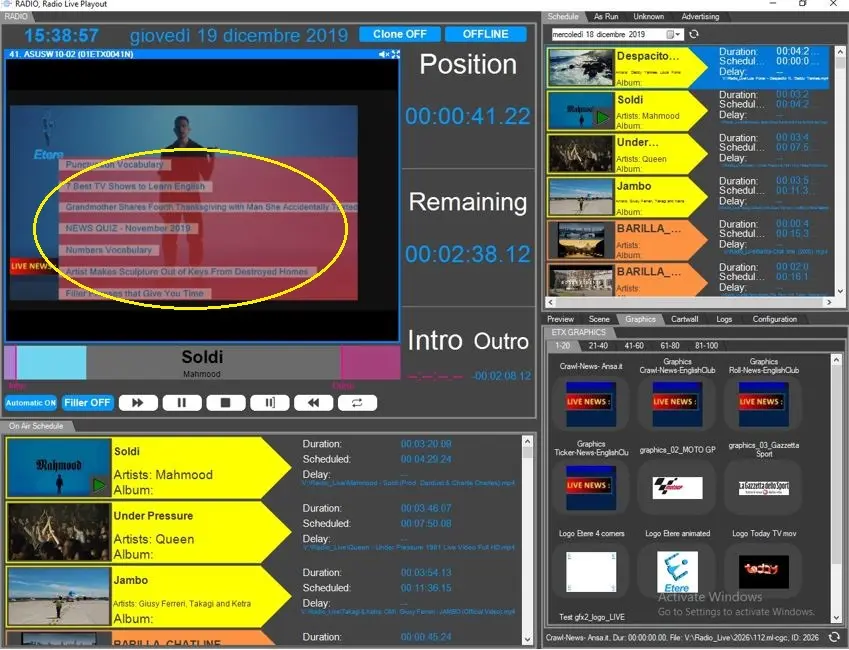
It’s possible to configure RSS feeds from News organizations, which are displayed in a fashion similar to those used by television channels.
Radio-live_playout_graphic_ticker_rows
Some programs, including News-based programs emphasizing viewer interactivity, or special events, may also use tickers to display messages and reactions from viewers and others that relate to the program. In the present day, these comments are often sourced from social networking services such as Facebook and Twitter (typically curating comments from a specific page or hashtag.
HTML5 Graphics
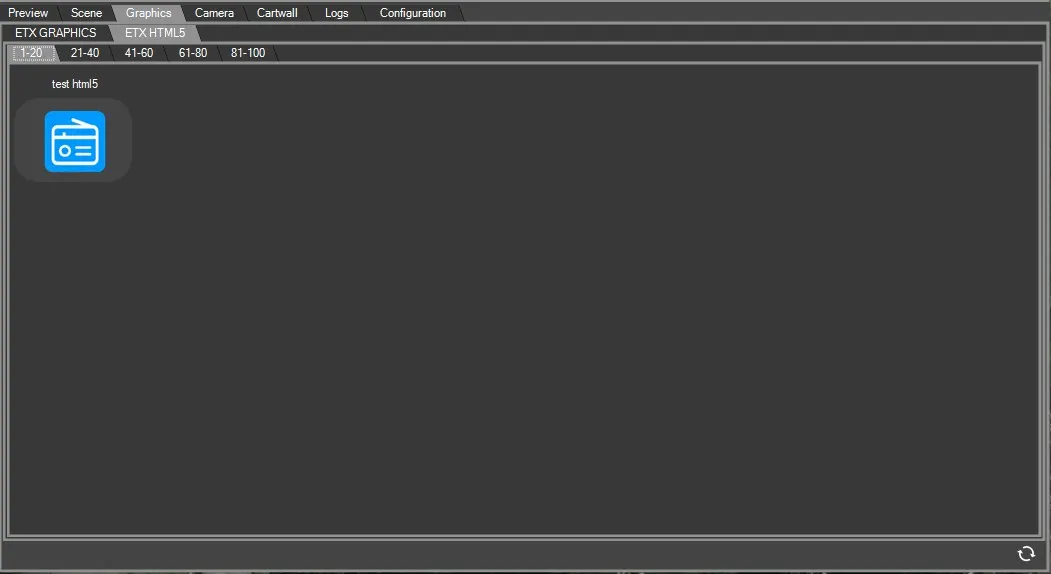
with newer versions, support for HTML5 graphics has been added. In a similar way as Graphics and scenes, created HMTL5 graphics will be displayed on their related tab and inserted manually in the playout by clicking on them.
For more info, refer to chapter 66.7.0.0 ETX-G HTML5 Import.
 Radio-live_playout_graphic_scene
 Radio-live_playout_preview_graphics_tab
 Radio-live_playout_graphic_scene_1
 Radio-live_playout_preview_scene_tab
 Radio-live_playout_graphic_scene_2
 Radio-live_playout_graphic_ticker_rows
 Radio-live_playout_graphic_ticker
 Radio-live_playout_preview_scenes
 HTML5_Graphics