72.2.2.13 Annotations - EDL Management
What is an EDL?
An EDL (Edit Decision List), commonly called cue sheet, is a list detailing how an asset's video clip is broken up into chronological segments (e.g. to for example, permit a video editing engine to generate a desired video content).
Etere's EDL are based on a set of instructions placed at specific timecodes to detail a specific video issue (i.e. scene change, video fault, insertion keyframe). Etere allows, in case there are media files associated to an asset, to insert the timecode data that determines the overall EDL, this, just by making double-click on the media icon (e.g. tape, file) from the Media List:
EDL Properties - Physical start and end
Description : Here are detailed the detected mark in and mark out of the selected media file.
Please note that in case the asset has been ingested from a measured tape (i.e. linked and marked tape), the SOM and EOM are automatically retrieved whereas in case of a non-measured tape these values are those entered by the operator.
EDL Properties - Physical duration
Description : It's either the difference between the physical end and start values (in case a media file is linked to the asset form), or the scheduled duration (if no media file has been linked to the asset form).
NB: The physical data of the asset can be manually modified only if the asset doesn't have linked media files.
NB: The physical start of lowres media is always zero (00:00:00.00).
EDL Properties - SOM and EOM
Description : These values are related to the first (SOM) and the last (EOM) usable frame of the asset, therefore, these values may differ from the physical mark points (i.e. start and end).
For clips with a zero-based timecode the SOM is zero (i.e. 00:00:00.00), whereas for clips with a not zero-based timecode the SOM indicates the offset from the start (e.g. 00:01:10.00).
EDL Properties - Intro and Outro
Description : The Intro indicate the singing start time in the song after the SOM, and Outro indicate the singing end time in the song before the EOM. Both fields are entered in “hh:mm:ss.ff” format.
These fields can be inserted and edited only if Etere license ET0085 is present in the workstation.
EDL Properties - Duration
Description : This non-editable field refers to the logical duration of the asset, which is the difference between the EOM and SOM values
NB: The SOM, EOM and Duration are related to each asset file, these fields can be changed under the "Technical Data".
EDL Properties - Scheduled duration
Description : This field is used to define the expected duration of the asset. Please note that in case the asset form doesn't have a linked media file, the scheduled duration will be the same as the physical duration, therefore, if one of them is changed, the other one will be also automatically changed.
NB: Upon importing media files, if the media file has a duration longer than the SOM-EOM duration set in the asset, the SOM-EOM markings would not be updated, you would need to insert a “Reset Logical Marks” workflow action after the “MediaInfo” action to set the logical markings of the asset EDL align with the physical markings.
NB: In order to capture and view all severity errors occurred during media file processing in EDL, the selection of error severity attributes must not be set.
Media-specific EDL
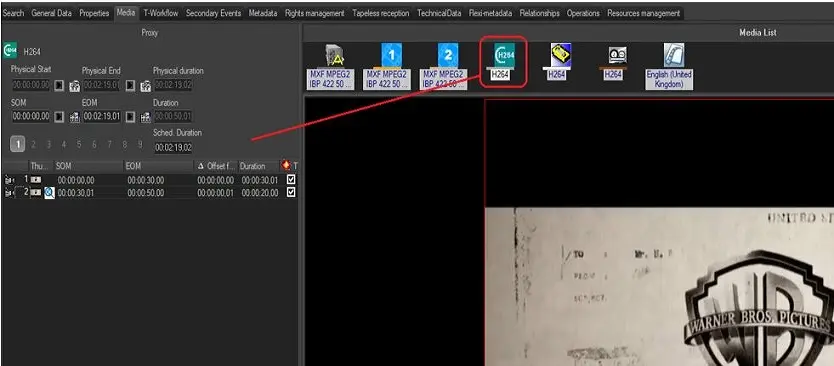
Etere allows managing a different EDL for each media linked to the asset, thus permitting for example, to have a 1st EDL for the content ingested from a tape, a 2nd EDL for the file stored in a video server, and a 3rd EDL for the cassette file archived on a library. Media EDL's are automatically produced each time a media file is linked to th asset (e.g. after a tape ingest), being however possible to manage them by making double-click on the related media icon (e.g. tape, file):
Media EDL
Please note that physical data (i.e. physical start, end and duration) may differ from one media EDL to another whereas logical data (i.e. som, eom and duration) will be always the same for all media EDL's since the system expects that all media linked to one asset have the same essence. You can enable the “Use TC in proxy preview” option in Media Library settings to include logical offset when calculating the time code displayed in EDL list and Proxy player.
You might experience discrepancies in time code between Web player and desktop Media Library when the installed Etere version in both workstations are not synchronized.
NB: The media file duration would be cued with EOM augmented of 1 frame if the video server’s format is not set to “PAL LF”.
EDL versions
For each media EDL, Etere allows managing up to 9 different EDL versions, thus allowing to have more than one version of an EDL to use in different circumstances without have to duplicate the asset. Every EDL is identified by a description defined by the operator when it is created. By selecting one of the 9 EDL's and clicking the right mouse button the following functions are available:
EDL contextual menu
Function - Modify description
Description : The description of the EDL can be modified to make the asset management easier.
Function - Save to other version
Description : It is possible to save the current EDL into another version, in essence duplicating it.
Function - Delete version
Description : All marks (i.e.: instructions) will be deleted from the version in question.
Function - Set as Default
Description : Copies all instructions present in the selected EDL to the EDL #1, thus making them available for the scheduling phase and the playout.
Function - Import from Baton
Description : Browse and select the Baton result file from which the selected EDL will be imported.
Instructions types
As mentioned before, an EDL is made up of instructions which details a specific video issue, depending on the detailed issue, instructions can be:
Type - Insertion keyframe
Description : A video segment of one keyframe marked to indicate that an asset can be exploded (i.e. divided into parts) at this point within the broadcast schedule (e.g.: for inserting advertisements).
Type - Visible segment
Description : A video segment marked to indicate that it is considered suitable for transmission (i.e. free of video faults), that is, which can be exploded within the broadcast schedule for its subsequent playout. Visible segments are either manually inserted by the operator or automatically inserted during a content check process as "scene changes" (i.e. consecutive frames featuring different pictures).
NB: Visible segments can be also used to either, calculate the commercial crowding of the asset (i.e. only "scene change" segments are taken into account for the crowding calculation), or to simply define suitable segments which doesn't contain "inappropriate contents" (e.g. censored scenes).
Type - Manual video fault
Description : A video segment manually marked by the operator as "defective" to, for example, point out an audio or video issue encountered during a preview.
Type - Automatic video fault
Description : A video segment automatically marked as "defective" either during a content check (i.e. to point out audio/video issues) or a cart ingest (i.e. to point out black frames present due to a fragmented recorded performed using two tapes).
Type - Automatic black
Description : A video segment featuring a segment considered as "not suitable for transmission". "Automatic blacks" can be converted into "video faults" by making right-click on them and using the 'convert automatic black into video fault' function.
Type - Editing segment
Description : A video segment marked to indicate that a segment needs to be edited in order to be valid (e.g. approved for transmission).
NB: An EDL can be composed by either insertion keyframes and video faults or visible segments and segment for editing.
NB: Those assets which EDL#1 contains video segment instructions (i.e. visible, fault and black segments) will be displayed with a "warning" during their scheduling phase, thus informing the operator about the need of exploding them (i.e. split them according to the EDL instructions) in order to ensure a correctly transmission.
EDL segments
As mentioned before, an EDL is made up of segments, and each EDL segment specifies a timecode for the related asset media. EDL segments can be either:
Real segment (default insertion type) - Segments which are enabled for EDL operations (e.g. explosion, view, etc).
Real segments are converted into "hypothetical segments" in the following cases:
Manual conversion
The operator makes right-click on an EDL segment and select the 'convert to real' option (or press the F8 shortcut).
Incorrect Marks
The segment marks are out of the physical duration (i.e. mark-in before the SOM or mark-out after the EOM). This may happen when a media link is replaced without updating the EDL.
Missing Media
The segment is (or has been) inserted when no media was associated to the asset. This may happen when a media link is deleted.
Hypothetical segment - Segments which are disabled for EDL operations (e.g. explosion, view, etc).
Hypothetical segments are converted into "real segments" in the following cases:
Manual conversion
The operator makes right-click on an EDL segment and select the 'convert to real' option (or press the F8 shortcut).
EDL segments can be manually created by right clicking in the EDL area and adding a instruction (e.g. insertion keyframe, defective segment, garbage segment, visible segment or an external segment). For each option, the following attributes can be associated:
Segment properties - Type icon
Description : Indicates if the segment is: a insertion keyframe, visible segment, video fault, manual video fault, automatic video fault, automatic black or editing segment.
Segment properties - Segment thumbnail
Description : Shows the thumbnail of the segment. Please note that the size of EDL thumbnails can be changed changed from the Show Menu.
Segment properties - SOM
Description : Start timecode of the segment (i.e. start of message).
NB: If an asset is linked only to a tape (no media files), each time the SOM is modified the EDL instructions will remain unaltered.
Segment properties - EOM
Description : End timecode of the segment (i.e. end of message).
Segment properties - Offset from previous segment
Description : Time difference between the segment's start and its preceding segment's end.
NB: If offset is changed the SOM and EOM are automatically changed according to it.
Segment properties - Duration
Description : The duration of the segment.
Segment properties - Type
Description : Type of segment (if different from main event type)
NB: This attribute is available only for visible segments, editing segments and video faults.
Segment properties - Linked Asset
Description : Code of linked asset (If the segment belongs to another asset's media)
Segment properties - Offset from next segment
Description : Time difference between the segment's end and its succeeding segment's start.
NB: Once created, EDL segments can be completely managed by using a wide range of features provided though their right-click menu, see the Available EDL Operations chapter for further information.
EDL types
Edit Decision Lists (EDL) managed within an asset form can be classified into two different types depending on the instructions contained on them:
EDL which contains scene changes
EDL which contains either video faults or insertion keyframes
Moreover, it is important to note that an EDL which contains at least one scene change cannot contain neither video faults nor insertion keyframes and vice-versa.
 Media_EDL