72.7.2.2 User Interface
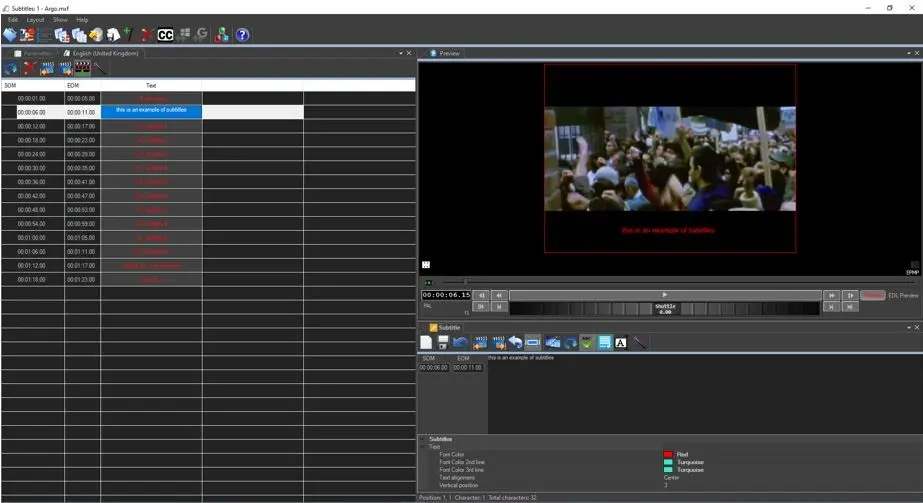
Once launched, the "Subtitles Tool" module will display its main interface, allowing the operator to quickly interact with the software through the various sections (tabs) listed below:
Subtitles Tool
WORKING AREAS
Tab - Parameters
Description : This tab, hidden by default, allows to set the parameters that determines how subtitles will be displayed (e.g. in the Subtitle tab, once exported, etc). Available parameters are the same as the Global parameters (set in "Etere Configuration > Configuration Editor > Subtitles").
NB: Global parameters are used the first time a subtitle is created for a specific asset language .
Tab - Language
Description : Under this tab will be located all the entered subtitles, each line forming part of the subtitles will detail the SOM, EOM and text.
Tab - Preview
Description : Preview the proxy video of the asset, allowing to mark the exact intervals on which subtitles should be inserted. The time displayed in the preview will be colored according to:
hh:mm:ss.ff - There is a subtitle entry corresponding to the current timecode.
hh:mm:ss.ff - There is no subtitle entry corresponding to the current timecode.
In case subtitles exist, they will be chronologically loaded in the "Editor" area according to the previewed video.
NB: For detailed information on the preview interface please refer to the Proxy Browser chapter.
Tab - Subtitle
Description : This section, where subtitles are properly produced, allows operators to either manually type subtitles or automatically retrieve dictated words, just as explained in the "How to produce subtitles" chapter.
Moreover, a toolbar placed in the top part of the window will provide the most important functions needed to start producing subtitles:
TOOLBAR
Tool : Open (CTRL-O)
Description : Search and select the asset for which subtitles will be produced, allowing also to specify the language to which the subtitle is related.
Tool : Language
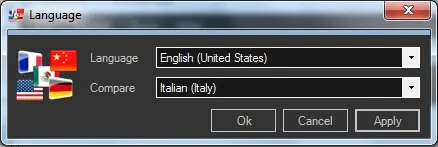
Description : Open a small dialog providing the following parameters:
Language
Parameter - Language
Description : Set the language for which subtitles will be produced, that is, the language to which they will be associated within the asset once saved.
Parameter - Compare
Description : Choose a second language subtitle to open along with the main language (e.g. to produce a new language subtitle by translating an existing one). See Comparing subtitles.
NB: Every time an asset is open for subtitles production, the last produced language will be used by default.
Tool : Video Standard
Description : Select the video standard on which subtitle time codes are based. Available ones include:
PAL
NTSC
HD50p
Telecine 24FPS
Telecine 23.97FPS
Tool : Copy
Description : Permits to quickly creates the subtitles for another language by copying the content of the current language subtitles to a user-selected target language.
Use this function, to for example, start creating another language's subtitle based on the current one.
Tool : Import
Description : Use this function to load a text file into the database as an asset subtitle. The following list shows all the formats supported for import operations:
Format - Cavena TXT
Extension : .txt
Format - Daai TV TXT
Extension : .txt
Format - EBU subtitling
Extension : .stl
Format - Microsoft SAMI
Extension : .smi, .sami
Format - PAC Screen Systems
Extension : .pac
Format - Plain text
Extension : .txt
Format - Plain text without timecode
Extension : .txt
Format - Rhozet XML titler
Extension : .xml
Format - Softni Sub
Extension : .sub
Format - Structured files
Extension : .txt
Once the subtitle is selected starts, a wizard will automatically start importing subtitles:
subtitles_import
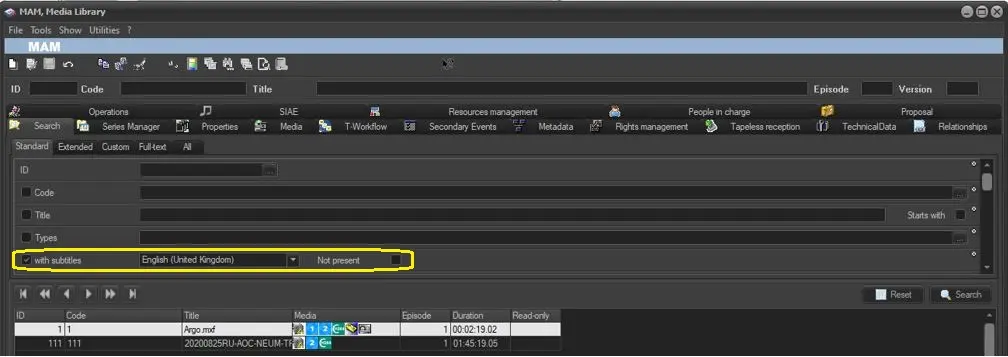
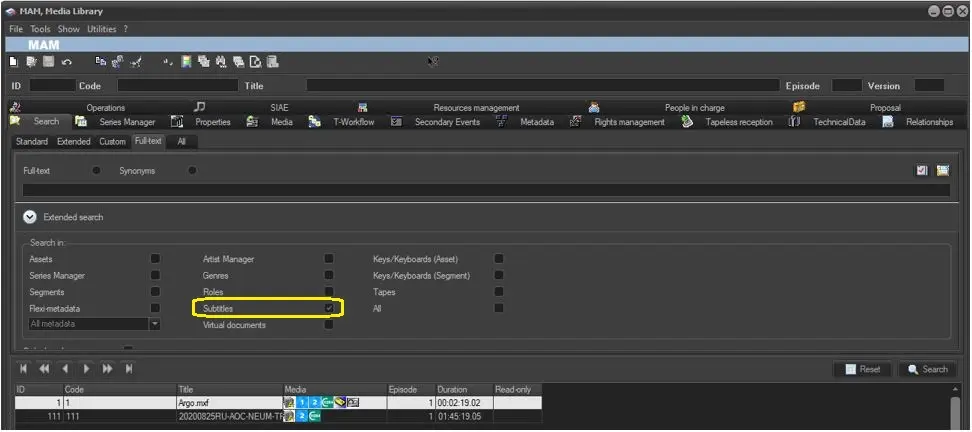
NB: Note that subtitles can be imported also directly from the Media Library > Secondary Events section.
Tool : Export
Description : Use this function to save the current opened subtitle to the following supported formats:
Format - Cavena TXT
Extension : .txt
Format - EBU Subtitling
Extension : .stl
Format - Microsoft SAMI
Extension : .smi, .sami
Format - PAC Screen Systems
Extension : .pac
Format - Rhozet XML titler
Extension : .xml
Tool : Shift timecode
Description : Shift the entire subtitle timecodes either positively or negatively by specifying a custom offset to be applied:
Shift timecode
The shifting function is useful to, for example, quickly fix a subtitle which has been wrongly timecoded.
NB: Shifting is performed without checking the correctness of subtitles.
Tool : Delete
Description : This icon delete the selected closed captions file. You can also use “Ctrl + Shift + Del” function keys to delete multiple files. Alternatively, you can use T-workflow action “Delete imported CC” to expedite the deletion process.
Tool : Closed Captions Import
Description : This function launch Etere Closed Caption Import enable you to import subtitles from a subtitles file.
Tool : Import subtitles from audio file using Offline MS Speech Recognition Engine
Description : This function allows to import subtitles in audio file with Offline Microsoft Speech Recognition Engine. Refer to chapter Offline Microsoft Speech Recognition Engine and Import Subtitles from Audio File for more information.
Tool : Import subtitles from audio file using Google Speech Recognition Engine
Description : This function allows to import subtitles in audio file with Google Speech Recognition Engine. Refer to chapter Google Speech Recognition Engine and Import Subtitles from Audio File for more information.
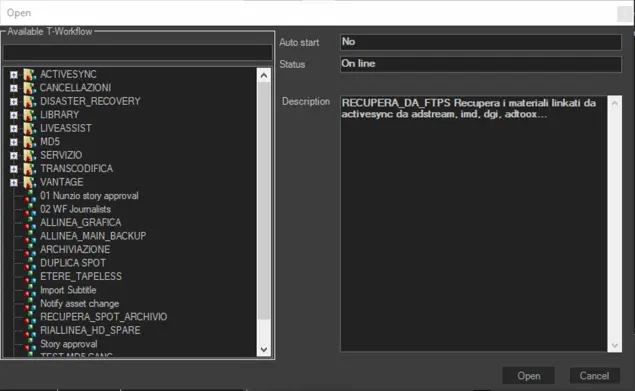
Tool : Launch T-workflow
Description : This function open the T-workflow dialogue where you can select an available T-workflow to process the subtitles, e.g. embed or burn the subtitles into media file.
Launch T-workflow
If the selected T-workflow is already activated in the system, the T-workflow would be re-launched to process the subtitles.
Tool : Help
Description : Shows this user guide.
 Subtitles_Tool
 Launch_T-workflow
 Featuring_subtitles
 Subtitles_content
 Language