59.12.2.1 Personal data form
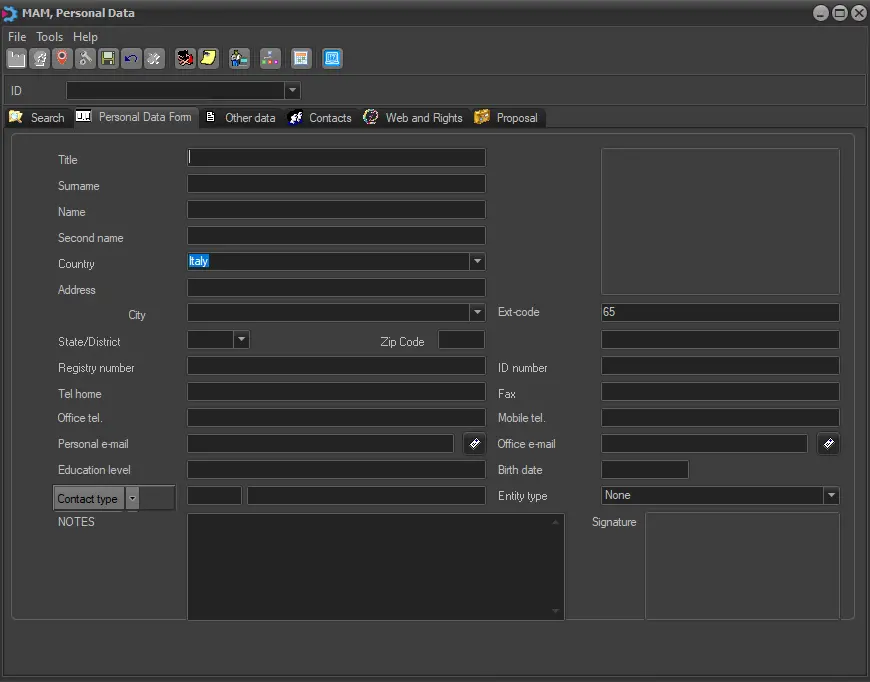
The Personal Data tab allows you to enter the main data regarding the currently opened contact. Some of the fields available in this tab change according to the type of contact card (natural person, company, etc.). Among the more relevant fields, there are:
Personal_Data_tab
Personal data form (natural person)
Title - Indicate the title (Mr., Mrs., Sir...) of the person to whom the contact card is referred.
Surname - Enter the surname of the person to which the form is related.
Name - Enter the name of the person to whom the form is related.
Second name - Enter the second name of the person to whom the form relates.
Country, Address, City, State/District, Zip code - Detail the person's location. You can enter up to 100 characters in the "Address" field to identify the location.
NB: Available cities, states/districts, and zip codes depend on the country set in Configuration > Settings > Basic > System; note that these fields can be manually entered for a more custom definition.
NB: If the person/company has an agency, the "Address" and "City" values would be retrieved from the agency registry.
Registry Number - Insert the VAT registration number referred to either customers or suppliers; it will help speed up future invoicing operations.
Tel home - Insert the home landline phone number of the person.
Office tel. - Insert the office phone number of the person.
Fax - The person's fax phone number.
Mobile tel. - The person's mobile phone number.
Personal email, Office email - Enter the email addresses to which automatic notifications will be sent. Clicking on the button beside this field will open the mail default app set in Windows, making sending an email to the inserted address possible.
NB: If this field is not filled, mailbox services will be unavailable for this code.
Education level - Insert the degree this person graduated from in high school, college, or university (diploma, Ph.D., master's, etc.).
Birth date - The date of birth of the person.
Contact type - Select the collection used to classify the contact card.
Entity type - Specify the relationship between the current person and the station, indicate if it's an 'account executive' (which commissions can be set using the Tools menu > Commissions function), 'agency', 'media centre', 'purchasing group' or 'none' of the previous.
EXT-CODE - The external code assigned to the specific customer. This information is helpful if the customer ID is unavailable when selecting the customer from the list.
NOTES - Use this field to insert additional custom notes about the person.
Signature - Load a digitized signature from a file or a scanner to be included in generated documents.
You can import images into a personal data form. The imported image can be 4K Ultra HD or oversized images, and it would be scaled and displayed in full in the image pane. Take into consideration the following guidelines when importing images:
- The image file name extension can be uppercase, lowercase, or mixed.
- If the file extension needs to be changed, it should be changed using the editor (instead of manual file rename) to prevent conversion errors during import.
Personal data form (company)
Company name - Enter the company name to which the form is related.
Country, Address, City, State/District, Zip code - Detail the company's location. You can enter up to 100 characters in the "Address" field to identify the location.
NB: Available cities, states/districts, and zip codes depend on the country set in Configuration > Settings > Basic > System; note that these fields can be manually entered for a more custom definition.
NB: If the person/company has an agency, the "Address" and "City" values would be retrieved from the agency registry.
Date establishment - Date of the official creation of the company.
Tax code GST - Insert the code used by the government to identify the company for fiscal purposes.
Registry Number - Insert the VAT registration number referred to either customers or suppliers; it will help speed up future invoicing operations.
Tel - Insert the phone number of the company.
Fax - The person's fax phone number.
Contact email, Accountancy email, Marketing email - Enter the email addresses referred to the different departments of the company, to which automatic notifications will be sent. Clicking on the button beside this field will open the mail default app set in Windows, making sending an email to the inserted address possible.
NB: If this field is not filled, mailbox services will be unavailable for this code.
URL: http:// - Insert the company's website. The HTTP protocol is automatically applied, so it must not be entered in this field. Clicking on the button beside this field will open the specified web page in the default browser set in Windows.
Entity type - Specify the relationship between the current company and the station. Available values are 'account executive', 'agency', 'media centre', 'purchasing group' or 'none' of the previous.
EXT-CODE - The external code assigned to the specific customer. This information is helpful if the customer ID is unavailable when selecting the customer from the list.
NOTES - Use this field to insert additional custom notes about the company.
Personal data form (location/equipment)
Description - Enter a brief description of the location.
Info - Insert some information about the location.
Country, Address, City, State/District, Zip code - Detail where the location is. You can enter up to 100 characters in the "Address" field to identify the location. Available cities, states/districts and zip codes depend on the country set in Configuration > Settings > Basic > System; note that these fields can be manually entered for a more custom definition.
Telephone - Insert the phone number of the location.
Fax - The location's fax phone number.
Email - Enter the address of the location to which automatic notifications will be sent. Clicking on the button beside this field will open the mail default app set in Windows, making sending an email to the inserted address possible.
NB: If this field is not filled, mailbox services will be unavailable for this code.
Contact type - Select the collection used to classify the contact card.
Entity type - Specify the relationship between the current company and the station. Available values are 'account executive', 'agency', 'media centre', 'purchasing group' or 'none' of the previous.
EXT-CODE - The external code assigned to the specific customer. This information is helpful if the customer ID is unavailable when selecting the customer from the list.
NOTES - Use this field to insert additional custom notes about the location.
Deleting personal data
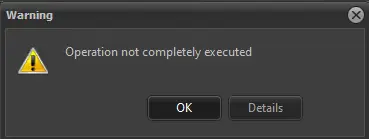
As a preventive measure, if you attempt to delete a "Personal Data" field linked to existing Contracts of Orders, a warning message will be prompted, and the data deletion will be denied.
Warning_1
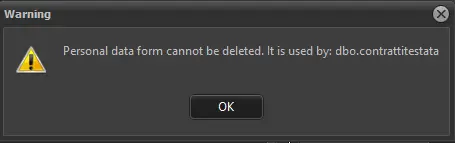
If you had performed the personal data deletion from the Toolbar, a different warning message would be prompted.
Warning_2
Nevertheless, both warning messages would deny the deletion of personal data from the Personal Data form.
The deleted personal data cannot be rest; red must be manually filed with new entries.
In the Personal Data Form, you can set the mandatory fields to be filled out by the customer when inserting personal data in the Order. The required fields can be defined in Configuration > Settings > Basic Configuration > Personal Data section.
 Personal_Data_tab
 Warning_1
 Warning_2