56.2.1.5 Status panel
The Status Panel contains all information and commands related to the automation playback.
Status_Panel
Station logo - The station logo is displayed in the top left of the panel, showing the logo assigned to the current automation station, the station's name, and the on-air automation status. Additionally, clicking on this logo would launch the Automation Settings window.
Play/cued info - The Play/cued info panel shows the event currently in play and the next cued event, indicating the 'scheduled time', the 'asset code', the 'scheduled duration', and the media status (i.e. green-box=media is present in the server, green-box=cued, red-box=media is missing in the server):
Play_cued_info
Counter panel - The counter panel displays On-air counters; it's composed of two panels: a main panel and a secondary panel:
Counter_panel
Display either (depending on what is set in the countdown at... parameter):
Top panel
Countdown - Countdown to either end of transmitting video or the next live/end live.
Playback status - Indicates the last executed command (e.g. play, stop, d-stop, etc.)
TX status - Indicates if the transmission (TX) to the secondary devices is ON (working) or OFF (not working).
Pass-through status - Indicates that it is possible to perform pass-through commands during live transmissions.
Master/Clone - Indicates if the current automation is either the Master or Clone.
Icons - The following icons will indicate specific information related to the automation playout:
General Info
-Indicates that the automation is running in Backup/Clone mode; the current automation is the Master automation.
-Time difference (in frames) between the transmission (TX) of the Master and Clone automations. For instance, "-18" on the Master means "18 frames earlier than the Clone automation".
-Time delay (in frames) of the transmission to the secondary devices.
-Report the broadcasting device status, program mode, communication, etc.
-Availability to perform pass-through commands during live transmissions
-Playlist reload in progress. In case this icon appears for several seconds or it's continuously displayed, it's due to the "event on-air > variable" property of the event.
Errors and warnings
-Indicates that one or more devices the automation uses have an error.
Devices status
-Deactivated or turned off
-Activated
-Activated and ready for broadcasting (one or more video files are loaded)
-Running
-Stand by / Pause at the end of the event
-In Loop
-Error
-A multiple event is ON AIR. A number will indicate how many events in the device have been associated with a single event in the scheduling.
-Unrecoverable error. Playout devices must be restarted.
Bottom panel
Clip - Countdown to the end of the event.
Live - Countdown to the next live event.
Fixed - Countdown to the next fixed event.
Information
Displays information messages (e.g. the decoder used for play, successful operations, errors notifications, etc.) as well as the current date and time:
Information
Commands panel
Command buttons available from the automation interface include the following:
Commands_panel
Please refer to the Automation Commands chapter for detailed information on supported playback functions.
NB: In cases where the system is set in Main and Clone mode, besides from the 'clone' command, all other authorities (e.g. skip) are executed only from the current automation to send the same power simultaneously to both the twin automations the operator must use the Remote Control Panel.
 Status_Panel
 Play_cued_info
 Counter_panel
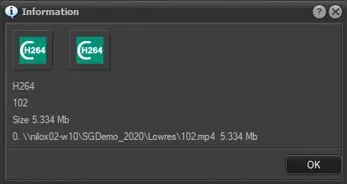 Information
 Commands_panel