72.2.1.14 Quick Results Functions
The results panel allows the operator to interact with the search results (retrieved assets) by right-click on the asset, the functions which are available are:
Description :
Quick functions - Open (Ctrl+O)
Description : Open one or more assets to view and manage its properties; notice that it is possible to select multiple assets by using the standard 'Ctrl' (free-click selection) or 'Ins' (from-to selection) keys.
If multiple assets are having the similar specific secondary event, it is possible to edit all selected assets at the schedule level in one go and save the changes in the playlist.
Quick functions - Select all (Ctrl+A)
Description : Select all the assets currently displayed in the current page.
Quick functions - Launch T-workflow
Description : Execute a T-workflow for selected assets. See chapter Workflow Management.
Quick functions - Restart T-workflow from action
Description : Re-launch the T-workflow action for the selected asset.
Quick functions - T-Workflow info (Ctrl+W)
Description : Manage T-workflows for selected assets. See chapter Workflow Management.
Quick functions - Export (Ctrl+E)
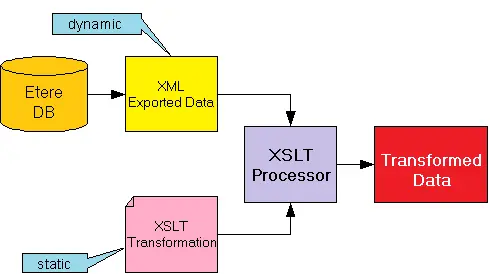
Description : Export the whole list of retrieved assets to CSV format or text format file. Exporting selective assets is not supported.
Export
NB: Please refer to Import/Export functions documented in Etere Scheduling module for details information on proper import and export processes.
Quick functions - Export Virtual Documents
Description : Select one or more assets from the list and export the virtual documents linked to the assets to a selected destination path.
If two or more virtual documents in the assets are having the same document name, the virtual documents would be exported to the destination path with the asset ID appended to the end of the file name.
Quick functions - Print
Description : Generates a report containing all assets displayed in the current search results page, including all information related to their displayed columns. If the asset has media associated with it, the asset would be indicated with a "*" (star) symbol in the Media column.
Quick functions - New asset (Ctrl+N)
Description : Creates a new asset form.
Quick functions - Create backup
Description : By using this option you are allowed to create a backup asset form of the selected one, you will be prompted to select the code of the new asset form. See the Tools Menu.
Quick functions - Add asset to season
Description : Associate the current asset to a season as an episode. See the proper Add asset to season chapter.
Quick functions - Change event type
Description : Change the transmission-type of the asset which is based on tis duration (i.e. fixed, variable, manual, timecode, etc).
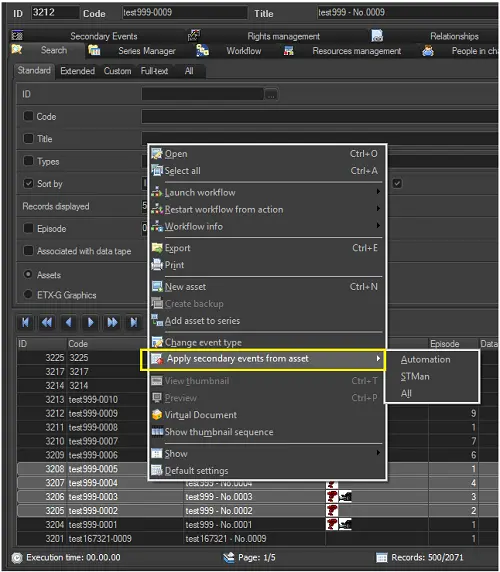
Quick functions - Apply secondary events from asset
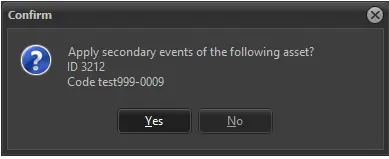
Description : Enable to select one asset or multiple assets, copy all last modified secondary events of STMAN, or Automation, or both, and apply to STMAN, or Automation, or both. You will be prompt to confirm the copy action.
Apply secondary events from asset 1
Apply secondary events from asset 2
Quick functions - View thumbnail (Ctrl+T)
Description : Opens a small form displaying (if available) the thumbnail of the current selected asset. Leaving this form enabled will allow to view asset thumbnails while scrolling between assets.
Quick functions - Preview (Ctrl+P)
Description : Open a window displaying the preview (if available) of the media associated to the selected asset.
Quick functions - Virtual document
Description : In case the asset contains virtual documents (added in the Rights Management section), this function will allow to quickly view the document.
Quick functions - Show thumbnail sequence
Description : Open a preview of the asset media including a sequence of thumbnails. Thumbnails sequences are automatically acquired by the "icons regeneration" T-workflow action.
Quick functions - Show
Description : Use this option to specify the following view parameters:
- Icons: If the media column should display either devices icons or codecs icons.
- Colors: Indicate if results must be colored according to their type color or their site color.
NB: Site colors are set in Etere Configuration > Configuration Editor whereas type colors in Etere Configuration > Settings section.
Quick functions - Default Settings
Description : Use this function to reestablish the results layout (i.e. displayed columns) to its default values.
You are required to enter keyword “ETERE” (in uppercase) in order to load the default settings.
 Export
 Apply_secondary_events_from_asset_2
 Apply_secondary_events_from_asset_1