59.3.9.5 Add Files to Video server
Action Description
The "Add files to video server" action allows to automatically bind a file (with a given extension) to an existing metafile (stored in a shared cloud device with a given codec). Assets must have at least one metafile related to the video server's device to add files to the database.
This action will perform a specific operation depending on whether the "filename" of the metafile is either populated or not in the database:
The filename is blank (e.g. omneon assets) - The existing meta file will be updated with the following information:
Media name - It won't be changed.
Device - It won't be changed.
Codec - It won't be changed.
Filename - It will be set as [MediaName].[FileExtension].For instance: 5412.MOV
Path - It will be selected as the meta device's path. For example: \\mdk1\video\
The filename is populated (e.g. mtx assets) - A new file* is added to the existing metafile, featuring the following information:
Media name - It will be set the same as the existing metafile.
Device - It will be set the same as the existing metafile.
Codec - It will be set the same as the existing metafile.
Filename - It will be set as: .For instance: 5412.MOV
Path - It will be selected as the meta device's path. For example: \\mdk1\video\
* As explained in the "Media Library > Technical data" chapter, one metafile can be related to multiple files stored in the same device with the same codec; this is because metafiles are uniquely identified according to the combination of their "device", "codec" and "media name".
Adding files to video servers
In case you have asset files stored in video servers (e.g. Omneon) that don't have a configured path, you can give asset files away (e.g. to perform QC tasks) just by following the steps below:
1. Open the Resource Editor, load the video server, configure a volume, and add the book to the video server's related cloud device.
2. Create an "Add files to video server" action specifying the video server's related cloud device and the file's related codec.
3. Add the "add files to a server" action to a T-workflow and launch said T-workflow for all assets stored in the video server.
4. The existing meta file will be updated as previously explained with the meta device's path and given filename.
Action Parameters
To create this action, complete the following data:
General info
Name - Enter a self-descriptive name for the action (e.g. Add files to MediaDeck1)
File extension - Specify the extension with which the file will be added (e.g. . MOV)
NB: Please note that the file extension must include the dot (.) character
Selection mode - Indicate how to select the file to be added. Available methods include:
Current metafile* - The device and codec to be matched will be retrieved from the "current metafile" set as a reference for the T-workflow instance.
Selected device/codec - The device and codec to be matched will be retrieved from the parameters set below.
* The "current metafile" of a T-workflow can be either set by a "set current metafile" action or inherited from a parent T-workflow (in case the T-workflow was triggered from within another).
Select device - If the selection mode is "select device/codec", specify here the meta device (e.g. Omneon01) to which the file will be associated.
NB: The selected cloud device must have at least one configured path.
Select code - If the selection mode is "select device/codec", specify the codec (e.g. MOV) with which the file will be associated.
Depending on the success of the requested operation, one of the following results will be returned by the action:
Ok (Files successfully added)
Noop (No file was added, nothing to do)
How to use it
To bind files to video servers, for example, from the Media Library module, it is first required to include the "Add files to video server" action into a T-workflow using the T-Workflow Designer:
Add_files_to_video_server
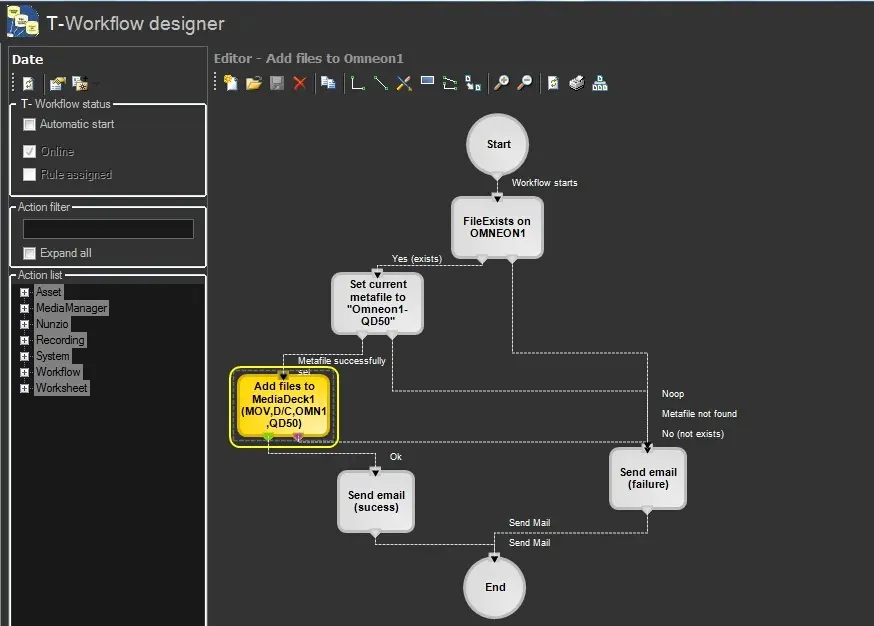 Add_files_to_video_server