65.4.2 ETX Master Control GUI
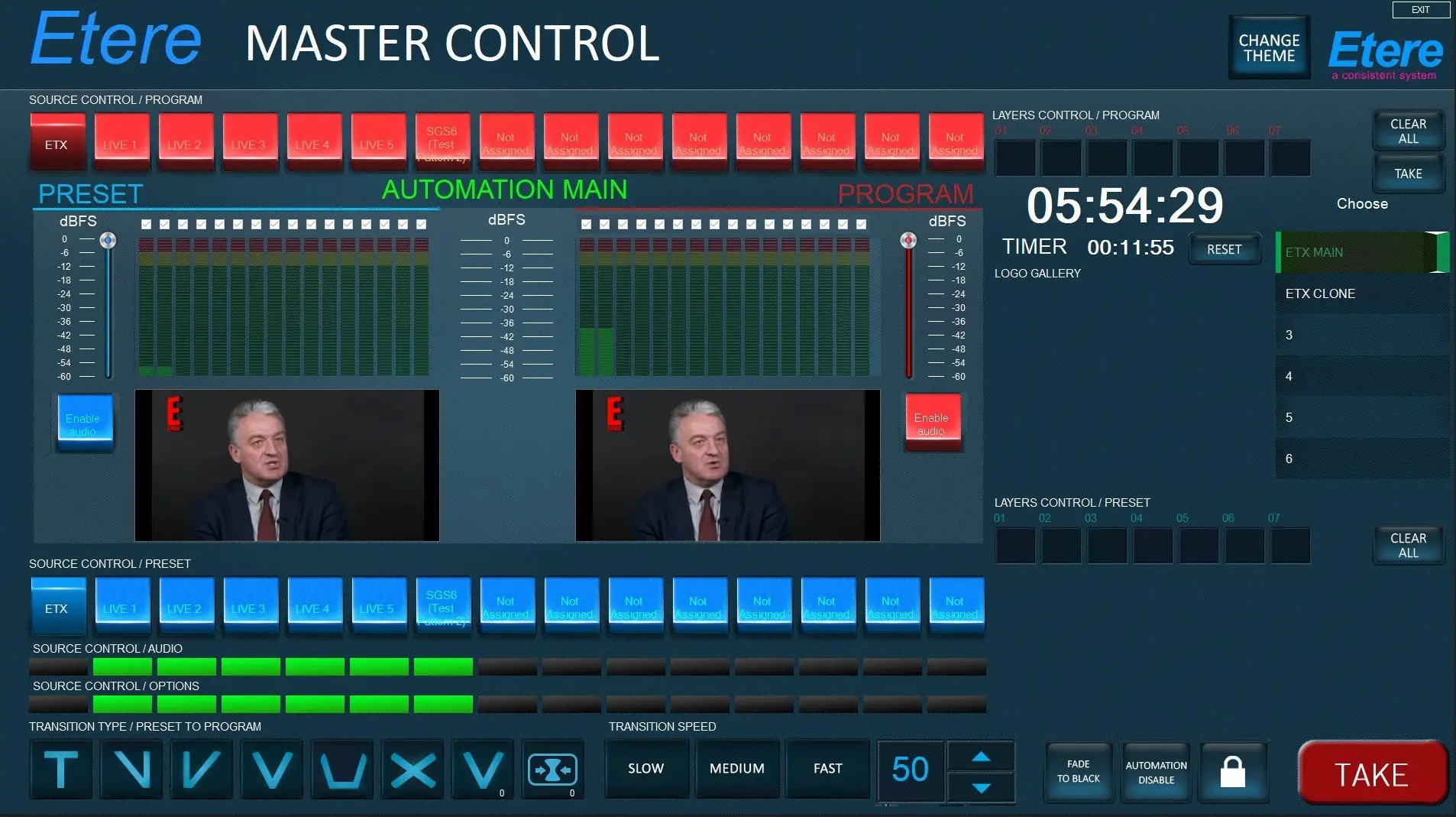
Master Control Panel's user interface is mainly composed by 5 areas, described below:
Source Control
This is the main area of the module, where users can control the automation instance connected. It is divided in three sections:
Preset / Program: This section, placed at the center of the window, allow to switch the automation preset or program to a different channel, among the ones configured in the resource, using the blue buttons (for preset) or the red ones (for program).
Users can see what is the current output signal from the 2 preview displays. Both preset and program have their volume bars and their vumeters, allowing to control and monitor also the output audio level. It is possible to enable or disable audio for each Preset and Program signals, using the "Enable/Disable Audio" button right below the audio bars.
From Etere version 32.2, it's also possible to enable\disable each audio track in preset or program, in order to preview only the needed audio from the clip playing or the live signal.
NOTE: The number of tracks displayed on the vumeters depends on the audio format of the live signal or on the audio set on the master control channel used by automation (audio format / audio mapping).
NOTE: It's worth mentioning that, in case an ETX Master Control or an Automation restart is needed, the output audio level is saved and kept as it was before the restart.
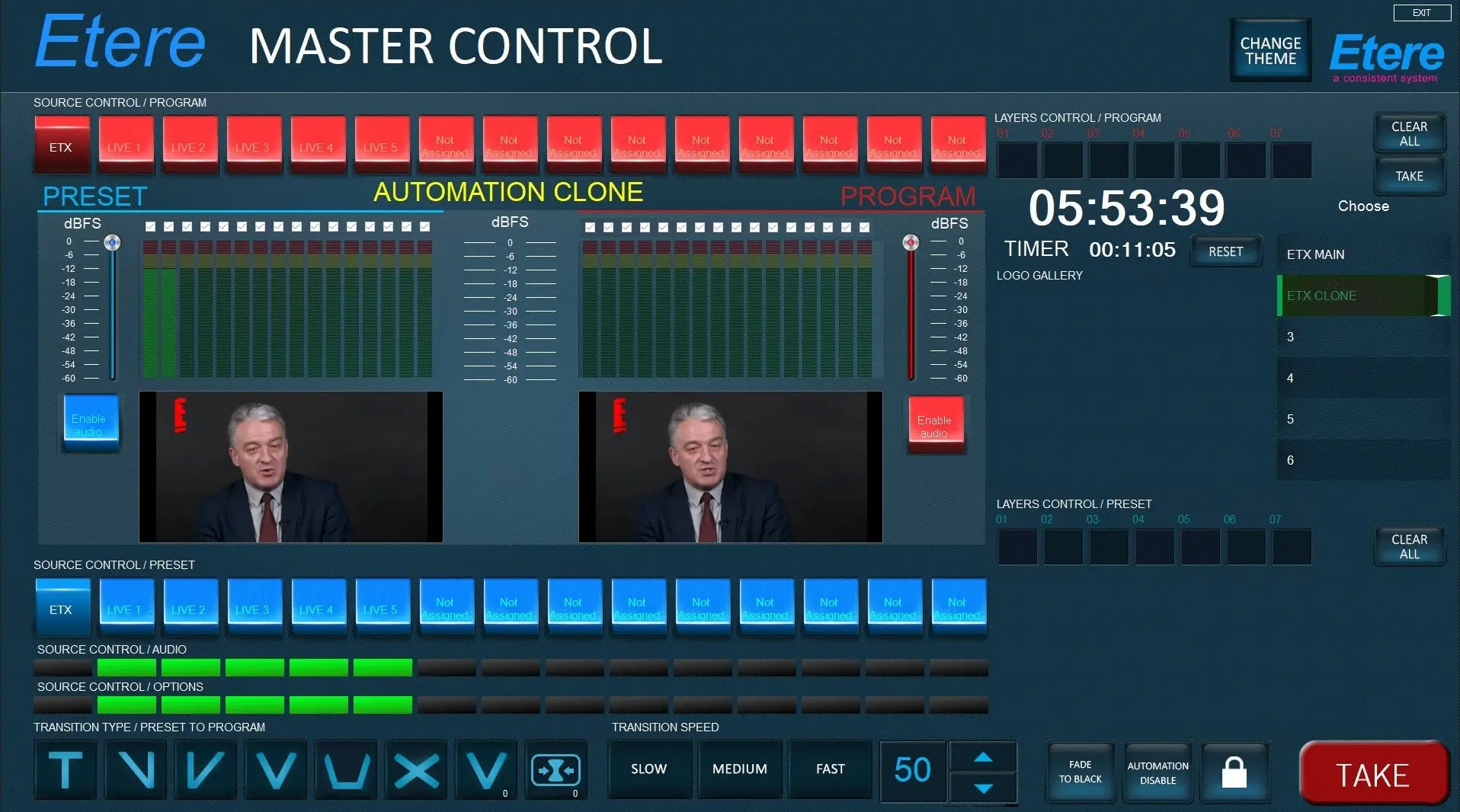
In case of a main\clone system, in this section is also indicated which is the Automation MAIN and which is Automation CLONE, in the center of the Etere MCP window.
MCP_ETX_MAIN_2
MCP_ETX_CLONE_2
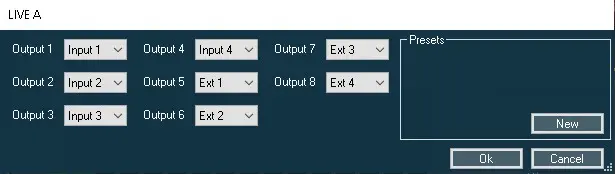
Audio: Placed below the preset buttons, this feature is available only for live channels and allow to set the audio mapping for a specific channel. Clicking on the green buttons the following window will appear:
source_control_audio
From here it's also possible to create mapping presets and load them when needed.
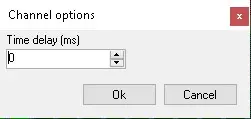
Options: This buttons allow to set the time delay (expressed in milliseconds) for a specific live channel. Clicking on them the following window will appear:
channel_options
Layers Control
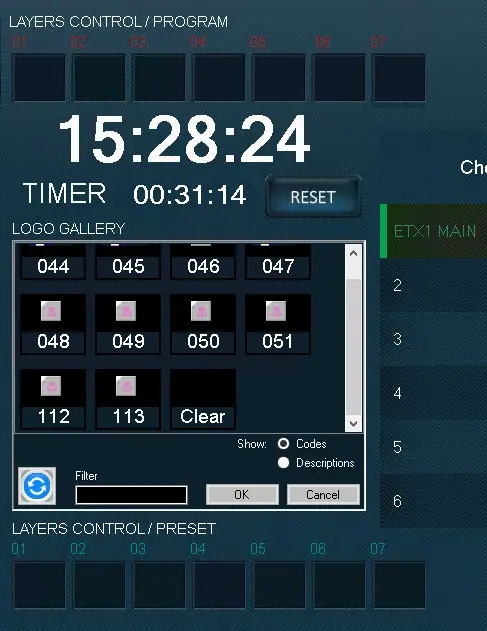
This section is where the user can choose and send onair graphics. There are seven slots (layers) available for both preset and program, clicking on one of them opens the logo gallery:
logo_gallery
Here are listed the configured logos (that can be shown by codes or descriptions). In order to load one on a layer, it's enough to select it and confirm with OK button.
Beside the layers, there is also the button CLEAR ALL, useful to remove every logo loaded on the layers.
If graphics are loaded only on preset layers, with TAKE button they will be applied on program and sent onair.
NOTE: when inserting a logo in program, it will be inserted in preset too. If the renderer in the resource channel is set with the Clean Feed option enabled, the logo won't be visible.
DSK
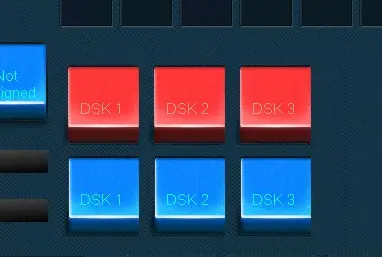
DSK buttons are located below the Layers Control section. They allow to send onair, over the playlist, the DSK signal configured in the resource channel. As the Source Control section, there is a set of buttons for preset (blue buttons) and one for program (red buttons). In the resource channel can be configured up to three DSK signals.
DSK_section
Automation Disbale
If the command is enabled on the mcp, any command that the mcp sends to the automation is ignored by the automation.
Transitions
In this area it's possible to apply a transition to the onair playlist.
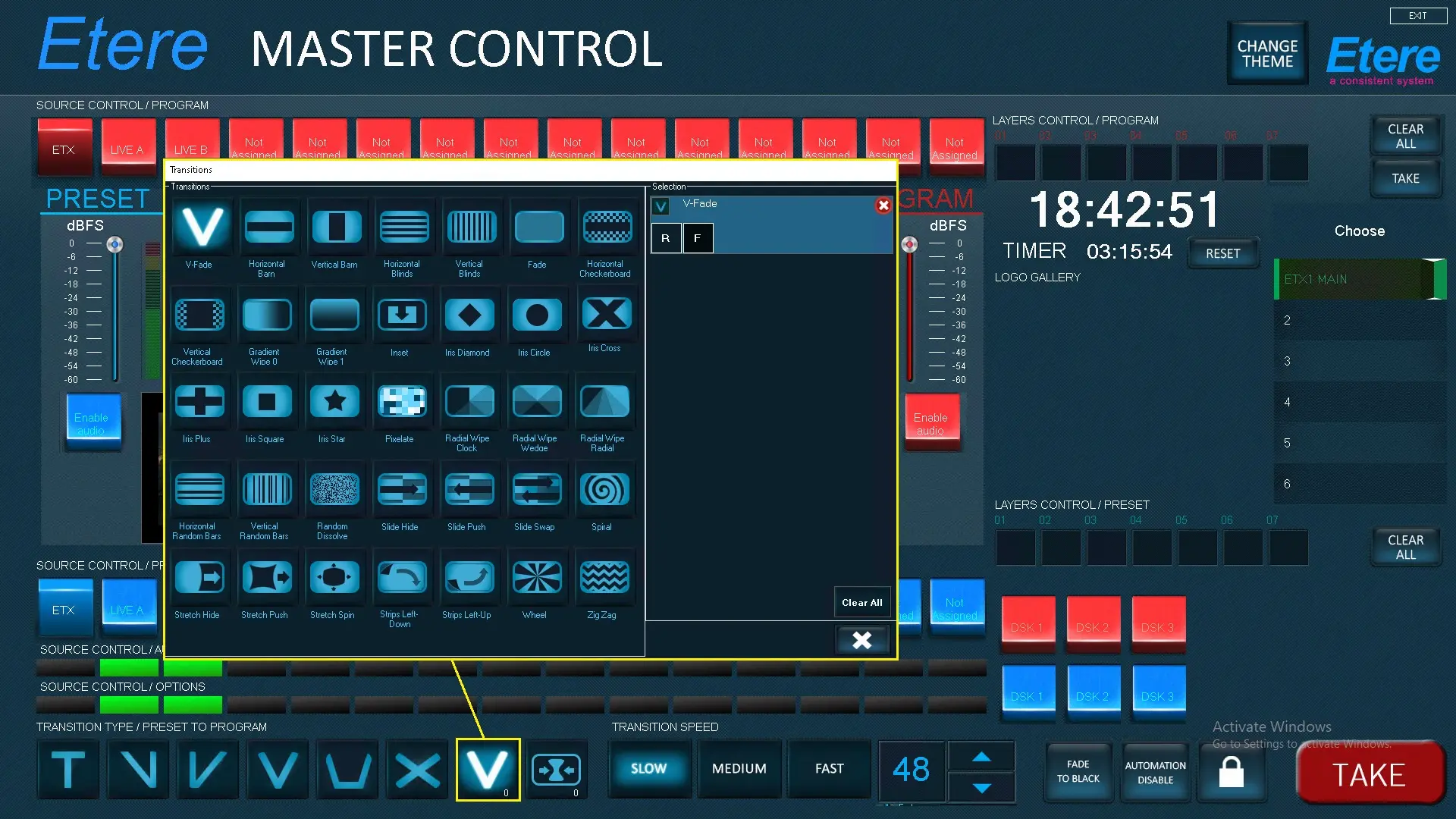
In Transition type section users can choose the transition among the predefined ones or open the Transitions Editor double-clicking on the button highlighted in the image below.
transition_editor
After that, users can choose the transition speed, by selecting a predefined value (slow, medium, fast) or a custom value.
Pressing the TAKE button, the transition will be applied on program.
For more information about transitions, please see chapter "Master Control Transitions Editor".
Master controls list
Before using Etere Master Control Panel, it must connect to the automations present in the playout system.
This is the area where the automations' IP addresses and communication ports are configured to allow the connection.
See chapter "ETX Master Control Configuration" for information about how to configure ETX Master Control.
 MCP_ETX_MAIN
 MCP_ETX_CLONE
 channel_options
 source_control_audio
 logo_gallery
 DSK_section
 transition_editor