59.3.14.15 Create an email profile in SQL Server
T-Workflow actions that provide email notification capabilities require, to be correctly executed, a valid email profile to be created in your SQL Server.
This section contains the step-by-step procedure to configure a SQL Server DB Mail (SQL Server 2005 and higher) to send emails using an email account (SMTP, Gmail or Windows Live Mail). The steps to configure DB Mail are the following details:
1. Open Microsoft SQL Server Management Studio
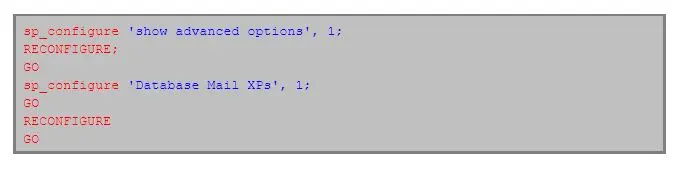
2. Enable the Database Mail service to execute the following statement:
3756_Enable_Database_Mail
3. Permit to send mail to the SQL Agents service account, either MS domain (e.g. mydomain\myuser) or MS SQL (e.g. sa). To do this, just add said account to the DatabaseMailUserRole database role following one of the methods below:
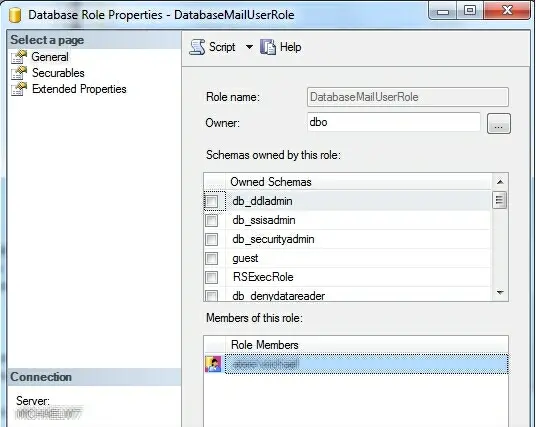
▪Expand the "Databases > System databases > msdb > Security > Roles > DB roles", double-click on the DatabaseMailUserRole and add the SQL Agents service account as a member of this role:
3757_DB_roles
▪Create a new query and execute the following statement:
new_query
exec msdb. dbo.sp_addrolemember @rolename = 'DatabaseMailUserRole',
@membername = '<username>'
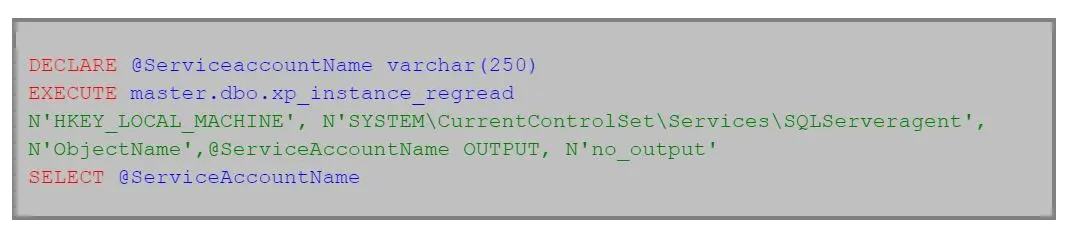
It's worth mentioning that you can get the name of the SQL Agents service account by executing the following statement:
QL_Agents_service_account
DECLARE @ServiceaccountName varchar(250)
EXECUTE master. dbo.xp_instance_regread
N'HKEY_LOCAL_MACHINE', N'SYSTEM\CurrentControlSet\Services\SQLServeragent',
N'ObjectName',@ServiceAccountName OUTPUT, N'no_output'
SELECT @ServiceAccountName
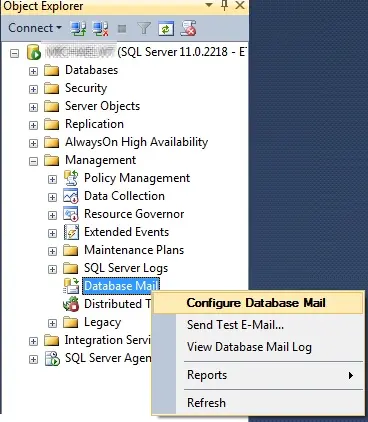
4. In the Object Explorer tree, expand the Management section, right-click on Database Mail and choose Configure Database Mail to start the Database Mail Configuration Wizard:
Configure_Database_Mail
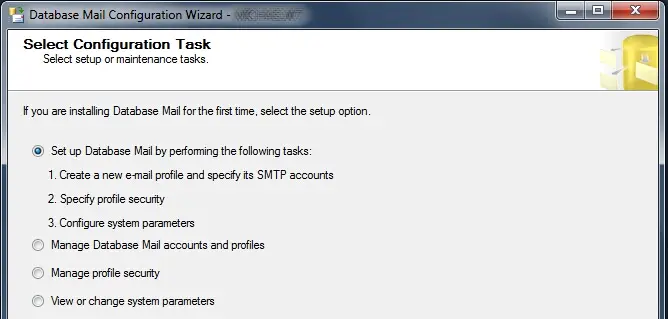
5. Click Next. In the Select Configuration Task screen, choose "Set up Database Mail by performing the following tasks:" and click "Next".
Set_up_Database_Mail_by_performing_the_following_tasks
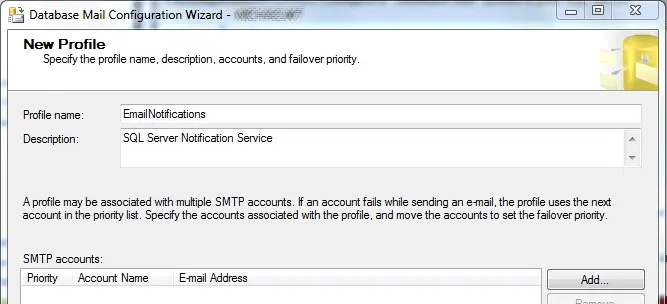
6. Now, you will be required to enter a Profile Name. This can be any Arbitrary Name that will help you identify the Profile. You might also want to add a Description.
Profile_Name
7. Click on Add to create a new Database Mail Account. Enter an account name and description, set the following parameters, and click on [Finish].
Email address
SMTP: Name of the email address for the account. This is the email address from which the email was sent.
(e.g. sender@my-station.tv)
GMAIL: Your Gmail ID
(e.g. john.doe@gmail.com)
LIVE MAIL: Your Live email ID
(e.g. john.doe@hotmail.com)
Display Name
SMTP: Name to display on email messages sent from this account.
(e.g. automatic email sender)
GMAIL: Your name
(e.g. John Doe)
LIVE MAIL: Your name
(e.g. John Doe)
Reply email
SMTP: Email address to use for replies to email messages sent from this account.
(e.g. admin@my-station.tv)
GMAIL: Any reply-to email account
(e.g. john.doe@gmail.com)
LIVE MAIL: Any reply-to email account
(e.g. john.doe@hotmail.com)
Server name
SMTP: Name or IP address of the account's SMTP server to send email.
(e.g. smtp. mystation. tv)
GMAIL: smtp.gmail.com
LIVE MAIL: smtp.live.com
Port number
SMTP: Port number of the SMTP server for this account. (the default SMTP port is 25)
GMAIL: 587
LIVE MAIL: 25
SSL
SMTP: Enable this if your server uses an SSL connection
GMAIL: Enabled
LIVE MAIL: Enabled
SMTP auth.
SMTP: Indicate an authentication method:
Windows(suggested) - Use the credentials of the Windows account of the "SQL Server SQL Server Database Engine". - (e.g. mystation\sis)
Essential - Use a specific username and password that do not correspond to a SQL Server user or Windows user. (e.g. user=admin; pass=1234)
Anonymous - Authentication is not required.
GMAIL: Basic
User - Your Gmail ID
Pass - Password for your Gmail ID
LIVE MAIL: Basic
User - Your Live Mail ID
Pass - Password for your Live Mail ID
NB: Optionally, you can add more accounts to your Profile so that the following statement is used if an account fails while sending an email.
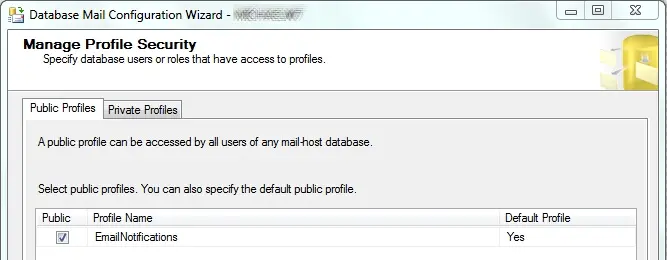
8. Back on the New Profile screen, click Next. The next Manage Profile Security screen allows you to set the Public Profiles, the Private Profiles and the Default Profiles for each of the Public and Private Profiles.
3758_Private_Profiles
9. Click Next. This will move us to the Configure System Parameters screen. You may want to tweak the parameters; however, we will keep these as default for demonstration purposes. Now, click Next.
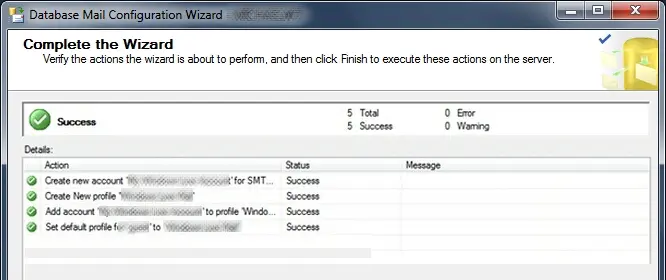
10. Review the parameters in the Complete the Wizard screen and click Finish. Ensure that all 5 Actions succeed, and then click Close.
Complete_the_Wizard
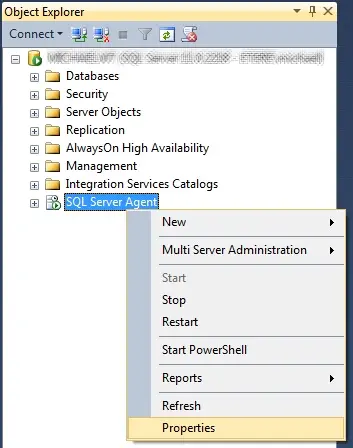
11. Enable sending alerts from SQL Agent this, right-clicking on the SQL Server Agent and selecting the properties option:
SQL_Server_Agen
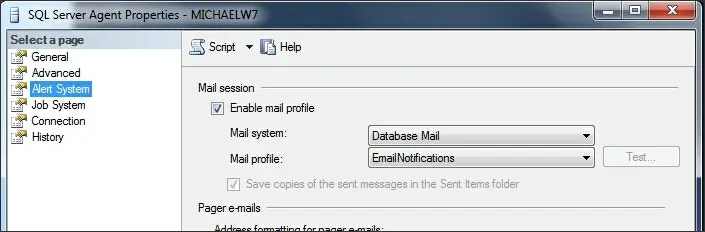
Under the Alert system section, check on the "Enable mail profile" option and set the system and Profile to be used:
Enable_mail_profile
12. Next, you need to set the "Database Mail Executable Minimum Lifetime (seconds)" parameter value from default 600 seconds to "20 seconds" as the widely accepted value to prevent the email process from stalling in the database.
Database_Mail_Executable_Minimum_Lifetime_(seconds)
After which, you can verify the above setting by sending a test email using one of the following methods:
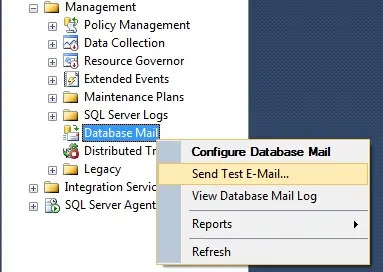
a) Right-click on Database Mail, choose Send Test Email and enter a recipient (To) and click Send Test Email:
send_the_email_using_a_stored_procedure
b) Alternatively, send the email using a stored procedure as follows:
exec msdb. dbo.sp_send_dbmail
@profile_name = 'TestingProfile',
@recipients = 'someone@your-company.com',
@subject ='Test e-mail',
@body ='Just testing...'
 new_query
 QL_Agents_service_account
 Configure_Database_Mail
 Set_up_Database_Mail_by_performing_the_following_tasks
 Profile_Name
 Complete_the_Wizard
 SQL_Server_Agen
 Enable_mail_profile
.webp "Database_Mail_Executable_Minimum_Lifetime_(seconds)") Database_Mail_Executable_Minimum_Lifetime_(seconds)
Database_Mail_Executable_Minimum_Lifetime_(seconds)
 Send_Test_E-Mail
 send_the_email_using_a_stored_procedure
 Enable_Database_Mail
 Private_Profiles
 DB_roles