72.6.2.1 Inserting Video/Audio Segments
All the functions present in the upper toolbar and which allows managing segments are following described:
Segment List functions
•New: Clears the list of segments and creates a new empty list,
•Open: Loads an existing list of segments previously saved as a .ETL file,
•Save: Stores the current list into a file with an .ETL extension,
•Save as: Saves a copy of the current opened list.
Segments functions
Etere Story Creator allows users to inserting existing audio/video from either, existing segments present in the database or files stored in the local system:
•Search for asset: Search and select entire assets from the Etere's Media Library module (the "visible" section of the asset's EDL will be automatically proposed for the start and end marks):
Asset search
•Search for available segments in the database: Search and select asset segments created by the Metadata Indexing module:
Retrieved segments can be selected by ticking-off their selection boxes and added into the segment list by pressing the [Select] button; additionally, by making right-click on a certain segment it will be possible to preview its proxy file before selecting it.
•New Segment: Opens a form that allows creating a new segment based on the currently loaded (previewing) segment:
Search for available segments
As shown above, the proposed SOM will be the current previewing time point. Once compiled press the [Ok] button to insert the new segment:
Current previewing
•Delete Segment: Removes the selected segment from the list,
•Edit: It allows to view and modify important data related to the current selected audio/video segment (i.e.: description, media, SOM, EOM, etc):
Edit
Playback functions
•Play SOM and EOM: Put the segment preview in play from the its SOM and its EOM,
•Play first 'X' seconds of the story: Plays only the 'X' initial seconds of the current segment.
•Play last 'Y' seconds of the story: Plays only the 'Y' final seconds of the current segment.
•Zoom In/Out: Change the view by increasing or decreasing the zoom of the segments to fit it to your needs.
•Settings: Set here the number of seconds to display the segment quick view (i.e.: Play first/last 'n' seconds).
SOM/EOM functions
All segments counts two timecode options positioned just below its SOM/EOM thumbnails, these options are:
• Preview: It play back the selected segment in the Preview Form.
•Move device to SOM/EOM: It position the preview at either the SOM or EOM of the clip.
• Read the device position from SOM/EOM: It set either the SOM or EOM of the clip at the current Preview's position.
NB: Moreover, each time the user makes right-click on either a certain segment or on the segments List, the same options described above will be displayed, allowing the operator to set the segment's most important properties.
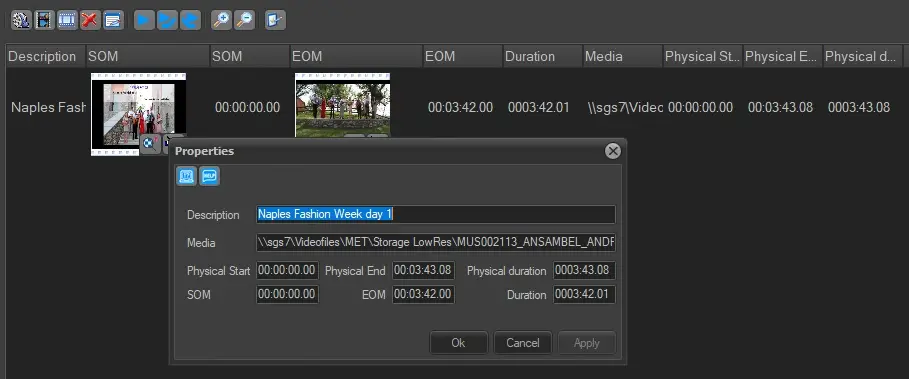 Edit
Edit
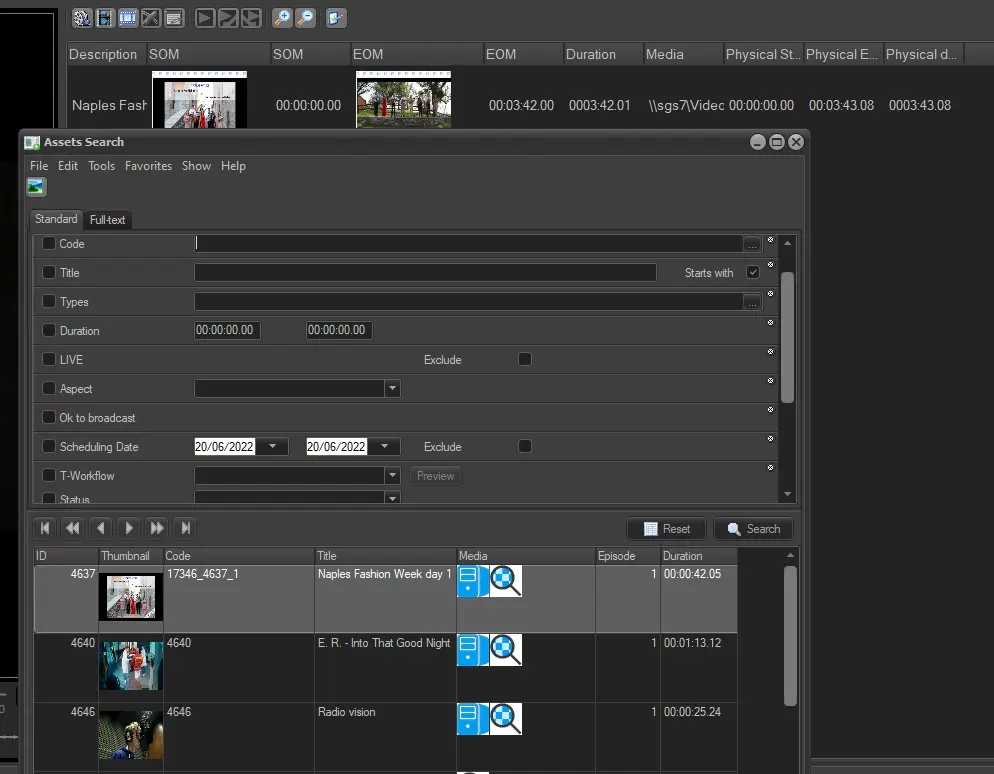 Asset_search
 Current_previewing
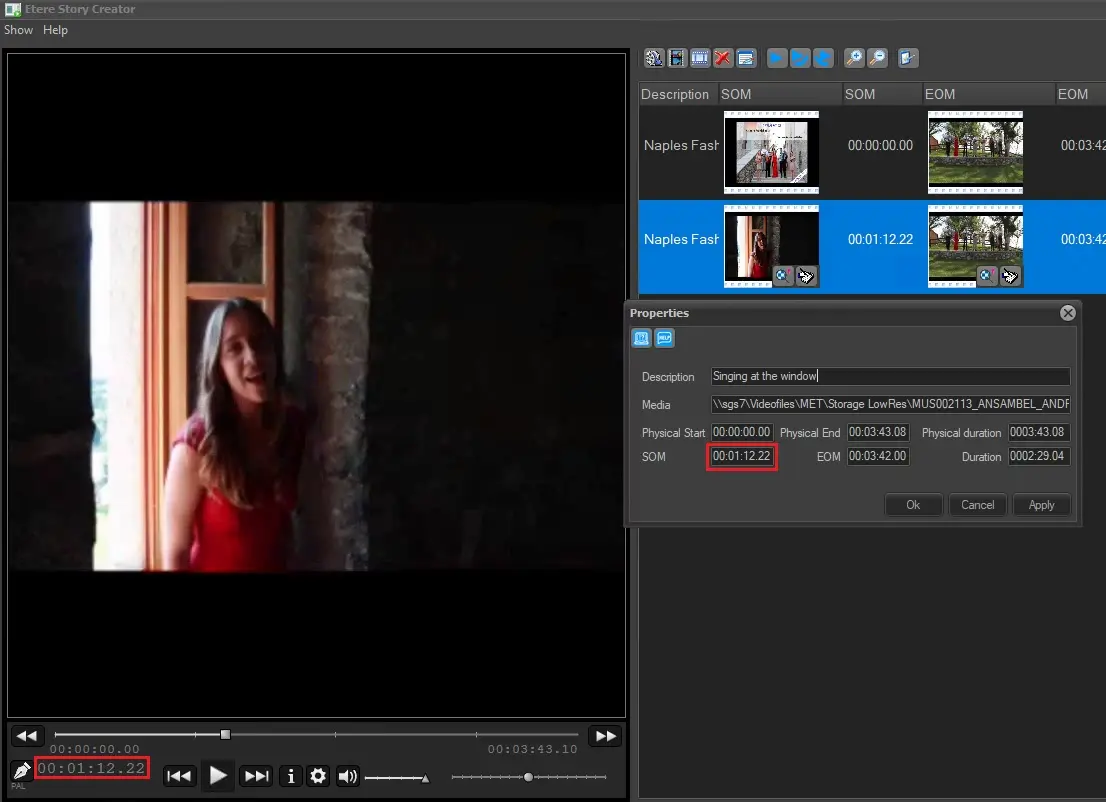 New_Segment
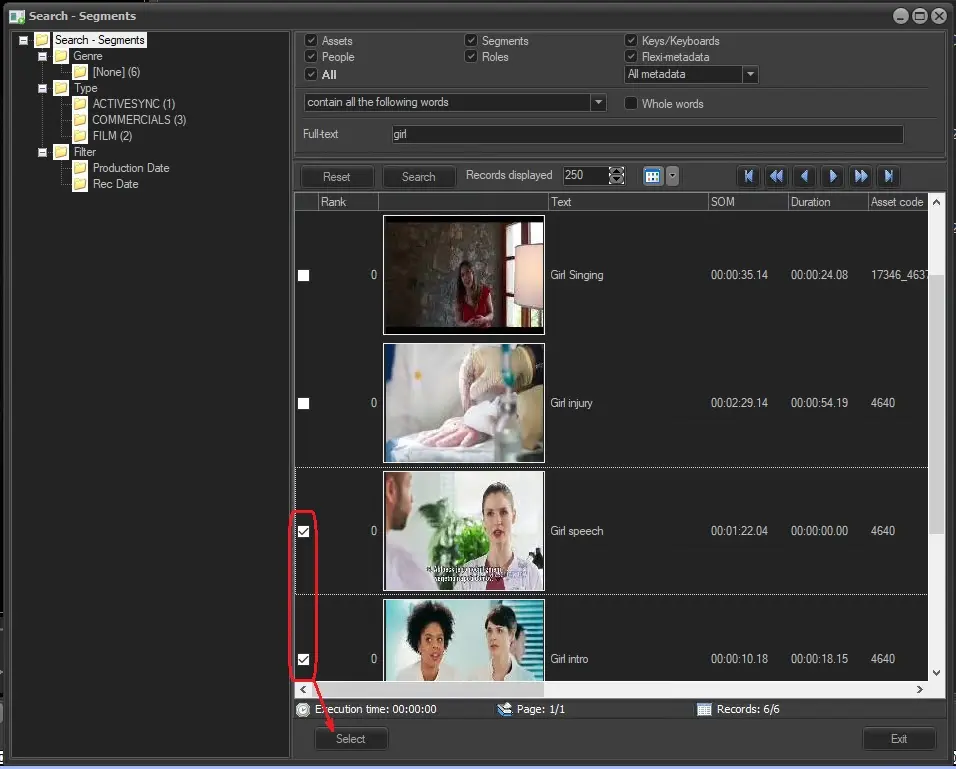 Search_for_available_segments