70.3.6.10 Formatting a LTFS Tape Media
Formatting a LTFS Tape Media
-All tape media must be format for LTFS before it can be used.
-A tape media formatted on later version of LTFS cannot be recognized on older version of LTFS.
-Mount a tape media on LTFS drive, open Windows Explorer and right click on LTFS drive and select Format to format the media.
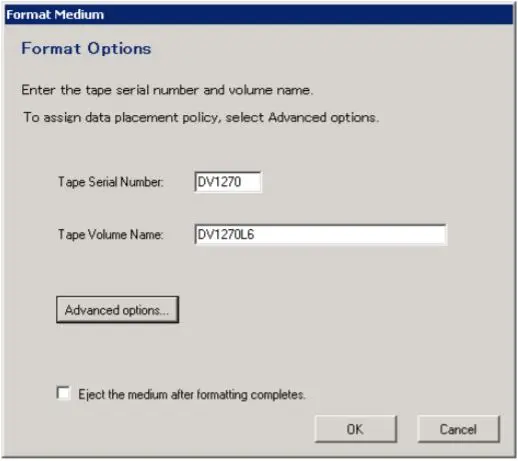
-Click <OK> to launch the "Format Medium wizard".
Format Medium
-Enter the Tape Serial Number (all uppercase) and Tape Volume Name (which is usually the tape label) and click <Advanced options>.
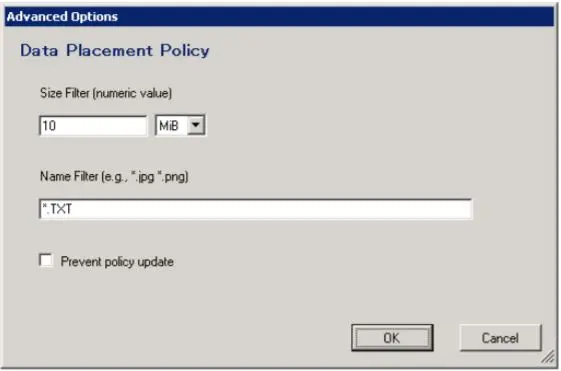
Advanced options
-In Advanced Options, you can restrict the file copy function by specify a file size in “Size Filter” parameter, files with file size below the specified value would be stored in the index partition.
-In the “Name Filter” parameter, you can specify the file name or file extension, only files that matches the file name or extension specified would be stored in the index partition.
-The “Prevent policy update” checkbox is used to allowed/disallowed changes in the selected formatting data placement policy when a media is mounted.
-Click <OK> to continue. The wizard would display all information collected and ready to start formatting the media.
-Enable checkbox “Eject the medium after formatting completes” and click <OK> to proceed with the formatting of tape media.
-When formatting complete, the media would be eject from the LTFS tape drive.
Writing to LTFS format
To archive files and data on LTFS format, new tape media must be used and select the desired format during scheduling.
To select LTFS format during archiving, launch the HSM Headquarters module and select “Options” from the Configuration title bar.
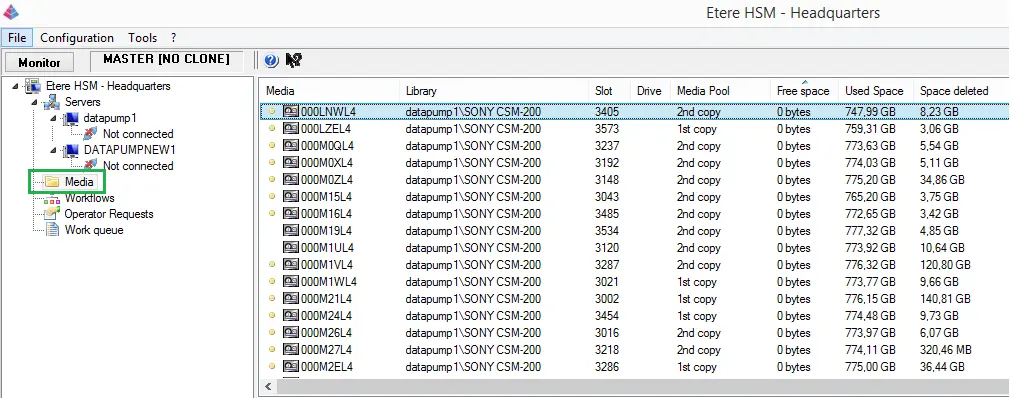
Etere HSM - Headquarters
Under the “Data format for new tapes” select LTFS from the list and click <Apply> to write data to tape media in LTFS format.
 Etere_HSM_-_Headquarters
 Format_Medium
 Advanced_options