9.2.4.18 Virtual Documents
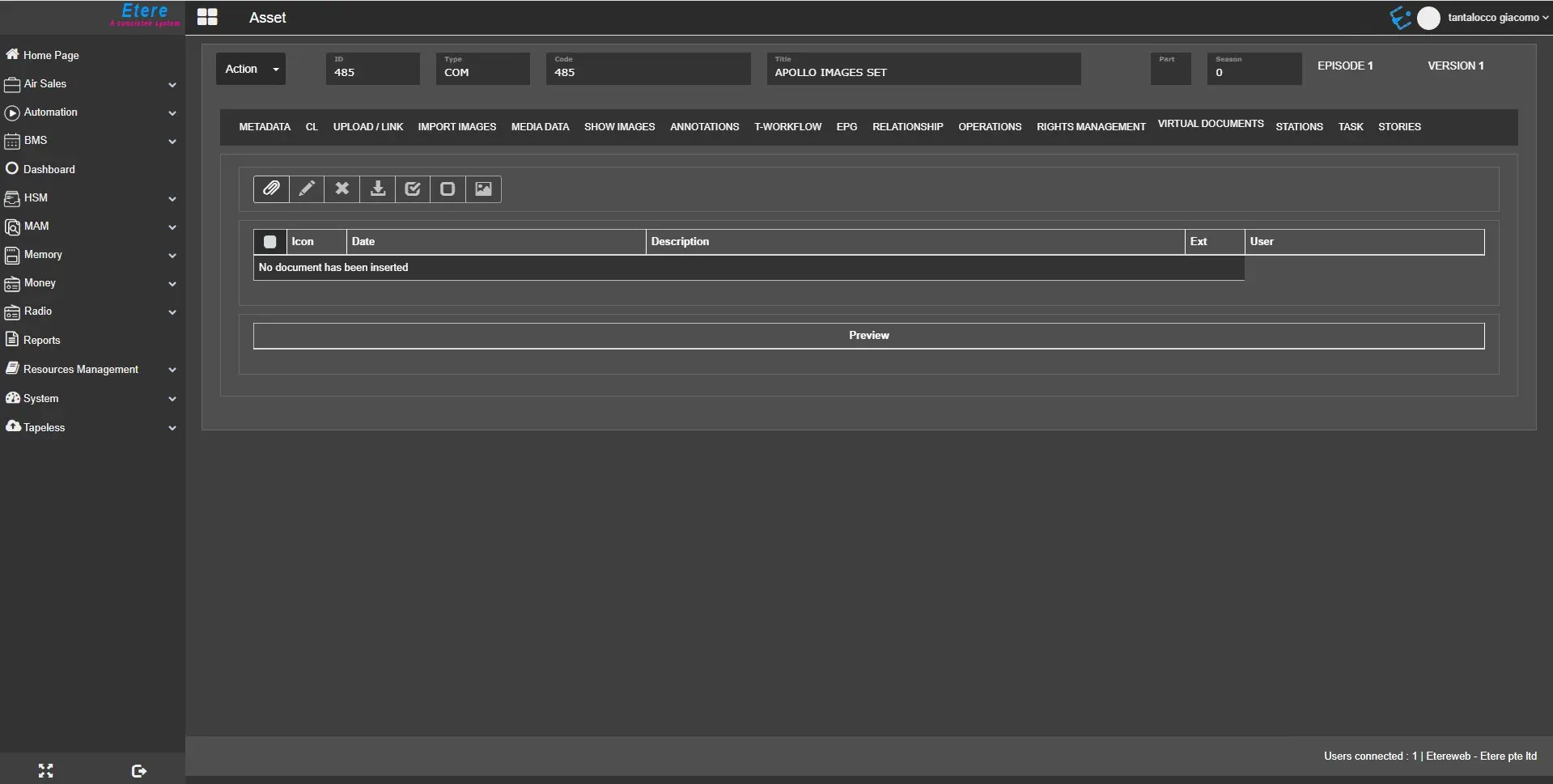
The Virtual Documents tab displayed all the digital files (e.g. image, document, PDF, text, etc.) attached to the current asset using the Etere Document Management (DoMa) feature.
Virtual_Documents_tab
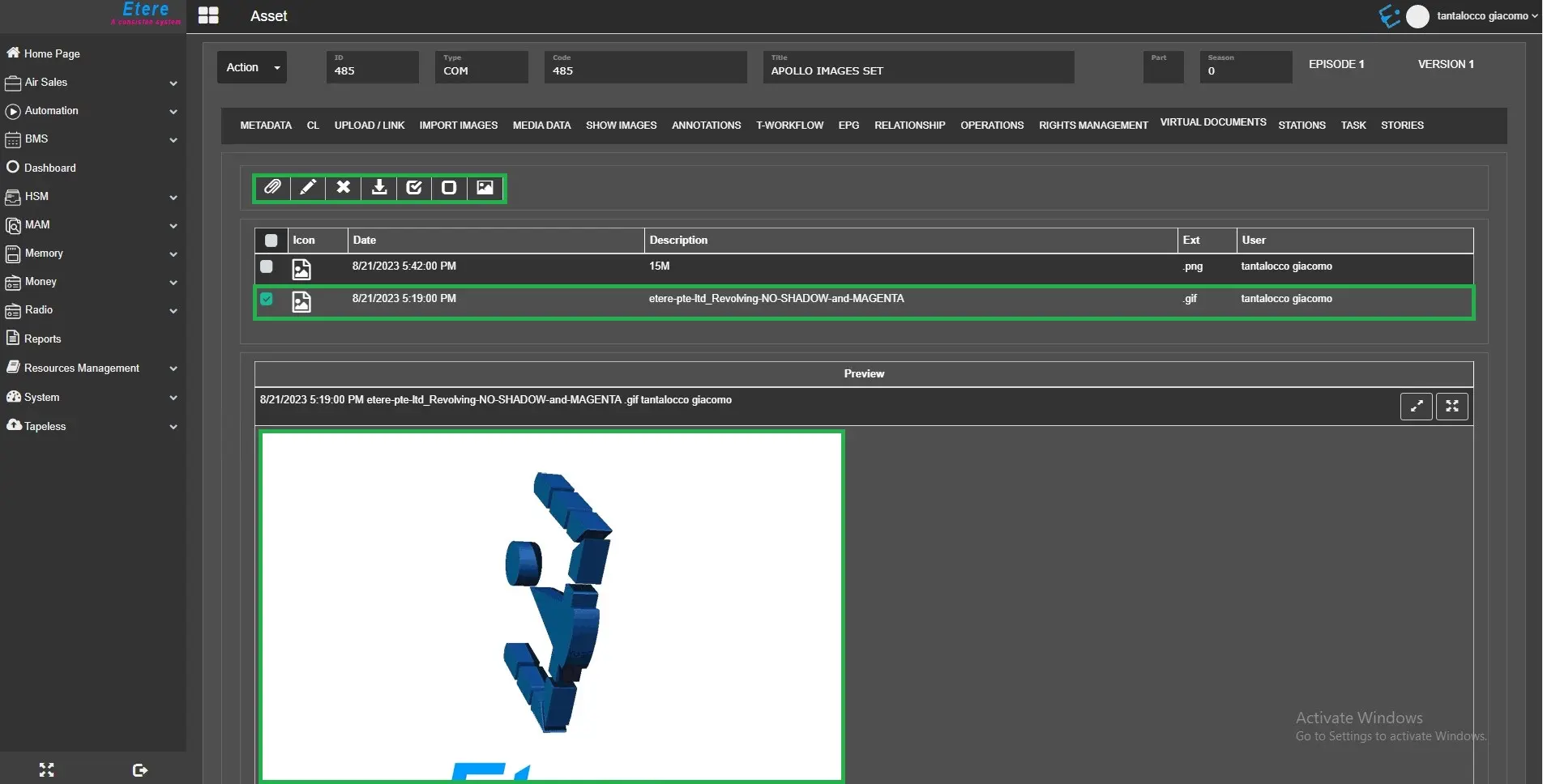
The attached virtual documents are listed above. The information in the attached virtual documents includes:
- Icon: indicate the type of document imported, e.g. pdf, word, excel, etc.
- Date: the date and time when the virtual document was uploaded.
- Description: a brief description of the document content.
- Ext: the file extension of the virtual document, e.g. pdf, txt, etc.
- User: the user name who logs in to EtereWeb.
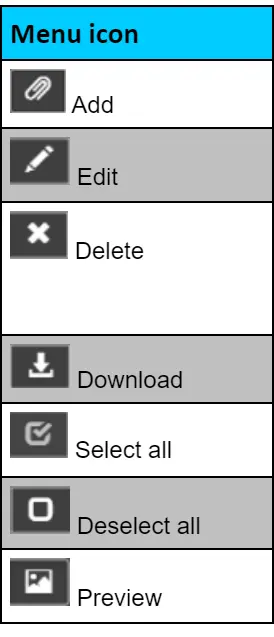
A toolbar menu deployed at the left panel provides the following functions:
Menu_icon
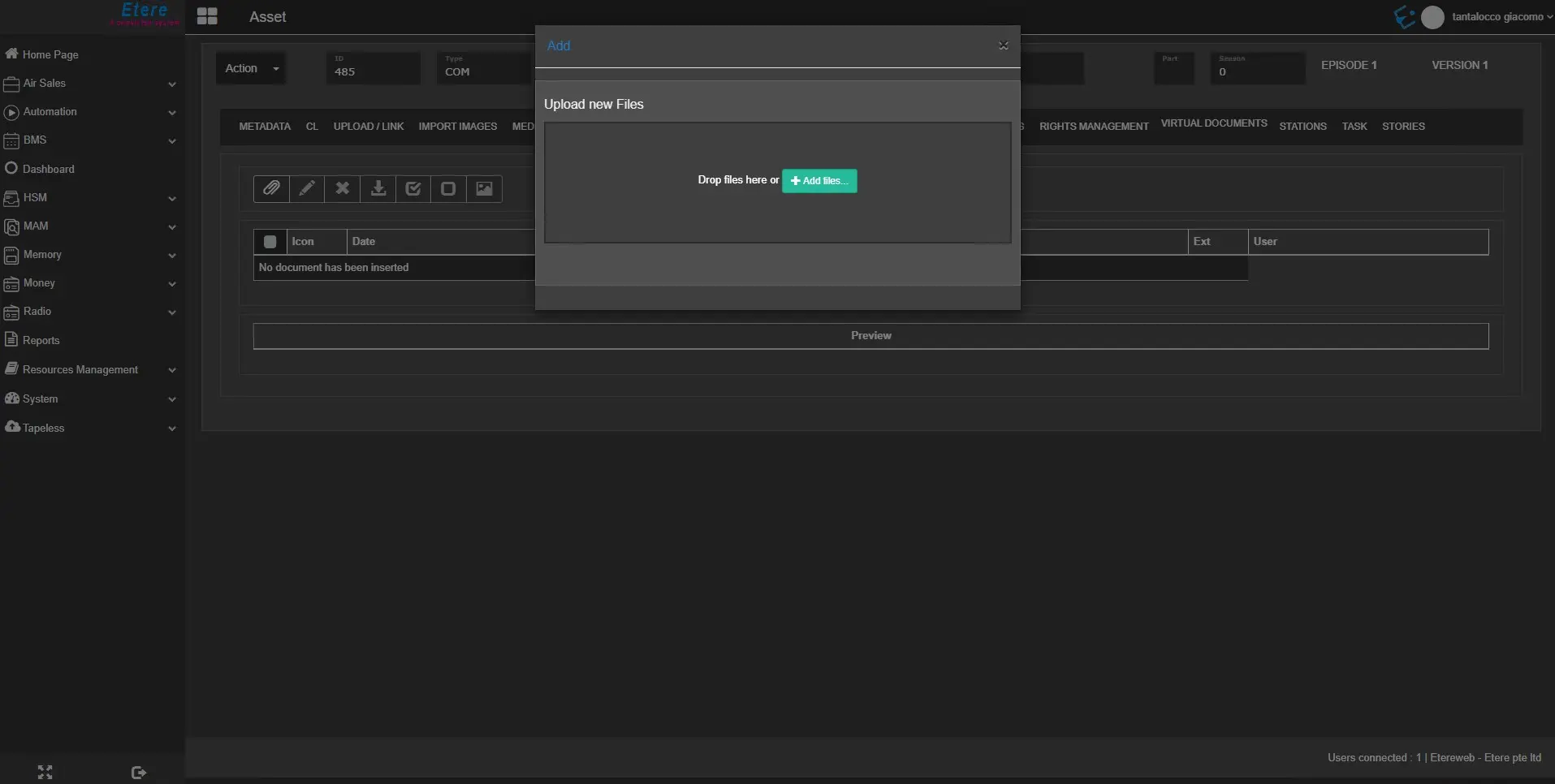
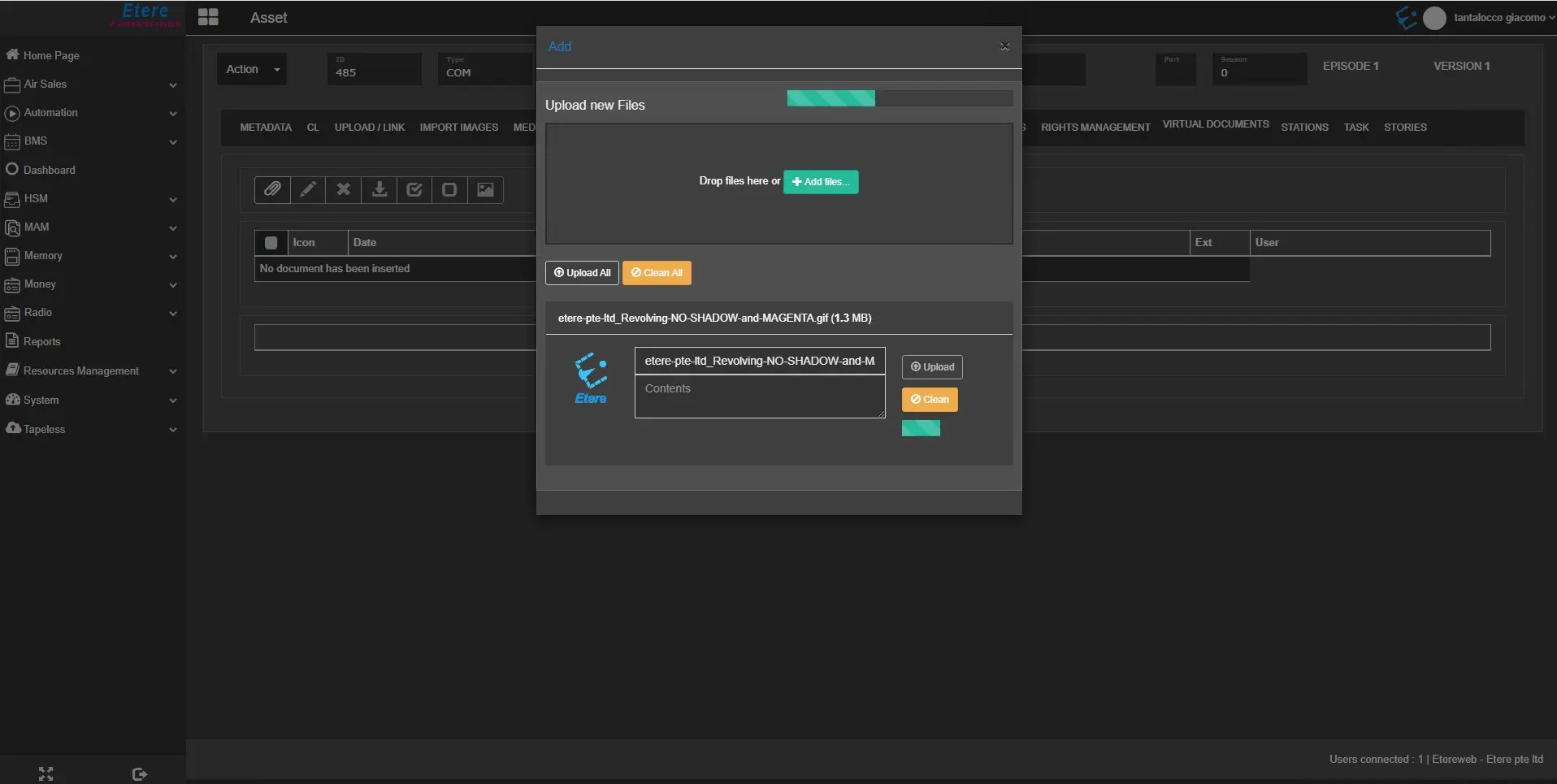
- Add: Use this icon to add a virtual document to the asset.
- Edit: Put a check on a virtual document and use this icon to edit the description and its content.
- Delete: Use this icon to delete the selected virtual document.
- Download: Use this icon to download the attached document to the local workstation.
- Select all: If multiple virtual documents exist, use this icon to select all documents simultaneously.
- Deselect all: This icon undo the selection of all virtual documents.
- Preview: Use this icon to zoom in on the selected document in the Preview window in the right panel.
WARNING: The Delete function only removes the link to the asset. You can use the DoMa function in MAM with Full-text search to filter and remove the documents or reports in the asset.
Note: The Edit and Delete functions would be hidden when the user is without "Web\ASS_GENDATA_VD_EDIT" rights accessing the virtual document.
To preview a virtual document, check the document and click the Preview icon to view the virtual document in the preview window.
virtual_document_preview
 Menu_icon
 virtual_document_tab
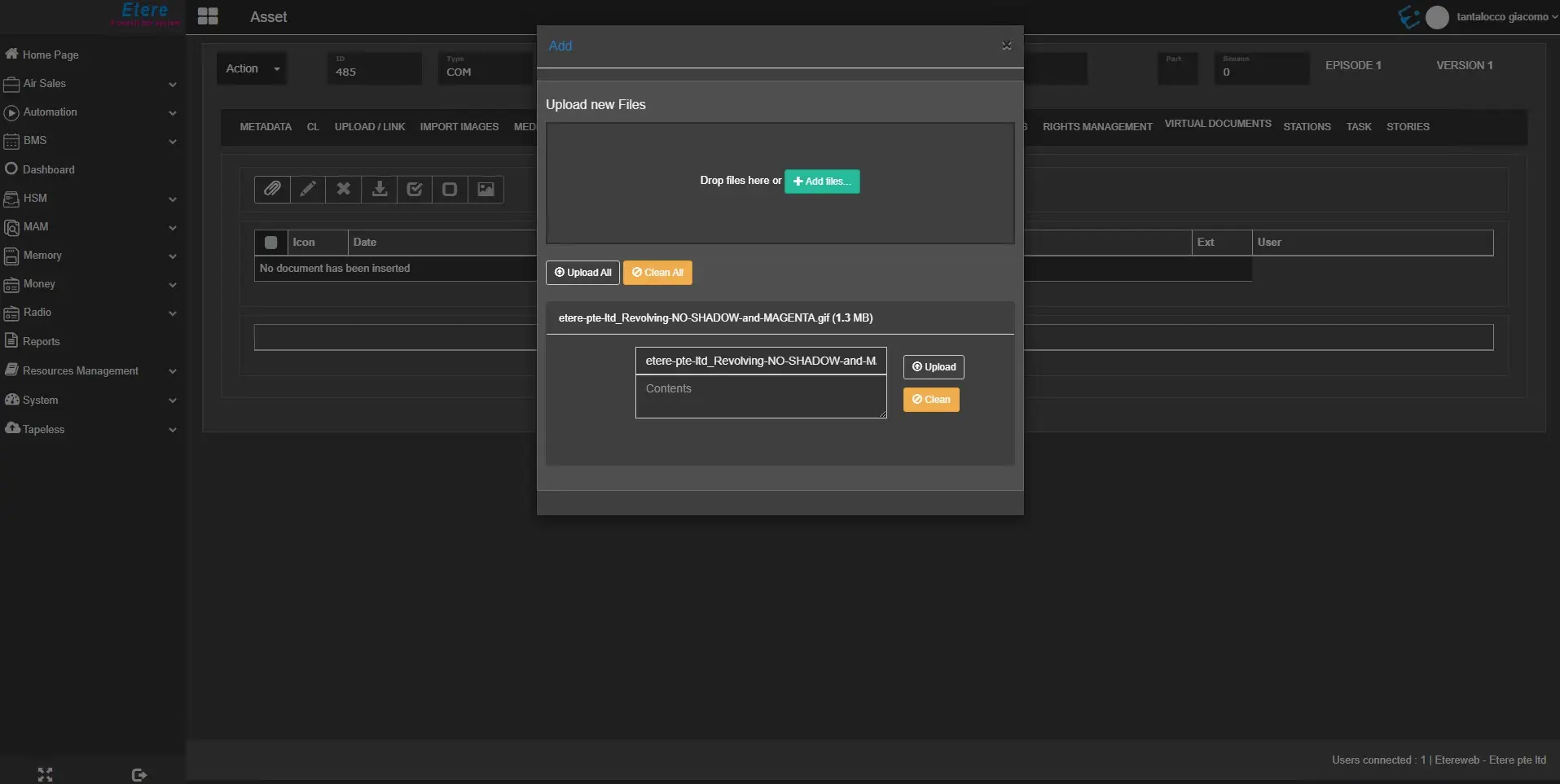 finalizing_upload
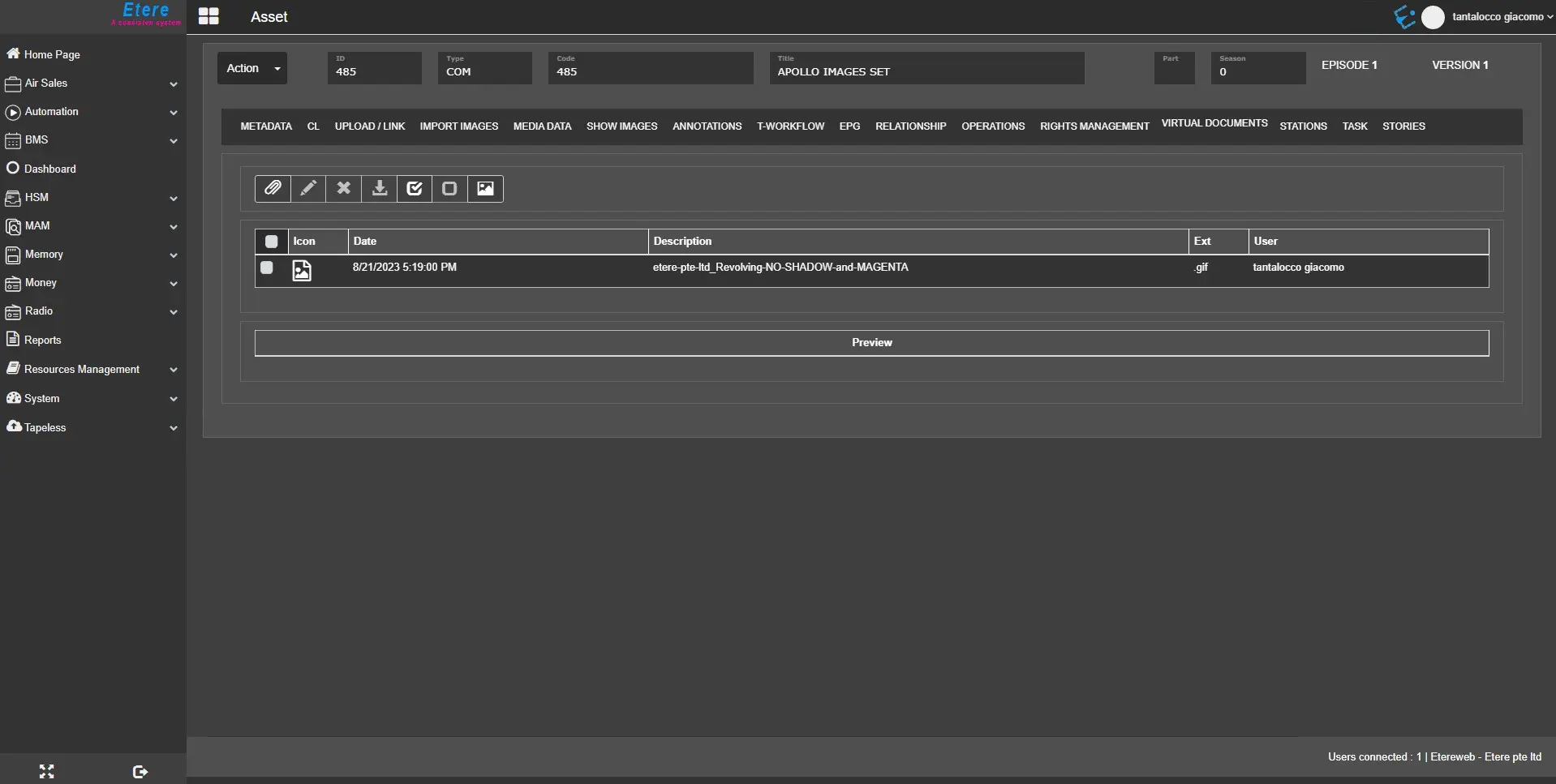 upload_done
 upload_new_files
 virtual_document_preview
 upload_progress