9.2.4 Search Assets
Under the Search section, the user can perform a Google-like Full-text search for all assets used by Etere. The search would be completed with infix as the default user search preference, where you can insert the search words within the base form of a comment rather than at the beginning or end of the word to perform an advanced search.
However, search for the asset's numeric field (e.g., asset ID) is not supported with full-text search; it would only filter assets with numeric string in the asset code or asset description. From the released version Etere310297 or later, you can search the asset's title with a superscript character (a small letter or number above a particular character) embedded in the title text, e.g. 2nd, ', 3rd, etc.).
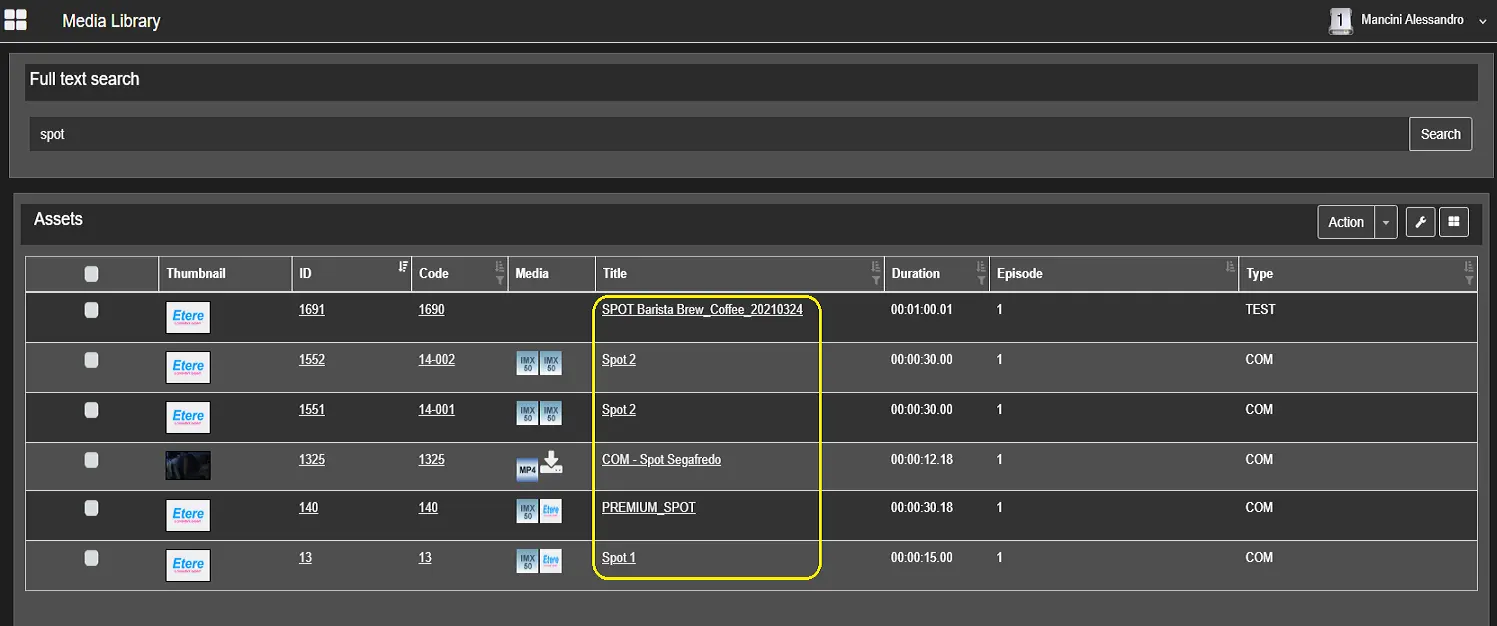
In the example above, a search for assets with the word "spot" or having "spot" as part of the word in titles returned search results. In Full-text Search, a list of possible outcomes is generated when you enter at least three characters in the search field.
Note: In the most recent Etereweb versions, Search and Advanced Search sections have been merged into one, where full-text search is available and a dedicated link allows to open the Advanced search.
FULL TEXT SEARCH
The search results fulfil the designated columns:
- Thumbnail: The thumbnail associated with the asset;
- ID: The asset identification;
- Code: The code assigned to the asset;
- Title: The title of the asset;
- Seasons Title: This column display the title of the season if the asset is an episode of the season;
- Asset ID: The federated identifier key based on the asset code;
- Material Type: The type of asset can be a TV program, film, commercial, season, etc.;
You can also search for Nunzio's stories and feeds by selecting News Story or News Feed filter.
- Content Owner: The name of the asset owner;
- Asset Status: The current status of the asset, e.g. approved, rejected, etc.;
- Asset Notes: Any additional information related to the asset;
- Media: The material type of the asset, such as images, video, or audio tracks;
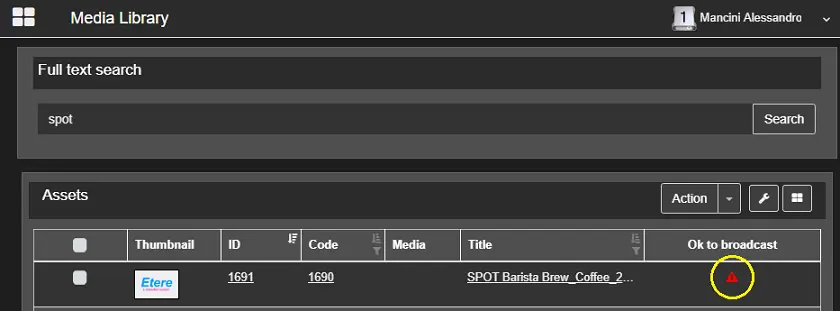
- Not OK to broadcast: Assets that are not ready to be published will be indicated with a red triangle icon in this column;
Not OK to broadcast
Note: By amending the settings in system parameters "param.ini / Websettings / WebIcon", you can decide to display the media object by its codec icon (set to "0") or meta device icon (set to "1"). The settings would apply to the "Full-text" search and the "Advanced" search in Media Library.
When the search asset function is launched, a default template defined in Web Asset Search will be loaded if no user-defined template is available. You can modify the default template and save it as a custom template. The saved template would be open to all user groups in which the user is a group member.
In the Web Asset Search template, you can modify the column width to facilitate the long name in the asset's properties.
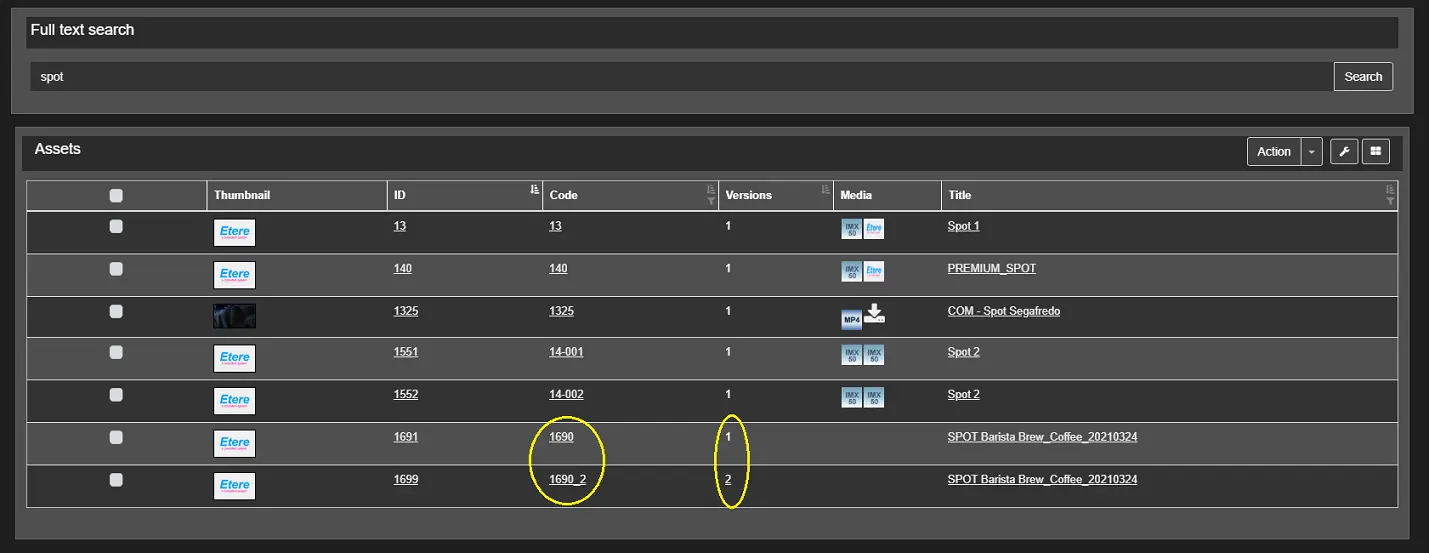
In the "Web Full-text Search" configuration settings, if the "Version" column is inserted into the columns display list as indicated below, an asset with multiple versions would be displayed with all version numbers appended to the asset code.
full-text_search_Version
The "Full-text Search" returns a wide range of assets matching the search criteria, including expired assets and archived assets. Instead, the Advanced Search function filter assets that fit the specific conditions. In "Full-text Search", you can click on the logged-in user name in the top right corner to launch the "Search Options" in the "User Preference" module to modify the tables used in the search form.
In addition, with "Full-text Search", you can search asset titles using the logical operators, to filter assets with tags that match the logical operator's value. The supported logical operators include "AND", "OR", "&", and "|" (pipe). The double "&&" and "||" operators are not supported.
This asset title search feature is not supported in Advanced Search.
SORTABLE COLUMNS
In the Search results, columns with sort functions enabled are indicated with the sort icons.
For examples:
- ID: By clicking on the icon at the column's top right corner, you can sort the ID in ascending or descending order.
Similar to the Media Library desktop application, the sorted ascending or descending ID is started from the top of the page;
- Title: By clicking on the icon at the column's top right corner, you can sort the event title in alphabetical order starting from page 1 in the search form. Event titles starting with numeric would be listed at the top of the list.
In addition, you can click on the icon at the bottom right of the column to launch the advanced sort function:
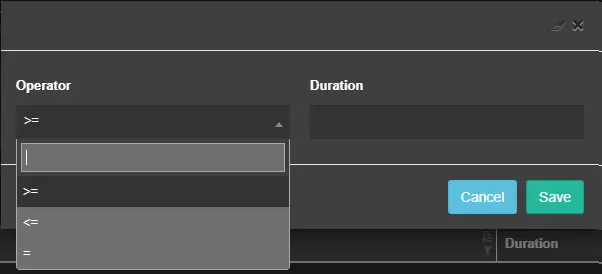
- Duration: Click on the top right icon in the column to sort the event duration in ascending or descending order. Clicking on the icon at the bottom right allows selecting an operator to filter events with a duration that matches the search criteria.
Duration
Title
For event titles, enter the title description to extract events with titles+ that match the entered description.
The Search function will not be executed if clicking the Search button without providing a filter.
WARNING: During the full-text search, if more than one asset property (e.g. asset code, asset title, asset ID, etc.) matched the search filter, only one occurrence of the asset would be displayed.
ACTION MENU
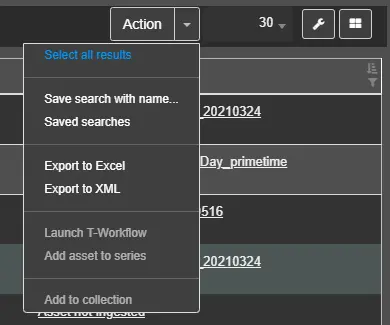
In the Action menu, a list of actions is available for the selected assets:
- Select all results: This action picks all the assets filtered in the Results form. If the form contains multiple pages, all purchases on all pages will be chosen;
After selecting this option, the action would change to "Deselect all results" for a user to revert the selection.
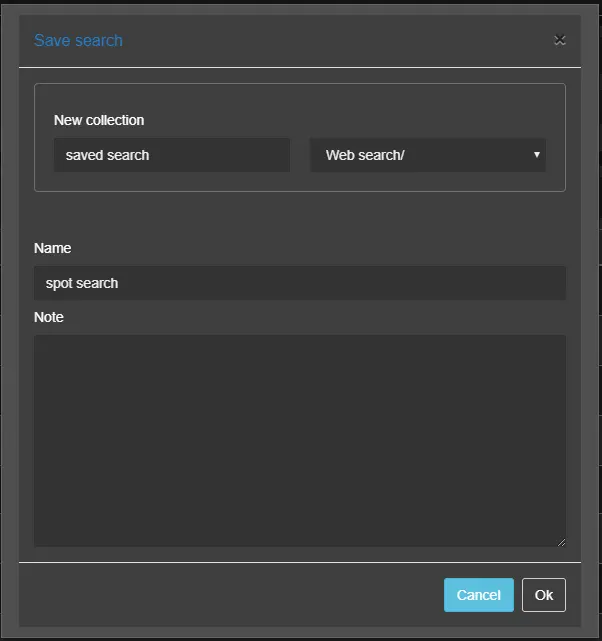
- Save a search with the name: Save the assets in the Search form to the Collection category in the Collection module, assign a name to the saved search and input a short description to identify the saved object;
ave_search_with_name
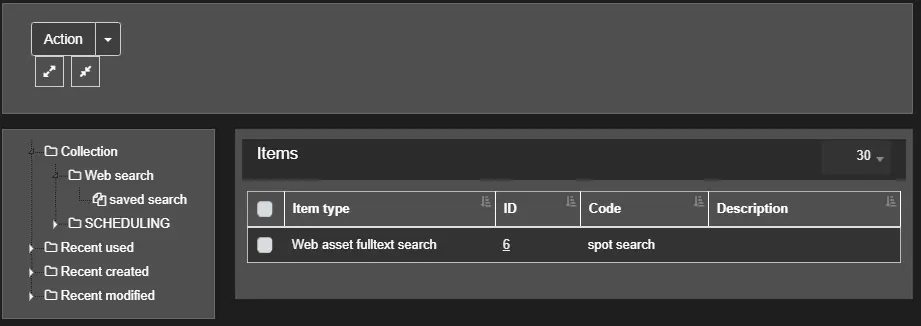
In the Collection module, the saved search is displayed.
Collection_module
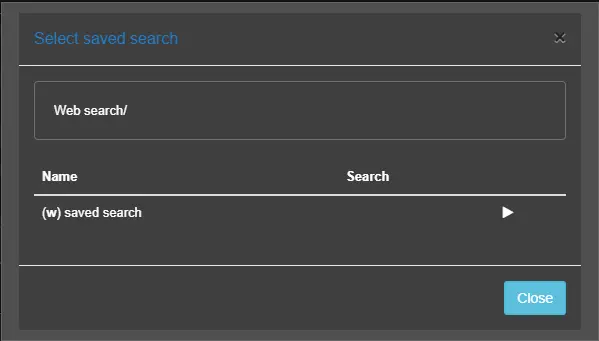
- Saved searches: Display the dedicated searches in the Collection category by specifying the name of the Collection category where the saved searches were stored;
Collection_category
After the searches are saved in the Collection category, you can share a single collection with a group of users or a single user using the "Share Collection" action menu in the Collection module.
You can click the Play button in line with the saved search to execute the selected search.
- Export to Excel: By selecting an asset or multiple assets, this action export the selected assets to a Microsoft Excel format (.xlsx) file;
During the installation of EtereWeb, the program would create an empty "Temp" folder in the local workstation to store the exported Excel format files. The Temp folder is assigned with Modify, Read & Execute, and Write permissions "IIS_IUSRS" user group to allow the export function to work correctly.
- Export to XML: By selecting an asset or multiple assets, this action export the selected assets to an XML file;
- Launch workflow: This action opens a window where you can select any T-workflow from the list and execute the T-workflow;
- Add asset to seasons: This action allows you to add the selected support or assets to seasons;
- Add to collection: This action adds the selected asset to the Collection category in the Collection module, where all assets with similar types are stored;
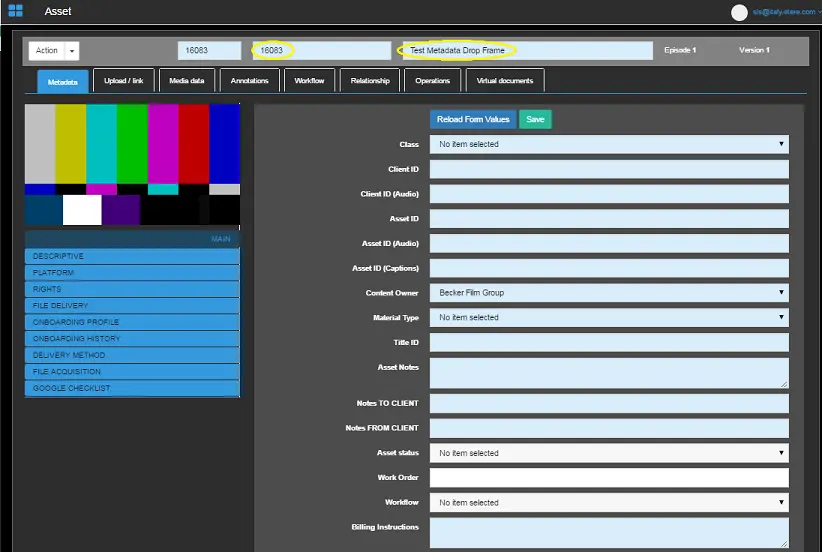
From the full-text search results, you can zoom in on any asset by clicking on the thumbnail icon of the asset or clicking on the underlined item of the asset. Click on asset ID 16083 or asset title Test Metadata Drop Frame to reveal the asset's properties and features.
Test_Metadata_Drop_Frame
Note: The full-text search is available only if the system database has been indexed to support this feature; this is done by performing a System Maintenance operation, including the "full-text search" maintenance task.
 full-text_search_Version
 Sortable_Columns
 Duration
 Save_search_with_name
 Collection_module
 Collection_category
 Test_Metadata_Drop_Frame
 Action_Menu
 Full-text_search
 Title
Title
 Not_OK_to_broadcast