59.8.2.14 Workflow monitor
The Workflow Monitor is a handy tool that permits Supervisors to monitor all T-workflows executed on a certain station, allowing them also to manage their assets and related operations such as transfers, checks, requests and much more.
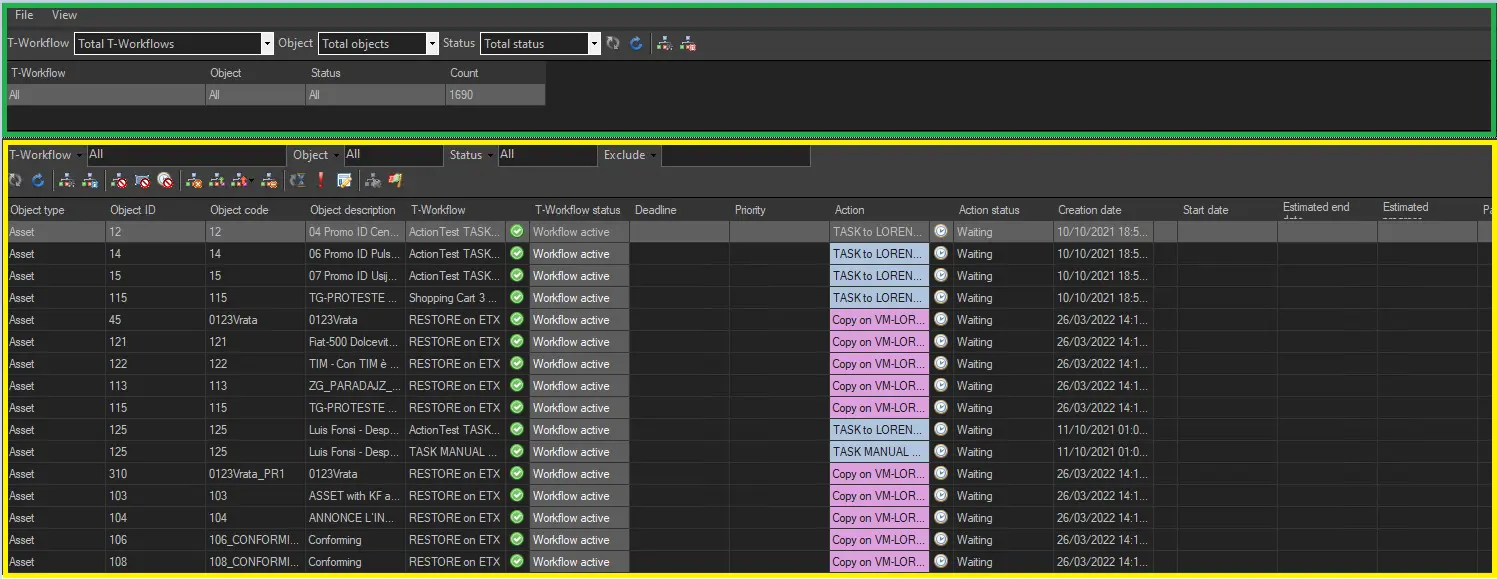
As shown in the figure, the Workflow Monitor allows, through a simple and intuitive interface, to view and control the total number of instances related to all T-workflows and the details of each single T-workflow instance.
Workflow Monitor
Monitoring Console 1
Master panel
The top area (or master panel) shows the counted number of instances related to each T-workflow, making it possible to filter them by:
master_panel
Workflow - Indicate the method for displaying T-workflows. Available views include:
Total Workflows - Show a unique total for all the T-workflow instances in the system.
Total by workflow - Show a classified summary of all instances for each T-workflow in the system.
Specific workflow - A specific summary of all instances of a particular T-workflow.
Object - Specify the entity (i.e. asset, segment, schedule, personal data) to which the T-workflows to be processed are attached and launched:
Total objects - Show a unique total for all objects (assets, personal data, schedules and segments).
Total by object - Show one total for each object (assets, personal data, schedules and segments).
Asset / Personal Data / Schedule / Segment - Show one total for the selected object.
Status - Narrow the instances to be displayed only to those currently placed in a certain status (e.g. running, fault, abort, completed, not started):
Total status - Show a unique total for all statuses.
Total by status - Show one total for each status.
Running, faulted, aborted, completed, not started - Show only one total for the selected status.
The master panel's toolbar consists of 4 additional functions:
Auto-refresh master panel - Allows the values in the master panel to be updated automatically. The time interval between a refresh and the next can be set in the File menu > Set refresh time > T-workflow master panel.
Refresh master panel - Manually update the master panel.
Show T-workflow instance - Shows the canvas of the selected workflow. It's not available if the master panel displays the total count of all the workflows in the system (filter "Total T-workflows").
Show details - Shows the selected workflow instances in the details panel.
Allows viewing and editing on workflow monitor:
Details panel
The bottom area (or details panel) shows the T-workflow instances related to each T-workflow. Each line is a detail representing an instance of a T-workflow attached to an object. Filtering options available in this panel include:
details_panel
Workflow - Indicate the method for displaying T-workflows. Available views include:
All - It will display all instances related to all T-workflows present in the system.
Specific T-workflow - All instances related to specific T-workflow(s) will be displayed.
Workflow Status can be grouped by category. Users can also add a search filter to narrow down the workflow status to be monitored:
Workflow - All Selection
Workflow - Category Selection
Workflow - Single Selection
Workflow - Category Plus Single Selection
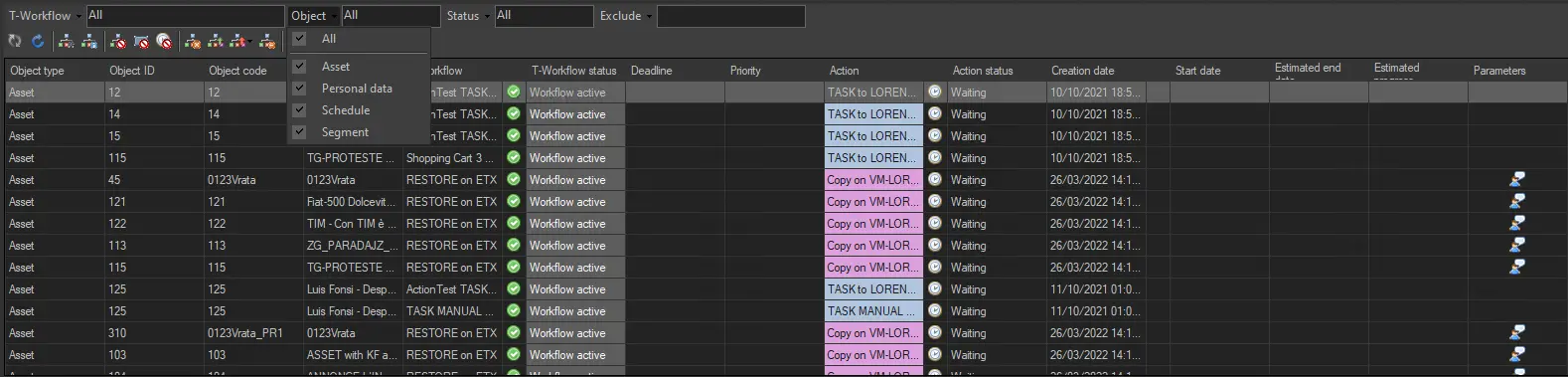
Object - Specify the entity to which the T-workflows to be processed are attached and launched.
Asset
Segment
Schedule
Personal data
Status - Narrow the instances to be displayed only to those currently placed in a certain status:
Running
Fault
Abort
Exclude - Select to exclude all idle workflows on a wait action. Selecting "restore all actions", resetting this filter and making the excluded workflows visible again is possible.
After filtering, you can double-click on any T-workflow in the master panel, and the detailed information related to the selected T-workflow will be displayed in the details panel.
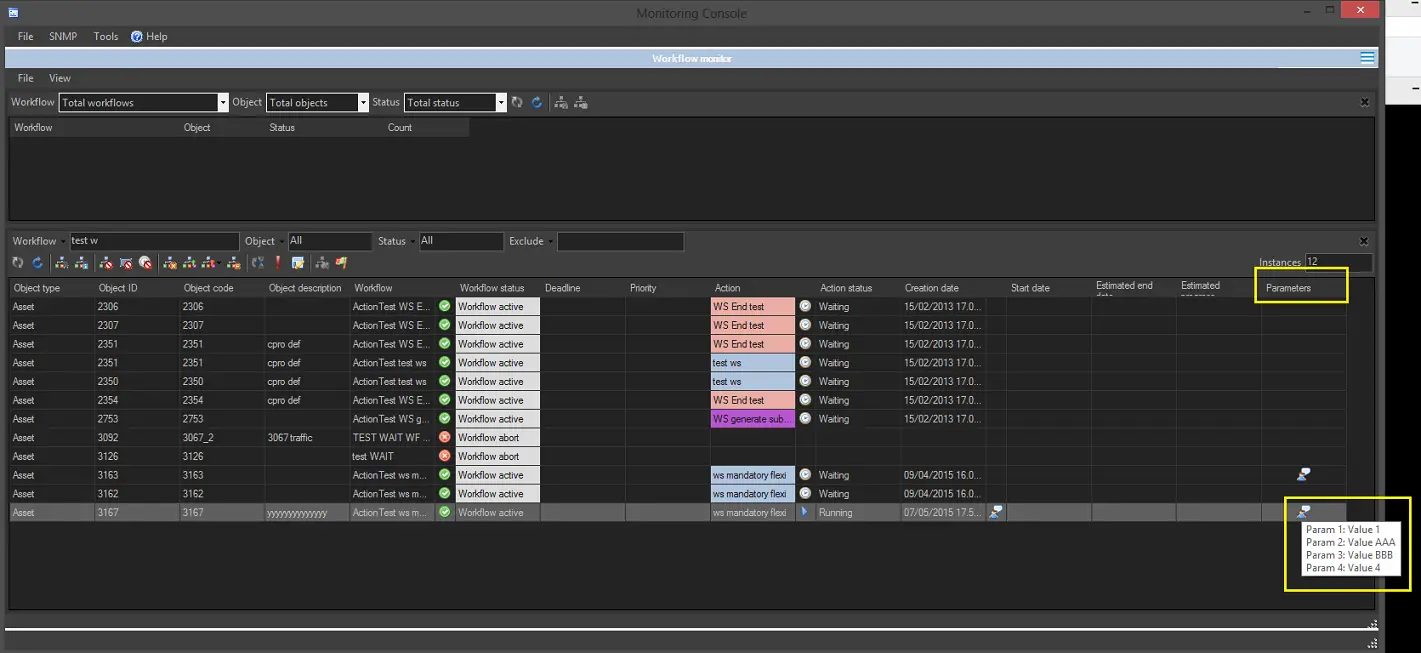
For each T-workflow action displayed here, it will be detailed its "Object type", "Object ID", "Object code", "Object description", "T-workflow", "Workflow status", "Deadline", "Priority", "Action", "Action status", "Creation date", "Start date", "Estimated end date", "Estimated progress" and "Parameters".
NB: For information on estimated date and progress, please refer to the "Progress monitoring" chapter.
The details panel's toolbar provides the following functions (which are also available through the right-click contextual menu) for the management of selected T-workflows:
Auto-refresh details panel - Enables the automatic update of the details panel. The time interval between a refresh and the next can be set in the File menu > Set refresh time > T-workflow details panel.
Refresh details panel - Manually update the details panel.
Show workflow instance - Provides a graphical view of the selected T-workflow instance.
Show workflow instance log - This shows a detailed log of the selected T-workflow instance.
Exclude workflow - Include all instances of a certain T-workflow from the details list.
Exclude action - Include all the instances currently on a specific T-workflow action from the details list.
Exclude all wait actions - Include all the instances currently waiting to be processed from the details list.
Abort workflow instance - Stop the selected T-workflow instance(s).
Restart workflow instance - Re-launch the selected T-workflow instance(s).
Restart workflow instance from action - Re-launch the selected T-workflow instance(s) from a specific action.
Delete workflow instance - Interrupts the execution of the T-workflow and removes its association to the asset/segment/schedule/person to which the instance is related.
Set deadline - Change the T-workflow instance's deadline (on-air time).
Set priority - Change the execution priority of the T-workflow.
Delete orphaned instances - Interrupts the execution of all T-workflows that became "orphans", that is, T-workflows for which an association to an asset/segment/schedule/person is missing (e.g. because deleted from the system).
Force release - Allow supervisors to unlock tasks assigned via T-workflow whenever they get locked.
NB: If you had aborted or skipped an HSM-related workflow in the Monitoring Console, the aborted or skipped workflow would not be visible in HSM Headquarters, HSM Data Pump, or HSM Disk Library.
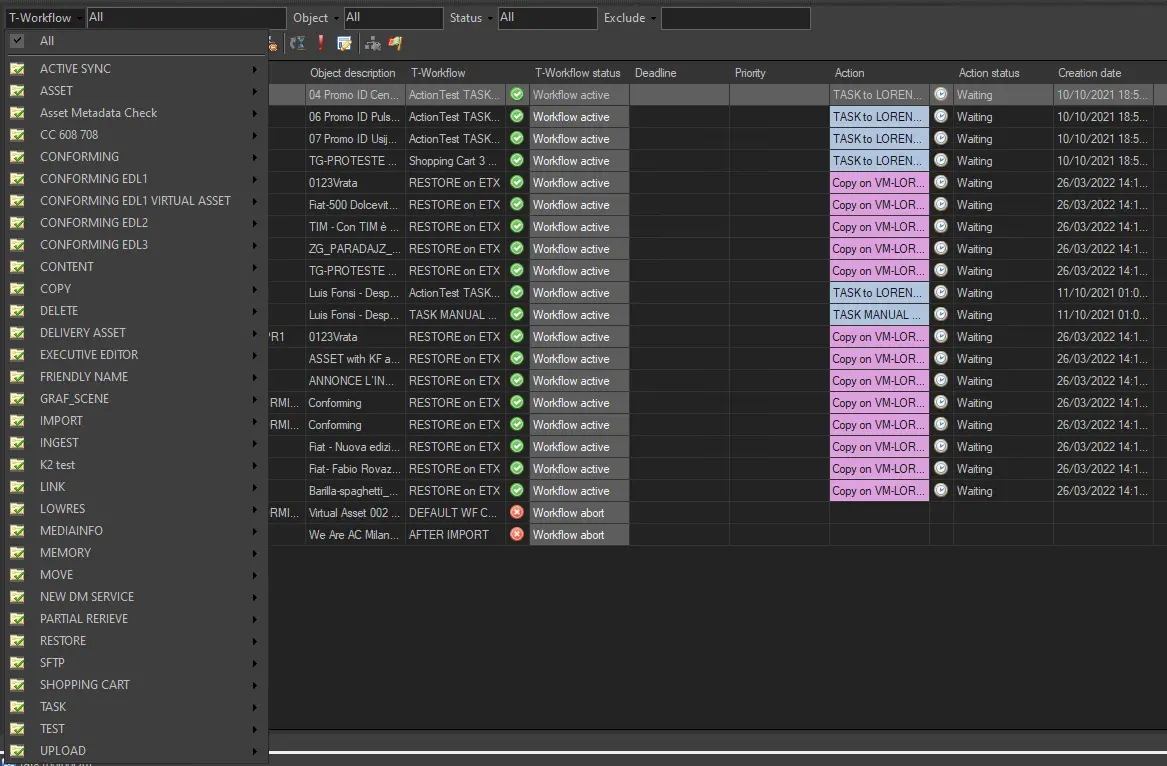 Workflow_-_All_Selection
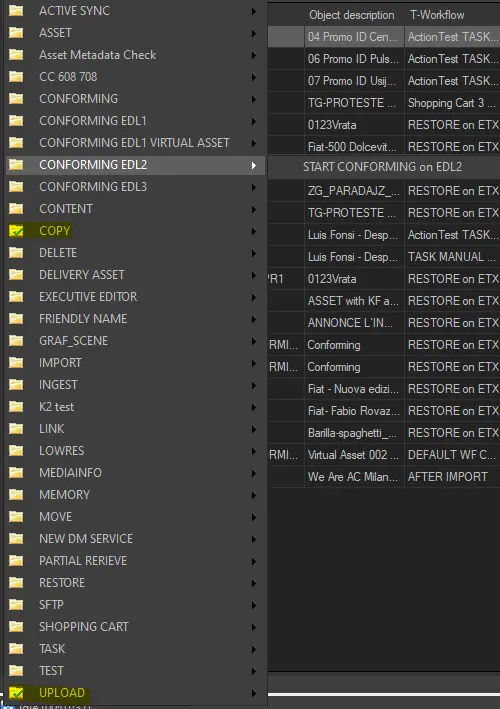 Workflow_-_Category_Plus_Single_Selection
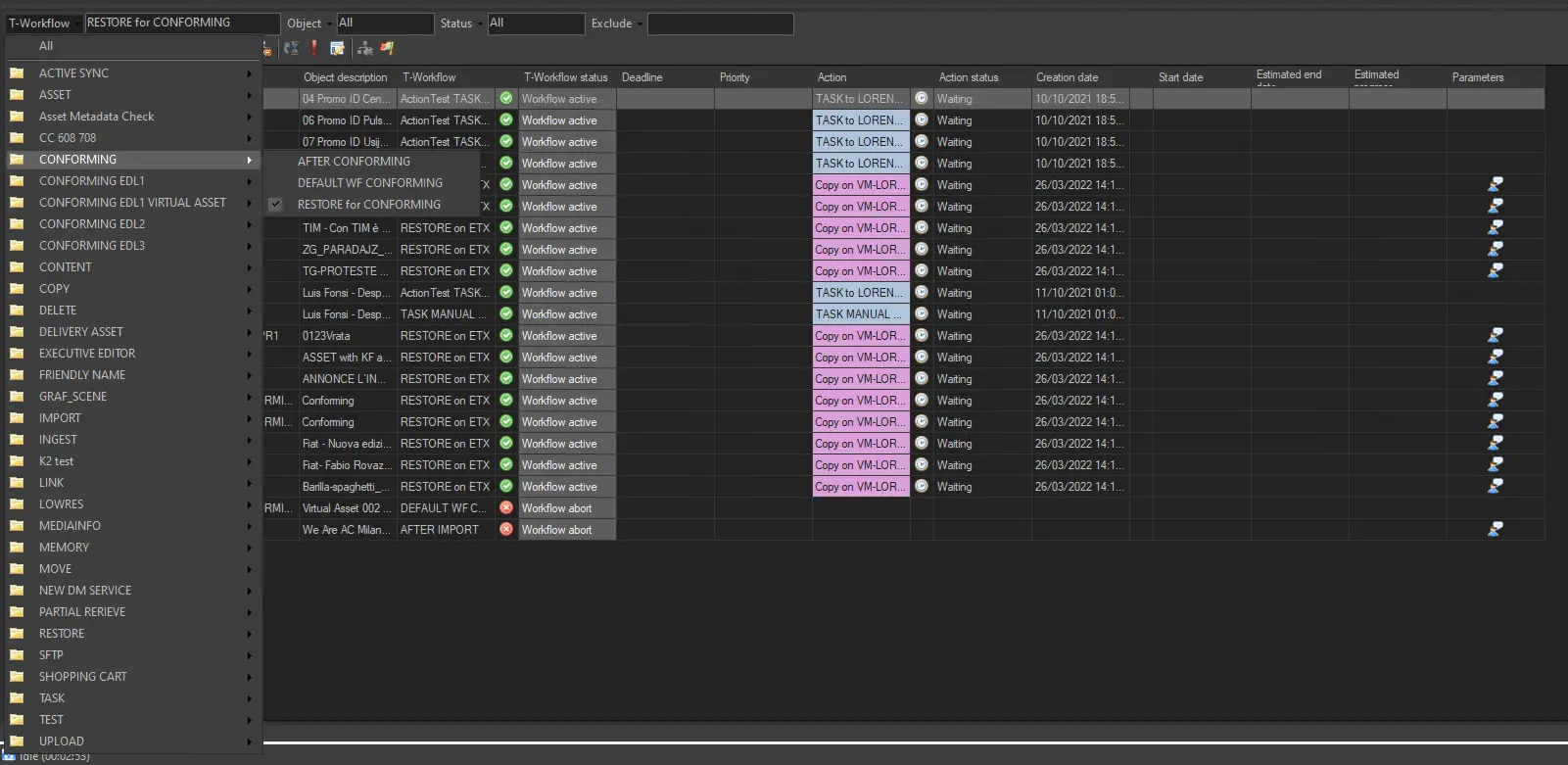 Workflow_-_Single_Selection
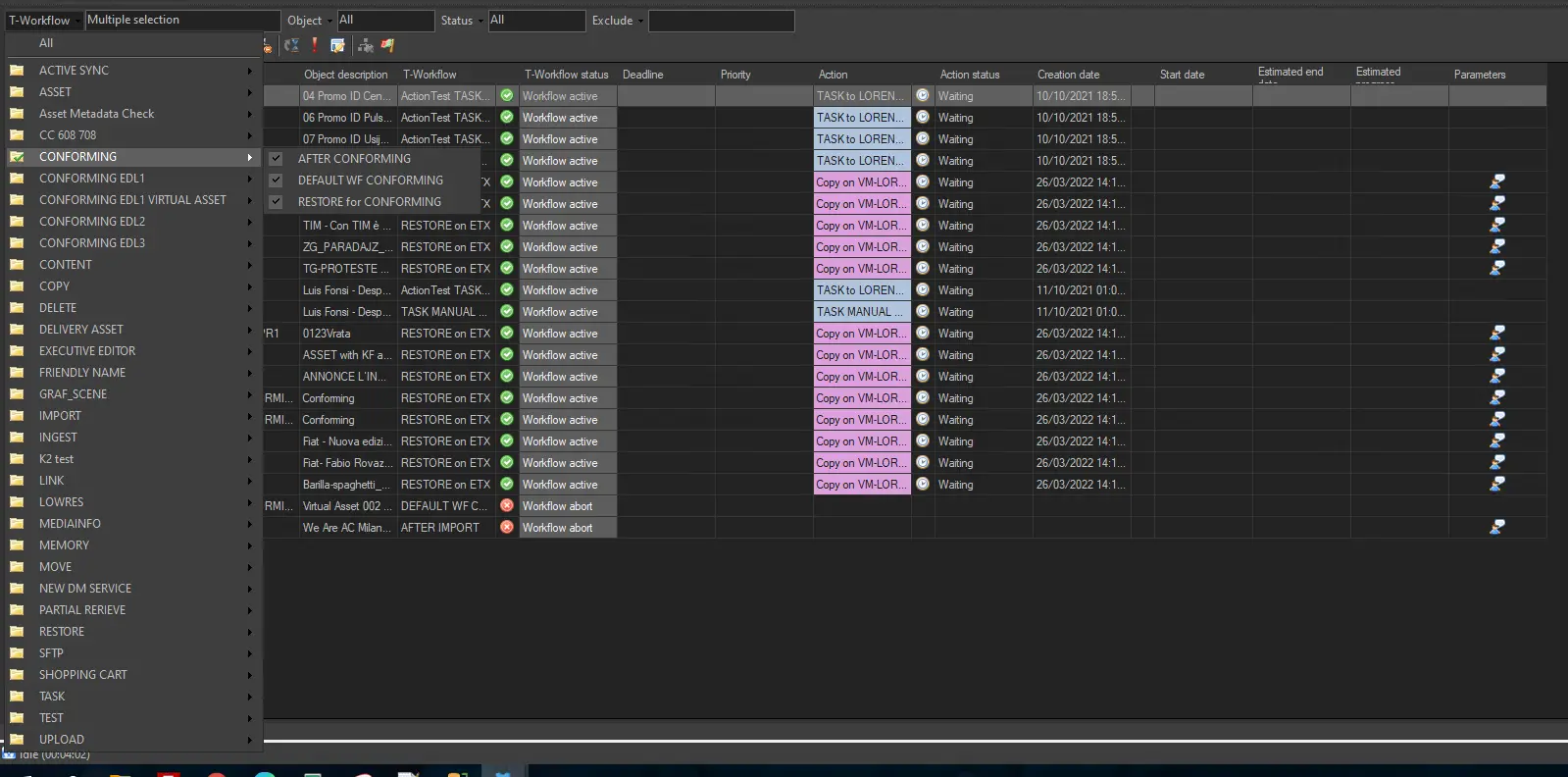 Workflow__-_Category_Selection
 Workflow_Monitor
 Monitoring_Console_1
 details_panel
 master_panel