59.4.7.13 Multistep Copy
The Multistep Copy is the most common process typically used for data movement purposes; the Multistep Copy is the more detailed DataMover workflow action since it allows to define all the options (i.e. intermediary paths, renaming, used protocol, etc.) involved in the entire copy process.
The Multistep copy process is also suitable for copying ETX-G bundled files, including metafiles, projects, and graphics in folders. The downside is that no intermediate step (file rename, export, etc.) is allowed during the copy process.
Once saved, Multistep Copy actions will be available as action blocks ready to be included within T-workflows. To configure this Copy action, the following parameters need to be set:
Multistep_Copy
Options
• Copy
Use SSL: Enable this option to use SSL (Secure Socket Layer) when performing multistep copies of files over the network. If enabled, the Data Mover copy action would attempt to complete the copy action using the following authentication steps in sequential order:
- Implicit FTP over SSL (see explanation in "Try implicit authentication first" option below)
- FTP over TLS (Transport Layer Security)
- FTP over SSL (Secure Socket Layer)
- Plain FTP (without encryption)
If the FTP server support SSL encryption, Data Mover would use a new set of libraries for copying files. Else, Plain FTP would be used.
Try implicit authentication first: If this option is enabled, Data Mover will use the implicit FTP over SSL encryption as the first option for copying files over the FTP server. This option used port 990 for communication between 2 servers, and the port is disabled by default.
Note: If error 12002 resulted during copying of files to FTP Server, it indicates that a "timeout" occurred while connecting to FTP Server, and the network availability must be verified.
Note: The "Use SSL" option is disabled by default for all file copying actions and must be enabled on a case-by-case basis.
Use "passive server to server" when moving between FTP servers: Enable this option if both source and destination devices use the FTP protocol and support 'passive mode'.
Use external ftpexec process: If checked, Data Mover will not perform the copy but launch an external application (ftpexec.exe) with the proper parameters to complete the document via FTP. This option is useful for copying files with huge file sizes to multiple destinations. You can enable the "Annex MD5 checksum file on destination" to verify file integrity after the copy is completed.
NB: Enabling this feature will improve, depending on the used devices (e.g., K2, PDR), the overall performance and safety of the transfer process.
Use passive mode: If checked, the FTP client will try to use passive mode for all file transfers (upload/download/move); otherwise (if disabled), the standard active way will be used.
Force change directory before storing/retrieving remote files: If enabled, the download/upload of files will be performed using the "CWD [path] + STOR / RETR [filename]" command instead of the "STOR/RETR [path/filename]" command (as by default).
Allow resume of interrupted transfer: If interruption occurred during the file transfer between 2 servers, enabling this option allows the file transmission process to resume if verified that files already resided in the destination folder. This option only applies if the "Use SSL" parameter is checked.
Use OS controlled copies and disable all optimisations: If checked, using a plain OS Api will be forced for Download / Upload functions (just like a DOS console copy), thus avoiding hard-drive buffering and file system fragmentations that may cause corrupted files.
In case of error, keep destination files (default=delete): If enabled, partially transferred files (its default action) won't be deleted even if an error occurs.
For instance, if the source file does not exist during the DM action and causes the file renaming process to fail, the destination file remains intact.
Copy files using unbuffered input/output: If enabled, copy operations will be performed using unbuffered I/O, bypassing system I/O cache resources. Instead, thus improving very large file transfers (as Microsoft recommends) and CIFS-based Media Library transfers (as SeaChange suggests).
Otherwise, (if disabled by default), copy operations will use buffered I/O, thus improving the overall physical memory usage for small file transfers.
NB: This option (based on the windows COPY_FILE_NO_BUFFERING flag) is valid only for Microsoft Windows Vista and newer (i.e., Windows 7).
Use Etere EDT protocol: If enabled, Etere Data Mover will use the EDT protocol (see the Etere Data Transfer protocol chapter) to perform media transfers; the use of this protocol is suggested in case of transferring large files between servers spread over a high-latency WAN (e.g., located in different geographical places).
NB: Please note that the use of EDT is compatible with the help of ftpexec and the use of separate agents, but it is not consistent with the use of the passive server to server (the use of EDT will be ignored) nor the use of passive mode (the use of EDT will be preferred).
Use a temporary filename while copying: If checked, Etere Data Mover will use a temporary filename while copying, renaming the file with the last name at the end of the copy.
Strict error checking: If disabled, errors will be returned only when the Windows API communicates that a copy failed. Keep this option disabled to prevent receiving fake errors (e.g. overlaps) on "UNC to UNC" copies.
If enabled, errors will be returned when either Etere or the Windows API arise an error code.
NB: This option is disabled by default for actions created with Etere 24.2 or higher; instead, for those made with lower versions, it's automatically set as disabled (unless a user manually changes it).
Annex MD5 checksum file on the destination: If enabled, after copying the file to the destination, Etere Data Mover would generate a plain ASCII file containing the MD5 checksum value in goal, with the same file name as the destination file but with the file extension.MD5. As the MD5 checksum value is generated from the database, this option only applies to copy action performed on files stored in the database. Moreover, the MD5 checksum is only used a single metafile; it does not support copy action performed on bundled files.
The content in the .MD5 file looks similar to this example:
AE88908AE5DBADE39062121B4A3CB7CB
• Search
Speed up file search by assuming that a group of files are always in only one path: If enabled (default), Etere Data Mover will scan original tracks until at least one file is found (the search algorithm will assume that all files will be only in a single direction), and the search will finish, speeding up in this way the process by avoiding useless recursive file search within directories.
Disable this option If video files are spread across various paths, such as with Omneon devices.
Do not search...: Activate this parameter to make Etere DataMover search for specific video files as follows:
Use all file names and paths as written in the database - If enabled, Etere will read the video file's names and paths exactly as they are stored in the database, without altering them. This option is useful to, for example, copy multiple files belonging to one metafile and name with different unique names.
Generate file names with the following rule - If checked, Etere Data Mover will not search for files on the source path; it will generate filenames based on the following options:
Supported environment variables
%0:s - The filename of the metafile exactly as stored in the database
%0:p , %1:p , %2:p , ... - The UNC/FTP paths inserted in the paths list.
- The comma symbol (,) allows the entering of separated parametric filenames for generating multiple filenames.
For instance, in case a metafile is called "clip" and the Path List contains three different paths (e.g. \\mtx\path0, \\mtx\path1 and \\mtx\path2), the %0:p%0:s,%1:p%0:s_1.mxf,%2:p%0:s_2.mxf string will make Etere DataMover to try to process the following files:
• \\mtx\path0\CLIP • \\mtx\path1\CLIP_1.mxf • \\mtx\path2\CLIP_2.mxf
The option is useful to address the error "No files reference are stored in the database" when the copy function does not recognise the acquired file (e.g. MXF file) to be copied.
Generate file names with an advanced rule - Clicking on the [...] button, allow to insert advanced variables to define the filename to be generated (such as asset data, flexi-metadata, etc.).
Check the file size with db value: If enabled, an additional check would be performed, that is the compare between the size of the copied physical file and the file size stored on db. This is useful to signal if the file has not been copied entirely in the destination folder. In this case, its file size is different than the original one and this check can alert the operator by signaling error in the wf.
• Asset data
Export asset metadata to the destination site: If enabled, Etere Data Mover will create an XML file containing all asset's metadata; this file will be placed in the same directory as the video file and will be named according to the following rules:
- Append extension: Data Mover will append the inserted string to the video file's complete name (i.e., name+extension).
For example, if the file's full name is myspot.mpg, the XML file will be named myspot.mpg.XML
- Replace extension: Data Mover will replace the video file's extension with the inserted string.
For example, if the file is named myspot.mpg, the XML file will be designated as myspot.XML
Moreover, the export type allows choosing the format in which export asset metadata:
Export type - Etere standard XML format: Select this option to export asset data in the standard format, the "XML Assets Full" export format.
Export type - Select among F90 supported formats: Select this option to export data in any format listed in the "Asset Data Export" chapter.
Export type - Add an XSLT Processing Stage: Exported data (e.g. Etere Standard XML) will be automatically transformed using an XSL Transformation (e.g. ET_Generic_Export_1) before being written in the output file.
Do not update asset file data: If enabled, Etere Data Mover will not link the exported file to the asset form.
• Change Physical file
Paths displayed in this section are related to meta devices, specifically, to the media folders (full UNC/FTP paths including username and password) configured for them. However, paths can also be entered manually by making right-clicking on the list and copying the related text; in the case of multiple paths, separate them by a comma (,) before copying them.
Extensions map: In case you need to change file extensions during copies, add [+] and remove [-] the extension rules. To avoid copying a certain extension (e.g. WMV), enter it: WMV=.NO COPY
For instance, if your transcoder receives a DV file and generates a SAF file, it will be possible to set a rule (.MPG=.WMV) so Etere will search in the transcoder's exit directory for a file named as the input one but with a WMV extension.
Moreover, after a large media file has been previewed, it creates a redundant ".idx" extension index file with the same asset name in the cloud-device path; you can ignore these redundant ".idx" extension files during the copy process by adding ".idx=.NOCOPY” in the "Extension map" field.
Sub folders map: If you need to copy files with a particular extension on specific subdirectories, add [+] and remove [-] the directory rules.
For instance, if your video server stores DV files in a folder and M2V and AIFF files in sub-folders, it will be possible to set a rule (.DV=., M2V=.VIDEO , .AIFF=.AUDIO) so this storage structure will be maintained, for example:
\\mserver\archive\23.DV ; \\mserver\archive\video\23.M2V ; \\mserver\archive\audio\23.AIFF
When name changes: In case the 'change name' option is enabled, this option allows to select which between the following options should be used for the new name:
Asset ID - The physical file will be named using the asset's ID (e.g., 13123.mpg).
Asset code - The physical file will be renamed using the asset's Code (e.g., coke spot feb2011.mpg).
Asset code + type - The physical file will be renamed concatenating the asset's Code and the type of the asset to which the file is related (e.g.: coke spot feb2011_COM.mpg). Asset types determines the nature of the asset content according to the station's uses (e.g.: COM, NEWS, PROMO, etc).
Generate unique name - The physical file will be named using a unique identification (UID) automatically generated by a system algorithm.
By default one unique name is generated for each metafile, therefore, in case the file is formed by multiple physical files (e.g. mpg, pd, vix) Etere DataMover will use the same UID for all files but different extensions; for instance, the files 2143.mpg, 2143.vix and 2143.pd will become 02BD0000000000000075.mpg, 02BD0000000000000075.vix, 02BD0000000000000075.PD.
In case the metafile name is changed (because set in the basic settings), Etere DataMover will use the same UID for both, the file and the metafile, thus allowing to support video servers on which video files are managed maintaining a relationship between the name of metafiles and physical files.
NB: To guarantee a correct functioning, generating different names for each physical file is currently not supported.
Generate filenames with the following rule - The physical file will be named with a custom filename based on database references (e.g. Flexi-metadata) and free text., this, through the following buttons:
Define a custom name for the metafile using the Rules Editor.
NB: The value of this field cannot be directly typed, but it can be can be copied.
Use the custom name set for the metafile (Basic Settings > destination metafile > use rule) also for the physical file.
Notify error if name already exists in the database: If enabled, the copy will be aborted if the current name already belongs to another file in the database. If disabled, no check will be done.
This option is useful, for instance, when generating unique names, to prevent renaming files using existing names.
• Import/Export
This section allows to define the action as either, an import or an export transfer:
Importing files form external system (Store original path name): If selected, Etere DataMover will copy the file on the target destination changing its filename (according to what set in the "change physical file" upper section) but storing the source name in the database.
Exporting files to external system (Restore original path name): If selected, Etere DataMover will copy the file on the target destination naming the file exactly as stored in the database during the import.
• Original location
Original Location: list of UNC or FTP paths: Add all the source paths where files are stored (and therefore, where Etere will search for them).
If Destination paths have been explicitly configured then cloud path destination paths are ignored. Otherwise, if no path is configured then Data Mover loads the list of all paths associated with the selected cloud device and selects the destination according to the specified policy (see next paragraph).
Step 1
First Intermediate destination: Insert here the path where the file will be copied from the original location.
Paths displayed in this section are related to metadevices, more specifically, to the media folders (full UNC/FTP paths including username and password) configured for them (under the section available in Etere Configuration | Settings | Basic | Web Paths). Please note that paths can be manually entered by making right-click on the list and copying the related text; in case of multiple paths, separate them by a comma (,) before copying them.
The options available in this section for customizing the copy behaviour are listed below:
Wait only (Do not Copy): If checked the application will not copy the file to that directory but it will wait for the file to appear. This is useful when you have an external application such as Carbon Coder that transcodes the file.
Change Extension: If this option is checked, then the application will copy (or wait for) a file that has the same root name but a different extension. Extensions are changed according to the configured ExtensionMap (in the previously described options section). This is useful when you have an external application such as Carbon Coder that transcodes the file and changes the extension.
Step 2
Second Intermediate destination: Insert here the path where the file will be copied from the previous location.
Paths displayed in this section are related to metadevices, more specifically, to the media folders (full UNC/FTP paths including username and password) configured for them (under the section available in Etere Configuration | Settings | Basic | Web Paths). Please note that paths can be manually entered by making right-click on the list and copying the related text; in case of multiple paths, separate them by a comma (,) before copying them.
The options available in this section for customizing the copy behaviour are listed below:
Wait only (Do not Copy): If checked the application will not copy the file to that directory but it will wait for the file to appear. This is useful when you have an external application such as Carbon Coder that transcodes the file.
Change Extension: If this option is checked, then the application will copy (or wait for) a file that has the same root name but a different extension. Extensions are changed according to the configured ExtensionMap (in the previously described options section). This is useful when you have an external application such as Carbon Coder that transcodes the file and changes the extension.
Step 3
Final destination: list of UNC or FTP paths
Insert the path where video will be placed from the previous location; in case multiple paths are specified, the path selected for copying will be the first one with enough storage space.
Paths displayed in this section are related to metadevices, more specifically, to the media folders (full UNC/FTP paths including username and password) configured for them (under the section available in Etere Configuration | Settings | Basic | Web Paths).
These option define how datamover will choose the physical to store the copied file:
Fill Then Next: If enabled, Data Mover starts with the first path and checks whether that path has enough space, if it has enough space Data Mover uses it, otherwise Data Mover checks again until the next available path is found.
Random: If enabled, a random path selection among the available ones is chosen.
Round Robin: If enabled, the path is chosen starting from the first to the last of the available ones and then starting again at the top of the list and Data Mover continues to search in this sequence. The selection status is shared globally among all instances of the Data Mover that works on the configured cloud device. This means that if a DM selects the 1st path, then another DM on a second machine or another instance of the same action in the same DM will select the 2nd one.
NB: In case of specifying multiple paths, Etere Data Mover will copy requested files to the first path with free space.
The options available in this section for customizing the copy behaviour are listed below:
Wait only (Do not Copy): If checked the application will not copy the file to that directory but it will wait for the file to appear. This is useful when you have an external application such as Carbon Coder that transcodes the file.
Change Extension: If this option is checked, then the application will copy (or wait for) a file that has the same root name but a different extension. Extensions are changed according to the configured ExtensionMap (in the previously described options section). This is useful when you have an external application such as Carbon Coder that transcodes the file and changes the extension.
Change name: If enabled, the physical file will be renamed at the end of the copy process.
NB: Please note that using the "change name" on the last step (3) will rename only the physical file not the metafile in the database. To do so please use the 'destination metafile' option in the basic settings tab.
Back Path (UNC or FTP path): Back Path is used on devices such as the SeaChange Media Gateway that has the job output on the same path as the source and copies that original file(s) in the so called 'back path'. In this case the 'error' subfolder is used to monitor if any error occurs.
When performing Delivery action to copy XML file with same parameters to FTP destination and retain the XML filename, Data Mover is unable to retain the XML filename if the file is created through Asset Data Export action. You can use the work-around solution to overcome the filename issue:
•In Basic Settings, remove the “.xml” extension in file name.
•In Process Settings, enter the same parameters of the origin xml file and includes “.xml” extension in the file name.
NB: In case of using anonymous FTP accounts (i.e. free access account without password restrictions), the FTP path must be inserted anyway specifying the 'anonymous' username and a fictitious password (e.g.: FTP://anonymous:pass@myFTPserver/myDir).
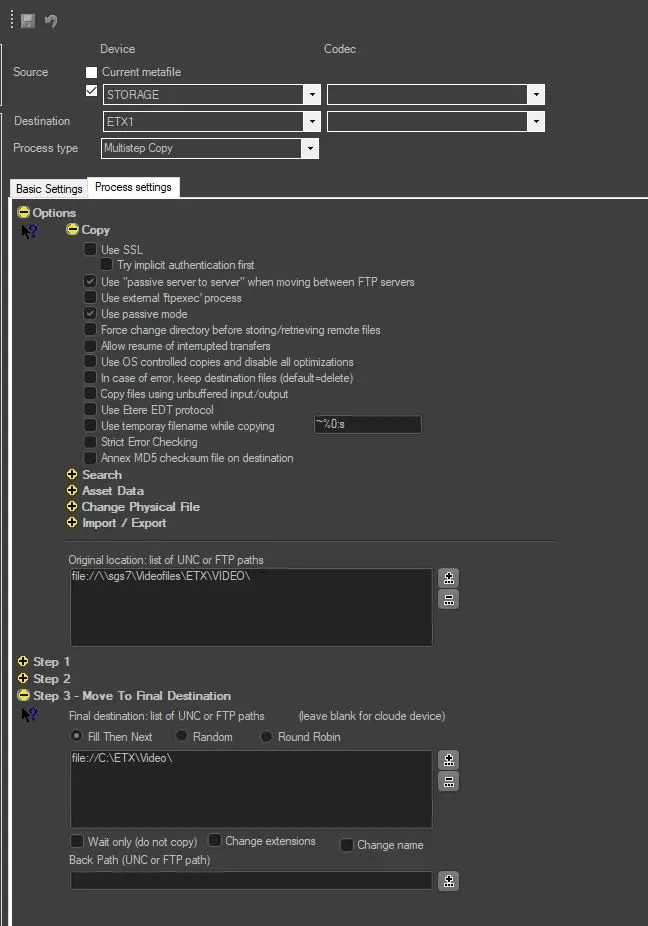 Multistep_Copy