72.3.6 Episodes tab
The Episodes tab allows to view and create the episodes that make up the season in question, the key information for each episode are listed in the table below.
Episode - Progressive number of the episode.
Version - Specified the version of the episode in case it has different versions (e.g. generated by a create new version WF action).
Please note that the episode code and number is the same between versions.
ID - It display the Etere asset ID for the episode.
Code - Code of the asset related to the episode.
Title - Title of the episode. If the episodes's titles is generated using a prefix, a sequential number indicating the episode number will be included.
Description - Description of the episode.
Media - In case the episode has media files associated to it, they will be displayed as icons.
Duration - Scheduled duration of the episode.
To be scheduled - Total number of runs minus the number of already-broadcasted runs number. The number of runs can be defined either from the Media Library > Rights section or using Etere BMS (module for a dedicated assets rights management)
Last on-air date - The last on-air date for this episode.
Runs - Total number of times that the episode has been broadcasted.
CL - Narrow the search to only those season which meet with the given classification level.
CA - Filter only those season which feature contents matched the selected consumer advice.
Live channel - If the episode is a live event, it indicate the channel from which its content should arrive.
Event type - Indicates if the event is either fixed, fixed/manual, variable/manual, manual, variable or time code. Details information about event types on the chapter: Media Library: Event types
Scheduled duration - The duration time which the episode is expected to play on-air.
Next on-air date - If the episode has been scheduled to go on-air, it display the exact scheduled date.
Next on-air time - If the episode has been scheduled to go on-air, it display its exact scheduled time.
CC - Indicates if the episode has closed captions.
Moreover, the 'station' box will permit operator to select the station to which the season' scheduling information (i.e. episodes to be scheduled, last run, runs, etc) is related.
NB: Please note that the position of columns can be changed by drag-and-drop from one position to another, changes will be saved and automatically loaded on future.
Available functions
When selecting one or more episodes (multi-selection is possible by using the Ctrl and Shift keys), and right-click on them, the following operations will be available (notice that these functions are also available from the toolbar):
Add episode
It allows to create episodes in the following different interfaces:
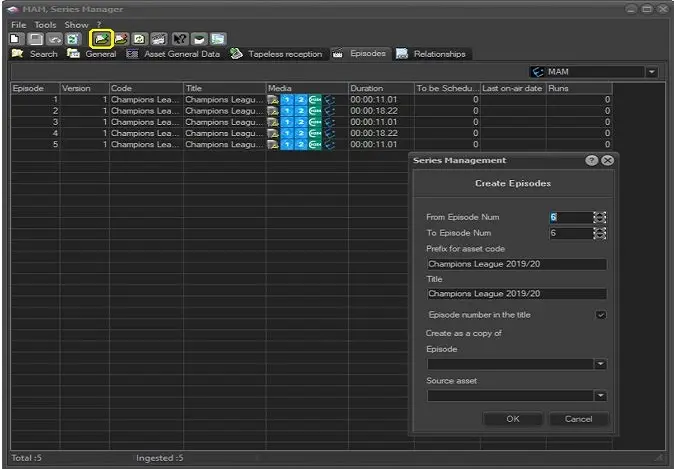
➢Standard: This interface consist of a small form that allows to generate episodes for the current season specifying the following parameters:
Episodes 1
From episode number -To episode number - Indicate the number of episodes to be created, indicating their starting and ending numbering.
Prefix for asset code - Optionally enter a string to be appended as a prefix to the asset code of generated episodes.
Title - Indicate the string to be used for the title of all episodes.
If the “Automatic code management” option is enabled in Media Library settings, the episode would be created with the code and title appended as suffix to the season, e.g. S01E05 (season 1 episode 5).
Episode number in the title - If enabled, the episode number will be appended at the end of the title of generated episodes. Please note that the last state (ticked/unticked) of this parameter is remembered by the system.
Create as a copy of - Optionally indicate the existing episode from which the data (i.e. properties, rights, etc) of generated episodes will be copied from.
Once the [Ok] button is pressed, for every episode, a new asset form will be automatically created according to the previously described parameters.
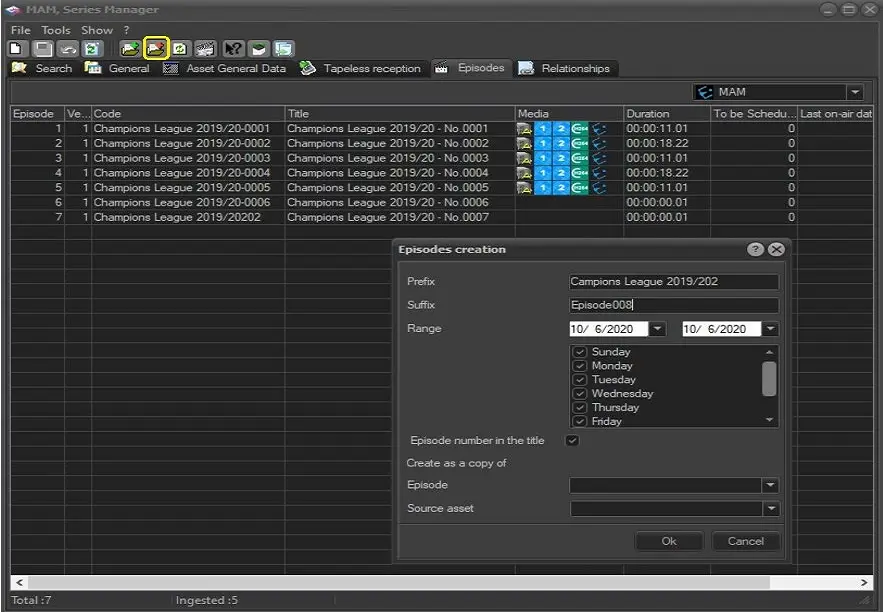
➢Custom [Prefix][YYYMMDD][Suffix] : This creation interface allows to generate episodes with a chronological criteria based on the following parameters:
Episodes 2
Prefix - Optionally enter a string to be appended at the start of the episodes' asset codes.
Suffix - Optionally enter a string to be appended at the end of the episodes' asset codes.
Range - Select the period for which episodes will be created, one episode will be generated for each day within the period.
Episode number in the title - If enabled, the episode number will be appended at the end of the title of generated episodes. Please note that the last state (ticked / un-ticked) of this parameter is remembered by the system.
Create as a copy of - Optionally indicate the existing episode from which the data (i.e. properties, rights, etc) of generated episodes will be copied from.
Once the [Ok] button is pressed, for every episode, a new asset form will be automatically created according to the previously described parameters.
Moreover, it is important to note that created episodes will inherit the following Season Manager information:
▪Live information : The source channel for live assets will be inherited by new episodes from the season manager; and in case the Season Manager doesn't come with live information, it will be taken (if exists) from the last created episode.
▪Closed Captions: The closed captions property of the new episode will be either enabled or disabled according to the value of that property for the Season Manager.
Note:
Adding existing assets to a season is possible from the Media Library, through the "add asset to season" tool function.
Delete episode
It REMOVES the selected episode(s) from the season, deleting all tis references within the database. Please note that this function is available only for those episodes which have not been neither scheduled nor recorded.
Modify episode number
Use it to change the number of the episode to another unused number.
Refresh episodes
It simply updates the episodes list to provide real-time information.
Display next On-Air days
In case the episode has been scheduled to be broadcasted, it displays its first future scheduled date.
Asset management
It open the asset form of the currently selected episode.
NB: If you want to manually change the code or title field of the asset, the codes settings must be set to “Manual codes management” in Etere Configuration Settings.
 Episodes_2
 Episodes_1