72.7.4.9 Using the RZCP Transcoder workflow
Subtitles can be automatically handled (i.e. inject, imprint and extract) via Etere workflows just by following the procedure below:
1.Open Configuration > Configuration Editor module and navigate to the "DataMover > Transcoding" section.
2.Press the [Create new action] button, set the parameters below (as specified in the Rhozet RZCP Transcoding chapter) and press the [Save] button:
Transcoding
Storage settings
Source - Specify the cloud-device on which video files to be subtitled are stored and the codec to be filtered.
Destination - Specify the cloud-device on which subtitled video files will be stored and the codec to be assigned.
Process type - Select the "Rhozet RZCP Transcoding" process.
NB: Recommendations on how to store source and destination subtitled files can be found in the How to store subtitles.
Basic settings
Identification and appearance - Give the action a brief and self-descriptive name (e.g. Xcode Insert Subtitles into MXF) and optionally set other properties such as color and description.
Behaviour - Besides specifying the number of "concurrent processes" and the "use of media folders", specify if the "destination metafile" should be named using either the asset code or a generated unique name.
Process settings
Sources - Specify if the subtitle insertion will be performed for either a single or multiple files.
Destination - Specify either a standard or a custom profile for transcoding the source file(s).
Other settings - Specify the installation path of ProMedia Carbon, the job output path for temporary files, the optional "trimming based on pre-charged value" as well as the language of the subtitles to be added.
Most importantly, set the "GUID" of the video filter to be used for adding subtitles with the desired method:
Imprinted - Subtitles will be imprinted into the video stream. This is the simplest subtitling method as it merges subtitles into the video essence (it won't be possible to separate them for individual use).
Currently, the following video filters can be used for imprinting subtitles into video stream:
•XML Titler {303EC062-9997-4975-9FED-228798D36687}
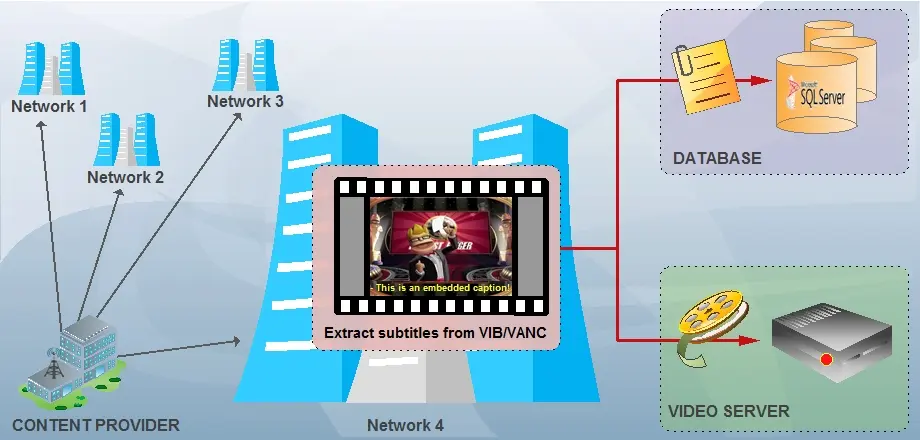
Embedded - Subtitles will be injected into the video file without merging them into the video essence (it will be possible to separate video stream from subtitles to, for example, extract subtitles).
For embedding into VBI/VANC via T-workflow refer to Manual embedding.
NB: A complete list of ProMedia's video filters for subtitling can be found in Available Filters for Subtitling.
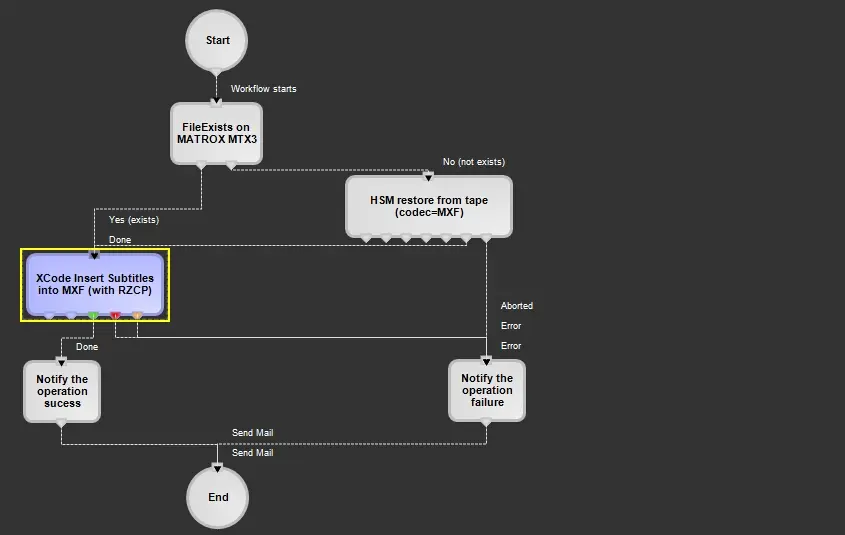
3. Navigate to the "Workflow > Designer" section and add the just created action (e.g. Xcode Insert Subtitles into MXF) as well as other actions required for your transcoding, for example:
Workflow Designer
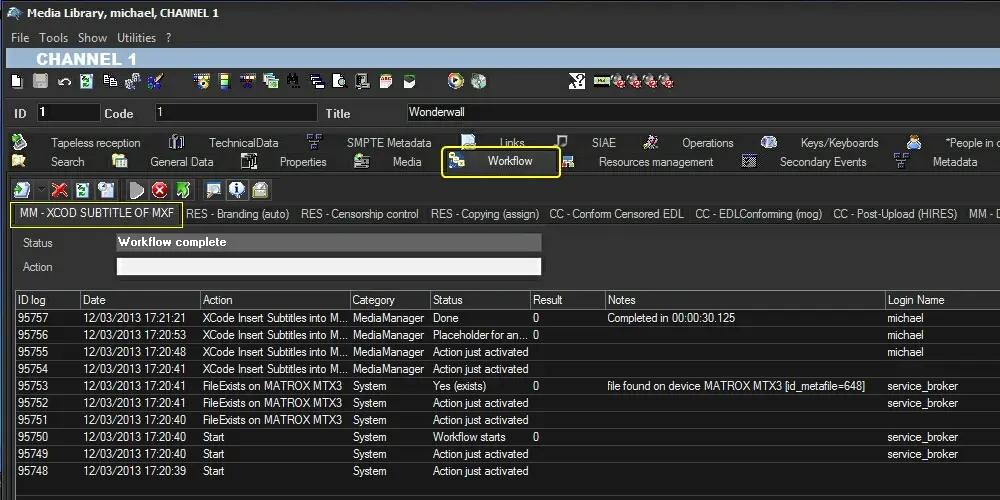
4. Launch the Media Library, open the asset to be subtitled and attach to it the just created T-workflow (e.g. MM - XCOD Subtitle of MXF), then, press the [Start] button:
MM - XCOD Subtitle of MXF
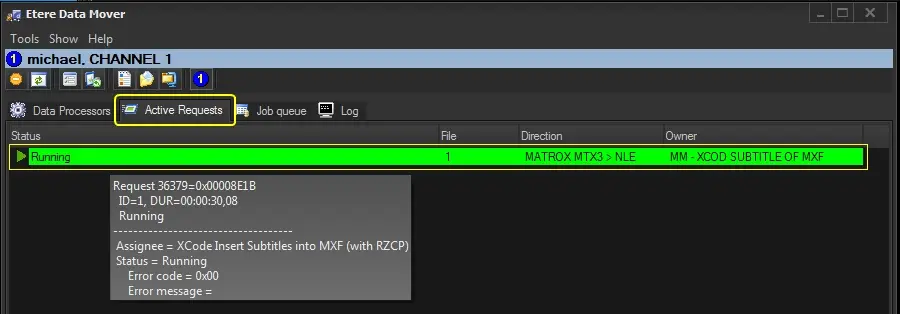
5. The transcoding request will be processed by Etere Data Mover:
Data Mover
NB: As described in the Exported Rhozet XML section of the Configuration chapter, in order to allow ProMedia completing the transcoding task, two XML files will be created in the job output path, a first one with the parameters and a second one with the subtitles.
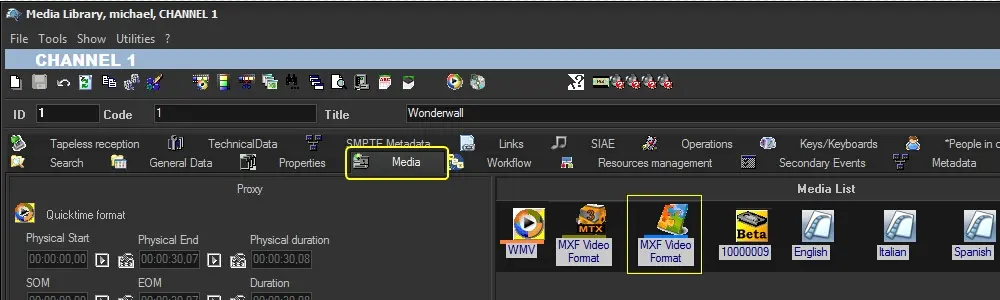
6. Once the transcoding is completed, the subtitled file will be saved in the destination path and linked to the asset:
Media
7. At this point, the subtitle file can be preview to verify the successful insertion of subtitles:
Preview
 Extract_flowchart
 Script_Strings
 MM_-_XCOD_Subtitle_of_MXF
 Parameters
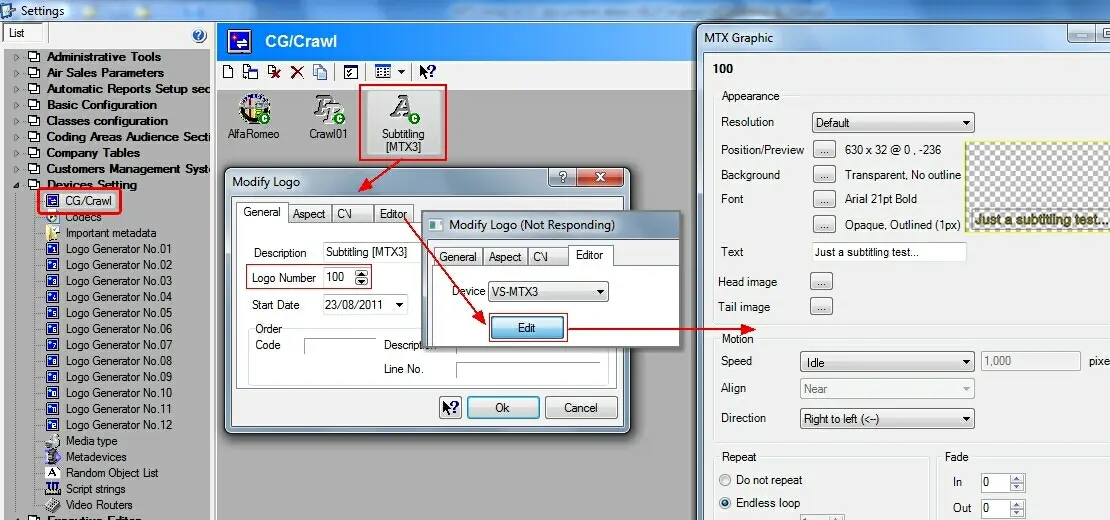 CG_Crawl
 Data_Mover
 Workflow__Designer
 Media
Media
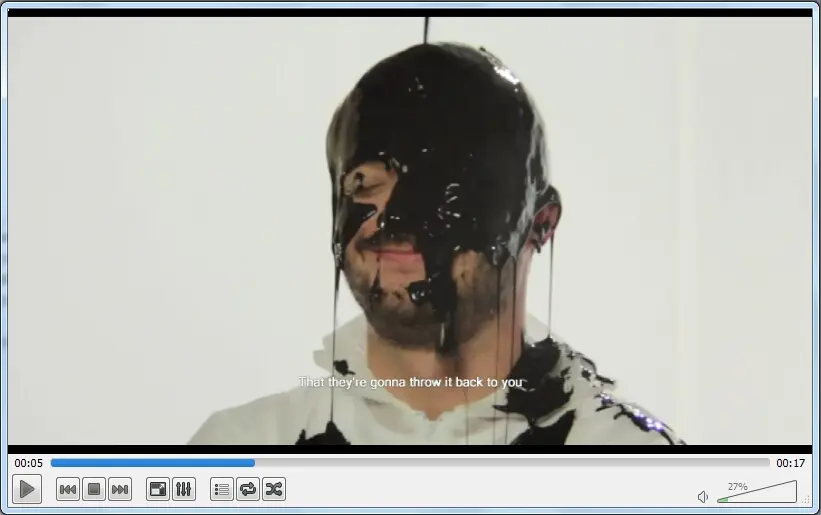 Preview
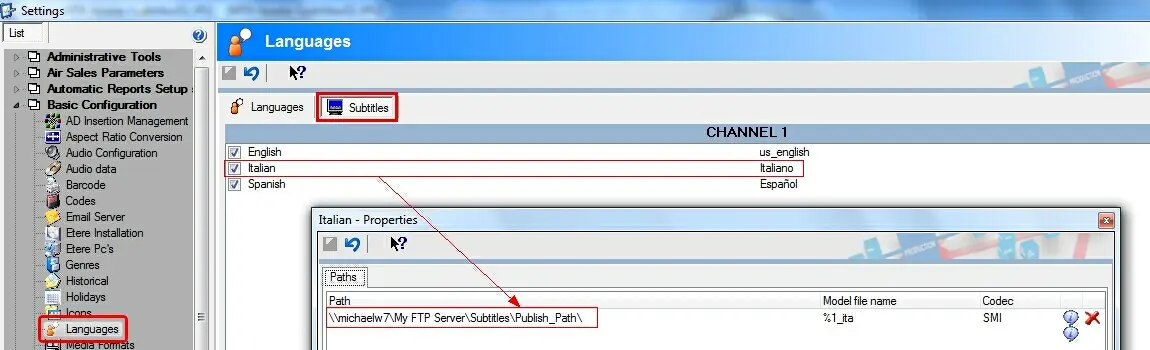 Languages_tab