71.4.2.2 Planning tab
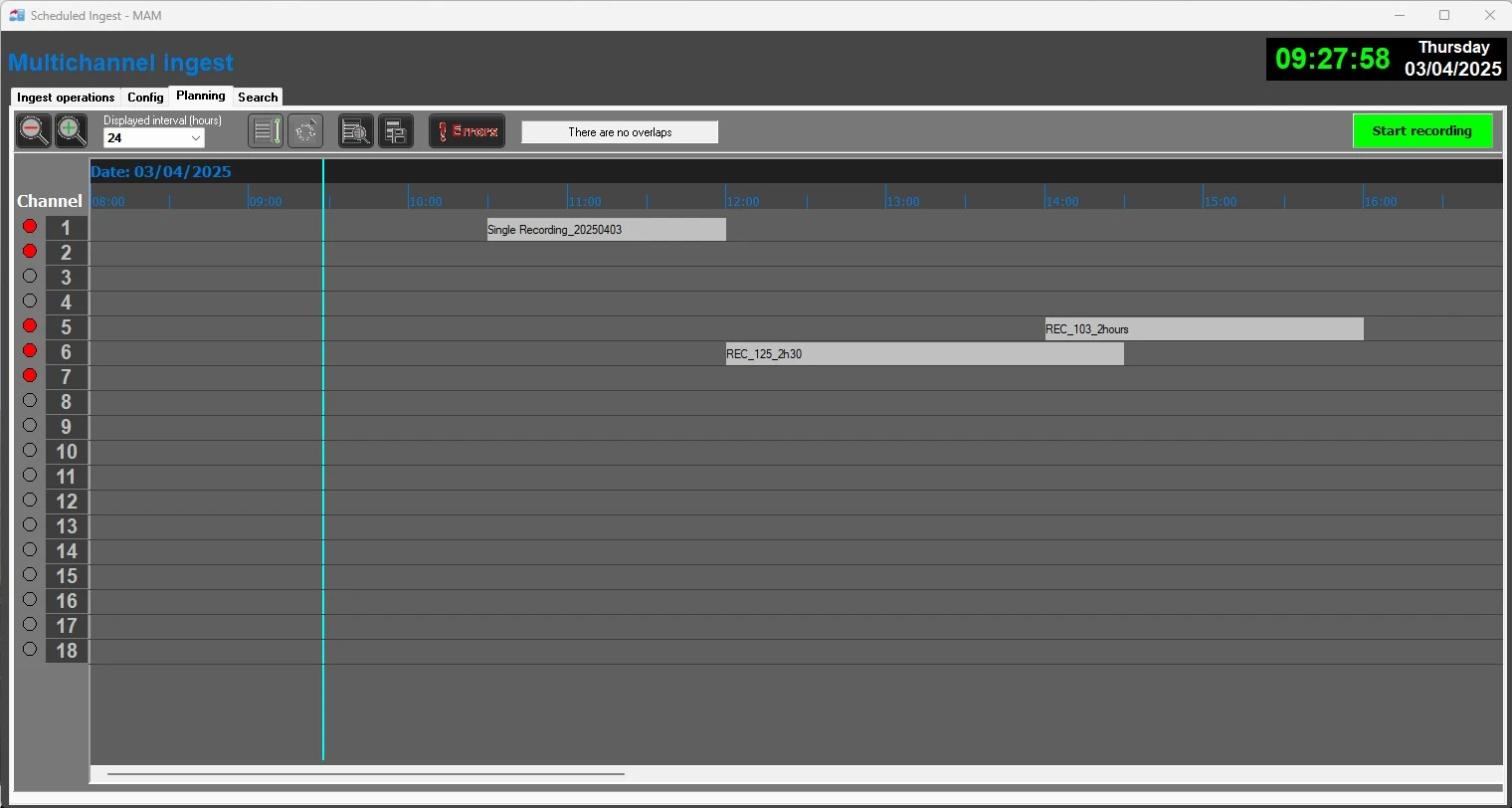
In the Planning tab it is possible to view, graphically, the ingest operations scheduled on different channels (in a period from 6 hours up to 96 hours), starting one hour before the current time. You are able to zoom in on the timeline view, show ingest operations vertically, and consult and save logs.
If you are using a Full HD monitor, you can view up to 32 scheduled ingest channels in the Planning tab.
Each channel will have a coloured light, depending on their status:
RED: REC not started, or CUE Failed, or REC Failed
LIME: REC in cue or already started (in recording)
GRAY: Scheduled REC configured and waiting to be CUED
EMPTY: Channel not configured
By placing the mouse over an event, you will be able to read its complete description. In case of overlaps on the same channel, a red message will appear and they can be easily noticed on the board. The Refresh key allows to update the board, even if the update is done automatically every 60 seconds.
Multichannel_ingest_1
Note: The "displayed interval" box allows specifying the period of time to be displayed (from 96 hours behind to 96 hours ahead).
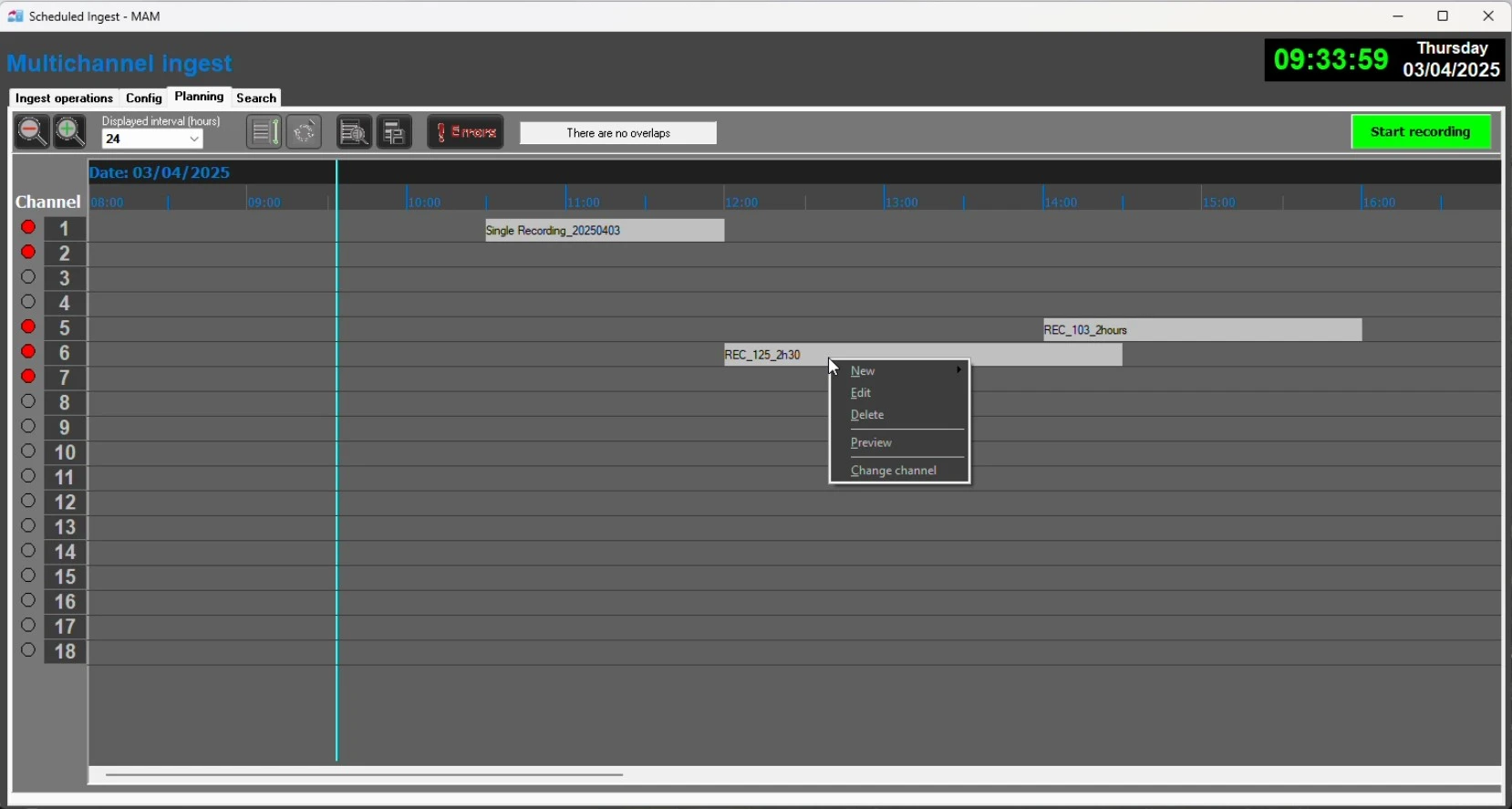
Moreover, modifications such as Edit, Delete, Preview or Change Channel for scheduled event is allowed under the Planning tab.
If the asset is locked for modification, the asset would be unlocked automatically before the recording.
Multichannel_ingest_2
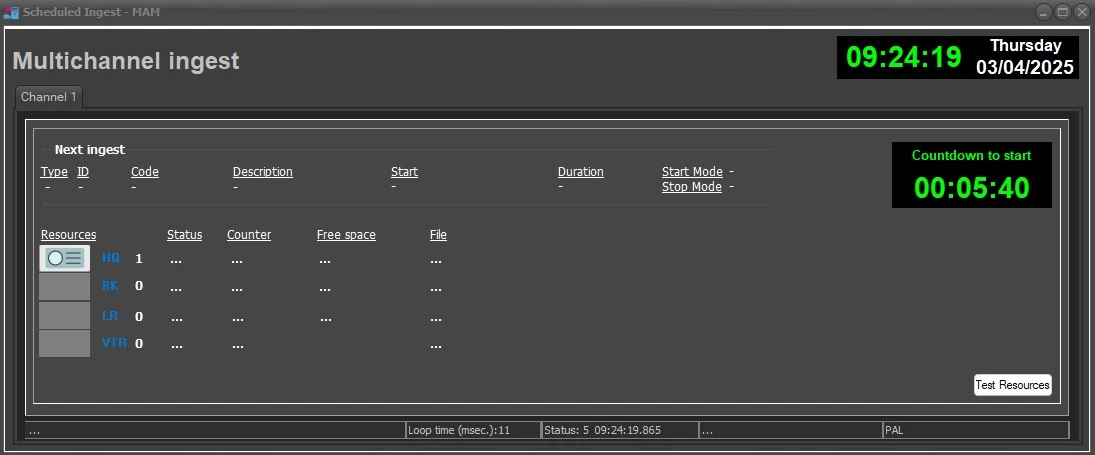
To start ingest press the [Start Recording] button, a window will be opened to allow you monitoring the ingest process of every channel (different tabs). This new window will provide the following functions:
Multichannel_ingest_3
• Channel: Here will be indicated the ingest channel as well as information regarding the "Next ingest".
• Countdown: It displays the time left for either the ingest start or the ingest end.
• Resources: It shows all the resources configured to be used for ingesting.
• Test Resources: In case no ingest operation is being performed, this button will test all available resources, indicating in the 'Errors' tab if any issue arise. If the function is activated less than 2 minutes before the next ingest start time, error message would be prompt to alert user and the test function would be abort.
• Stop: In case an ingest operation is being performed, this button will interrupt the ingest process, allowing the operator to manually stop it in advance.
Moreover, in the bottom part there will be displayed the following tabs:
❖ The "Scheduled Ingest Operations" tab lists all pending and completed operations.
❖ The "Errors" tab captures errors encountered during ingest.
During recording, the ingest timecode is checked progressively every 15 seconds to rectify recording status. If the recording timecode is not flowing the ingest would be terminated automatically with popup error message on screen and recorded in the Errors tab.
Note: During ingest, any dropped frame or skipped frame would be recorded in the ingest log.
 Multichannel_Ingest_1
 Multichannel_Ingest_2
 Multichannel_Ingest_3