201.2.1.2 Creating a New Order
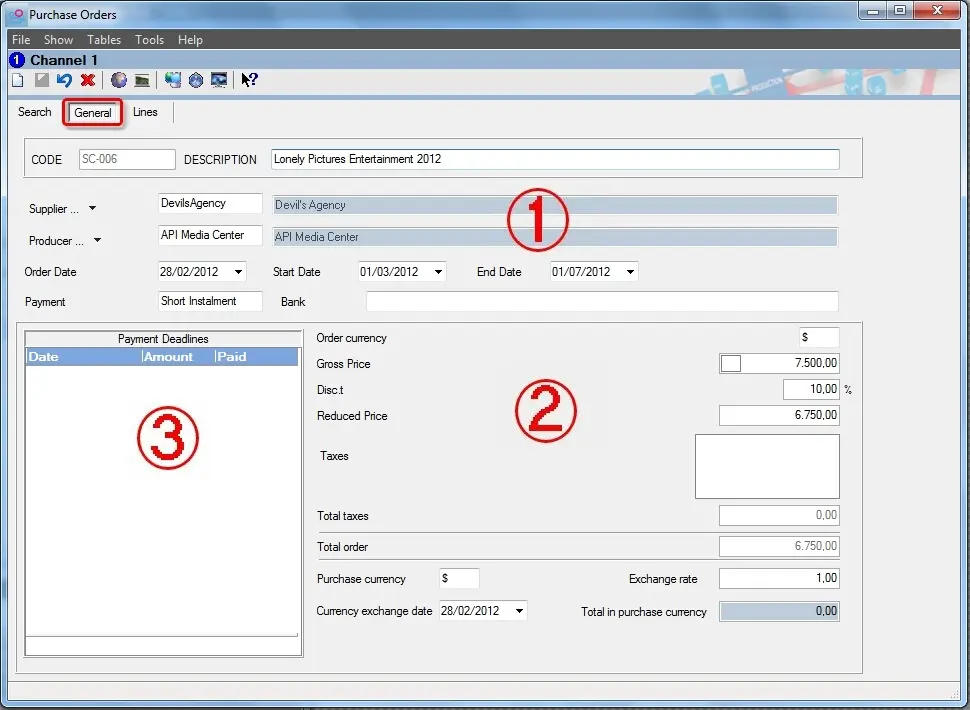
In order to create a new purchasing order for assigning rights to an asset(s) you must click on the [New order] button, the relevant details of the order can be input under the 'General' tab.
Bms_general
1. Main data
The top panel of the window require relevant information regarding the parties involved in the purchase order as well as the validity dates and the payment type:
Parameter - Code
Description : The code of the purchasing order used as the main key for identifying the order inside the database. You can modify the Code of the contract upon creation.
Parameter - Description
Description : Enter the short descriptive text for the order. The more detailed the description the easier it will be to search for it.
Parameter - Supplier
Description : Input the supplier (e.g. agency) related to the purchase order. The search is performed across the Personal Data database when click on the [Agency].
Parameter - Producer
Description : Input the producer (e.g. agency) related to the purchase order. The search is performed across the Personal Data database when click on the [Agency].
Parameter - Order date
Description : Specify the creation date of the purchase order.
Parameter - Start-End date
Description : Set the validity period of the purchase order in question.
Parameter - Payment
Description : Specify the method of payment for this specific purchase order by selecting from a list of predefined payment types (Etere Configuration -> Invoicing Archives -> Payments). This information is then used to manage the timely payment of the rights featured in the purchase order.
Parameter - Bank
Description : Select from a list of predefined banks (configured in either Personal Data or under Etere Configuration > Invoicing Archives > Banks) through which the purchase order will be paid. As the bank is pre-configured, the process of choosing one is facilitated as you don't need to input the SWIFT code and other bank details every time you create a new purchase order. These details will predominantly used by the Accounting department to activate payments.
2. Financial data
The bottom right section regards the overall value of the order in question. Under the Properties tab you are able to specify the breakdown of all lines in the order, it is important to put an expected overall value and manually check the value against the sum of the lines.
Parameter - Order currency
Description : This is defined in the Settings of your PC under Control Panel > Regional and Language Options, it can be customized if necessary. At the bottom of the window you can view the order's amount in different currency, this is particularly useful if you are dealing with international orders. Input the foreign purchase currency, the exchange rate and the date of said rate and the respective Total Purchase Price. This does not calculate automatically as there are often commissions to be considered on top of the basic calculation.
Parameter - Gross price
Description : Insert the expected gross price of the purchase order.
Parameter - Discount
Description : Insert any discount you wish to assign to the purchase order in question.
Parameter - Reduced price
Description : It would automatically calculate as the Gross Price minus the percentage discount assigned.
Parameter - Taxes
Description : A tax code (percentage) needs to be assigned to the purchase order. Tax codes are pre-configured in Etere Configuration > Air Sales Parameters > Invoicing module.
For each tax code defined, you have an option of calculating the taxes on the total value pre-tax or on the remaining value after each tax bracket. This can be set in Etere Configuration > BMS Parameters. For example, for 'calculated from the total' if your tax brackets were 20% and 10% using a figure of €1,000 the first tax would be 20% of €1,000 and the second would be 10% of €1,000. However, 'calculating from the remaining' would resulted a calculation of 20% of €1,000 and then 10% of €200. This is useful for international accounting.
Parameter - Total taxes
Description : The total sum of all taxes.
Parameter - Total order
Description : The total purchase order amount will automatically calculated as the Reduced Price plus any taxes assigned to the purchase order.
Parameter - Purchase currency
Description : If the purchase order has been established under a different currency, insert the specific currency accordingly.
Parameter - Exchange rate
Description : Specify the agreed rate of exchange.
Parameter - Currency exchange date
Description : Indicate the operational date of the rate of exchange.
Parameter - Total purchase currency
Description : Manually input the agreed purchase order price in the foreign currency. The program does not calculate this automatically as there are often commissions to be included. This parameter needs to entered manually.
3. Payments management
The managing of payment rights is displayed In the bottom left of the window:
Parameter - Payment deadlines
Description : It listed all prepaid (already paid) and postpaid (paid when broadcasted).
For detailed information see the Payment of Rights chapter.
Click on the <Save> button after provided the value in all parameters. The program would proceed to the "Lines" tab.
 Bms_general