87.1.1.2 Loading a tape
Opening an existing tape
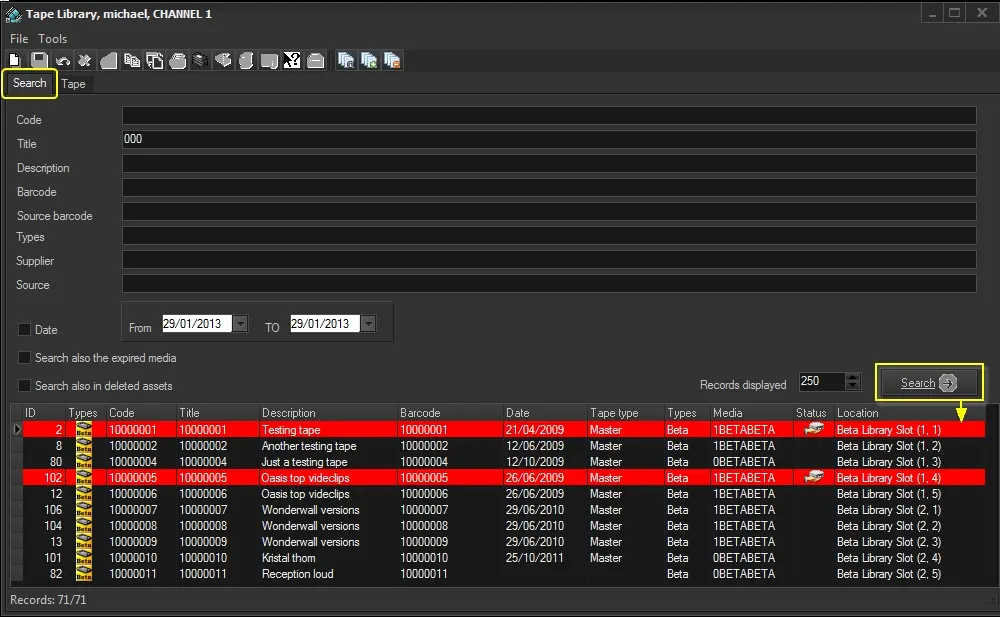
Once the Tape Library module is open, the search tab is automatically focused, allowing the operator to search specific tapes matching any of the following criteria:
Tapearchive_01
Search filter - Code
Description : All tapes which code starts with the entered string will be listed below.
You can only filter one tape code at a time using this parameter.
Search filter - Title
Description : Tapes with a title starting by the inserted text will be shown between the results.
Search filter - Description
Description : The tapes which description starts with the given filter will be retrieved.
Search filter - Barcode
Description : Tapes with a barcode matching (i.e. starts with) the entered string will be listed below.
Search filter - Source barcode
Description : All tapes which barcode starts with the given text will be retrieved between the results.
Search filter - Types
Description : Set here the type of media format that tapes must have in order to be listed.
Search filter - Supplier
Description : Only the tapes supplied by the selected entity will be retrieved between the results.
Search filter - Source
Description : Only tapes which source is the one set here will be listed below.
Search filter - Date
Description : All tapes which date is contained within the given period will be shown in the tapes list.
Search filter - Search also expired
Description : If enabled, also those tapes which have been already set as 'expired' will be listed among the results.
Search filter - Search also deleted
Description : If enabled, it will be possible to search for deleted tapes and consult their data.
NB: This filter is available only if the "virtual deletion" is enabled in the Media Formats configuration.
Search filter - Records displayed
Description : This parameter is used only to limit the numbers of tapes displayed in the results area.
Search filter - Location
Description : Allows archive location to be set as a search criteria on tape library.
Once the search filters have been compiled, just press the [Search] button, all tapes matching said filters will be listed in the results area (currently loaned tapes will be highlighted in red).
Changing the results layout can be done by making right-click on the columns area and selecting the "set columns" function, it will be possible to specify the tape information to be displayed (ID, Types, Code, Title, Description, Barcode, Type, Location, etc).
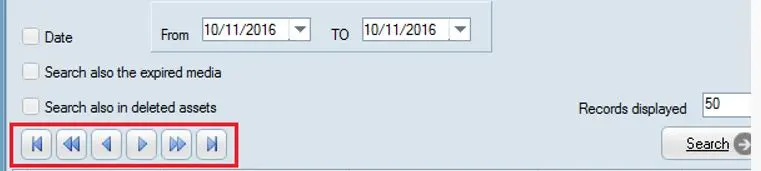
The search results are displayed in pages, with current displayed page and total pages number indicated at the bottom of each page. Furthermore, there are control buttons on the top left corner that enable you to fast forward the page, back to previous page, back to first page, or fast forward to last page, etc.
Tape_mgmt_search_result_bypage
In order to manage a certain tape, just make double-click on it, and it will be automatically loaded in the Tape tab.
Creating a new tape
All tapes managed by Etere are created either automatically each time a tape is detected by Etere HSM or Etere Cart or manually using the [New tape], [Duplicate tape],or the [Quick tape creation] functions available in the toolbar. Whichever the creation method is, tapes can be edited under the Tape tab.
 Tapearchive_01
 Tape_mgmt_search_result_bypage