84.3.2.4 Inserting assets
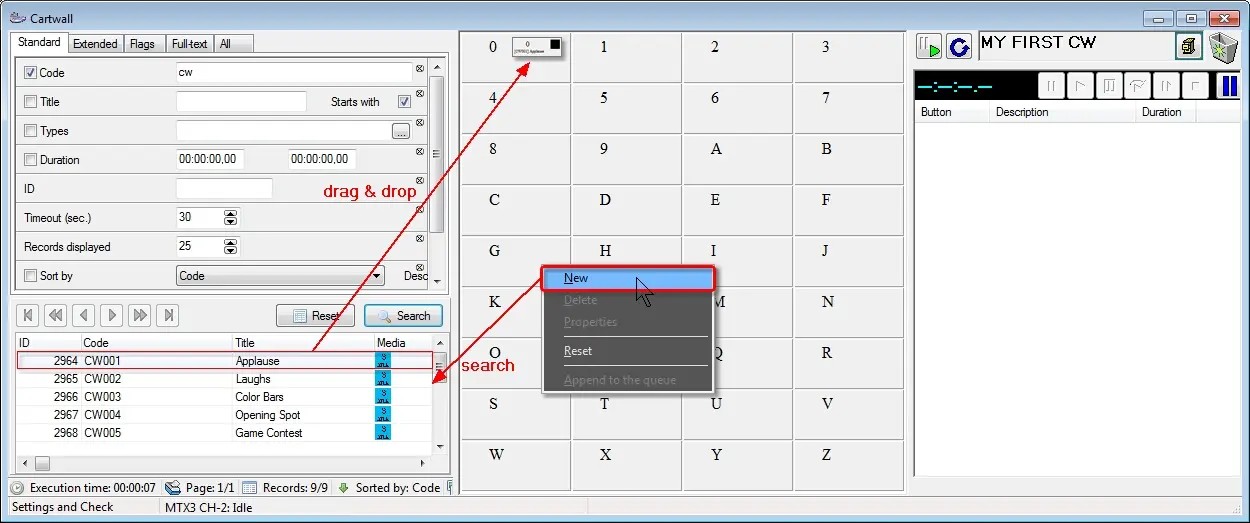
The Etere Cartwall allows to broadcast any media file. Click on a certain Cartwall button or press the corresponding key on the PC keyboard to search for the asset to broadcast. By right-click on the Cartwall to launch a popup menu to create customized key to broadcast the asset:
•New: to add a new video file to a specific button or associate an asset in the database, simply right-click and select the 'New' button, search for the asset, drag-and-drop the asset to the button you wish to hold the asset.
5052_Cartwall
•Delete: delete the asset associated to the selected key.
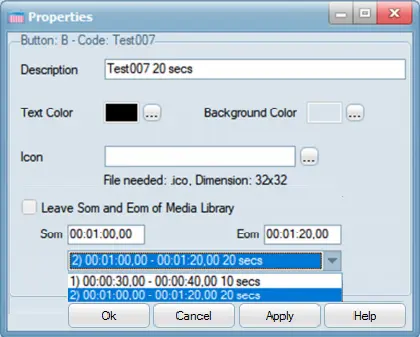
•Properties: It allows to modify each key's properties:
5053_Properties
•Description: A brief description of the asset.
•Text color: Set the color for asset's name to be displayed.
•Background color: Choose a background color for the name of the asset.
•Icon: Here you can set the path and filename to the icon you wish the asset to show. Please note that the selected icon must be in 32x32 format and the path must have a maximum length of 50 characters.
•Leave Som and Eom of Media Library: When loading a playlist, with this option disabled, the playlist would start from the beginning of the file. By enabling this option, you can set the playlist to start (SOM) and end (EOM) within the specific timecode by specifying the timecode in the SOM and EOM timecode box, or select the various segment timecodes from the drop down list to start the playlist. This option is only valid for selected playlist, when new playlist is linked, the SOM would resumed to the Start of the asset form.
NB: If the EOM contain null value, the logical EOM in data field “POS_FIN” in asset repository table (FILMATI) would be read.
•Reset: Set the item to its original status (empty button with default colors).
•Append to the queue: Insert the asset at the end of the playlist. It corresponds to the dragging of the asset at the end of the playlist.
NB: If the asset did not programmed correctly, or has not been recorded, it will be indicated with an icon (jc2) on the related button.
 5052_Cartwall
 5053_Properties