72.2.2.28 Annotations - HiRes Functions
The following functions are provided for managing HiRes media files:
Unlock resource: Unlock a resource that is "in use", this making it available for being used.
This function should be used only when really required (e.g. supervisor tests).
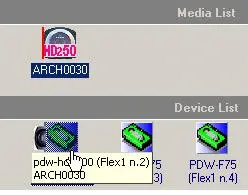
Insert media: Moves the media disc into the chosen device (deck). The Media Library will send a request to Etere Cart Manager to move the disc into the selected deck. Once the media disk is into the deck a disk icon will be shown near the device icon:
Device icon
NB: During the copy, a status bar will appear along the bottom of the device list section informing the operator if the disc is 'Moving' from its bin/slot to the deck or 'Reading' if the disc content is being read once inserted into the deck.
Remove media: Moves the media disc back into its original location (i.e. XDCAM).
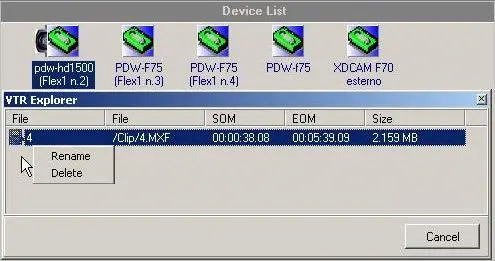
Explore and select video file: Access the XDCAM via FTP and opens the VTR explorer, which allows to view and select disc/tape contents required for editing. Double clicking on a particular file selects it and updates the SOM and EOM metadata in the asset form (read from the disc):
VTR explorer 1
As shown above, In case the deck menu is activated, right clicking on a file allows to cancel or rename it on the disc.
NB: During the access, a 'connecting' message will appear in the media device status bar.
Download video file: Download a media file stored in the XDCAM disc:
Download video file
Please refer to the Download chapter for detailed information on this function.
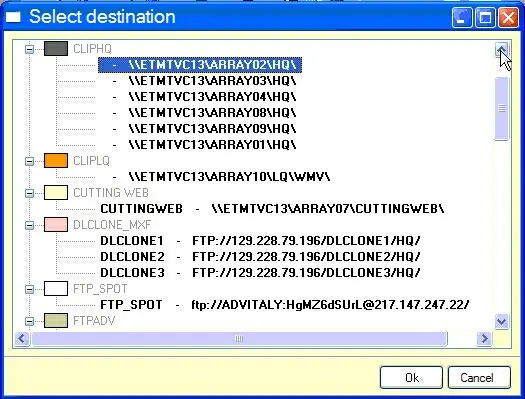
Explore and download video file: Access the XDCAM via FTP and opens the VTR explorer, which allows to choose and download a file stored in the disc/tape to a media folder (i.e. cloud-device path):
Cloud-device path
Upload archived video file: Upload an archived file onto a disc/tape. This option is active only for assets with at least one linked file.
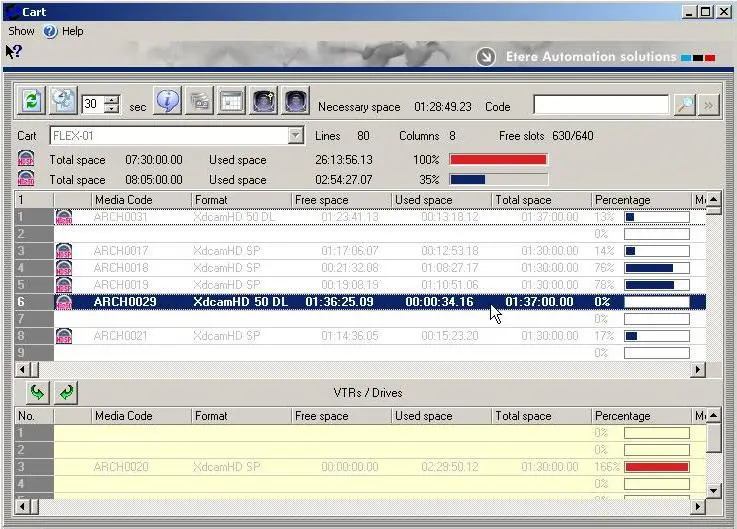
Transfer video file via FTP: Copies the clip in question to another disc via FTP. Either the whole clip can be transferred (selecting 'Clip') or just the Scheduled duration ('from SOM to EOM'). You will then need to select the destination deck and disc into which the transfer needs to be made. If the destination deck is inside the same cart the following form will appear:
Cart
If on the other hand you are copying to a disc in an external deck make sure the disc is inserted in the deck in question.
At the end of the transfer, if a copy was requested of the whole clip, the asset form will be updated with the new media file. If however, the option of only copying from a specified SOM to EOM, a new asset form will be created.
If the destination deck was external to the XDCAM Cart, the disc code will also be requested.
Explore and transfer video file via FTP: Copies the clip in question to another disc via FTP. Using the explore element (as opposed to the 'transfer video file…' option above) opens the VTR window allowing you to visualize all files held on the current disc and allows you to transfer any file in its entirety.
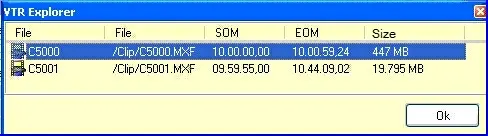
Explore: Access the XDCAM via FTP and opens the VTR explorer, which displays the disc/tape contents.
VTR explorer 2
Double clicking on a particular file selects it and updates the SOM and EOM metadata in the asset form (read from the disc).
NB: If the media is linked to LIVE asset, the preview function would not be available. You would need to set the asset status using the “Enable/Disable Live” tools in order to preview the media.
Note
Please note that each time an asset's clip is either downloaded or uploaded from an XDCAM device, also the related asset's metadata is either imported or exported respectively (this feature can be enabled under the Etere Configuration > Settings > Basic > Media Library > EVTR/XDCam module a and the Flexi-metadata set under the Etere Configuration > Settings > Basic > Media Library > Flexi-metadata Mapping > Sony tab).
 Cart
Cart
 Device_icon
 Cloud-device_path
 VTR_explorer_2
 VTR_explorer_1
 Download_video_file