18.1.6 Watermark on Player
This section allows you to define and apply a watermark on the player.
Watermark on Player
Use watermark: Enable this option to use the watermark feature and define the rest of the settings. It allows displaying a watermark for the currently logged-in user during Lowres preview. This function is available from EtereWeb version 28; only users with “Administrator” rights can modify this option.
Note: In Rights Management, the rights “Web\WatermarkPlayer” must be enabled (“Allowed”) for the “Administrators” user group and disabled (“Denied”) for the “Everyone” user group.
Watermark text: The user login name is default displayed as watermark text. You can enter any text to be displayed as watermark text;
Font size: Set the font size for watermark text to be displayed;
Colour text: Select the colour code for the watermark text to be displayed:
Select the colour
1. Click the button to launch the selection of colours;
2. Select a base colour;
3. Move the cursor around the box to define the desired colour.
The selected colour would be displayed with its RGB colour code values in the parameter, e.g. #000000 for black, #FFFFFFF for white, #0000ff for blue, etc.
Background colour: Select the colour code as the background colour for the watermark text;
Select the colour
1. Click the button to launch the selection of colours;
2. Select a base colour;
3. Move the cursor around the box to define the desired background colour.
The selected background colour would be displayed with its RGB colour code values in the parameter:
e.g. #000000 for black, #FFFFFFF for white, #0000ff for blue, etc.
Top position (%): Set the percentage of coverage when the watermark is displayed at the top part of the screen;
Left position (%): Set the percentage of coverage when the watermark is displayed at the left side position of the screen;
When settings are confirmed, click the <Save> button to save the configuration.
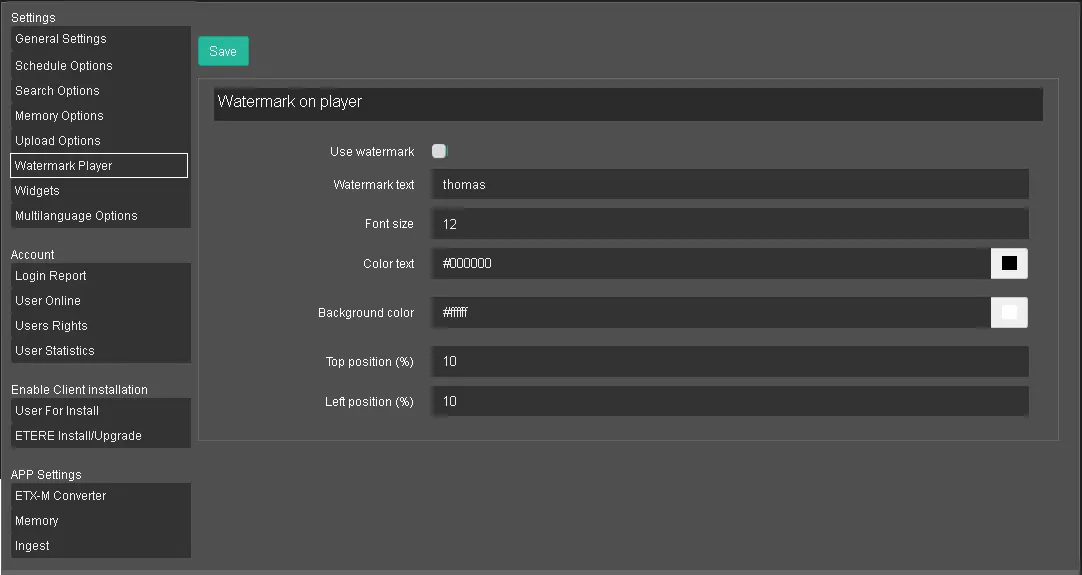 Watermark_on_Player
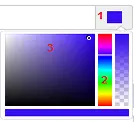 Select_the_color