72.2.2.65 Rights Management
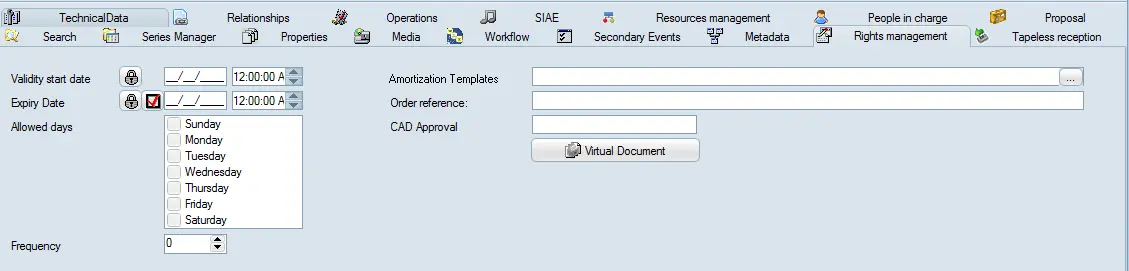
The Rights Management tab is used to manage the rights of the asset in question, you can dictate here the permissions to be taken into account when scheduling:
Rights Management tab
• Validity start date (and time): Set the date (and exact time) from which the asset can be scheduled and from when it will appear as a result in the 'Asset search'.
• Expiry date (and time): Define the date (and exact time) after which the asset will no longer be able to be scheduled and will no longer appear as a result in the 'Asset search'. If the lock button is pressed, the asset will be ongoing and never expire. By pressing the red tick, the asset will automatically be marked as expired.
NB: The validity start date and the expiry date forms the validity period of an asset, the asset will be allowed to be searched, modified and scheduled during this time, whereas outside this period it will be considered as 'expired'.
• Allowed days: Indicate the days on which the asset will be allowed to be scheduled. Unchecked days will be forbidden to schedule the asset in question, from either from Executive Editor and Strategic Editor.
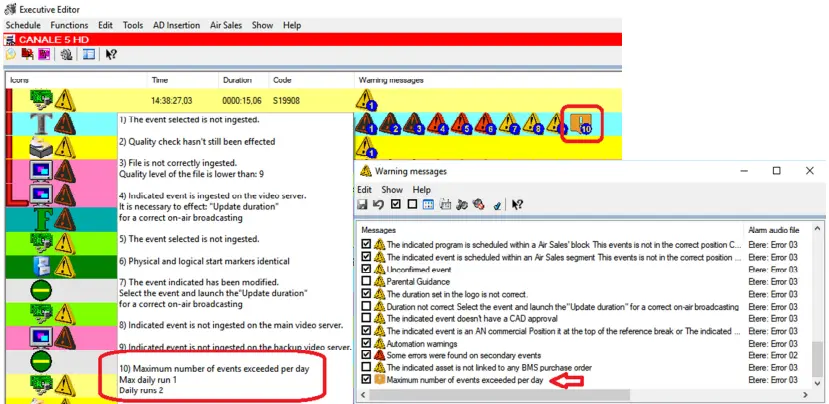
• Frequency: Based on the dates of validity and expiration, and days allowed settings specified above, indicate the number of times the trailer is allowed to be scheduled to go on-air within a day. A Frequency column has been added to the Promo List in Promo Management to reflect the parameter. If the scheduled events exceed the maximum number set in the Media Library, a warning message would be prompted in Executive Editor to notify user, as shown in the image below.
Promo Management
NB: In Executive Editor, the warning message “Maximum number of events exceeded per day” is disabled by default, you would need to enable this option in order to monitor the scheduling.
• Amortization Templates: Allows to associate an amortization template to the asset to improve the management of its runs. These templates are configured in the Etere BMS > Amortization Templates section.
• Order Reference: insert any relevant order reference or notes related to it (using also the Commercial Note section below if necessary).
• CAD Approval: in some countries before an asset can be approved for broadcast they need to be approved by the Commercial Acceptance Division. This field is intended to hold the CAD approval code for future reference and confirmation of approval. In case no video approval is entered here, operators will be warned during the scheduling process about the possible 'not-approved' state of the asset's video.
• Virtual Document: It allows you to associate digital documents (e.g.: pdf, doc, txt, jpg, etc) to the asset in question.
• Commercial note: Enter here any complementary text regarding the current asset's rights management.
 Rights_Management_tab
 Promo_Management