67.5 Adding a Etere Channel Input
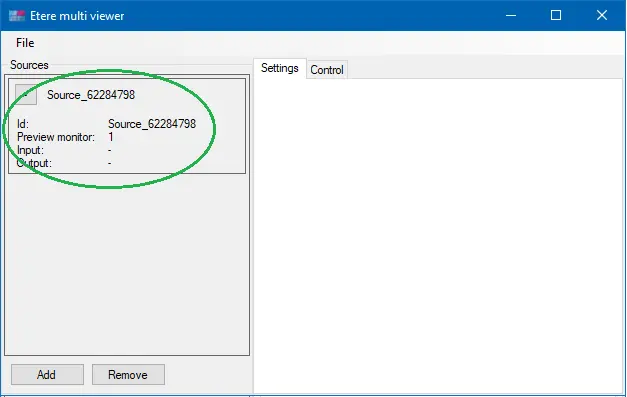
Other than network stream input and video device input, you can also add Etere channel input to Multiviewer. First, create an Etere Preview in the Settings tab by selecting a preview window and obtaining a source ID from Multiviewer.
Next, in the Input tab, specify “Etere” as the source of the input type.
Etere Multi viewer 1
In the “Etere” tab, enter the parameters to indicate the Etere input source for the preview.
Etere Multi viewer 2
•Etere Channel: Select the Etere Channel as an input channel, e.g. MAM, ETX, Automation, etc
•Next event yellow alert time (s): Specify the interval time (in seconds) to schedule the next event in the preview. A yellow bar would appear in Multiviewer when the time value is reached.
•Next event red alert time (s): Specify the interval time (in seconds) for the next event to be shown in Multiviewer’s preview. A red bar would appear in Multiviewer when the time value is reached.
Next, click <Save> to confirm the input settings and insert the Etere channel in Multiviewer.
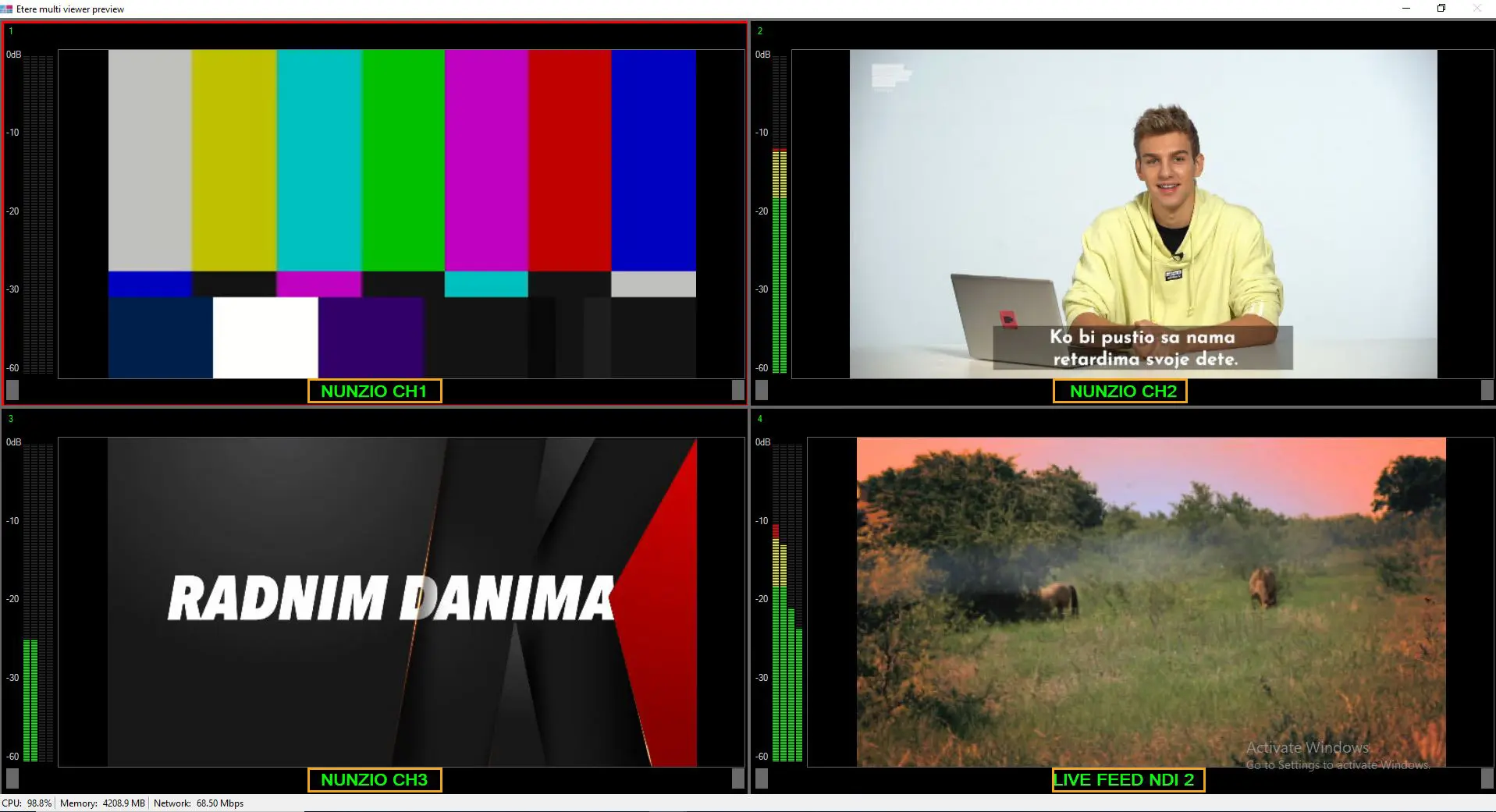
It is worth mentioning that in the presence of NDI Video Source Input, the channel name would be taken by the description assigned in Etere Router IP Configuration automatically, in:
Etere Configuration > Settings > Video Routers
mv_channel_name
video_router
NB: From Etere version 31.2 or later, the Etere Tab is available in both 32-bit and 64-bit Multiviewer.
 Etere_Multi_viewer_2
 Etere_Multi_viewer_1
 video_router
 mv_channel_name