6.5 Reports
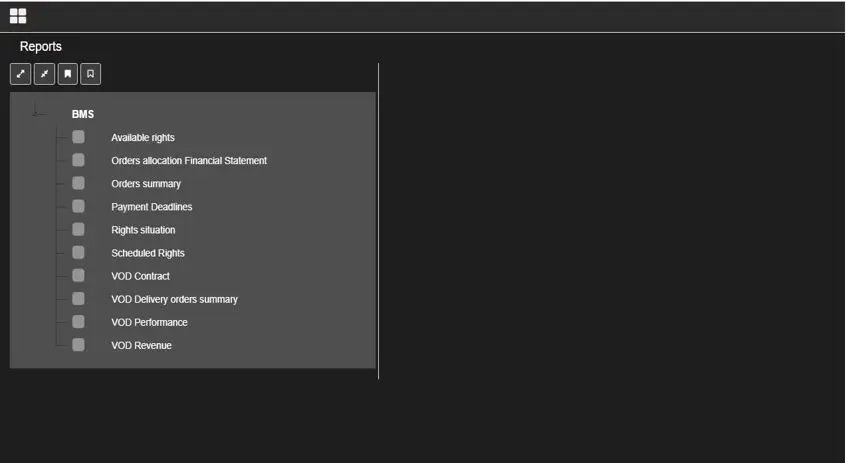
The Reports section lists all available reports related to the BMS module.
Reports
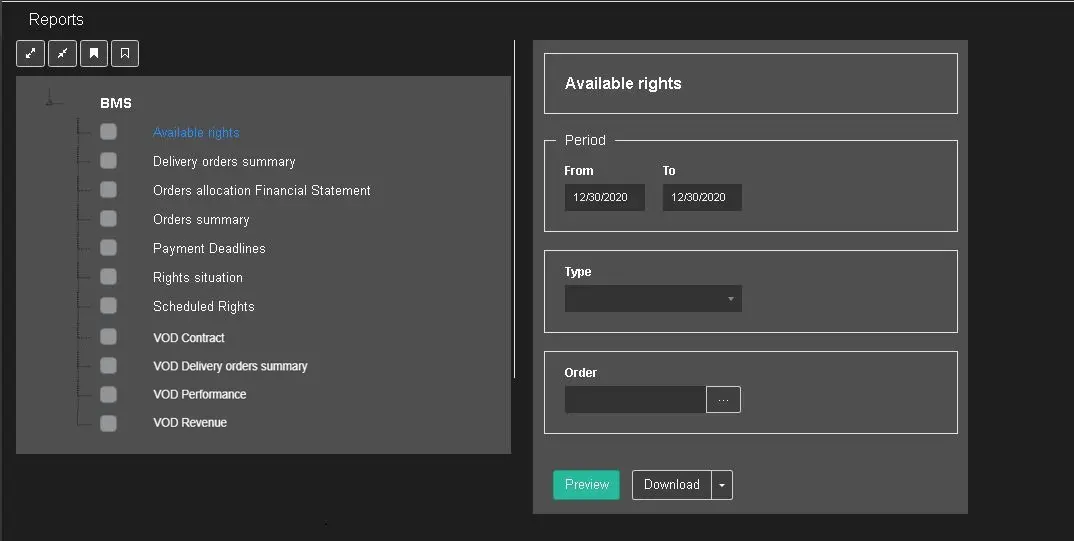
A single click on any report displays all parameters required to generate a complete report.
Inventory management
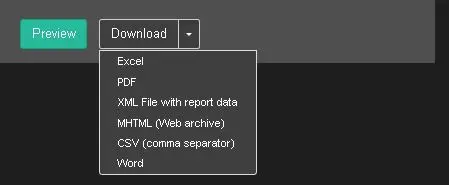
Once the report parameters are fulfilled, you can click the <Preview> button to display the report on the screen or click the <Download> button to generate the report in a supported format, as shown in the image below.
Download
Avaiable Rights: Select The date range, the visualization period the type of the order row and the order you want to report to show its Rights statistics
BMS Contract admortization: Select The order and the visualization period to show contract admortizations;
Inventory Management: similar as Avaiable Rights, but with applied filters
Orders allocation Finantial Statement: Select The Period, order and the asset, if any, to visualize the report
Orders summary: Select The Period, order and the filter based on rights quantity and type to visualize the report
Payment deadline: Select The Period ,the type of payment and if it was paid or not to visualize the report
Scheduled Rights: Select The period, the order and the scheduled rights filter to visualize this report
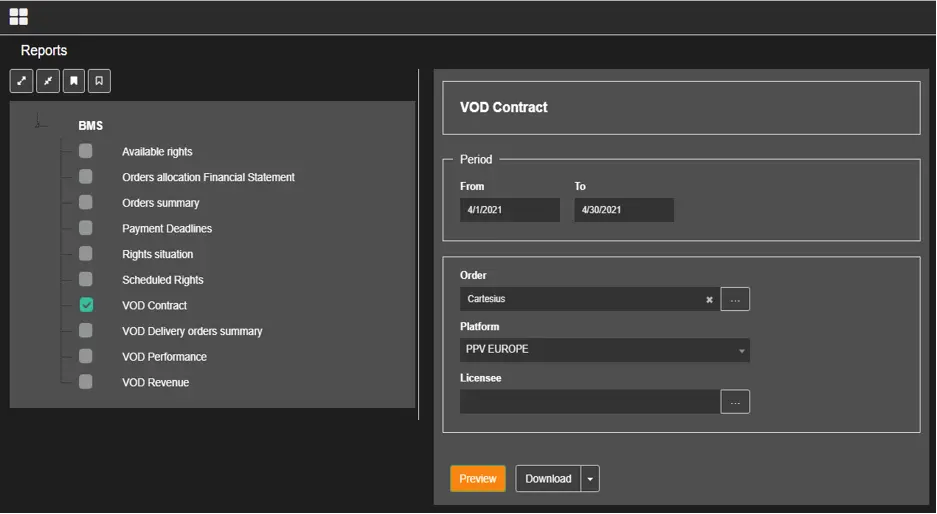
VOD Contract report: In the report parameters, you can filter VOD contracts created within the specific date range or filter VOD contracts by their Order, Platform type, and Licensee.
VOD Contract 1
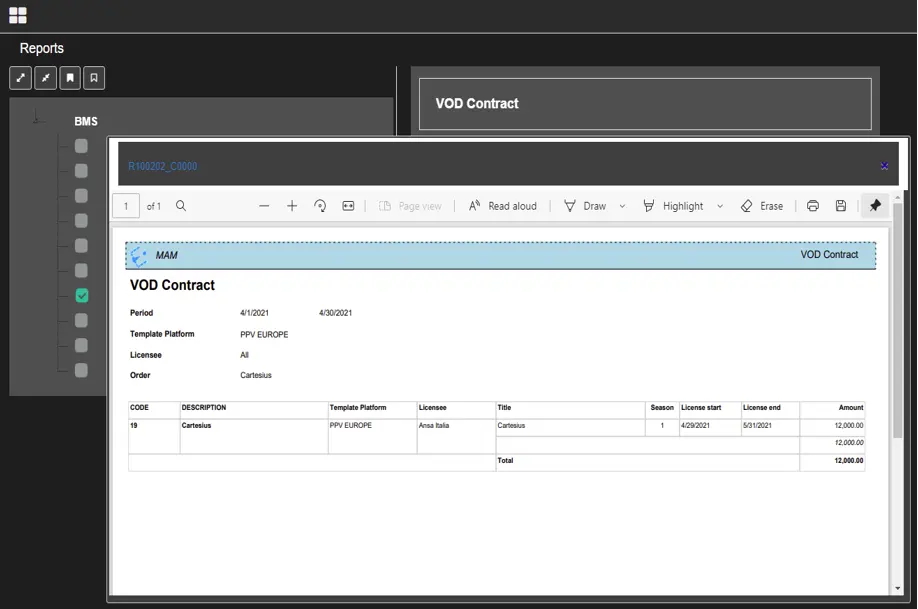
When all filters are set, click the Preview button to preview the report layout.
VOD Contract 2
If you are OK with the report preview, click the Download button to generate the report in any supported format. The report would be generated in the user-specific Download folder on the local machine.
Download
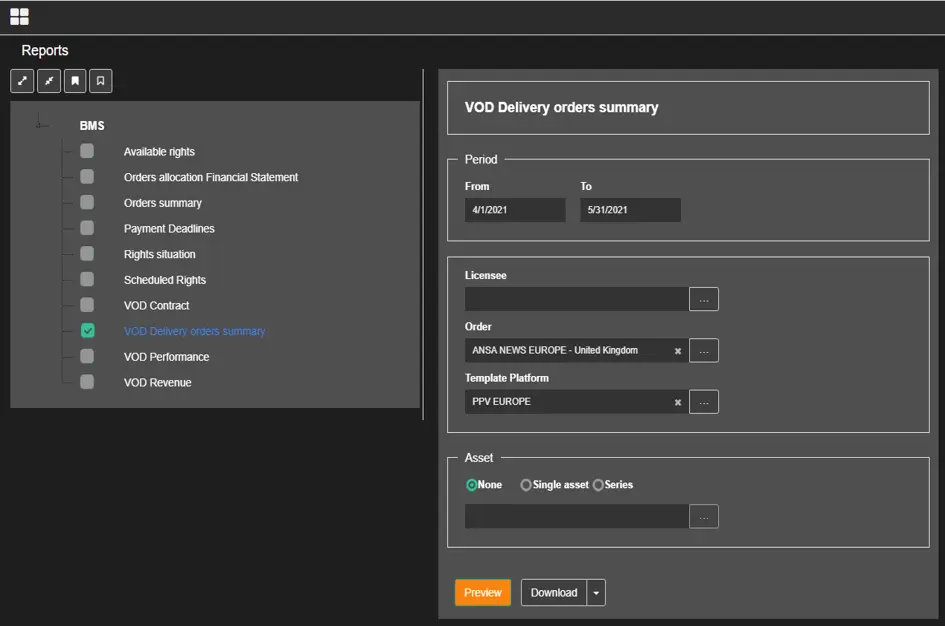
- VOD Delivery orders summary report
In the report parameters, you can filter VOD contracts created within the specific date range or filter VOD contracts by their Order, Platform type, and Licensee. In the Asset section, you can filter contracts by asset or season episode.
VOD Delivery Orders Summary 1
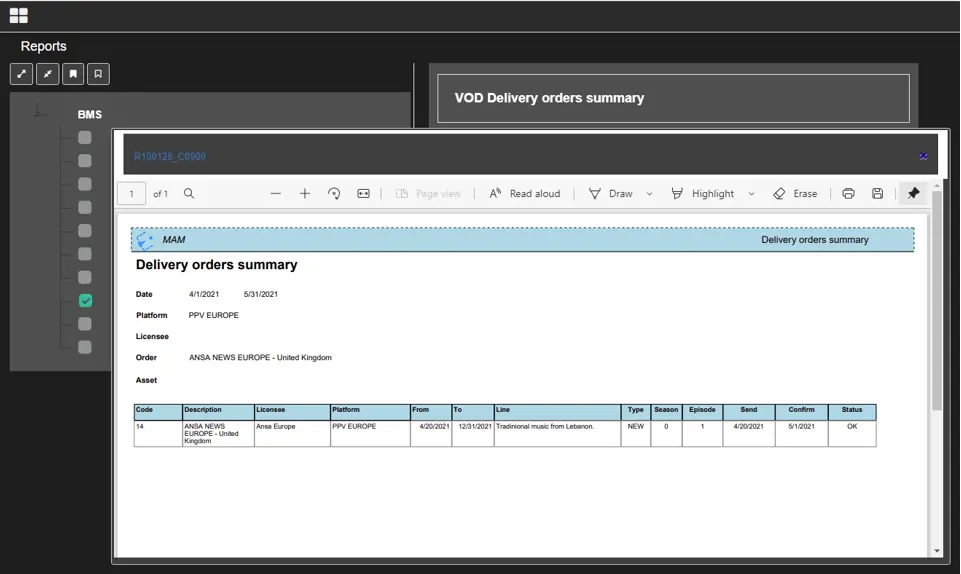
When all parameters are set, click the Preview button to preview the report layout.
VOD Delivery orders summary 2
If you are fine with the report preview, click the Download button to generate the report in any supported format. The report would be generated in the user-specific Download folder on the local machine.
- VOD Delivery orders summary ML
With this report it's possible to retrieve data about the VOD orders available and see the multilanguage values of some properties of the assets linked.
Filter the data by:
Period: The contract's validity period
Order: Filter by a specific VOD contract
Asset: Extract the data of the contracts which have the selected asset (or assets) linked.
The report shows some data about the assets linked to the contract selected or featured in the contract in the period specified. For each of them, if available, the columns Genres, Artist manager and Title ML, show also the multilanguage values for each element.
For Genres and Artist manager columns, the multilanguage values are displayed in the same cell for each asset. For the Title instead, there is the Title column, which displays the title of the episodes or the single asset, and the columns Title ML and Language, which display respectively the title's multilanguage values and the related languages. - VOD Performance report
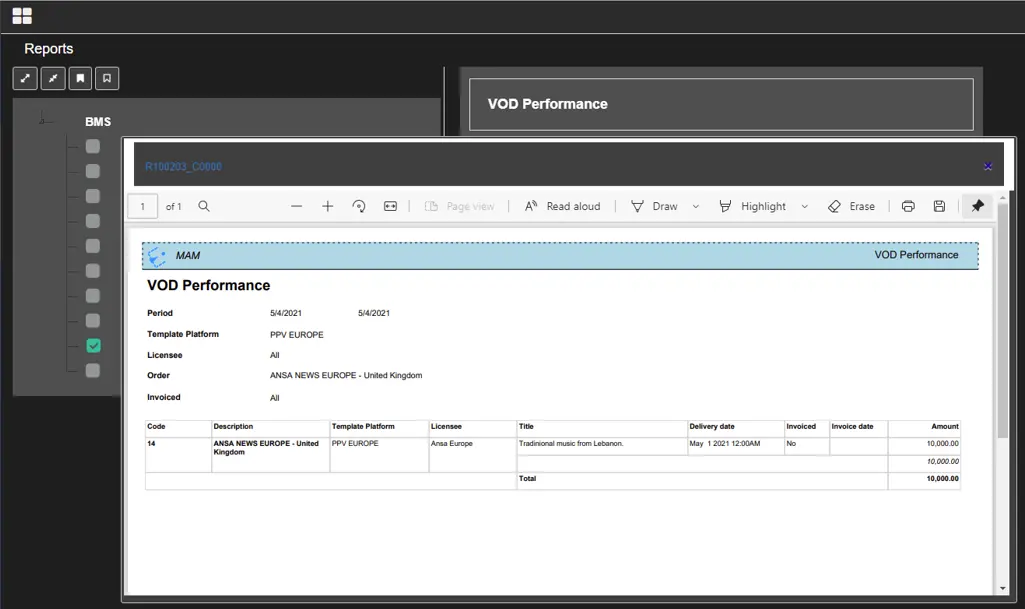
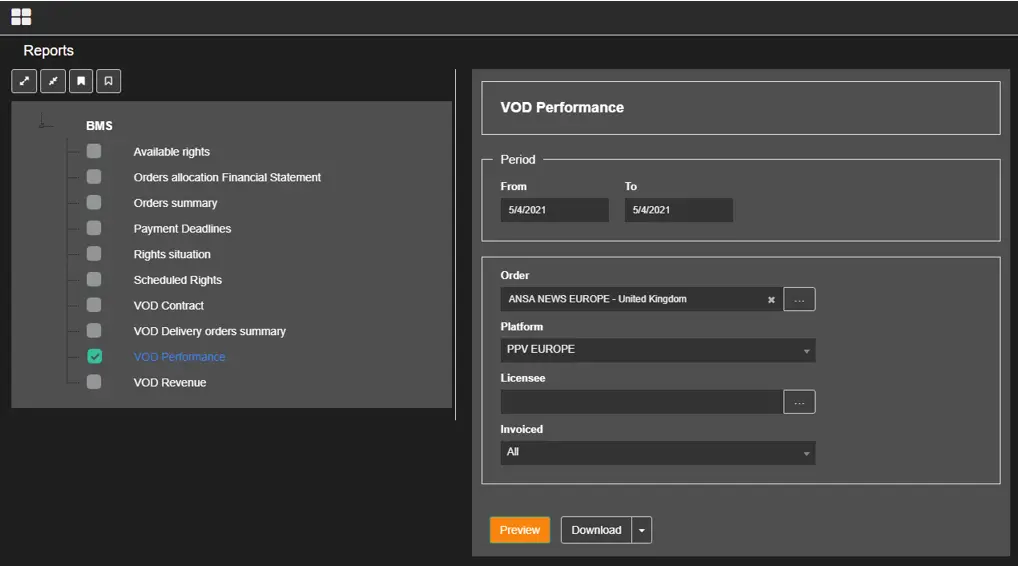
In this report, you can check the invoice status of the VOD contracts. You can filter VOD contracts created within the specific date range or filter VOD contracts by their Order, Platform type, Licensee, and Invoiced status.
VOD Performance 1
When all parameters are set, click the Preview button to preview the report layout.
VOD Performance 2
If you are fine with the report preview, click the Download button to generate the report in any supported format. The report would be generated in the user-specific Download folder on the local machine.
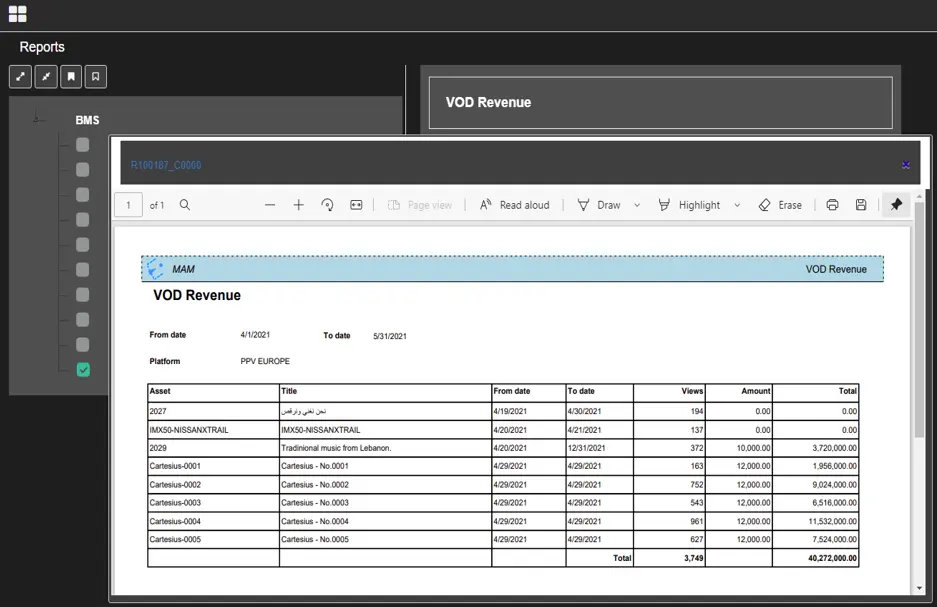
- VOD Revenue report
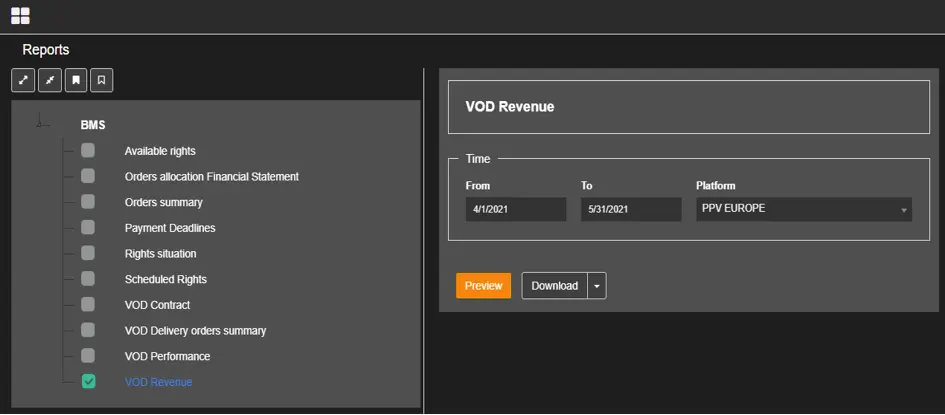
This report checks the asset visualizations where the VOD has published it. You can filter VOD assets by date range and Platform type.
VOD Revenue 1
When all parameters are set, click the Preview button to preview the report layout.
VOD Revenue 2
If you are fine with the report preview, click the Download button to generate the report in any supported format. The report would be generated in the user-specific Download folder on the local machine.
 VOD_Delivery_orders_summary_1
 Available_rights
 VOD_Delivery_orders_summary_2
 VOD_Contract_2
 VOD_Contract_1
 Reports
 VOD_Revenue_1
 VOD_Performance_2
 VOD_Revenue_2
 VOD_Performance_1
 Download