84.3.2.5 Playlist Management
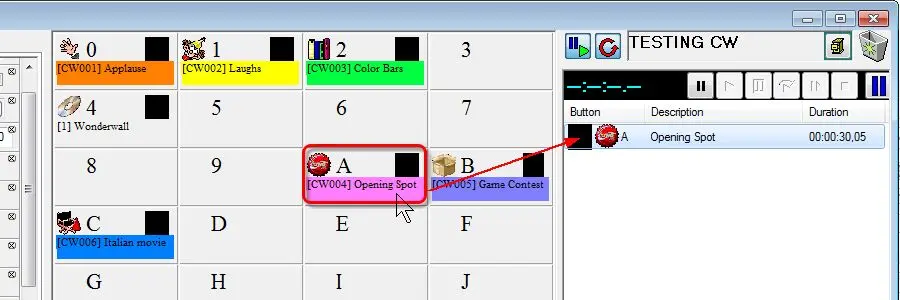
In the Playlist Editor section, items can be added by drag-and-drop into the playlists even it is On-air, the main functions are described below:
If the playlist is not running, asset can be added among the asset already presented in the playlist. If the playlist is running, the asset would be added to the end of the playlist (queued).
5054_Playlist_Editor
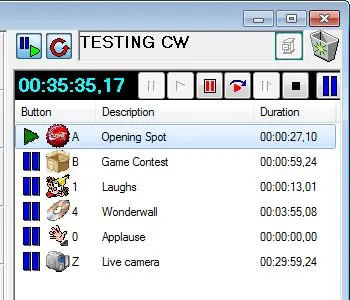
By right click on the playlist, a popup menu will allow you to perform several operations, certain operations can be carried out using the function keys combination as described below:
5055_CW_playlist
Delete (Del) - Remove the selected asset from the playlist (if it is not being played).
Delete all (Ctrl+Del) - Remove all the assets from the playlist (if it is not being played).
Loop (F6) - Set the current selected asset to be played in loop, you can select the next asset by pressing the 'Skip' button.
Pause at end of the asset (F7) - Activates the pause at the end of the asset, playlist would wait for a subsequent 'Restart' command to proceed.
Reset - Reset to its original status.
CUE - Ready to playback.
SKIP - Go to the next asset in the playlist (the playlist must be set in 'Cue & Play').
PLAY (Enter) - Starts the transmission by playing the current selected asset.
RESTART (Enter) - Restarts the transmission if it has been paused at the end of an asset.
STOP (Space bar) - Interrupts the current transmission.
Live View - Show the asset in "Live" view.
New instance - Add new instance. Refer to User Interface for more details information.
Arrange Multiple Cartwalls - Arrange multiple forms assigned to single instance in various layout format.(in cascade, stacked, side-by-side, or grid). Refer to User Interface for more details information.
Show the form in the taskbar - Show the forms in the Tasks Bar. Refer to User Interface for more details information.
During the transmission, assets are highlighted with icons according to their state:
Playing asset
Playing in loop
Paused
Playing asset in loop
NB: Only assets that have been correctly recorded (assets with a valid media file associated) can be inserted into the playlist.
NB: To prevent unexpected results, do not modify the playlists with Playlist Editor (PE) and Executive Editor (EE) at the same time due to the different in application logic when updating the schedule.
 5054_Playlist_Editor
 5055_CW_playlist