92.1.2 Using the EA1790 Control Panel
User interface
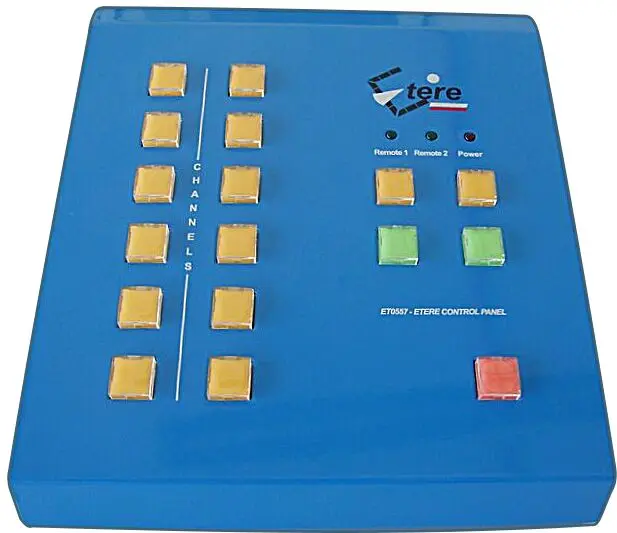
The user-interface of the EA1790 Control Panel is mainly divided into three sections for easy understanding and handling by the operator, these sections are:
Et557b_plane_view
Automation channels
The twelve (6+6) buttons present in the left portion of the device are used for selecting the automation channels, these channels are configured in the Etere Control Panel. Please refer to the Mapping channels and commands chapter for further information on the association of channels and the meaning of buttons lights (e.g. blinking means connection error).
Automation commands
The five buttons (2 yellow, 2 green and 1 red) present in the right portion of the device are used for launching automation functions based on the commands mapped in the Etere Control Panel. Please refer to the Mapping channels and commands chapter for further information on the association of commands and the meaning of buttons lighting (e.g. blinking means clone mode).
Connection indicator Led
The three led present in the upper right of the device provides the operator with visual indications of the following status:
•Remote 1: It indicates if the main line has been either selected (ON) or not (OFF) to be controlled under the Etere Control Panel.
•Remote 2: It indicates if the backup line has been selected (ON) or not (OFF) to be controlled under the Etere Control Panel.
•Power: It indicates if the EA1790 Control Panel is powered ON or power OFF.
Using the EA1790 Control Panel
Before start controlling automation channels remotely, please make sure that the EA1790 Control Panel has been connected (i.e. to the network with the proper settings) and the Automation controllers has been configured (i.e. buttons has been mapped to the related channels and commands).
Once the considerations are accomplished, the EA1790 Control Panel and the Automation controller(s) are ready to be used. Follow the procedure to execute automation commands across various automation channels:
1.Select the automation(s) to be controlled by pressing the related buttons; multiple automations can be selected by pressing their buttons rapidly within a threshold of two seconds.
The selected buttons (channels) would be lit the EA1790 Control Panel and the Automation controllers.
2.Once the automation channels has been selected, press the button in the automation commands area linked to the automation command you want to execute.
3.The EA1790 Control Panel would send the automation commands remotely through the connected Automation controller(s). The button would be lit to indicate that the Automation controller(s) has forwarded the automation command:
Et0557(ethernet)_functioning
e.g. an active 'd.still' command launched for 3 automations controlled in the main line
 Et557b_plane_view
_functioning.webp "Et0557(ethernet)_functioning") Et0557(ethernet)_functioning
Et0557(ethernet)_functioning