59.3.3.4 Partial Retrieve
To perform a custom Partial Retrieve action, it needs to set the following parameters:
Suggestion
To automatically execute a partial retrieve for all segments in an EDL, you can use an EDL Partial Retrieve action.
Process type and Devices
• Basic settings: Compile these fields as explained in the previous chapter.
• Source/Codec: Metadevice and codec of the metafile to be taken as a source for the partial retrieve.
When the <Current metafile> checkbox is checked, the currently available metafile will be the source file for the partial retrieve.
• Destination/Codec: Metadevice and codec of the metafile to be created due to the partial retrieve.
NB: Once the segment is retrieved, the executable will automatically update the database with the new media.
Process
Define the executable (and its parameters) for the partial retrieve operation. Available executables include:
- Etere Transcoder
- External application: EtPartRzcp.exe /EtXcod id_job=%3:s ipchwnd=%0:s logfile="%4:s"
Command line
Define the parameters for the application that will perform the operation. By default this field is already compiled with the first string below, but other 2 templates can be selected.
EtPartRzcp.exe /EtXcod id_job=%3:s ipchwnd=%0:s logfile="%4:s"
/EtXcod: Indicates etere transcoder as the application that will execute the process. Other possible values: /Vantage.
id_job: Contains the Job's ID (e.g.: '%3:s') provided by Etere Data Mover.
ipcHWnd: The IPC window handle of the caller is used to notify the job's progress (e.g.: '%0:s'), Etere Data Mover provides it.
LogFile: The name and path of the process log file (e.g.: '%4:s') provided by Etere Data Mover.
EtPartRzcp.exe /Rhozet id_job=%3:s ipchwnd=%0:s logFile="%4:s" destguid={3D8D888C-0627-417A-B82B-EBA01678BF15} rzcppath="\\ws1\Rhozet\Carbon Coder"
/Rhozet: Indicates Rhozet transcoder as the application that will execute the process.
id_job: Contains the Job's ID (e.g.: '%3:s').
ipcHWnd: The IPC window handle of the caller is used to notify the progress of the job (e.g.: '%0:s').
DestGUID: The GUID of the existing Rhozet's profile to be used to transcode the file (e.g.: '{3D8D888C--C82E-EBA0} '). Consult the Setting Rhozet Carbon Coder chapter for further info regarding Rhozet profiles.
RzcpPath: Indicate the path to the folder where the 'rzcp.exe' application is located (e.g. C:\Program Files (x86)\Rhozet\Carbon Coder\).
LogFile: The name and path of the process log file (e.g.: '%4:s').
noQueue: If included, the job will be performed without queueing it to the Rhozet Carbon engine; it will be immediately performed in the background.
Moreover, it's possible to use the environment variables supported by Etere DataMover. Refer to the Supported runtime variables chapter for a detailed list of available runtime data.
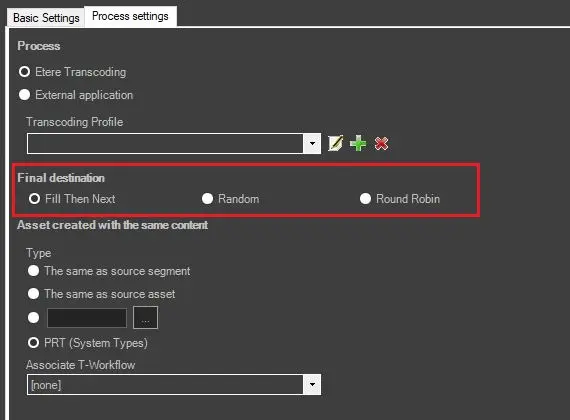
Final Destination
Final Destination
• Fill Then Next: Content Mover would check the first path for available space to restore; if insufficient, check the next path.
• Random: The path for partial retrieve is selected randomly.
• Round Robin: The path selection starts from the first path to the last path to determine the destination path. If there are multiple Content Mover actions, the path selection would be in sequential orders (first PR select first path, second PR select second path, etc.).
If the option is selected, the selection will auto-revert back to "Random" if Partial Retrieve is interrupted.
Asset created with the same content
• Type: Specify the type with which the partially retrieved asset will be created. Available options include::
• Same as source asset: New assets will have the same type as their source asset.
• Same as source segment: New assets will have the same type as their source segment.
• User-selected: New assets will have a user's preset type.
• PRT (system type): New assets will have the system type for partial retrievals.
• Associate workflow: Set the T-workflow (e.g. quality-check) to be attached and launched on the new asset at the end of the partial retrieval.
How to use it
The T-workflow indicated in the Partial Retrieve field will be able to extract a segment of a specific asset and store it on a new video file. To perform a Partial Retrieve operation follow the next procedure:
Define the action
1. Create a 'partial retrieve' action under the Content Management Server section,
Create the T-workflow
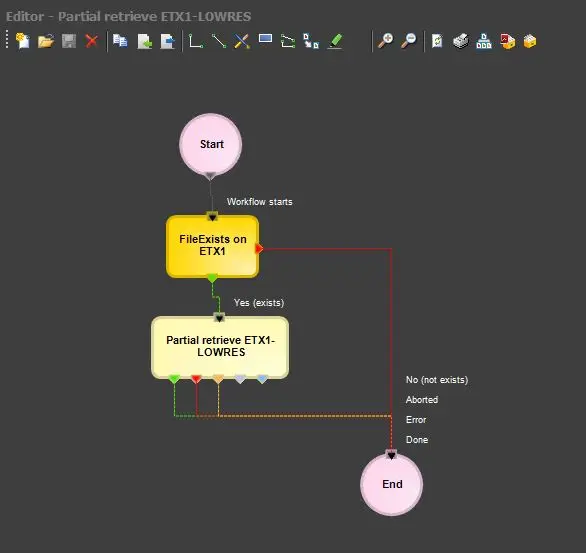
2. Create a Partial Retrieve T-workflow based on the previously created action:
Partial Retrieve T-workflow
3. Set in the Default T-workflows section the recently created T-workflow to be used for Partial Retrieve,
Request the partial retrieve
4. Perform the Partial Retrieve through any of the following ways:
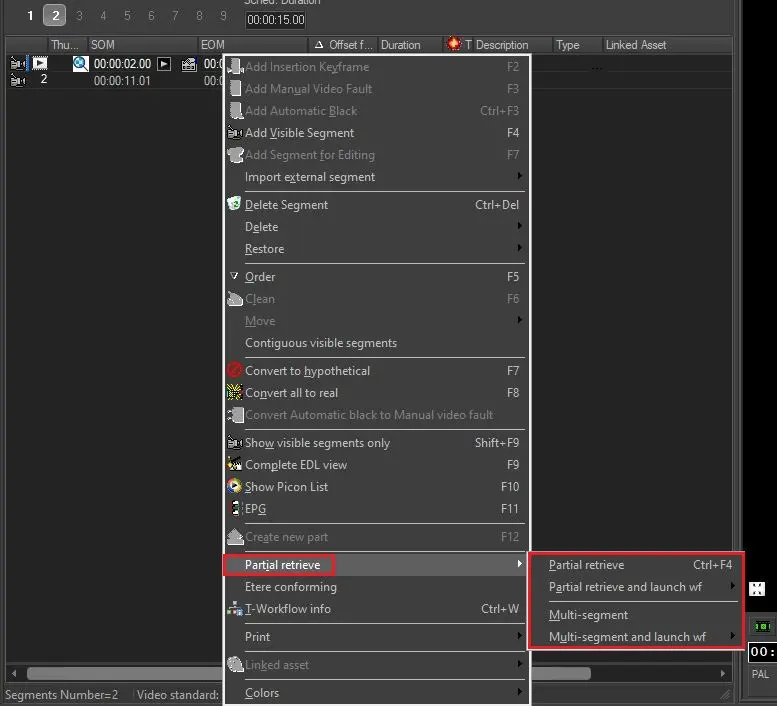
•From Media Library:
- Go to the Media Library and search for a certain asset,
- Navigate to the Annotations tab and right-click on the segment (from the EDL list) that you want to retrieve,
- Select the 'Partial Retrieve' option, you will receive a message informing you about the success of the operation:
From Media Library
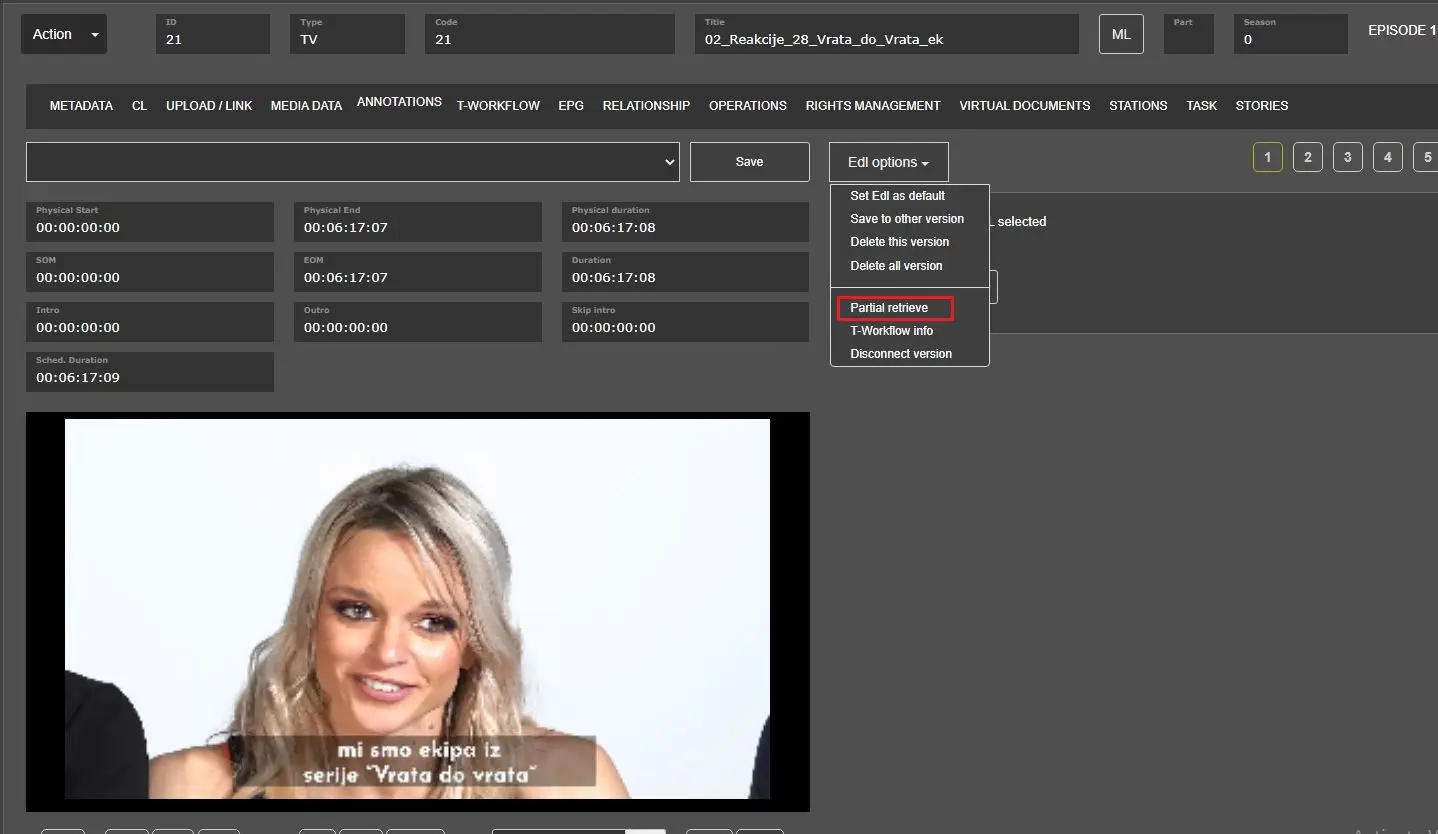
•From EtereWeb:
- Open the EtereWeb homepage, Search for a certain asset and go to its Annotations tab,
- Load the metafile intended to be partially retrieved,
- Click on Edl options button and select the partial retrieve option:
From EtereWeb
Etere executes the request
5. Once requested, Etere Data Mover will take the request and will process the partial retrieve operation,
6. The partially retrieved file is associated with a new asset form automatically created with the following data:
Code - Created as [AssetCode]_PR[n]; indicating the code of the original asset (AssetCode), the partial retrieve origin (_PR) and the sequential creation number of the part (n).
Description - The segment's description is taken (if available). Otherwise, it's used the asset's description.
Type - Depends on the action's configured type. By default, it's "PRT".
Post-workflow - Depends on the action's configured T-workflow.
File - File named as the code with an extension based on the action's configured target codec.
For instance, in case the code of the original asset is "MoneyShow-28072013", the code (and filenames) of created assets will be sequentially generated as: "MoneyShow-28072013_PR1", "MoneyShow-28072013_PR2" and so on.
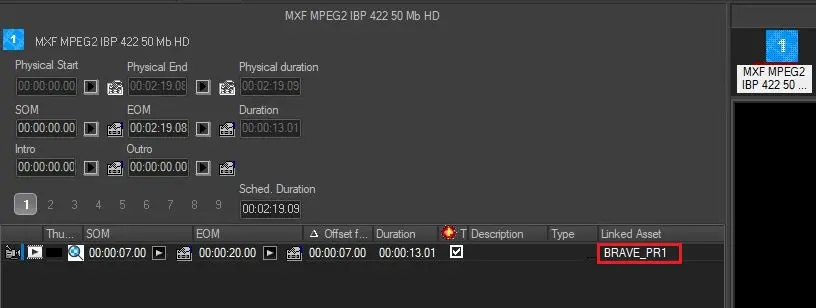
7. The new asset form is automatically linked to the source segment from which the video has been retrieved:
MXF Video Format
NB: Once the new asset is created, it is possible to perform an automatic action (e.g., upload it automatically to an FTP server and send a confirmation email) just by attaching a proper T-workflow to it.
 From_Media_Library
 From_EtereWeb
 Final_Destination
 MXF_Video_Format
 Partial_Retrieve_T-workflow