72.7.2.11 Google Speech Recognition
With Etere Media Asset Management it is possible to transcript video and audio files into Subtitles Text, simply by executing an Etere T-Workflow against any wanted asset.
The system will transcript everything and assign text to timecode, so the operators would eventually find all the subtitles automatically populated while opening the given asset with Etere Subtitles Tools.
In order to start using this feature we may need to perform some procedures first.
- Update Etere to the required version;
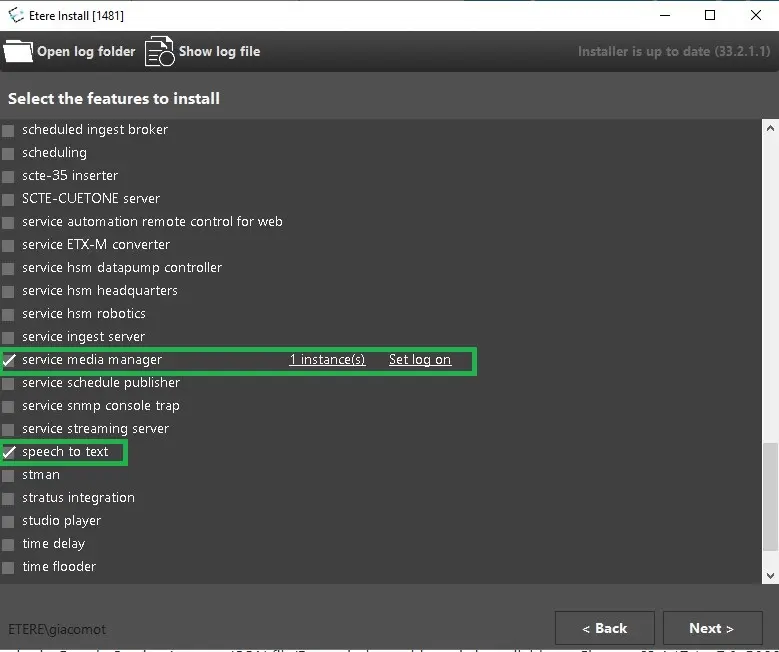
- Install Etere Service Media Manager and Etere Speech to Text modules;
google_speech_install
- Obtain Google Service Account JSON file(Etere giude on this topic is available on next paragraph > 78.7.2.12 );
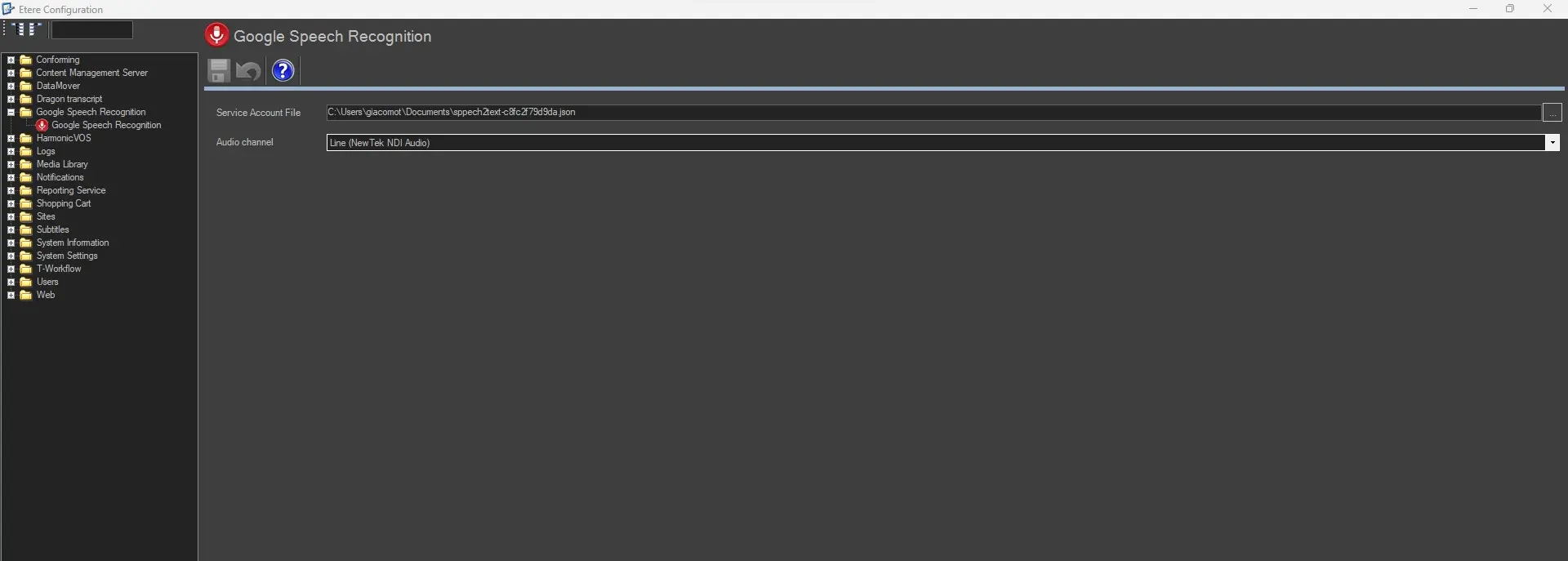
- Insert the given key into:
Etere Configuration Editor > Google Speech Recognition > Service Account File
- Set the Audio Channel to use
NOTE: This option is not mandatory for the given feature.
google_speech_settings
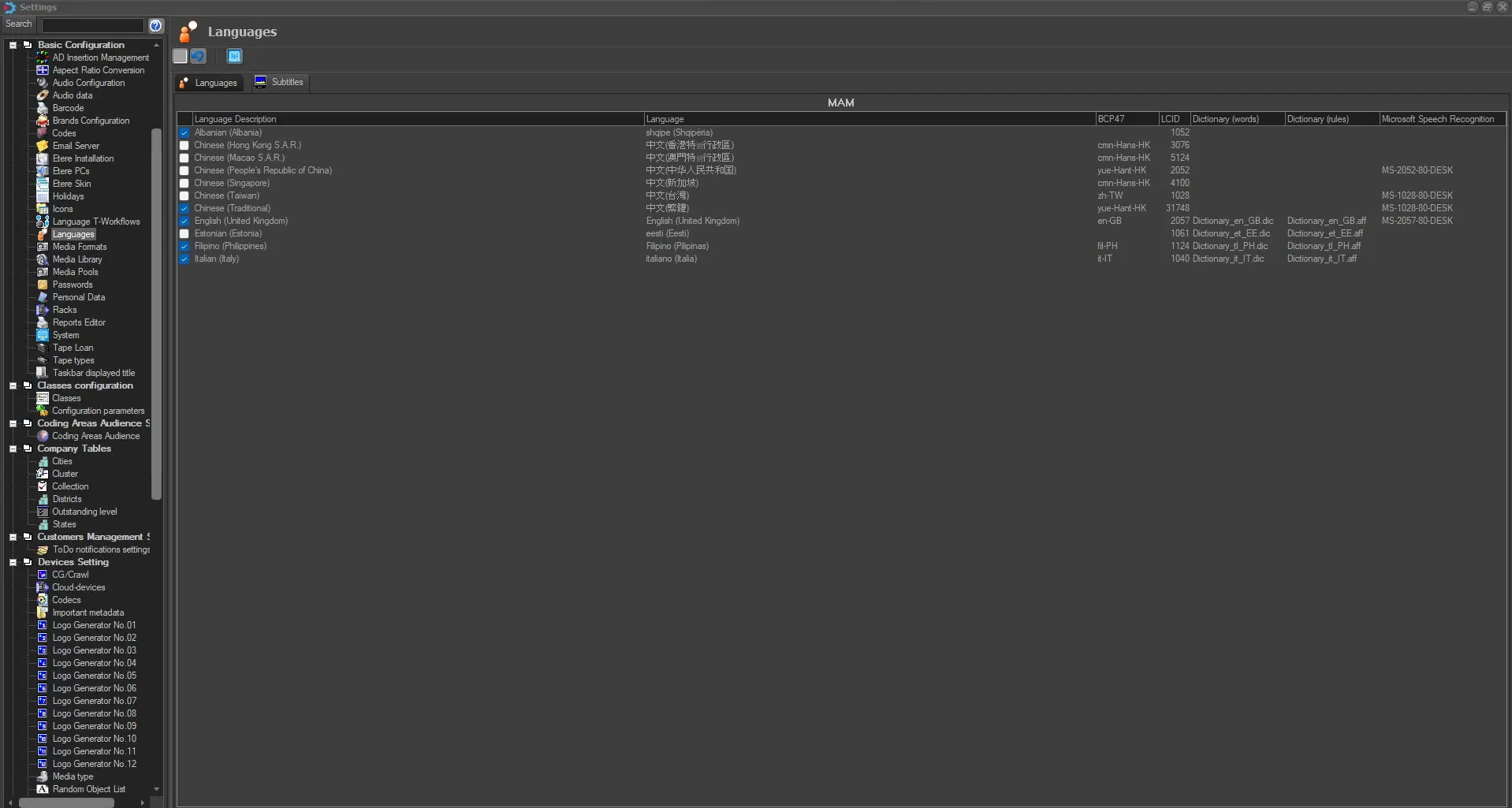
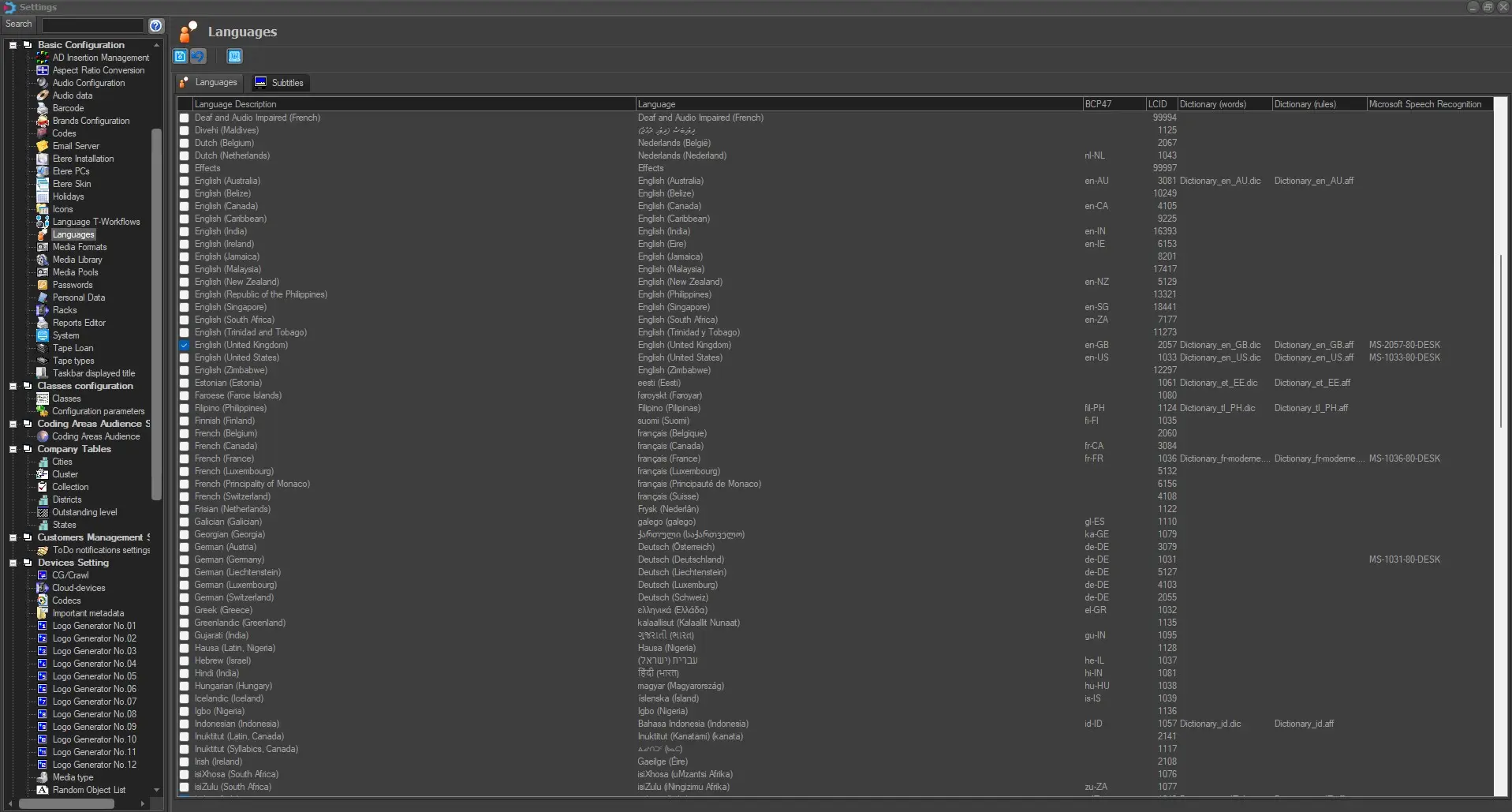
- Select the Language we want to use and the related Subtitles Language as well;
subtitles_bcp47
language_bcp47
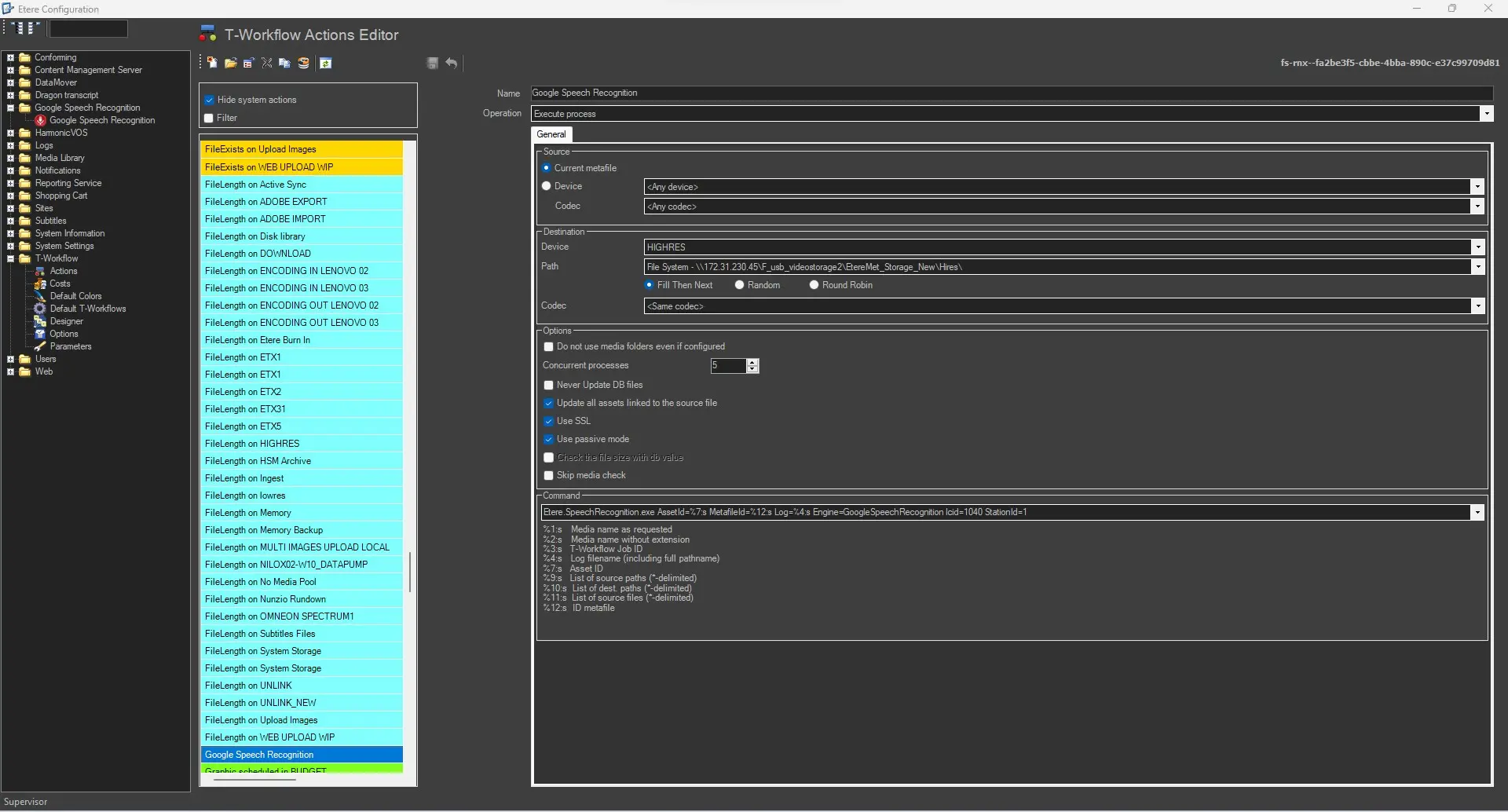
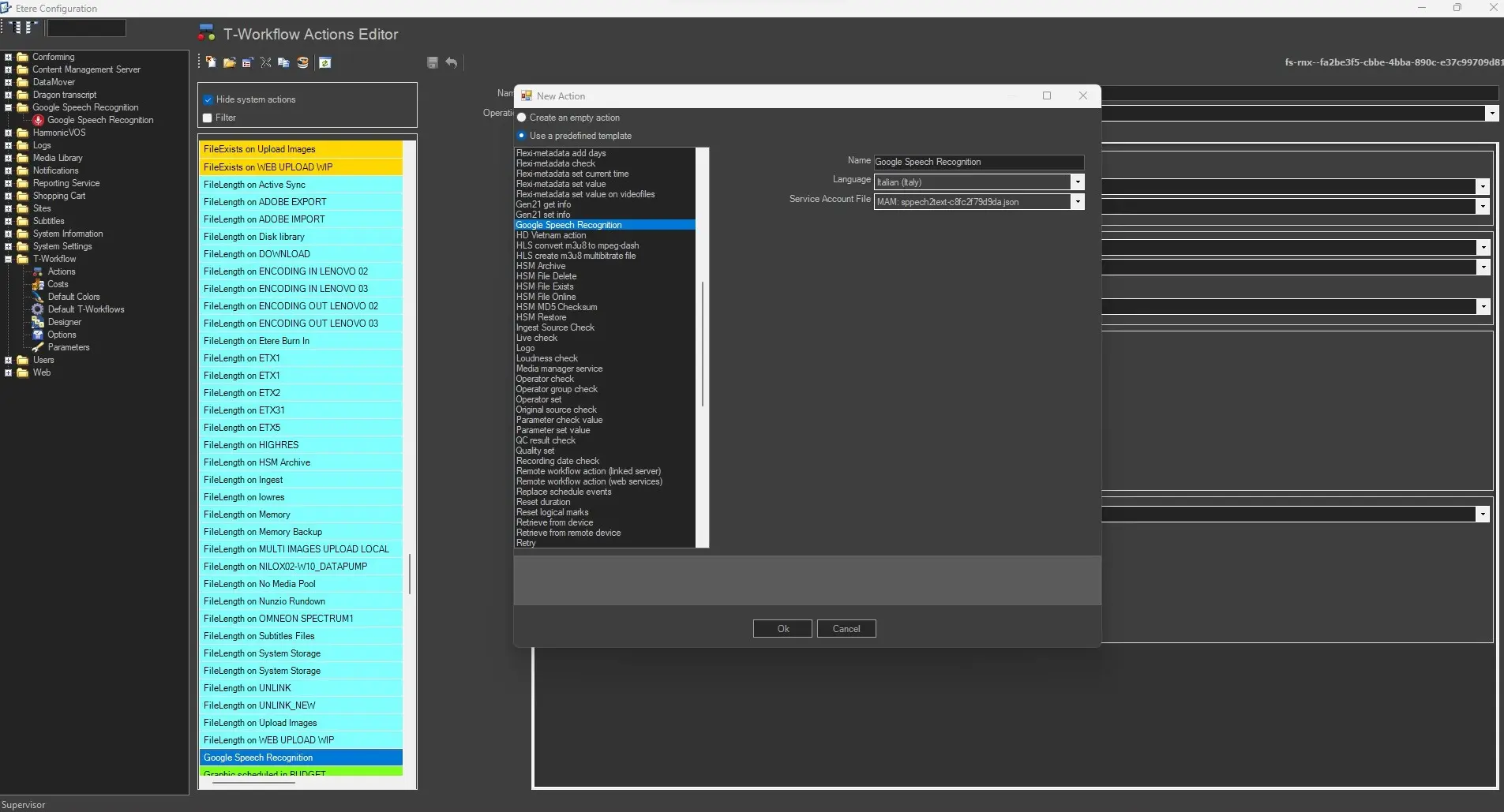
- Create Google Speech to Text Action in:
Etere Configuration Editor > T-Workflow > Actions > Google Speech Recognition
and fullfill the required parameter:
- Name:
- Language:
- Service Account File:
create_google_action
google_action_done
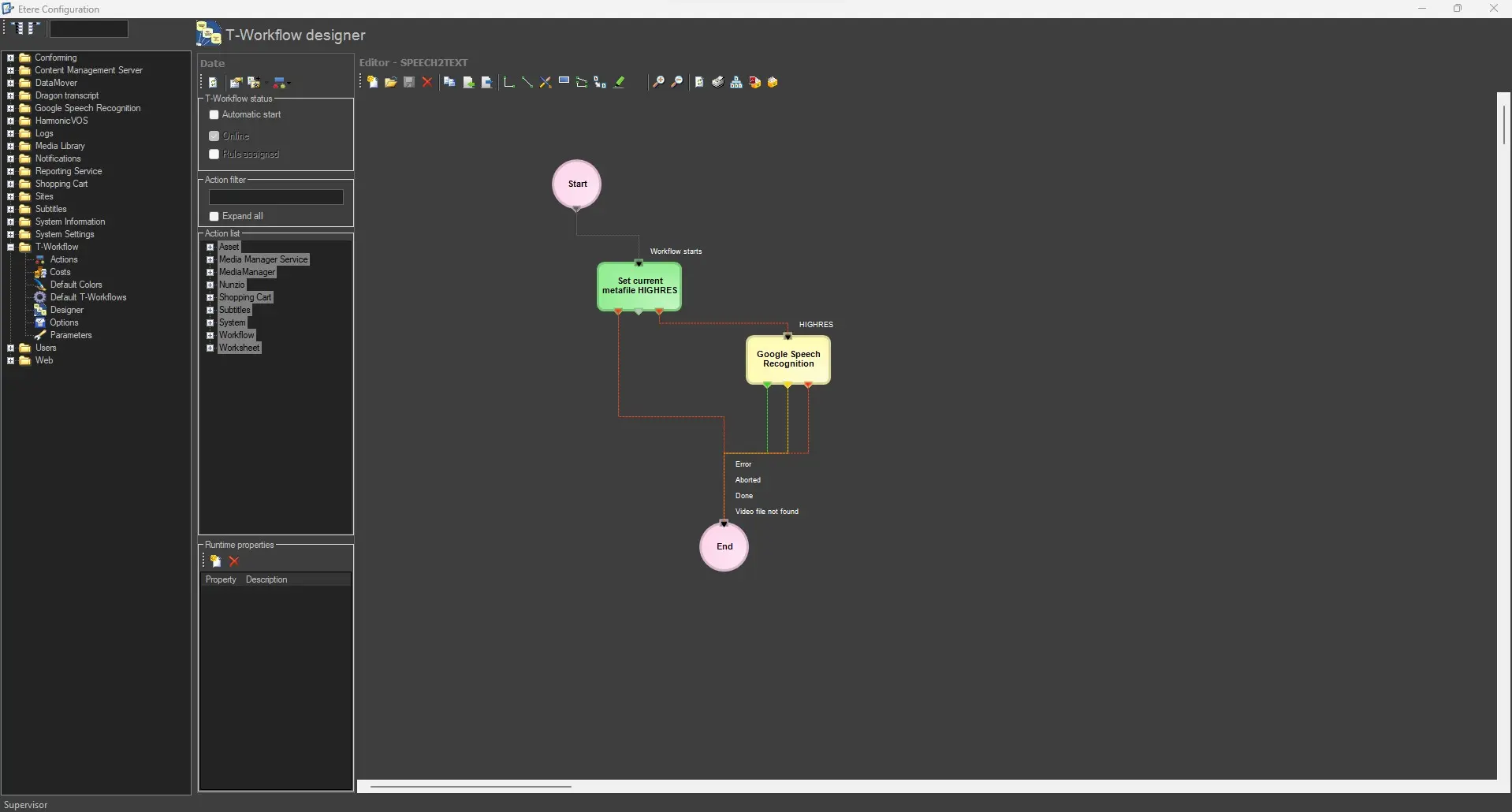
- Once the action has been created, we can start creating our Etere T-Workflow
speech2text_workflow
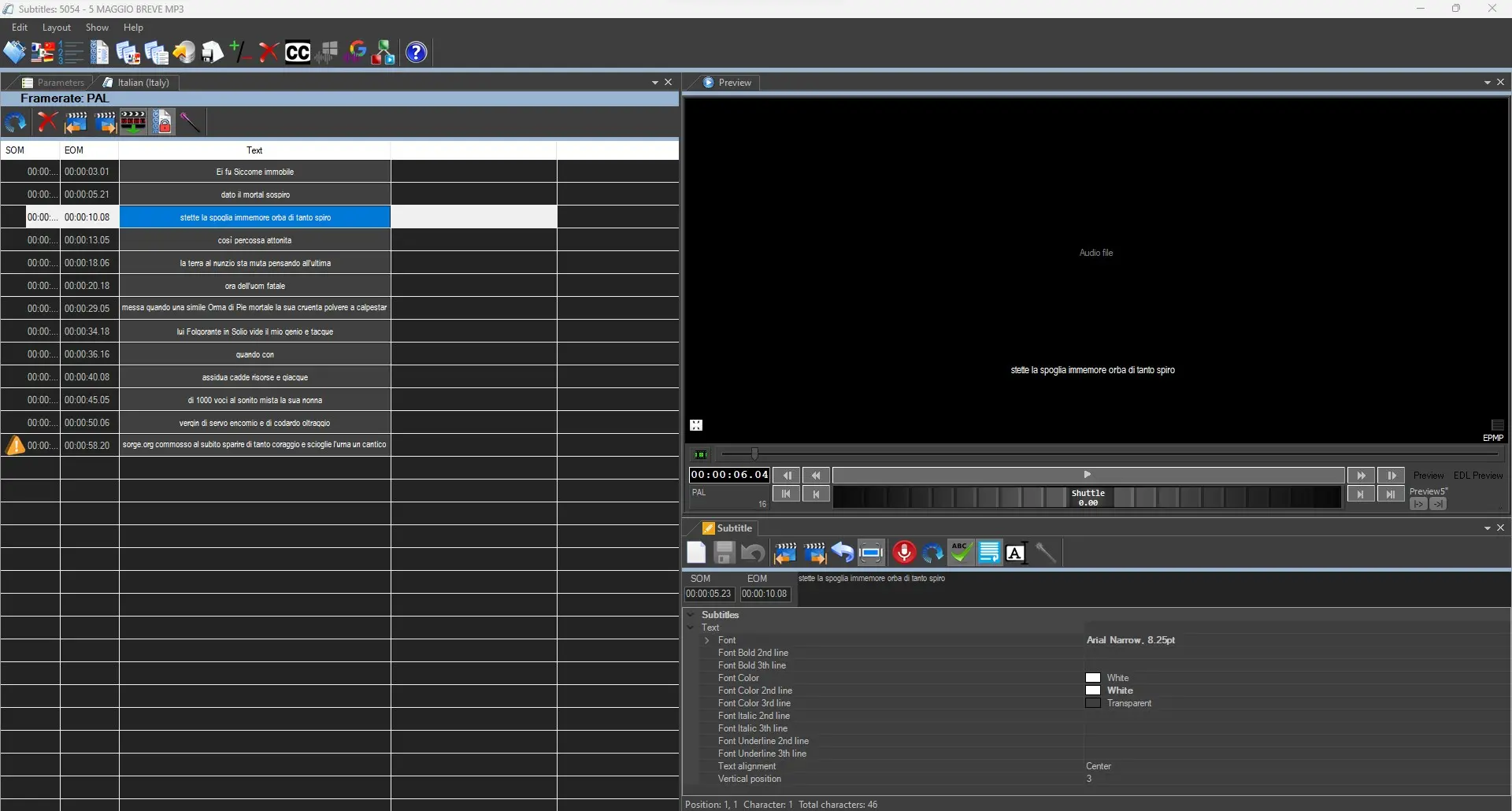
- Upon completing the given workflow, if the operation went successfully we can now open:
Etere media Manager > Subtitles Tools
recall the given asset and check if the text has been converted to Subtitles.
subtitles_tool_speech_2_text
If the station have no license for the Google Speech Recognition integration, a message would eventually appear informing that the system is not able to login.
google_speech_to_text_missing_license
To use V2 as specified in chapter 59.3.15.3
In Subtitle Tools, the Recognizer Name to use is read from the Etere Configurations. If it is empty,
the V1 recognizer will use used. This maintains backward compatibility
Items needed to use the function:
1) Service Account file name (file json)
2) Recognizer Name, explained in the configuration chapter
3) Audio file, linked to the asset and with the codec set to audio enabled
The result will be displayed as in the example (Speech_Recognition_V2)
 google_action_done
 create_google_action
 subtitles_tool_speech_2_text
 google_speech_settings
 google_speech_install
 subtitles_bcp47
 language_bcp47
 speech2text_workflow
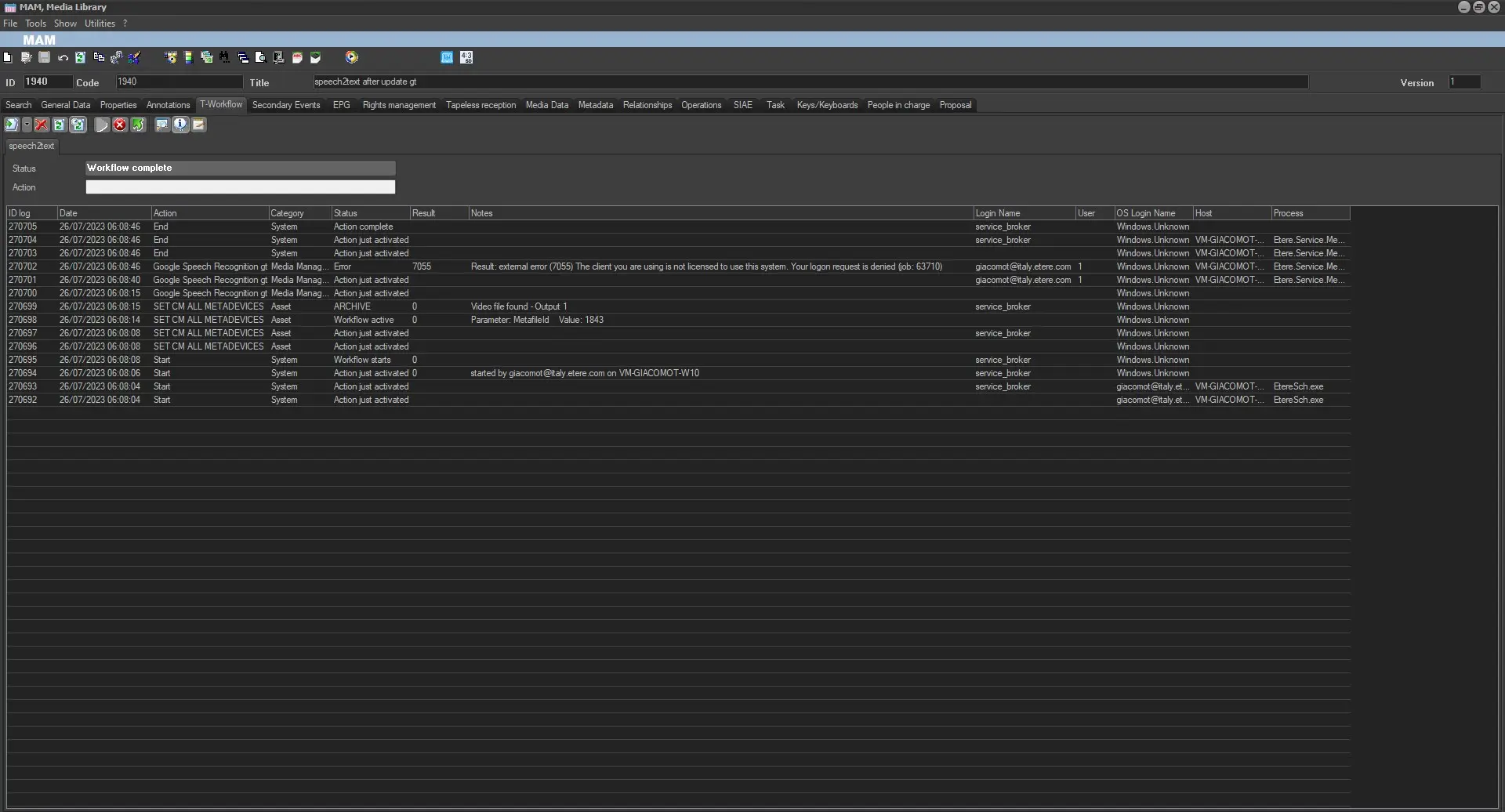 google_speech_to_text_missing_license
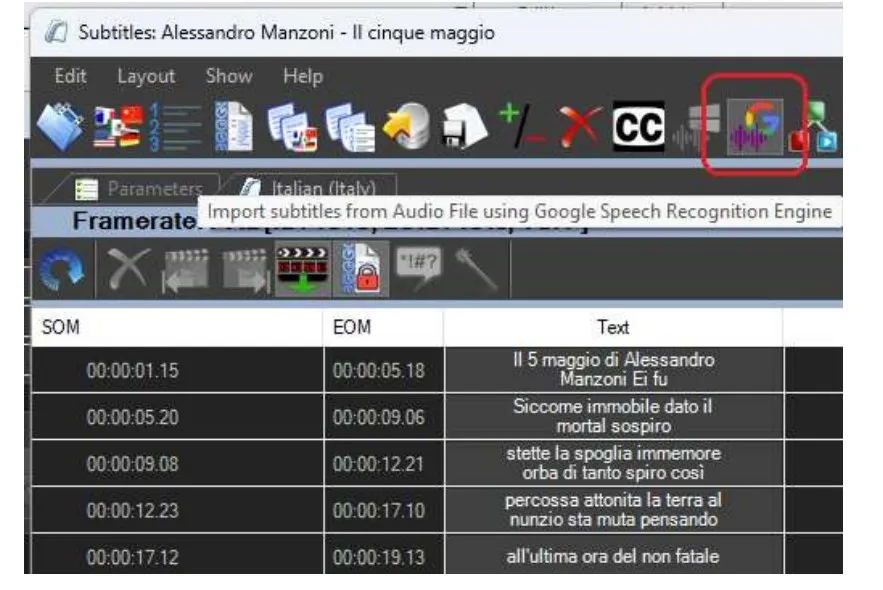 Google_Speech_Recognition_V2