71.4.7 Scheduled Ingest Broker
Etere Scheduled Ingest Service Broker is the Etere Module that allows the control of Ingest Service on the server side. It allows operators to control every aspect of Ingest Service, in this case for recordings scheduled from Etereweb > MAM > Scheduled Ingest or from Etere Ingest > Scheduled Ingest.
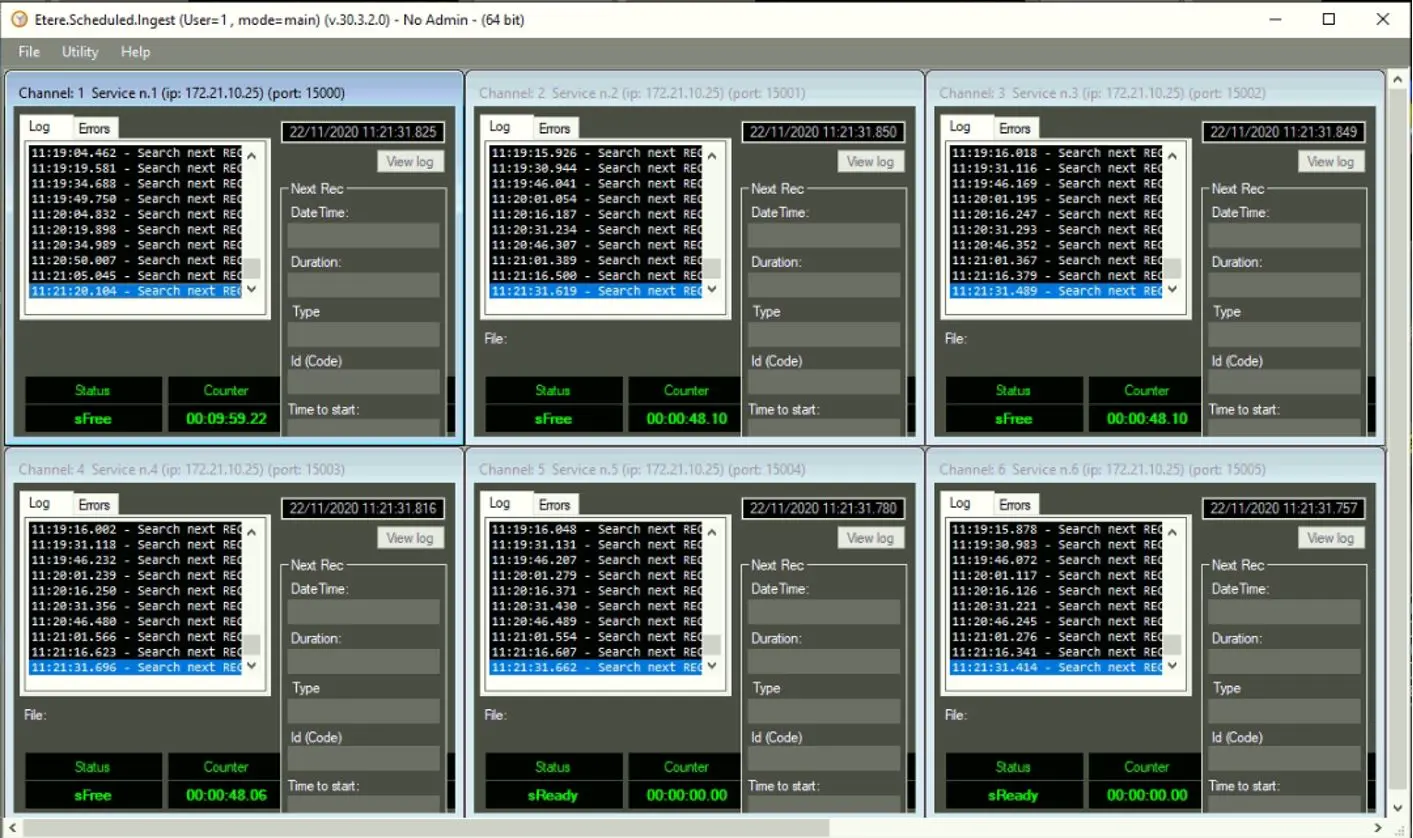
Once the recordings have been planned, you can control and monitor all the scheduled ingest channels (service instances) configured in the server from a single UI, which is divided in as many windows as many xml parameters are found in C:\ProgramData\Etere\Ingest.Service folder.
Multichannel server cheduled ingest 1
Note: In Service Broker UI, is not possible to maximize a single channel window to fullscreen.
Service Broker is working as client that is connecting to the server where Ingest Services are running, so in order to communicate with each Ingest Service you need the licence EA1376 and it must be one to one -> 1 service = 1 license.
Each license must be inserted inside the resource properties of the workstation that will be used as client: Configuration > ResourceEditor > Workstation > Properties > Licence.
For example if you want to use 4 services in the workstation ETERE-INGEST001 you must write four times the indicated licence separated by a comma -> EA1376,EA1376,EA1376,EA1376
Each channel frame displays the statistics, the channel status, the logs and the recording data for that channel only.
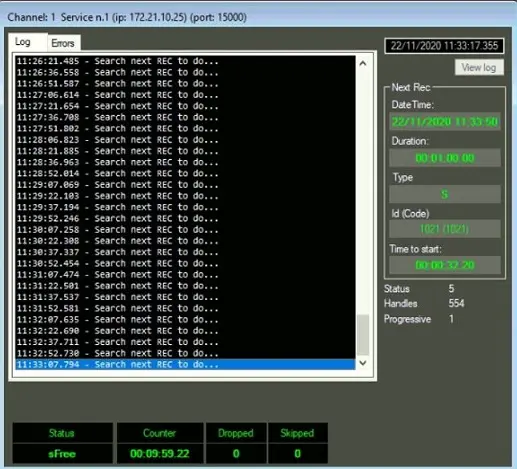
A single channel frame, is composed of 3 main areas:
Single channel frame
Log and Errors
All active logs and errors are captured in this window. The Error tab shows in its name how many errors have been logged, indicating for example "Error 1" if only 1 error occurred.
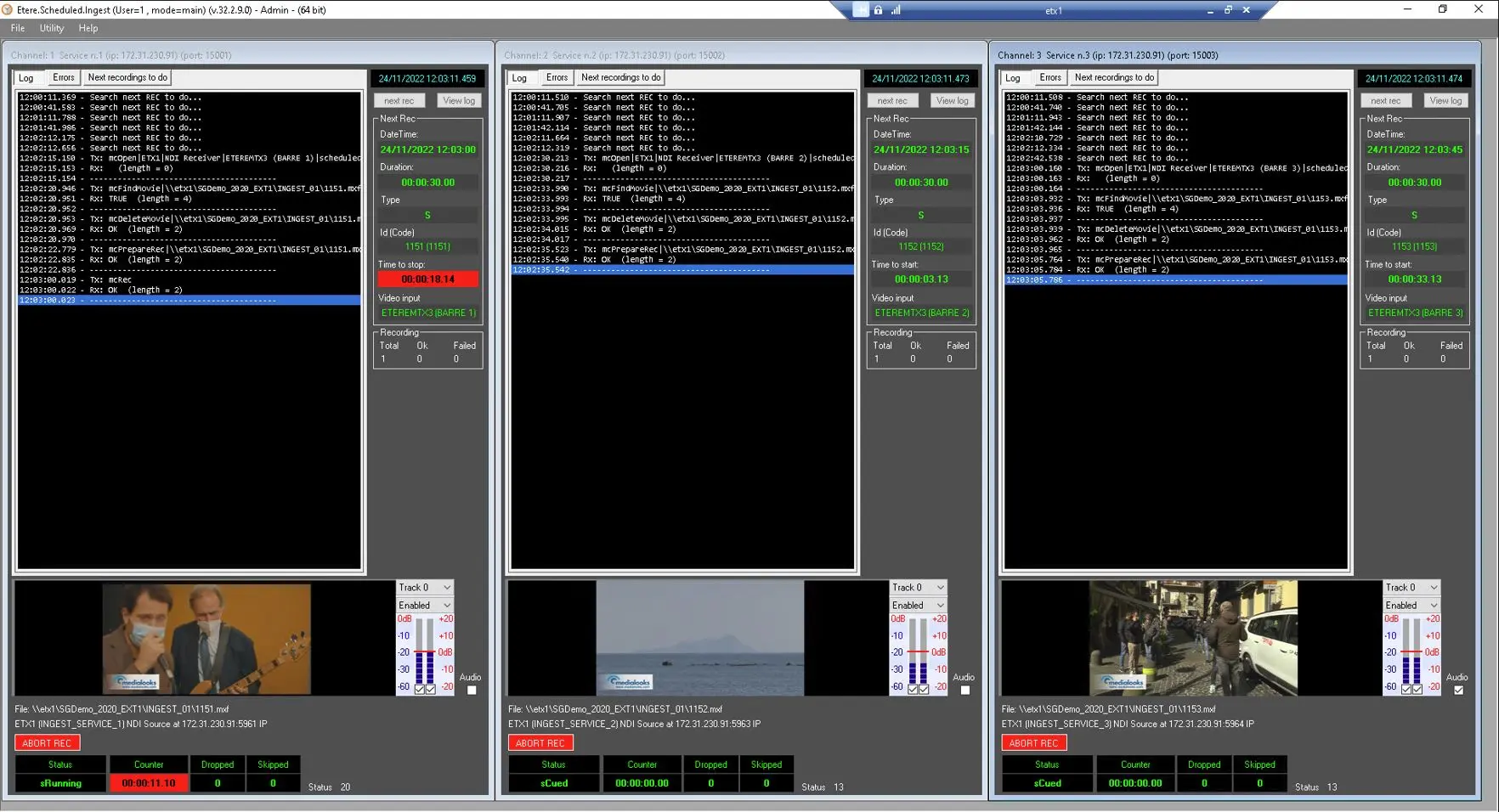
Next recordings to do
It shows the details of the next 5 programmed recordings.
• DateTime: The date and time of the ingest.
• Duration: Total duration of the ingest process.
• Type: The recording type (Single - "S", Periodic - "P", Scheduled live - "L").
• Streamed: Indicates if the recording is intended to be played while is being ingested.
• id_timerec: The progressive and auto-assigned ID of the recording.
• id_filmati / cod_progra: ID and code of the asset used for ingesting.
• newtype: Type of the asset used for ingesting.
• param: In the scheduled recording configuration, if has been enabled the parameter "REC with TCIN", this field will show the letter "C", otherwise it will be empty.
• dev_sorg: It shows which source device (router) has been selected in the recording configuration.
• canale_sorg: Indicates the router channel number that has been selected as source.
• router_ch_name: Indicates the router channel name that has been selected as source. It reflects the channel names assigned in Etere Configuration > Settings > Video routers.
• description: The description assigned to the recording.
The information above, beside the tab "Next recordings to do", is summarized in the Next Rec panel on the right side of the main window. Here the data is related only to the next scheduled rec:
• DateTime: The date and time of the ingest.
• Duration: Total duration of the ingest process.
• Type: The recording type (Single - "S", Periodic - "P", Scheduled live - "L").
• Id (Code): Code and ID of the asset used for ingesting.
• Time to start: The remaining time to start the ingest. If the remaining time is greater than a day, here will be displayed the timecode 24:00:00.00. Otherwise, a running timer will show how much time is left until the next rec.
• Time to stop: The remaining time to the end of the ingest.
• Video input: Indicates the router channel name that has been selected as source. It reflects the channel names assigned in Etere Configuration > Settings > Video routers.
Status
This section, on the bottom of the window, displays the status of the channel.
• Status: The status of the channel, e.g. sFree, sReady, INACTIVE.
• Counter: The recording counter, which starts at 0 and ends once the set duration has been reached.
• Dropped: The number of dropped frames during the ingest process.
• Skipped: The number of frames skipped during the ingest process.
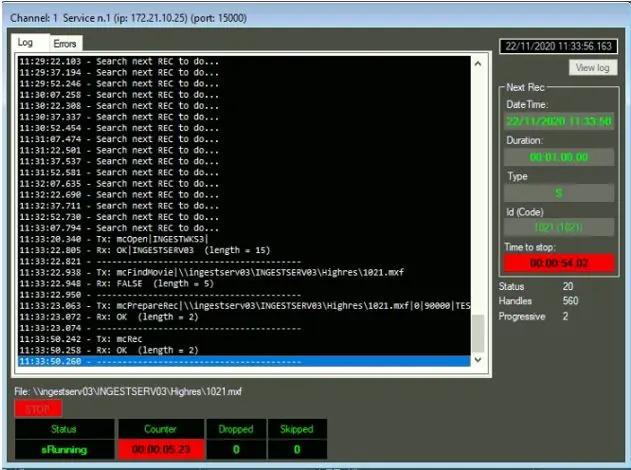
The image below illustrates an active single ingest.
Active single ingest
 Active_single_ingest
 Multichannel_server_cheduled_ingest_1
 Single_channel_frame
 ingest_vu_meter