59.6.2.501 Brainstorm Graphic driver
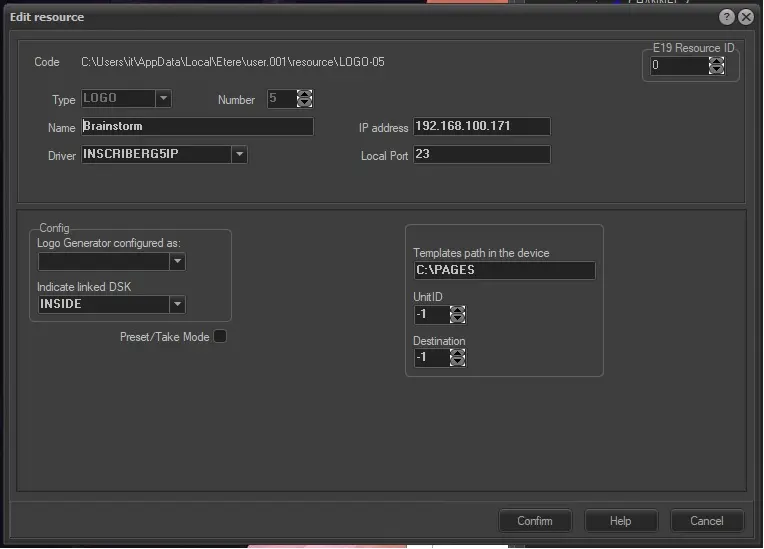
Etere is able to control Brainstorm devices through ethernet, using the INSCRIBER G5IP standard protocol.
Resource is the same described in chapter 59.6.2.168 (Harris LOGO).
The "Edit Resource" form allows one to define a Harris Logo Generator resource. The fields required for its configuration are following described:
READ-ONLY INFO
Code - The path of the resource that you are editing is displayed.
Type - Shows the type the resource belongs to (e.g. LOGO).
Number - Ordinal number that differentiates the resource from others of the same type.
RESOURCE PROPERTIES
Name - A brief description identifying the resource must be inserted (e.g. Brainstorm Logo).
Driver - Select the driver to be used by Etere to control the logo generator. In this particular case:
INSCRIBERG5IP
Use this driver to communicate with the Brainstorm device via ethernet (IP). It will be required to indicate:
•IP Address: show the IP address of the Logo
•Local Port: show the local port of the Logo
E19 Resource ID - Optionally, insert the ID of the resource created under the Resource Editor module for this resource. This identification number is used, for example, to check the storage space usage of the resource.
Whichever the selected driver is, it will be possible to set the following Configurations:
RESOURCE PARAMETERS
Logo Generator configured as - Set the logo configuration (i.e. crawl, logo1, logo2, etc). By default, LOGO1 is selected.
Linked DSK - Specify if the DSK is either internal or related (to a Master Control):
Inside - This option indicates that the DSK is internal (i.e., within the Logo Generator).
DSK "n" - Select an existing DSK to indicate that the layer is linked.
NB: Only DSK resources configured and assigned to automation will be displayed here.
Preset/Take mode - Enable the preset/take mode to pre-load logos before sending them on-air, speeding up the take operation.
NB: Preset/take mode is advisable only if a switch is used for all events. Otherwise, results could be unpredictable.
Once compiled, click on the [Confirm] button to add the LOGO resource to the Resources tree (it will be created featuring eight different layers).
Templates path in the device: local path of the graphics templates.
Afterwards, it will be possible to configure the following:
· Device users: Select the resource and click the [Users] button.
Harris Logo resource editor - User.
Indicate to which user and to which module or program the relevant resource must be activated by specifying the following:
READ-ONLY INFO
Resource - Code of the resource layer.
Name - Name of the resource layer.
ID Number - Identification number of the resource layer.
USER INFORMATION
PC Name - Indicate the specific workstation (user) for which the resource will be allowed. Once selected, it will be automatically retrieved and displayed the ID number and PC name corresponding to the selected user.
Function - Indicate the module (function) on which the above-mentioned user will be allowed to use the resource.
 brainstorm_resource