73.6.3 Memory Service setup
Memory Service 1st time setup
Once Etere Memory Service has been installed, the Etere Memory Setup application (which is installed alongside the service) should be executed to start the first configuration of the services, the customer must select the channel he wants to configure among those for which the service was installed. Then the system starts a wizard procedure to configure the memory service to be used on this workstation.
N.B. if you already had a standard memory configuration the system will automatically get the same configuration from the old memory so there is no need to manually procede with the following.
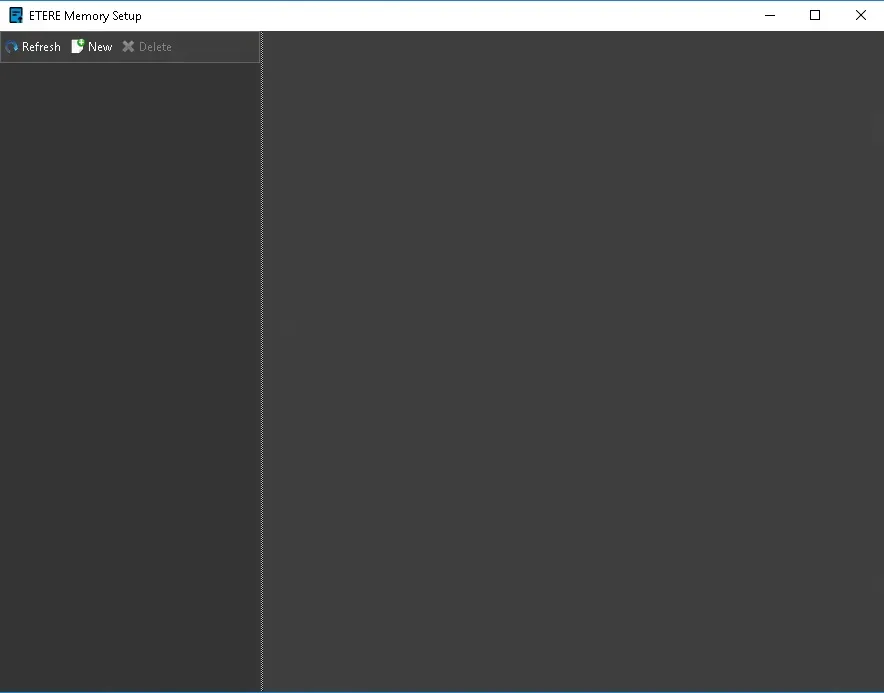
Etere_Emory_service_setup_0
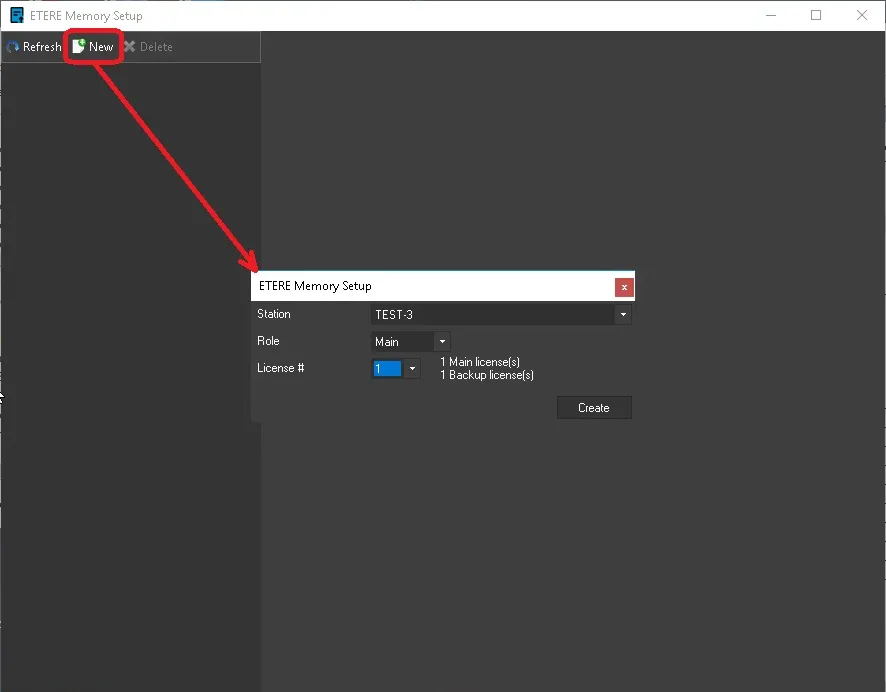
From the main form of the memory setup editor chose NEW, this will allow you to select which channel you are going to configure specifying this parameters:
Station: Name of the channel to configure
Role: Main or backup
License #: in case of multiple licenses you can select the license number (i.e. for BKP2 you need to select 2)
Etere_Emory_service_setup_1
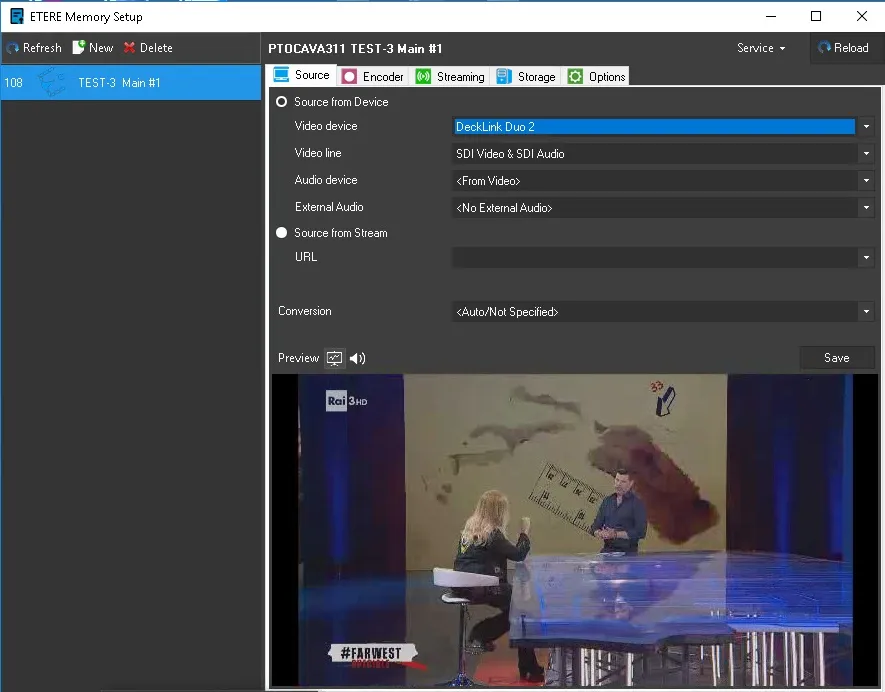
--SOURCE--
In this tab, you can slect the source from where you need to get the signal from.
- Source from device
Select video device: select the input video device.
Select video line: select the video line taking from the selected video device.
Select audio device: select the source of audio device. If the same encoder contain both video and audio, select taking the audio <From Video>.
Select audio format: select one of the audio format from the list.
- Source from stream
Type the stream URL: select to input IP stream from UDP or HTTP.
Conversion: enable the specified video conversion
Preview: enables the preview for the actual selected source.
Etere_Emory_service_setup_2
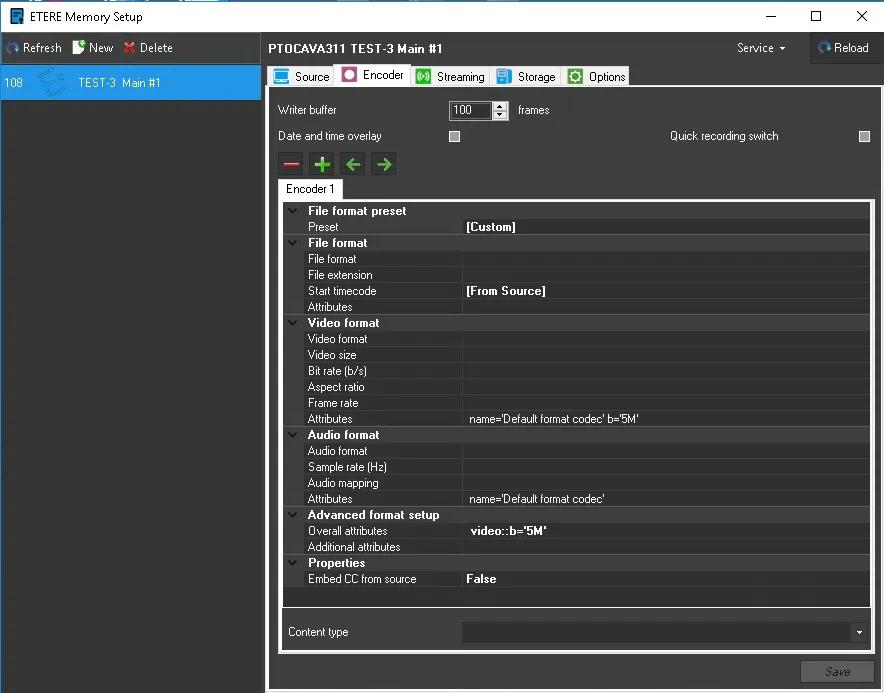
--ENCODER--
Writer Buffer: gives the possibility to set a buffer for the encoder. For default is set as 100 frames.
Data and Time overlay: gives the possibility to enable or not the "data and time overlay"
Quick recording switch: enable the contemporary switch between files across multiple encoders, if disabled the files are closed serially one after the other, if enbled all the files are closed at the same time (N.B. the files will always have the same timecodes regardless of this setting)
When configuring Encoder profile in Memory service, the Encoder 1 settings are present by default on the window showing the attributes of the encoder configurations and allowing to change them. To expedite the configuration process, you can manually copy the overall attributes from one encoder and applied to another encoder, and perform minor changes at target encoder.
File Format Preset: allow to select the default presets available
File format: allow to select various settings related to file format
Video format: allow to select various settings related to video format
Audio format: allow to select various settings related to audio format
Advanced format setup: allow to view or edit the configuration string, here you can copy the overall attributes.
Properties: allow to select various secondary settings like he possibility to capture CC (Closed Captions) from source.
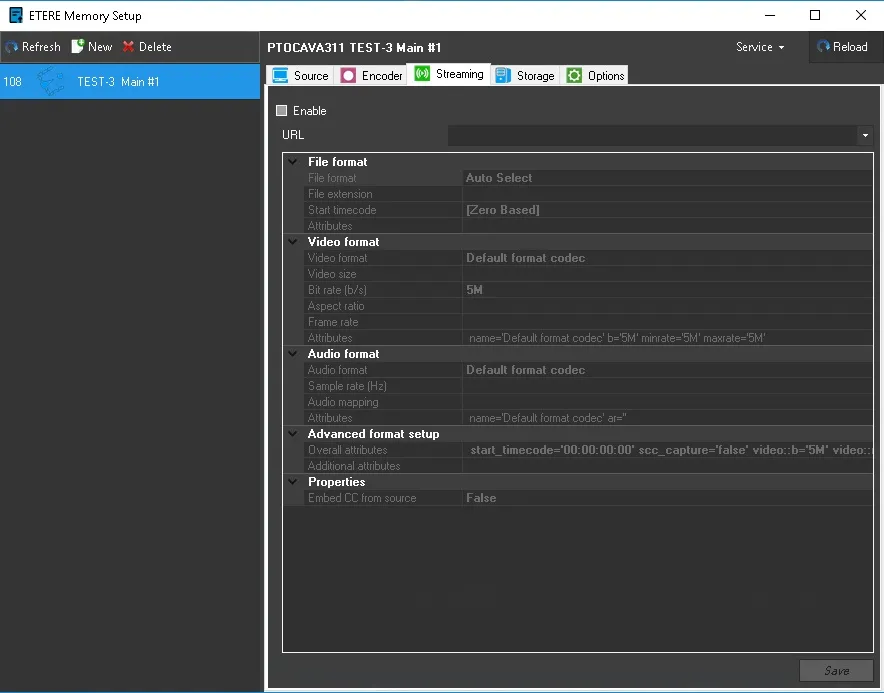
Etere_Emory_service_setup_3
Enable: if thicked it enbles the streaming
URL: specify the target address for the stream
File Format Preset: allow to select the default presets available
File format: allow to select various settings related to file format
Video format: allow to select various settings related to video format
Audio format: allow to select various settings related to audio format
Advanced format setup: allow to view or edit the configuration string, here you can copy the overall attributes.
Properties: allow to select various secondary settings like he possibility to capture CC (Closed Captions) from source.
Etere_Emory_service_setup_4
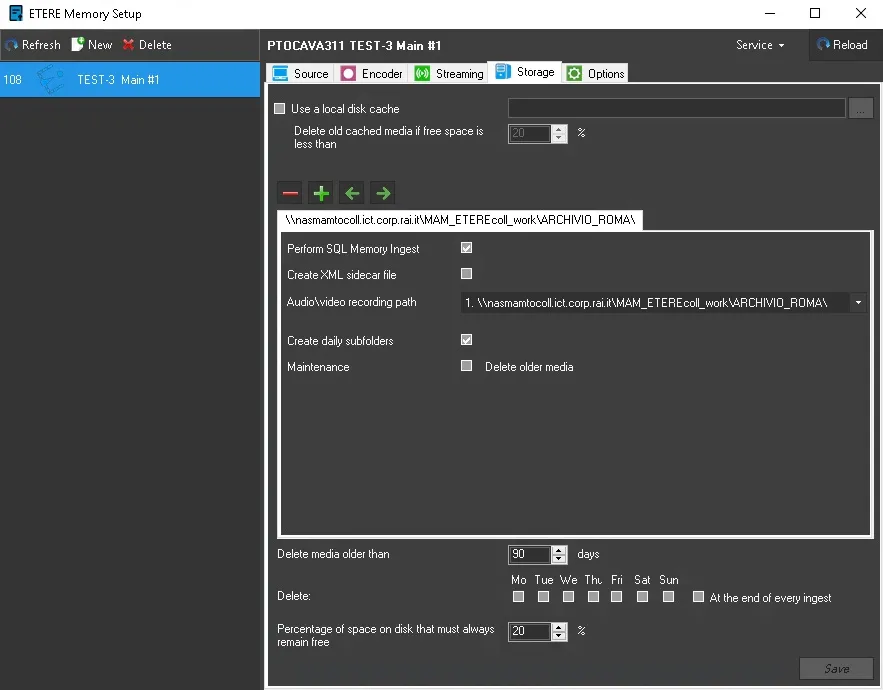
--STORAGE--
Use a local disk cache: if enabled allow the use of a local cache where to write the files before sending them to the final repository
Delete old cached media if the free space is less then: define the treshold to start the cache purge process.
add/remove file destination: allow to add a new path to the configuration
Perform SQL Memory Ingest: uses the special database structure for RAI ict
Create XML sidecar file: create an XML ancillary file
Audio/video recording path: chose among the configured paths in the system the one where to copy the encoded files.
Create Daily subfolders: if enabled will create a separate folder for each day
Maintenance: if enabled enbles the deletion of the older files into the final recording path according to the delete settings below.
Delete media older then: set the minimum retention files into the main
Delete Mon/Tue/We/Thu/Fri/Sat/Sun/At the end of every ingest: specify when to check for old files to be deleted.
Percentage of space on disk that must always remain free (%): define the percentage of free space on the disk that should always reamin free (if exceeded the recording will stop).
Etere_Emory_service_setup_5
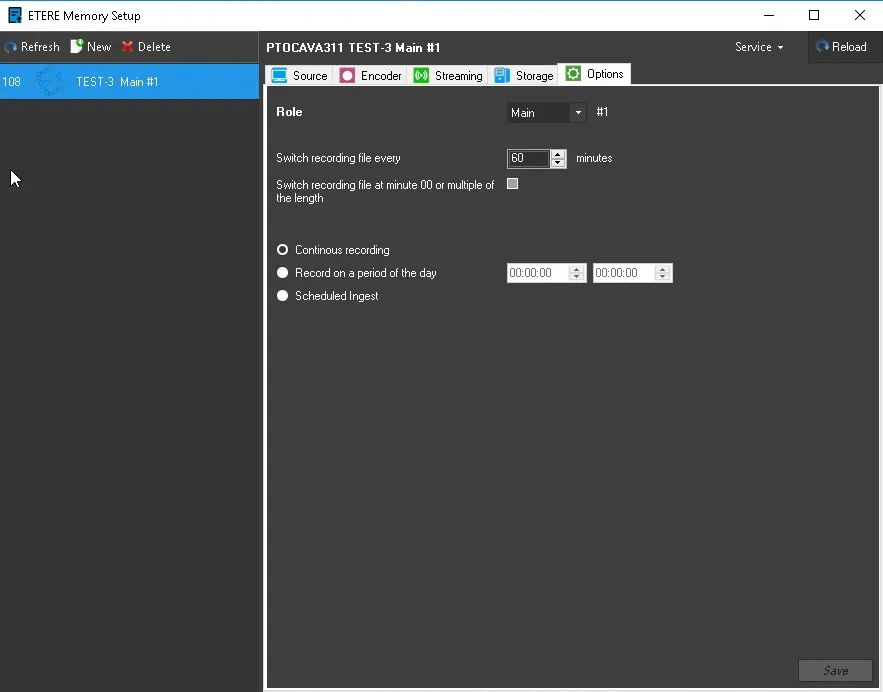
--OPTION--
Role: Main or backup
Switch recording file every (Minutes): duration of each recorded file
Switch recording file at 00 or multiple of the lenght: force the memory to switch precisely at the 1st frame of the chunk duration or multiple of the duratuion to have a precise cut for the chunks.
Continuous Recording: 24h recording no idle time.
Record on a period of the day: specify the recording window from one timecode to another.
Scheduled ingest: read the recording schedule from the database and ingest at the specified times.
Etere_Emory_service_setup_6
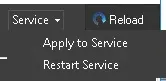
After configuring the parameters needed it is possible to save and interact with the service installed on that machine with the Service drop down menu which allow you to:
Apply to service: send the configuration data to the service that will load it at next startup
Restart service: send a command to the service to restart itself
Etere_Emory_service_setup_7
 Etere_Emory_service_setup_0
 Etere_Emory_service_setup_1
 Etere_Emory_service_setup_2
 Etere_Emory_service_setup_3
 Etere_Emory_service_setup_4
 Etere_Emory_service_setup_5
 Etere_Emory_service_setup_6
 Etere_Emory_service_setup_7