68.3 Multiviewer controls
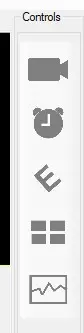
After defining the preview window layout size and position, the user can place needed Multiviewer controls on it, dragging controls from the list on the right side and dropping them on the layout (the layout tree will be updated according to the inserted controls).
controls
Controls can be moved and resized using the mouse or the control's size and position properties. They can be removed from the layout by dragging and dropping them outside.
Controls can be also duplicated. Right click on a control in the screen and select Duplicate, to obtain a copy of the same control with the same properties (except for the input, which is usually different).
Controls properties
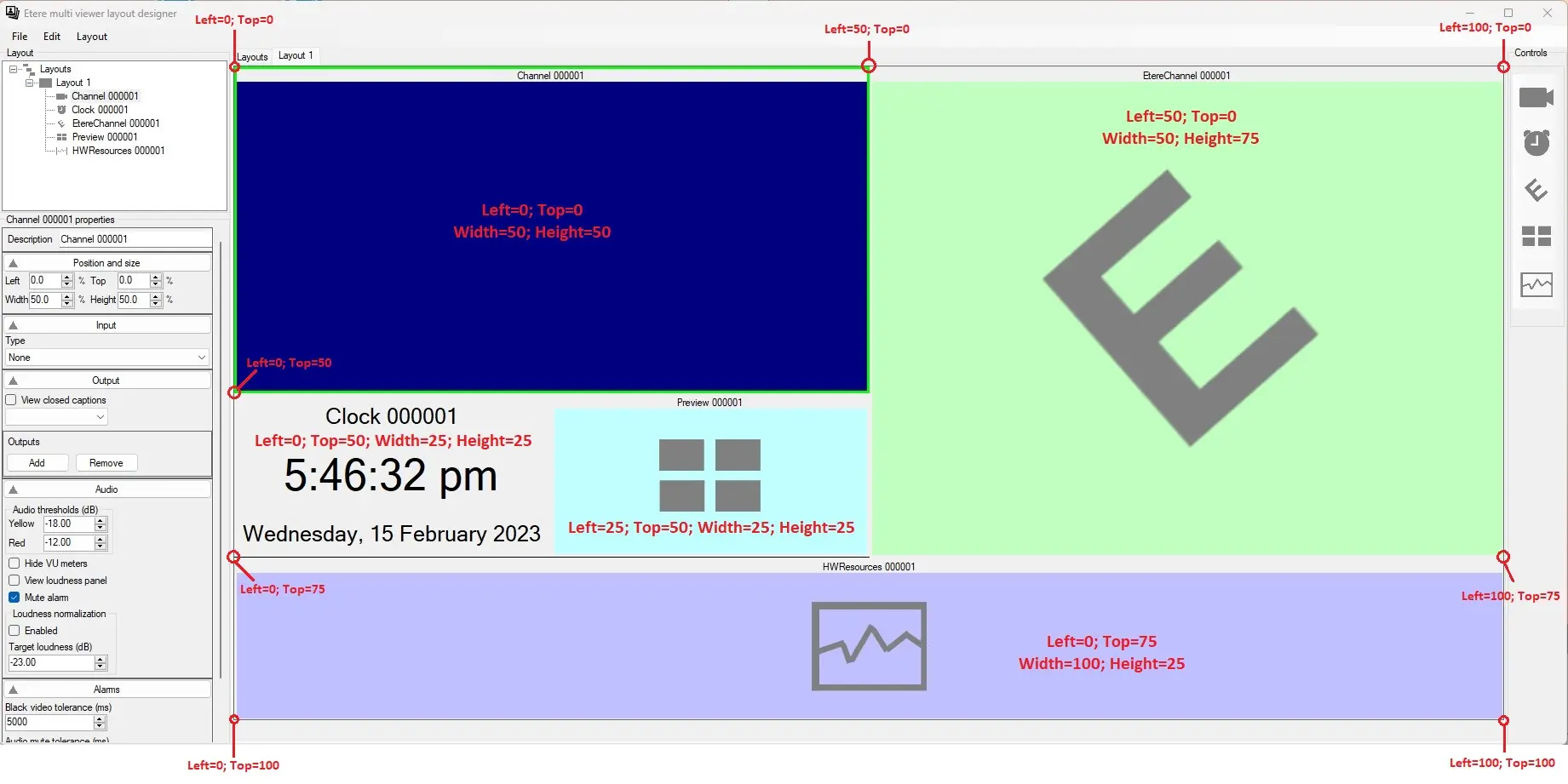
Differently from the size and position of layout area and layouts, when referred to Multiviewer controls, these 2 properties are expressed in percentage, as shown in the following image:
controls_properties
Left: Position the control's upper-left corner in the layout about the horizontal axis of the layout space.
Top: Position the control's upper-left corner in the layout about the vertical axis of the layout space.
Width: Percentage of layout space occupied by the control, starting from the Left value. In the example above, the Preview control occupies 25% of the layout's width. Since the Left value is 25%, the control's width starts from 25% and ends at 50% of the layout's width.
Height: The percentage of layout space occupied by the control starts from the Top value. In the example above, the Preview control occupies 25% of the layout's height. Since the Top value is 50%, the control's height starts from 50% and ends at 75% of the layout's height.
Select a control property on the layout or in the layout tree to access it.
There are several kinds of controls, each with its properties defining its behaviour. They're explained in the next sub-chapters.
 controls_properties
 controls