59.2.38.1 Creating Script Strings
A script file (.ctm) contains three different tags, Preset, Take and Parameters. It is possible to create a SCRIPT file by editing it by using a text editor and inserting the tags as in the following example:
[PRESET]
1=cmd 1
2=cmd 2
…
[TAKE]
1=cmd 1
2=cmd 2
…
[PARAMETERS]
1=%001|%002|%003|…
Usually, in Preset, the commands are written to load the template; in Take, the controls are used to activate the template. In PARAMETERS, the number of fields that must be updated is written, as in the template, there are variable fields. The symbol % before the number means that STMan will replace those values with other data.
Script files must be written in a text editor and saved like normal files inside the Etere directory, only if used by the secondary event "Begin/end graphic objects".
The other events must be created in Etere Configuration to be stored in the Etere Database.
Create/Modify a Script String
To create them, enter in Etere Configuration > Settings > Scripts Strings, press new/edit to open a form and set the following data:
General Tab
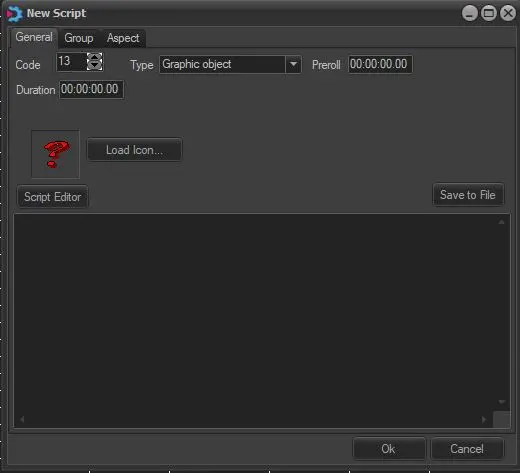
The General tab includes the following parameters:
General_Tab
Code - Specify an identification code for the script; codes are unique.
Type - Indicate if the script is a graphic object (e.g. an overlaid logo) or a crawling text (e.g. a sliding banner).
Duration - Determines either the graphic 'on-screen time' (i.e. time for which it will be displayed) or the crawling text 'speed' (time employed by a character for moving across the screen).
Pre-roll - Set the pre-roll of the current script. This pre-roll will be automatically retrieved, for example, when adding secondary objects to broadcast playlists.
Load icon - Add an icon to the script; it will be displayed in the schedule (for events linked to the script).
Script Editor - Use it to configure the script tags including 'parameters', 'preview', 'preset', 'take' and 'raw'. See the Script Editor chapter for detailed information.
Manage DSK through the STMan plugin - If enabled, the graphics engine will be controlled (activated and deactivated) by the Snipes Service plugin.
Note: This option is available only for Mediaset sites, particularly for "InLogo" scripts.
[Save to file] - Save the script as a .ctm unicode file into the Etere's on-air path (e.g. \\my-pc\etereau\user.001\).
Once configured, press the [Ok] button to save the script into the database.
Group
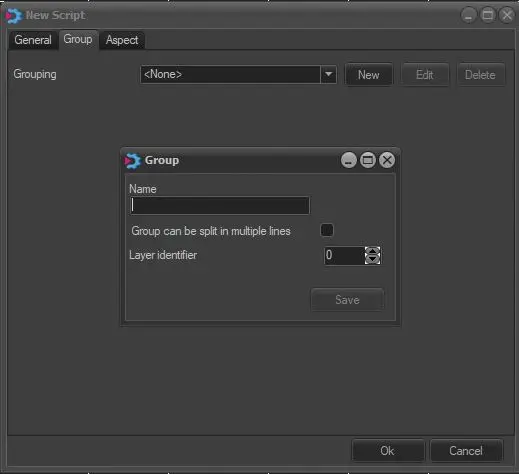
The Groups tab allows the management of splits and layers in a group to match ctm to several groups.
Group
Grouping - Select an existing group for editing or click the <New> button to create a new group.
When creating a new group, all the scripts in the same group code will be part of the group and must be used in sequential order. The sequence in the code can be changed to rearrange the order.
Name - When creating a new group, give a name to the group.
Group can be split into multiple lines - If enabled, the script sequence can be divided into various lines; else, the script sequence must be fully inserted into a single event (schedule line). If there are multiple events in the same layer, they must be in sequence; the events cannot overlap.
Layer Identifier - Specify a value (<> 0) for layer control; no player is allowed within the specified layer sequence. No layer control would be imposed if set to 0 (zero, the default value).
Aspect
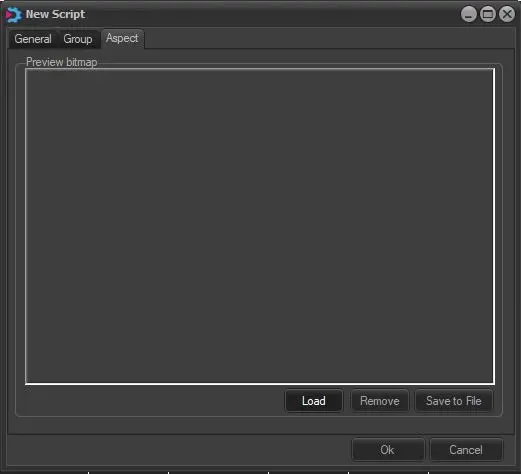
In the Aspect tab, you can load non-ETX graphics or STMan objects into the "Preview bitmap" window for preview.
Aspect
After preview, the loaded graphic object can be removed from the Preview window, or you can save the graphic object as portable network graphic (.PNG) format in the network drive.
 General_Tab
 Group
Group
 Aspect