59.2.40.15 Automation
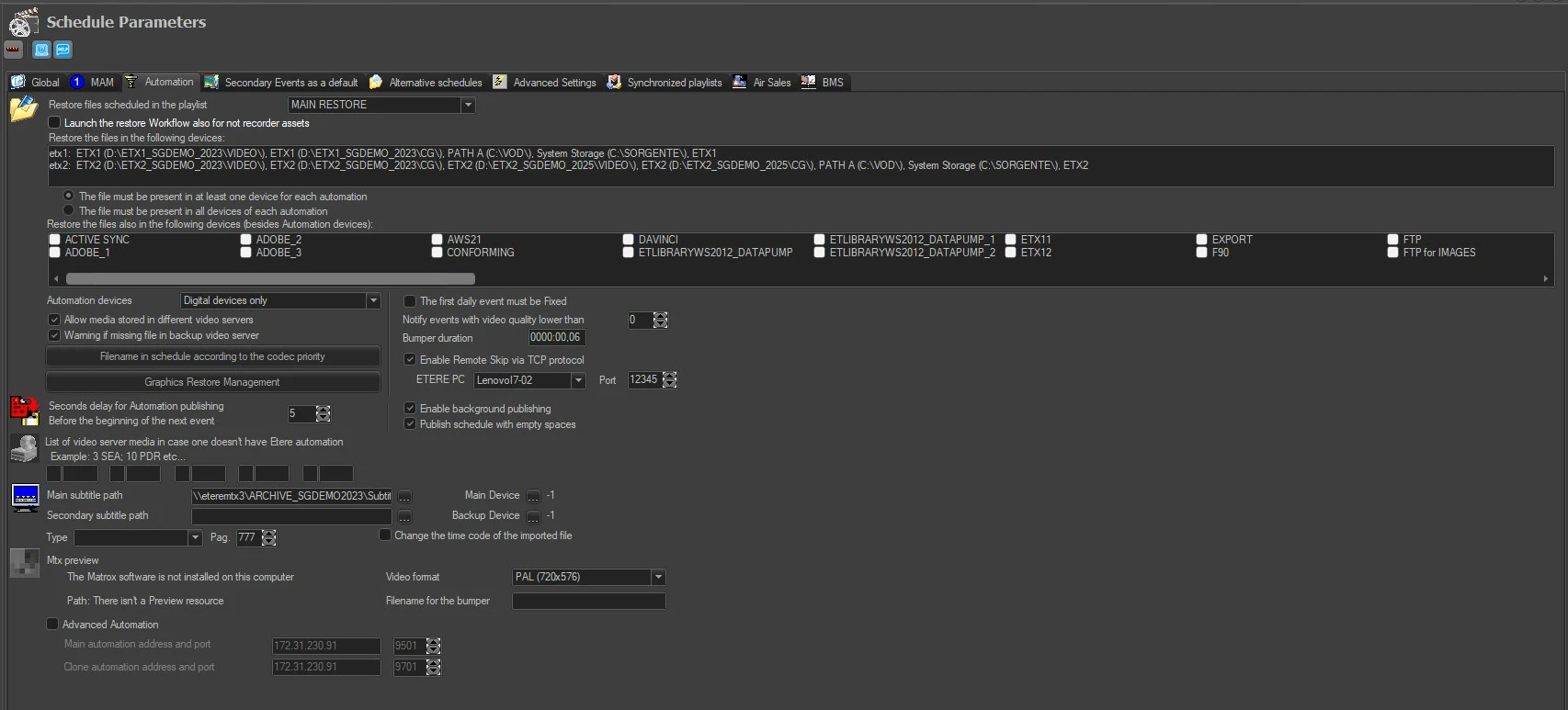
The Automation tab allows to configure the actions that the system must perform in order to ensure the correct broadcasting of events scheduled using Executive Editor.
scheduleparameters_automation
• Restore files scheduled in the playlist: Indicates the T-workflow to use to restore clips scheduled to be sent on-air across all the required servers (e.g. main video server, backup video server, Video Assist video server, etc.). Each station must have its restore T-workflow. Please note that when restoring scheduled clips, if different codecs are available, they will be restored to the playable one by the automation.
• Launch the restore workflow also for not recorded assets: This enables Aligner to execute the T-workflow to restore assets even if there is no media file in the assets.
• Restore the files in the following devices: Enter the device's name in the text box provided to allow restoration on the listed devices. You must select one of the restore criteria:
The file must be present in at least one device of each automation
The file must be present in all devices of each automation
• Restore the files also in the following devices (besides automation devices): To determine if a media file needs to be restored because linked to a scheduled asset, Etere Aligner checks if that media file is already present in the main and clone servers (i.e. resources assigned to automation) as well as in the cloud-devices selected in this section.
Select the cloud device (s) on which media linked to scheduled assets must be stored and restored by Etere Aligner.
• Automation devices: Select the appropriate option for the playout system:
- Digital devices only (default): The playout occurs exclusively through a video server. Therefore, the broadcast schedule will be expected to contain only events recorded on a video server. Otherwise, a warning message will be displayed.
- Digital Devices and only one VTR: Whether video servers or VTR, the playout occurs. Therefore, if two contiguously scheduled events, a warning message will inform the operator about the proximity.
- Digital Devices and multiple VTRs: Whether using video servers or multiple VTR devices, the playout occurs. Therefore, it is possible to use both events present in video servers, and VTR is possible to schedule contiguously.
- Only VTRs devices: The playout occurs directly through VTR devices. Therefore, the broadcast schedule will be expected to hold only events present on VTR devices. Otherwise, a warning message will be displayed.
• Allow media stored in different video servers: If disabled (by default), all events' media files will be considered to be stored in the main automation video server (e.g. 0MTX); otherwise (if enabled), events' media files will be displayed showing the actual device they are stored (e.g. 1MTX, 2MTX, 1SEA, 1K2).
• Warning if missing file in backup video server: This option must be enabled if assets are also ingested into a backup video server; it checks the digital media scheduled to go on-air is available in the main server and the backup server.
• Filename in the schedule according to the codec priority: It displays the order where codecs are available on the current station for playout by automation. The order of codecs can be sorted for easy management; for example, when a broadcaster manages different codecs (e.g. "SD", "HD" and "4:3") for all assets but only one codec (e.g. "HD") is transmitted by the current station.
• Seconds delay from automation publishing before the beginning of the next event: This parameter avoids publishing close to a clip change. If occurred, the publication waits for the start of the next event.
If the next event has a duration less than the specified value (seconds), it will wait for the next one. If the last event doesn't allow the publication, a video warning message will be displayed.
• The first daily event must be Fixed: Enable this option to enforce the first event for daily broadcast to be a Fixed event type.
• Notify events with lower video quality than: Set a value to monitor the video quality.
• Bumper duration: Specify the bumper duration added to the event for the Timecode event.
• Enable background publishing: This parameter (disabled by default) permits publishing the broadcast schedule in the background, allowing users to work on the schedule even during the publishing time. Each time a schedule publish is requested, by pressing the related button or by another application, the following procedure is performed:
1. Executive Editor would publish the first 20 events of the schedule, and a thread would be delegated to publish all remaining events.
2. Executive Editor would be 'locked' until the publishing of the first 20 events ends, after which, the Executive Editor would be 'unlocked'.
3. The publishing thread will run in the background until all events are published; if new publishing is performed, the new thread will replace the previous one.
4. When a publishing thread is running, the Executive Editor MUST remain open. As mentioned before, all its features can work as per normal (except opening another day's schedule).
• Publish schedule with space: Enable this option to schedule events containing space.
• List of video server media in case one doesn't have Etere automation: Allows to insert the used video servers from the broadcasting in the case in which the automation is not that of Etere. In this way, you can indicate to Media Manager where to transfer the video files.
The name of the video server is given by the ID and by the type (e.g. 3SEA, 10PDR, 5MAV, etc.).
If Etere ETX is installed, it is capable of handling all media types, including:
PDR, V1SV, EVS, ETX, MCL, HP, MTX, MCLH, MDK, SEA, TNTS, VRSS, OMN, TNT, VR, K2, BMC, DRM, K2SS, AVID, SGI, GVM, NXTR, GVM, LOUT, WMV, EVSD, 360S, MAV and PLBX.
If other video servers are used along with ETX, the supported media types of the different video servers will take precedence. If there is no suitable driver available for video servers, ETX would be used for playout.
ETX does not handle unknown media types other than the media types mentioned above. The unknown media would be replaced with an emergency or blank frame.
• Main & Secondary subtitle path: Set the default path from which subtitles will be automatically retrieved when imported from Media Library (see Link subtitles to assets). If no path is set, the manual import can be performed from Media Library.
Note: The path set here must have a corresponding metadevice (as paths specified in the Languages section).
• Type and page: Set the subtitler driver and subtitling page to be used by default when assigning a subtitle to an asset.
- Main Device: In the given section is possible to assign the Main metadevice where subtitles files will be on air. If the device corresponds to the automation metadevice, it is possible to leave this parameter empty.
- Backup Device: In the given section is possible to assign the Backup metadevice where subtitles files will be on air. If the device corresponds to the automation metadevice, it is possible to leave this parameter empty.
• Change the timecode of the imported file: If enabled, each time a subtitle is imported from an asset form, its timecodes will be changed to zero-based (i.e. to start at 0000:00:00,00).
• MTX Preview: This feature allows to set the parameters required to perform the preview of events stored in MTX devices (right-click on the event and select the preview > MTX preview option). Available parameters include:
Path: The location of the video files to be used for preview are stored. This information is automatically retrieved from the Etere MTX resource previously configured for preview.
Video Format: Select the video format to preview the video.
Filename for the bumper: Indicate the bumper file to simulate the bumper transition (PD).
Please consult the dedicated section: MTX Preview from the Etere MTX chapter for detailed information on this feature.
• Advanced automation: Enable this option if the current station have to go onair with advanced automation (e.g.: Radio Live Engine Service). Main and clone IP and port can't be edited, they are automatically filled according to the PC where the Schedule Publisher Service runs.
 scheduleparameters_automation