59.2.2.4 Invoicing
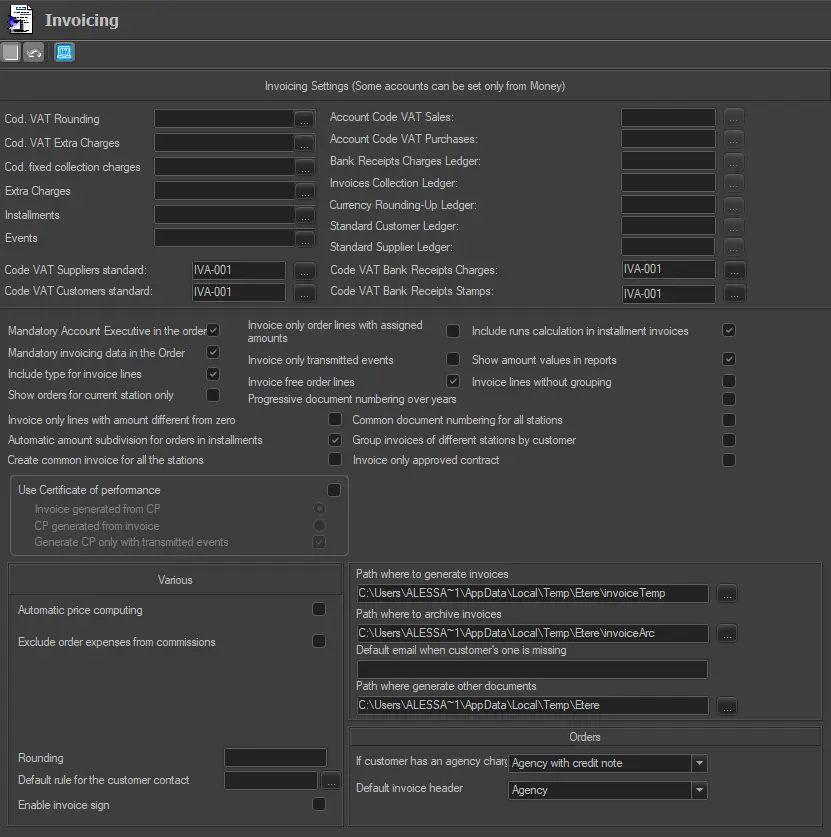
The Invoicing section makes it possible to configure some important parameters required for invoicing commercial orders.
invoicing_params
Note:
Please note that the labels described below change according to the country set in the System section.
E.g., If in Country parameter is set "Italy", the word "IVA" would be displayed. If it's set as "United Kingdom", the term "VAT" would be displayed.
As shown in the figure above, information required in this section can be set in the following parameters:
INVOICE SETTINGS
Cod. VAT Rounding - Specify a particular VAT code regarding rounding-up amounts.
Cod. VAT Extra Charges - Specify the VAT code for extra charges.
Cod. Fixed Collection Charges - Account used to hold invoicing costs (e.g. postage).
Extra charges (account code) - Account used for holding the incidental expenses (e.g. production and dubbing costs) derived from sales invoices.
NB: Please refer to Money > Double-Entry Accounts on Etere for more details.
Instalments (account code) - Account used for holding revenues collected through instalments.
Events (account code) - Set the ledger account for posting transactions related to commercial events. This account is only used when no compensation account is set for the order's line or customer/agency.
NB: For more info on invoicing accounts, refer to the "Available invoicing modes" chapter in the Money module.
NB: Ledger accounts are set in "Configuration > Settings > Invoicing Data > Chart of accounts".
Account Code VAT Sales - Account to record all customer's transactions for the VAT Register.
(needs to be set from Etere Money)
Account Code VAT Purchases - Account to record all supplier's transactions for the VAT Register.
(needs to be set from Etere Money)
Bank Receipts Charges Ledger - Account to be used for the commissions paid to the bank.
(needs to be set from Etere Money)
Invoices Collection Ledger - Account to collect payments performed of invoices payments.
(needs to be set from Etere Money)
Currency rounding-up Ledger - Account to be used for the remainder of rounded-up amounts.
(needs to be set from Etere Money)
Standard Customer Ledger - Account used (by default) for sales transactions.
(needs to be set from Etere Money)
Standard Supplier Ledger - Account used (by default) for purchase transactions.
(needs to be set from Etere Money)
Code VAT Suppliers Standard - Select the VAT code to calculate the VAT rates applied to Suppliers.
Code VAT Customers Standard - Select the VAT code to calculate the VAT rates applied to Customers.
Code VAT Bank Receipt Charges - Select the VAT code to calculate the VAT rates applied to Bank Receipts Charges.
Code VAT Bank Receipts Stamps - Select the VAT code to calculate the VAT rates applied to Bank Orders Stamps.
INVOICING SETTINGS
Mandatory Account Executive in the Order - If enabled, assigning at least one account executive to orders will be compulsory. Air Sales will generate a warning message if an account executive has not been assigned.
Mandatory invoicing data in the Order - If enabled, the assignment of invoicing data to orders will be compulsory. Air Sales will generate a warning message if the invoicing data has not been assigned.
Include type for invoice lines - If enabled, the invoice will indicate the event type to which lines are related.
Show orders for the current station only - If the "common accounting for all stations" parameter is enabled in Money > Settings > General, the invoicing process will be common for all stations; therefore, it will be possible to invoice from one station orders related to other stations.
.If enabled, this parameter will force the "individual" invoicing for the current station; operators will "see" only invoice orders related to this station.
NB: If the "common accounting for all stations" parameter is disabled, invoicing will always be "individual" per station, and orders will be invoiced only from their related stations.
Invoice only the order lines with assigned amounts - If enabled, only those order lines with a run amount allocated (i.e. it's not empty) will be included in invoices.
Invoice only transmitted events - If enabled, only those order lines which events have been sent on-air will be invoiced.
Invoice free order lines - If enabled, order lines scheduled as 'free events' will be included in invoices.
Include runs calculation in instalment invoices - If enabled, invoices will indicate the number of runs during the invoicing period.
Show amount values in reports - If enabled, the total invoices will be included when generating an Invoicing account.
Invoice lines without grouping - If enabled (by default), it generates single invoices for each order line. Otherwise, an outstanding invoice will be generated for the entire order.
Invoice only lines with an amount different from zero - If enabled, it generates invoices only for those order lines whose amount is greater than zero. Otherwise (if disabled), order lines with zero value will be invoiced.
Automatic amount subdivision for orders in instalments - If enabled, the total instalment amount will be automatically calculated and divided across all order lines, based on the number of runs and the duration (in seconds) of each order line.
Progressive document numbering over the years - If enabled, documents will be numbered continuously over different financial years (thus forming a unique sequence). Otherwise (if disabled), documents numbering will be reset at the end of each financial year (thus starting a new sequence).
Common document numbering for all stations - If enabled, documents will be numbered progressively over different stations. For instance, if the last document of station01 is numbered 143, a new document created in station03 will be automatically numbered as 144.
Group invoices of different stations by the customer - This parameter allows to specify how invoicing documents should be created when generating PDF invoicing documents:
Enabled - Invoicing documents related to all stations will be generated into the current station folder (e.g. 1) under customer-specific subfolders (e.g. 473, 518, etc.).
Single remittance advice, settlement rebate, statement and summary statement will be created for each customer, including data from all stations.
Disabled - Invoicing documents will be generated for each station into their related folders (i.e.1, 2, 3, etc) under customer-specific subfolders (e.g. 473, 518, etc).
Single remittance advice, settlement rebate, statement and summary statement will be created for each customer, including only data from the related station.
NB: Please note that invoices will always feature the header of their related station.
Use Certificate of Performance - If enabled, the Certificate of Performance (CP) report module would be used to generate the CP report containing the invoices for transmitted events.
After enabled, select one of the following methods in the CP module to generate the report:
•Invoice generated from CP
•CP generated from invoice
Moreover, you can enable "Generate CP only with transmitted events" to generate CP reports only for transmitted events.
•In addition, in the Invoicing's CP Generation menu, there are more filtering options for generating the CP reports:
•Generate CP report by selecting a date range
•Generate CP report within a range of number
•Generate CP report for a specific customer or all customers
•Generate CP report for a specific agency or all agencies
Invoice only approved contract - Only approved contracts would be included in the invoice when this feature is enabled.
VARIOUS PARAMETERS
Automatic price computing - If enabled, the order line's amounts will be automatically calculated from the price lists assigned to blocks.
Exclude order expenses from commissions - Use this option to calculate commissions without considering possible commercial order expenses (e.g. production, dubbing).
Rounding - Insert the code relative to the rounding-up account defined in Etere Configuration > Settings > Invoicing Data > Account list.
The default rule for the customer contact - Enable this option to find the customer contact reference and customer role defined in the Contact section of the personal data form. The first contact person will be selected if many contacts and roles are described in the contract.
Enable invoice sign - Enable this option to print the name and the role of the person who had created the invoice.
INVOICES FILES GENERATION
Path where to generate invoices - Browse and select the directory to be temporary save invoices generated as PDF (from "Invoicing > Invoices Reports"), for instance, to be sent via email.
•NB: It's highly suggested to use a shared directory (e.g. \\AccountingWS\Reports\) with read/write permissions for all users intended to generate invoices.
Path where to archive invoices - Browse and select the directory to be permanent save invoices generated as PDF (from "Invoicing > Invoices Reports"), for instance, for archiving purposes.
•NB: It's highly suggested to use a shared directory (e.g. \\AccountingWS\Reports\) with read/write permissions for all users intended to generate invoices.
Default email when customer's one is missing - Enter the default email address when a customer's email address is invalid during invoice delivery via email process.
Path where generate other documents - The Contracts report and Terms and Conditions report are printed after the Media Order report; use the browse button to select the directory to store the generated reports. The report can be opened from the Individual Order report or Proposal. Users must be granted Write and Delete rights to access this directory.
ORDERS DATA
If a customer has an agency charge to - Set the default value in the "charge to" parameter when creating new orders or proposals for customers with a linked agency.
Default invoice header - Set the default value in the "invoice header" parameter when creating new orders or proposals for a linked agency customer.
It's worth mentioning that all email notifications sent through Etere Invoicing are based on the parameters set under the Basic Configuration > Email Server section; therefore, if the feature is intended to be used, the parameters must be correctly set.
Note:
Please note that in the case of using the Lite version of Etere, this section won't be available due to the capabilities limitations of lite channels.
 invoicing_params