59.3.12.2 Permissions Types and Descriptions
The tree-like list on the right side of the window is where all permissions managed by Etere are displayed across specific categories for easy and accurate management.
Available functions
The following functions are provided for the management of rights:
Refresh - Updates the list of permissions by loading them from the database.
Undo - Discard all unsaved changes performed to the permissions list.
Save - Apply all changes performed on the permissions list.
Default new - Specify if newly added permissions will be granted or denied by default.
View - Enable the grouped visualization permission in "subfolders" (e.g. Rundowns, SC, etc.)
Search - Find a specific permission by entering a part of its name (e.g. schedule)
Available Permissions
All rights available in this area are classified across various categories and displayed within them as single items. The following categories are managed:
Category- ACCESS
Description: Enables/disables the user from accessing the Etere system. Any time this parameter changes, you must save the data using the [save] button.
Category- BASE
Description: Enables/disables the user from performing some of the most relevant rights related to Etere's management and administration.
Details: Base
Category-OBJECTS
Description: Enables/disables users from managing specific asset types (e.g., create, delete, schedule, etc.) (e.g., movies). Any modification (add, delete, copy/cut and paste) to the specific asset type would be denied in Executive Editor and Strategic Editor.
However, you can set the access rights of specific asset types to "View Only" for specific user groups in the domain. All asset types are defined in "Etere Configuration > Settings > Types".
NB: Users with "system admin" rights will be allowed to manage assets (e.g. change technical data) even for restricted asset types (e.g. spots).
Category- CODECS
Description: Enables/disables users from managing (e.g. viewing) specific media codecs (e.g. mp4 h.264). Codecs here are the same configured in "Etere Configuration > Devices > Codecs".
Category- ROLES
Description: The Roles category defines the user's roles and responsibilities and groups users into their respective groups to identify the user roles, e.g. Admin, Journalist, Producer, Photography, Music, Screenplay writer, etc. In each Role, you can assign different users to the functions and enable the setting of "Ready / Not ready" status to T-workflow.
Category- PERSONAL DATA CLUSTERS
Description: Enable / Disable user rights for accessing the personal data information when selecting the respective cluster (distinguished by Air Sales and BMS cluster). Refer to the chapter "Air Sales > Personal Data" when accessing the cluster.
Category- FUNCTIONS
Description: Enables/disables the user from using the modules provided by the various Etere applications (e.g. Air Sales, MAM, Scheduling, etc).
Category- SETTINGS
Description: Enables/disables the user from accessing the settings available in the Etere Configuration module. Items listed here are the same as explained in the Settings chapter.
Details: ----
Category- T-WORKFLOW INSTANCES
Description: Enables/disables the user from modifying and executing specific T-workflows (e.g. restore for on-air). T-Workflows listed here are those user-created using the T-Workflow designer.
Details: ----
Category- T-WORKFLOW ACTIONS
Description: Enables/disables the user from modifying and executing specific T-workflow actions (e.g. manual quality check). The T-Workflow steps listed here are the same as explained in the T-Workflow Actions chapter.
Details: ----
Category- REPORTS
Description: Enables/disables the user from viewing and using Etere Reports. Please note that enabled reports can be categorized under the Reports Editor.
Details: ----
Category- WEB
Description: Enables/disables users to access specific EtereWeb sections and features.
Details: Web
Category- CLOUD-DEVICES FOR WEB USERS
Description: Enable/disable the cloud devices available for the user in EtereWeb (e.g. for web upload, web preview, etc.). Metadevices are available in the list and must be granted "Allowed" access rights for users to upload and preview media files in Metadevice via EtereWeb.
Category- FLEXI-METADATA TEMPLATES
Description: Enables/disables the user from modifying specific Flexi-metadata templates (created in Flexi-metadata configuration) from the EtereWeb interface.
All Flexi-metadata templates displayed here are shown with a description formatted as follows: <groupname>\<template name> (e.g. commercials\supplier).
Category- PLAYLIST EXPORT
Description: Enabled/disables the user from exporting segments playlists from either the web workspace or the desktop interface. Available export functions include:
Etere playlists
Vortex playlists
XDCAM playlists
Category- ASSETS ACTIVATION FOR
Description: Enables/disables the user from managing assets belonging to any of the stations in the system (e.g. channel 01, channel 02, channel 03, etc).
Rights status
All rights (e.g. access, base, objects, functions, etc.) present in this section will be displayed, indicating their current status through the icon on the picture Right_status:
- The permission in question is enabled for all selected groups.
- The permission in question is disabled for all selected groups.
- The permission in question is enabled only for some selected groups.
- The permission of this object type is "View Only" for specific user groups. (only applicable for Objects category)
- The permission is set to its default value for all selected groups.
Modifying Rights
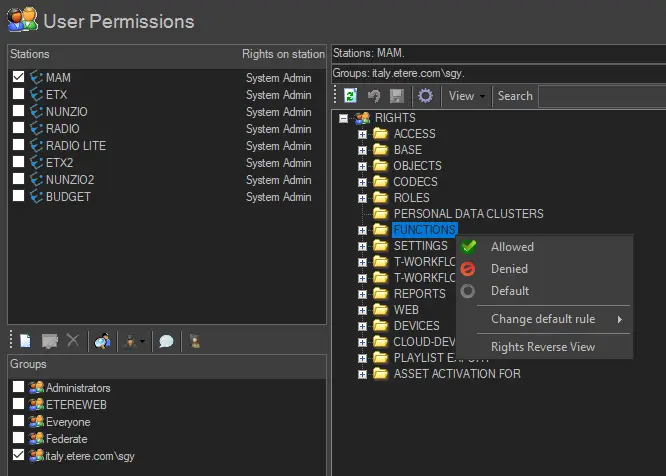
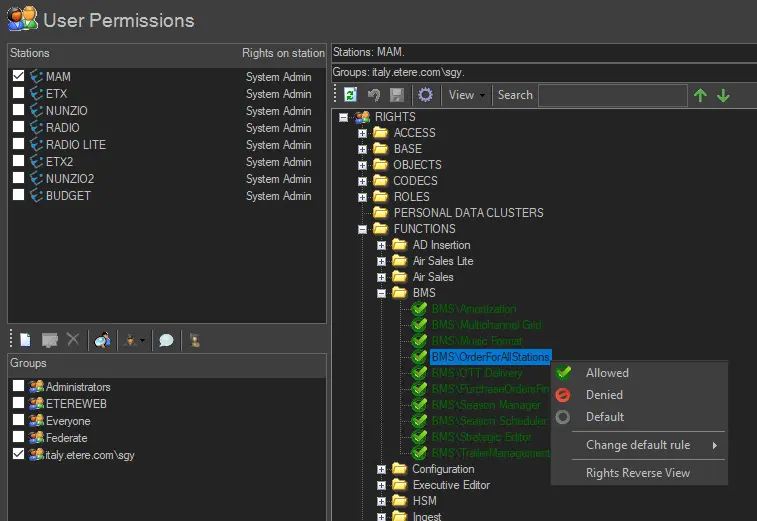
All rights present in this section can be managed (i.e. enabled or disabled) for specific groups just by right-clicking on them and using the following options:
Allowed - Set the selected permission(s) as allowed.
Banned - Use it to disable the selected permission(s); set it as denied.
Default - Set the selected permission(s) to its default value.
Change default rule - Specify if the permission(s) in question should be allowed or banned by default.
It's worth mentioning that permissions can be modified by selecting either a single item or an entire category:
- Example modifying an entire permission category:
Modifying_an_entire_permission_category
- Example modifying a single permission item:
Modifying_a_single_permission_item
Note:
In case of installing a new fresh installation, it is suggested to disable all permissions by default (e.g. right-clicking over a permission category and selecting to change the default rule into denied); this action will permit administrators to enable only those permissions explicitly granted for each group subsequently.
 Modifying_an_entire_permission_category
 Modifying_a_single_permission_item
 5415_Right_status