80.2 Short Event Reel
Short Event Reel is an application provided with Etere Object Reel, and it is mainly focused to improve fault-tolerance inside your broadcasting system, thus by allowing you to create a custom and well-organized tape containing assets (short events) that will can be used in case of emergency. A Short Event Reel Tape is particularly useful for example, if either your Video Server or Automation fails, and a manual broadcasting is needed, in this case, by using two VTR's (one for Long Events and one for the Short Events) you will be able to ensure broadcasting even in this kind of situation.
In order to be listed here, assets must have been scheduled and should have a 'short event reel' property enable (consult the Asset's Properties chapter for information regarding how to activate this property). Once Short Event Reel has been configured in the Archive Parameters application found in the main menu, it will be ready to be used just by following the next procedure:
1.Selecting Clusters to be Recorded
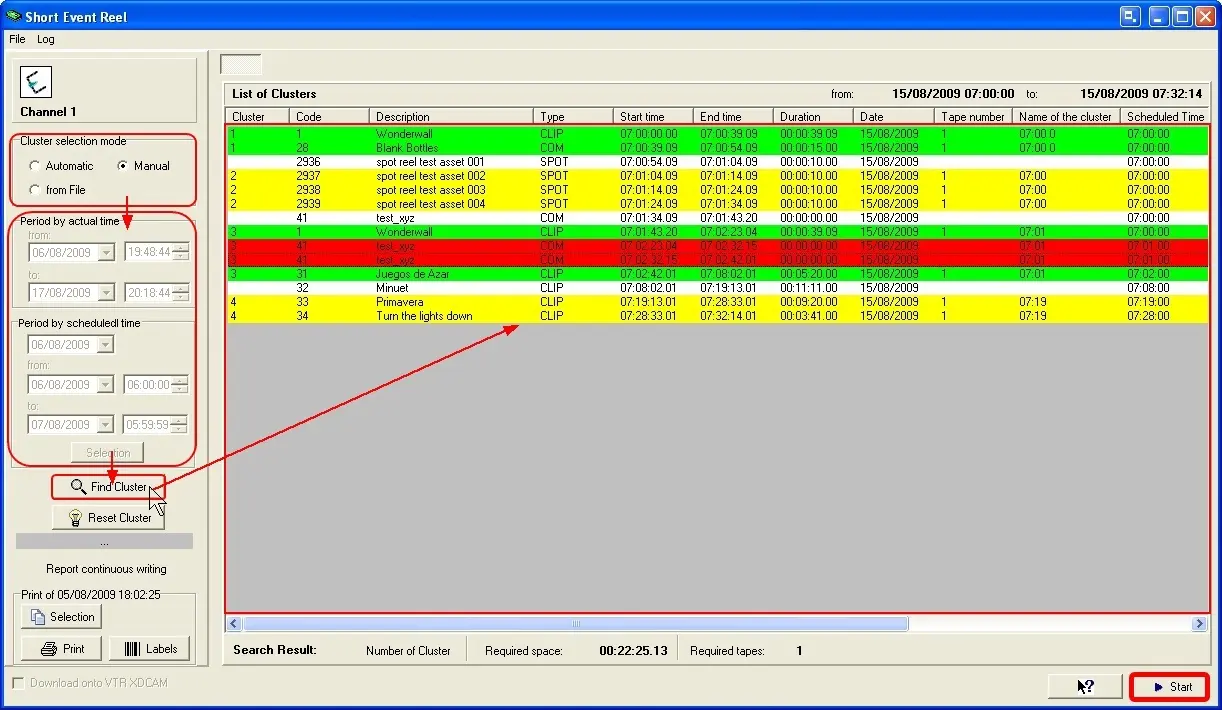
1.1. Once the parameters have been configured and the module launched, the selection of which clusters to record onto the tape can be done in three ways:
Osr_clusterreel01
•Automatic selection: Carry out the search only among scheduled assets which have a 'short event reel' property enabled. Assets are grouped in the same way as in their schedules, that is, they are shown as clusters and not as assets.
(*) In this case assets are fixed (selection is not allowed) and are listed as a single containing cluster.
•Manual selection: Carry out the search among all the scheduled events, once retrieved scheduled assets which have a 'short event reel' property enabled will be automatically selected. However, another scheduled assets can be added just by clicking on them.
(*) In this case assets can be freely selected and will be clustered based on their scheduling time (consecutive assets are contained in the same cluster).
•From File: It is also possible to import clusters from a particular file, imported files are simple text-files containing on each line the code of the asset intended to be recorded.
(*) In this case assets are fixed (selection is not allowed) and each one of them represents a cluster.
1.2. If you have selected either the automatic or manual selection, you must indicate the period on which the assets to be retrieved must have been scheduled:
•Period by actual time: Select a custom time interval on which assets have been scheduled, this by indicating the date and hour of both the initial and final days.
(*) The search will be performed across the 'actual time' field of scheduled assets.
•Period by scheduled time: Select a single day and specify the time slot(s) on which assets must have been scheduled. 'Time Slots' can be narrowed to go from the '00:00:00 hours' of the selected day to the '23:59:59 hours' of the next day, that is, 48 hours forward of the given day.
(*) The search will be performed across the 'scheduled time' field of scheduled assets.
1.3. Once you have selected the method and period you want to use to carry out the retrieval of assets into the list, press the "Find Cluster" and the 'List of clusters' will be then populated. According to their state, asset's lines are represented in four colours:
•White: The asset is not selected.
•Red: The asset is selected but it is not correct (because its media is not present in the video server).
•Green / Yellow: The asset is selected and correct, therefore, ready to be recorded. Two colours are used to indicate the transition from a cluster to another.
1.4. At the bottom of this Asset List window it will be indicated the number of cluster, the required space (total duration of the chosen assets to be recorded) and the required tapes (if the duration of total assets is less than the available duration of the tape then only 1 tape will be needed, however depending on the total duration of videos to be recorded, the program calculates how many tapes are needed).
1.5. Moreover, by enabling the 'download onto XDCAM' option, video files can be recorded using an XDCAM instead of a VTR. If enabled, this option will allow Short Event Reel to record all selected clusters within XDCAM discs, it will record each cluster as a single clip and will create a playlist detailing all the commercials included within that cluster. Playlist are saved as SMI files within the same disc on which the clip has been recorded, playlists are named according to their creation order (e.g.: E0001E01.SMI, E0002E01.SMI, E0003E01.SMI, etc).
This option will be available only if the XDCam resource has been specified in the parameters section.
2.Recording Clusters
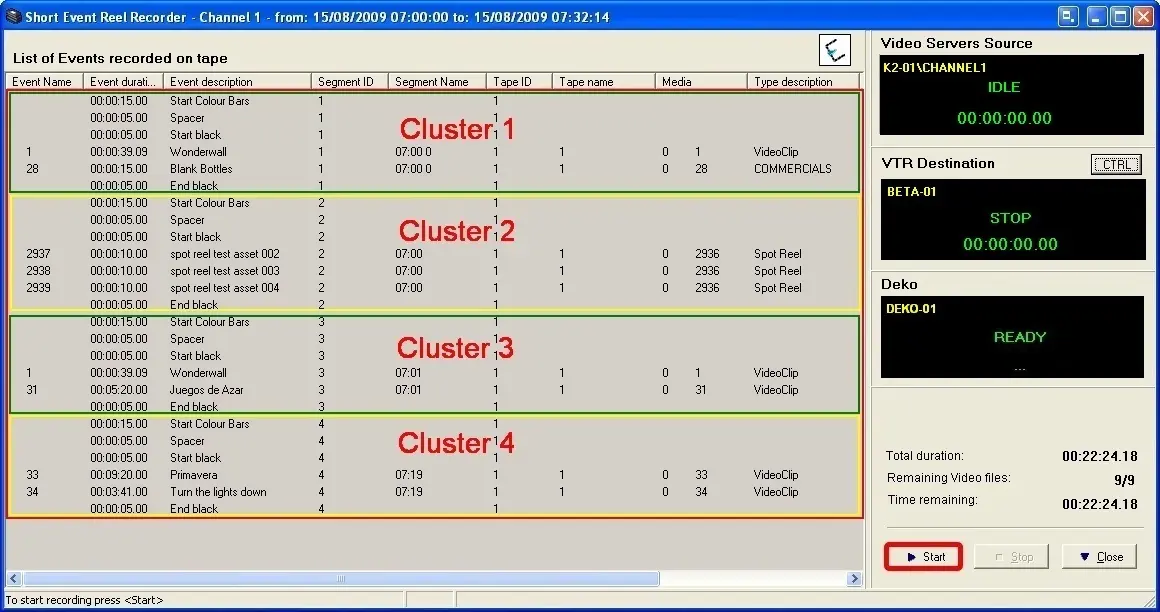
2.1. Once the clusters to record have been selected, just press the 'Start' button. The Short Event Reel Recorder window now appears listing the videos that will be recorded and their more relevant details as name, spacer or black, media device, destination tape, etc. Spacer and Black clips are configured in the Parameters:
Osr_clusterreel02
2.2. Check the list of items to be recorded and the various spacers and black insertions and confirm the recording by pressing Start, during the recording process to the bottom right of the screen it shows a reminder of the total duration, how many videos are still left to record and the time remaining until completion.
Remember that you can manually press STOP to interrupt the recording at any time.
3.Reports
In the Print section you are allowed to view and also print a custom report of clusters scheduled on a certain period:
a. Click on the 'selection' button and indicate the date range on which PAST short event reels will be searched,
b. Click on the 'print' button and all assets scheduled within the given period will be shown,
c. You can also print 'tape labels' for the current recording by clicking the relative button.
 Osr_clusterreel02
 Osr_clusterreel01