72.7.2.14 Change subtitles font type and font size
If you already have the subtitles file in hand, you can modify the font type and font size of the subtitles text before the subtitles goes on-air, by following the steps described below.
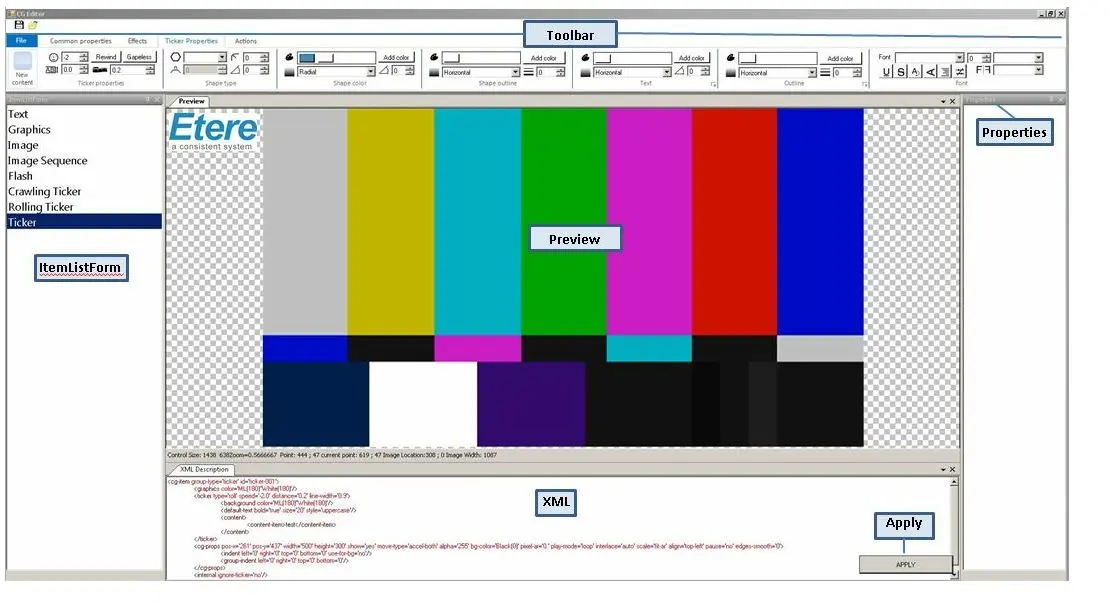
Create a new template with Etere CG Editor
1.This requires a dedicated “.TTF” (True Type Font) file to be downloaded and installed on the station as a default fonts to be used for Subtitles text.
2.Upon install the TTF file on station, launch Etere CG Editor to start create a new template.
Etere CG Editor
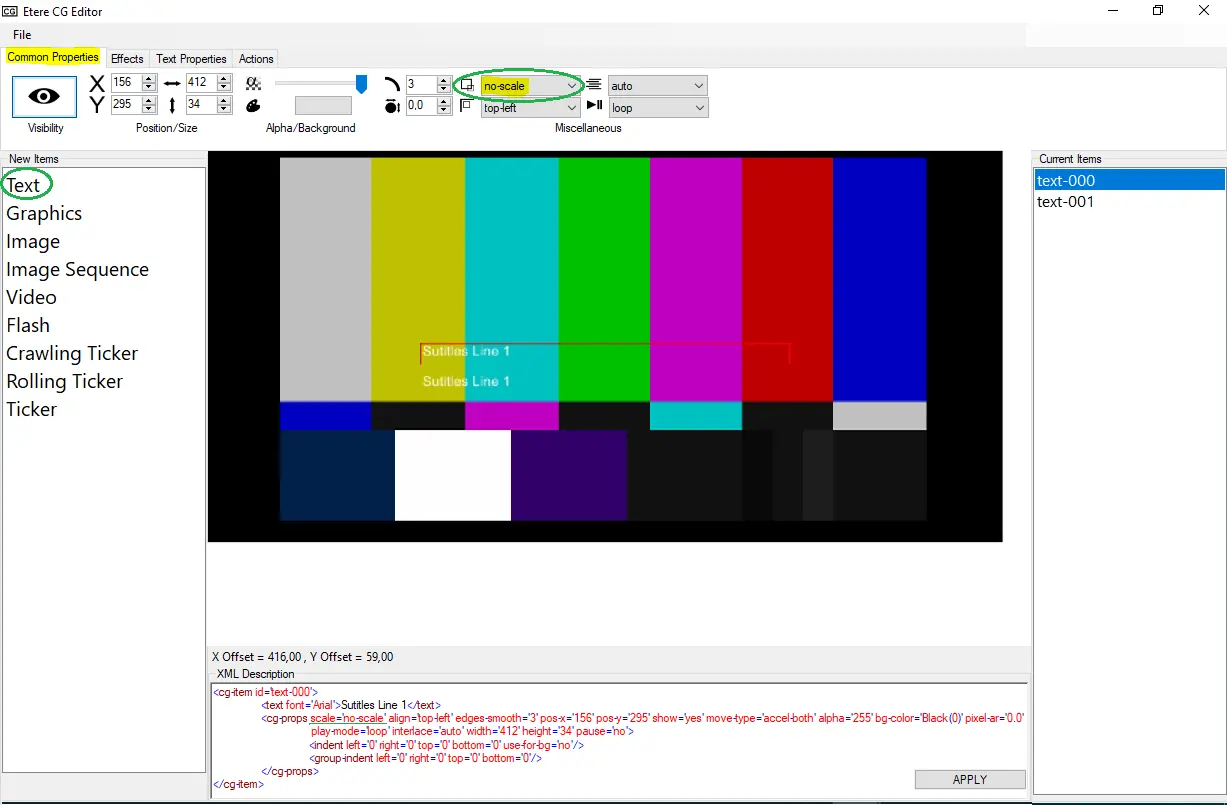
3.From the <New Items> list, select “Text” item to launch the CG Editor’s Text configuration settings.
Text configuration
•In Common Properties tab.
•Click on “Text” item, drag-and-drop the item into the Preview window to create a single subtitles line. Repeat the action to add the empty lines in Preview to cater for the number of lines in the subtitles file.
•When all empty lines are inserted into Preview, you can start entering the subtitles content into the empty lines.
•When subtitles content are present in Preview, for each subtitles text line, set the “Scale” parameter as “no-scale” in order to apply the real font dimension without using the “Scale” parameter.
•Repeat the aforementioned “Scale settings for every subtitles line in the Preview.
•Upon completion, save the project as new template file (e.g. saved as “Temp777.ml-cgc”) in CG Editor root folder to be used in future.
Scale in CG Editor is a common layer property, such as “no-scale” or “text-scale”. The Scale setting defined in template would determine how the subtitles text would be rendered on-air:
•“no-scale” would render the subtitles text based on the output resolution.
•“text-scale” would render the subtitles text based on the size in pixel, points and millimeters set on MAM.
Create custom subtitles fonts in MAM
Once the subtitles template file is created in previous step, you can start to bind the template to an asset in MAM (Media Asset Management) module.
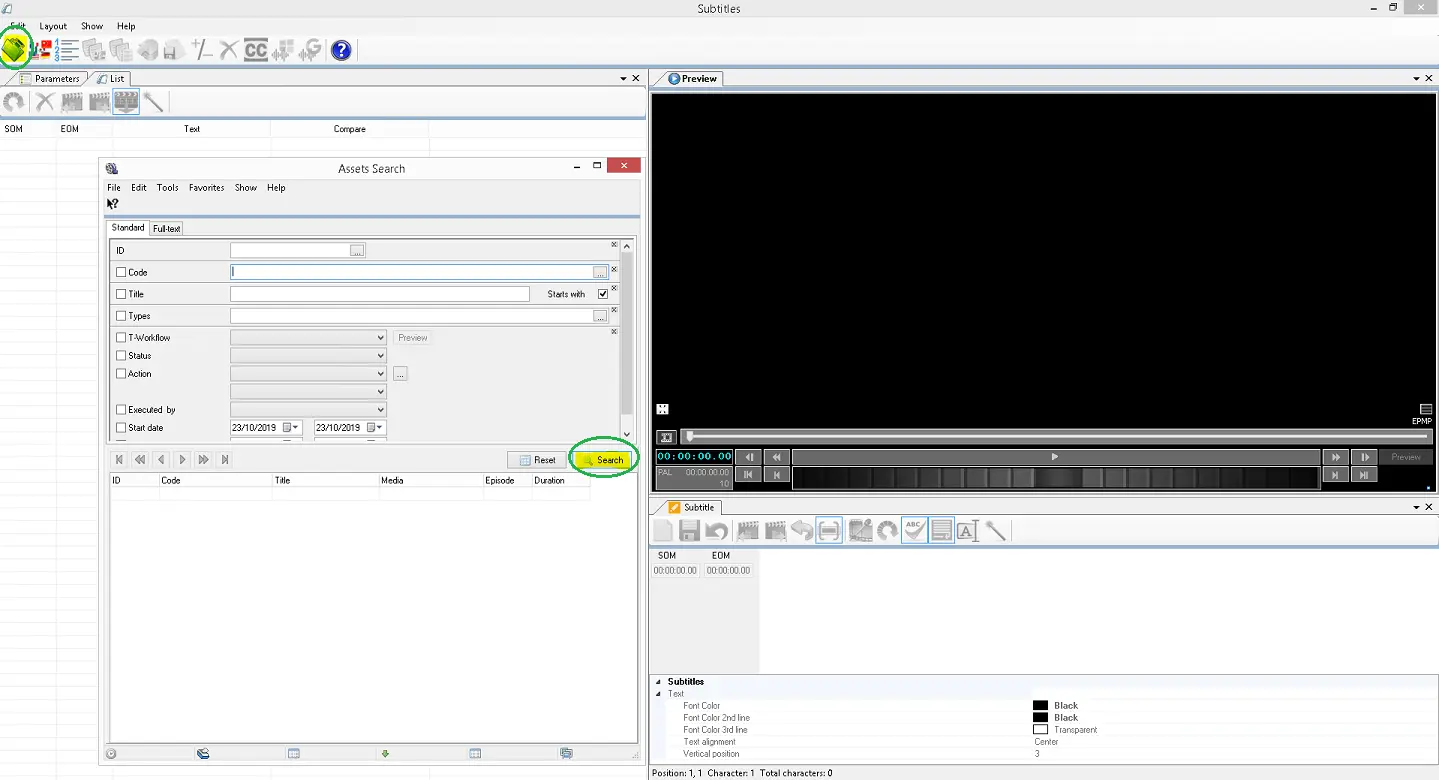
1.Launch MAM module and access to Subtitles Tool, click the Search icon to locate an asset in Media Library.
Subtitles Tool 1
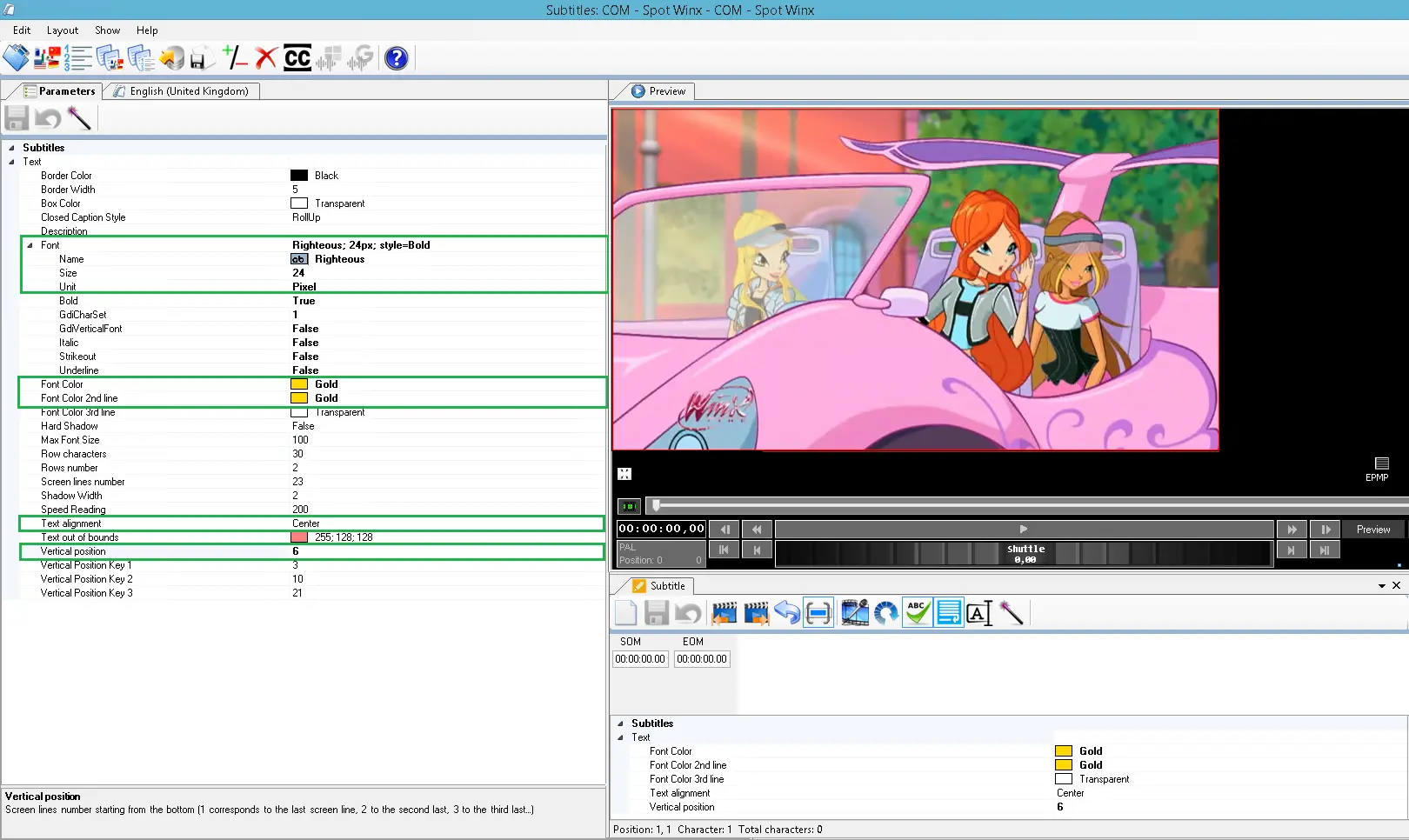
2.Once the asset is selected, in the asset’s Parameter tab change the global settings in the asset on those settings enclosed in green box.
Parameter tab
Changes includes:
•Font type
•Font colour
•Text alignment
•Vertical position
Save the changes to the asset.
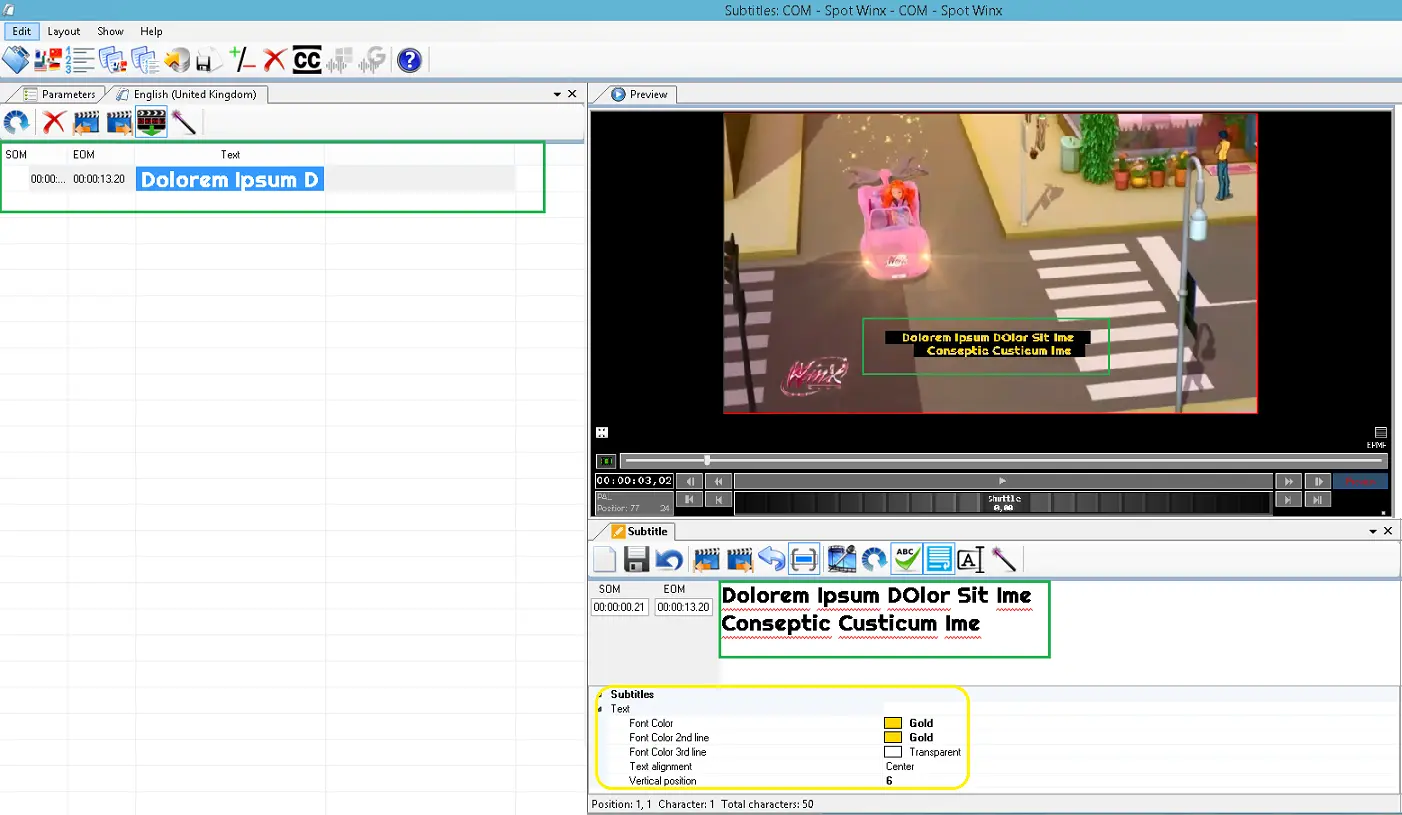
3.Next, open the asset in Subtitles Tool and start entering subtitles text to the asset. As indicated in below screenshot, the subtitles text appeared correspond to the settings you had defined in previous step.
Subtitles Tool 2
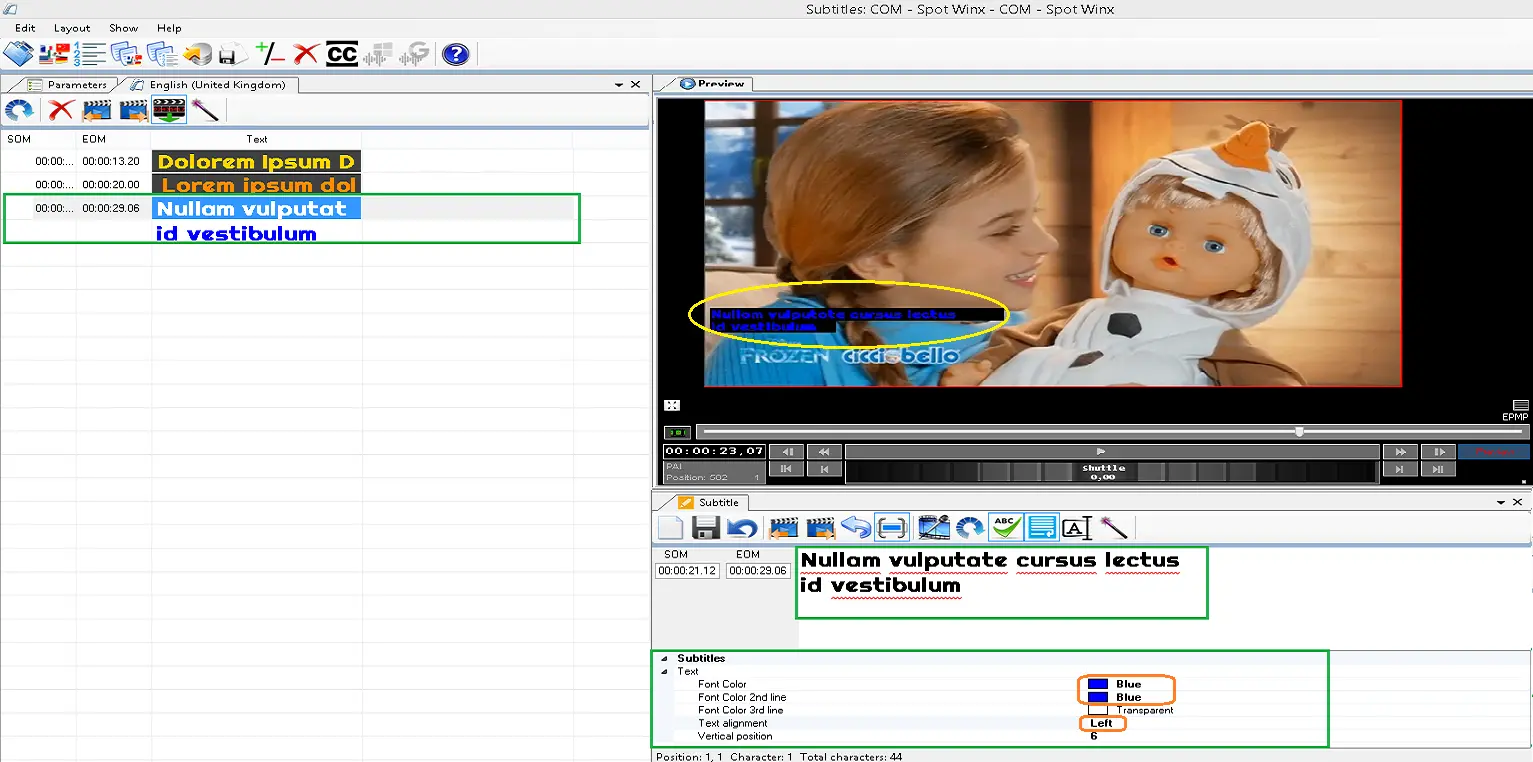
4.If the subtitles text contains multiple lines, it is possible to define the font color for each subtitles line, its alignment and vertical position, as illustrated in the screenshots below.
Subtitles Tool 3
5.Upon completion, save the file to the path where Subtitles files are stored.
Subtitles Tool 4
NB: If custom subtitles is in place, the font type and font size in global subtitles settings would not applied. The global settings would only apply if there is no subtitles associated with the asset.
Edit existing asset’s subtitles in MAM
If a set of subtitles file already linked to an asset in Media Library, you can edit the subtitles appearance before the subtitles go on-air.
1.In MAM, locate the asset and launch Subtitles Tool.
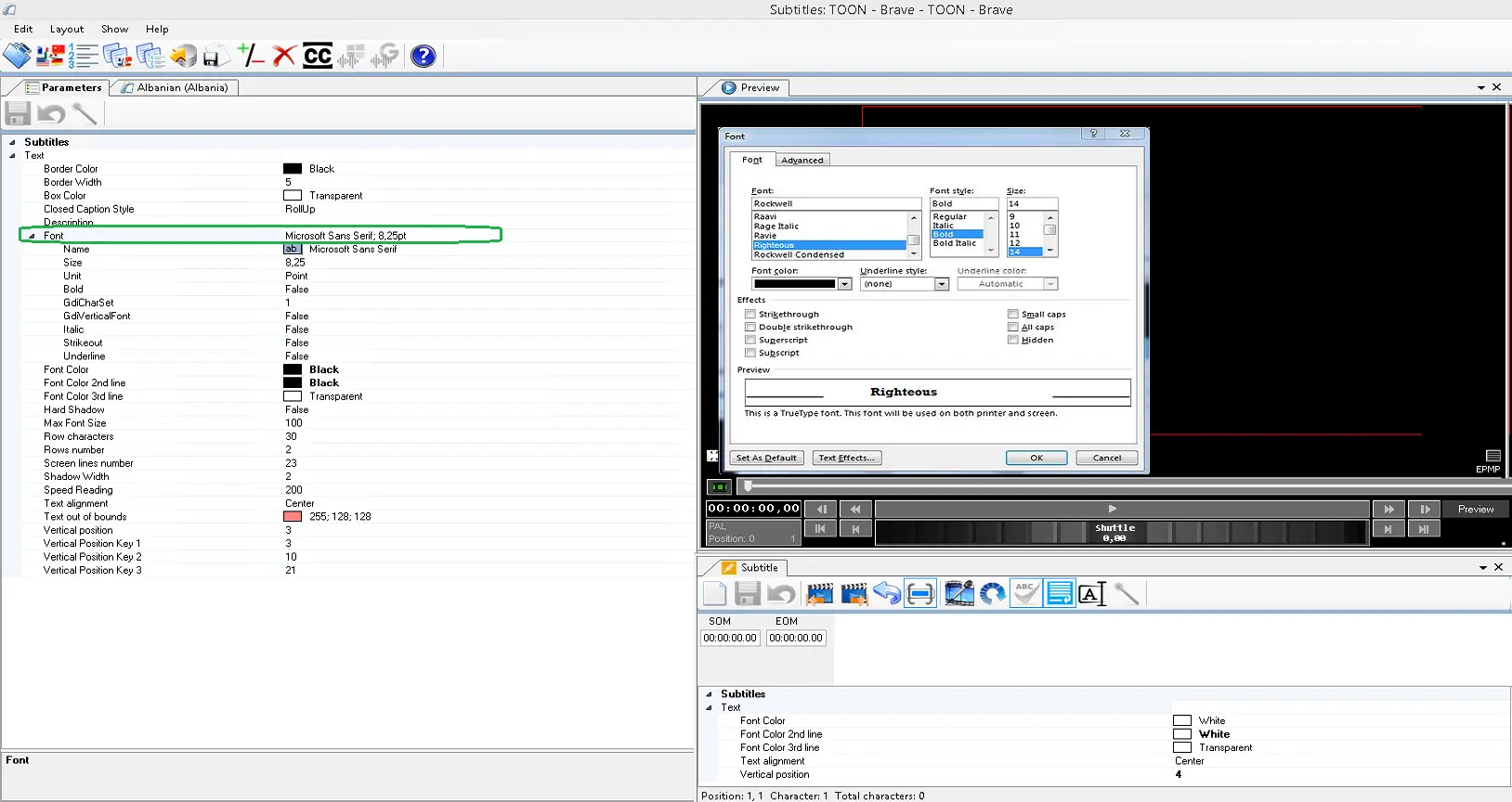
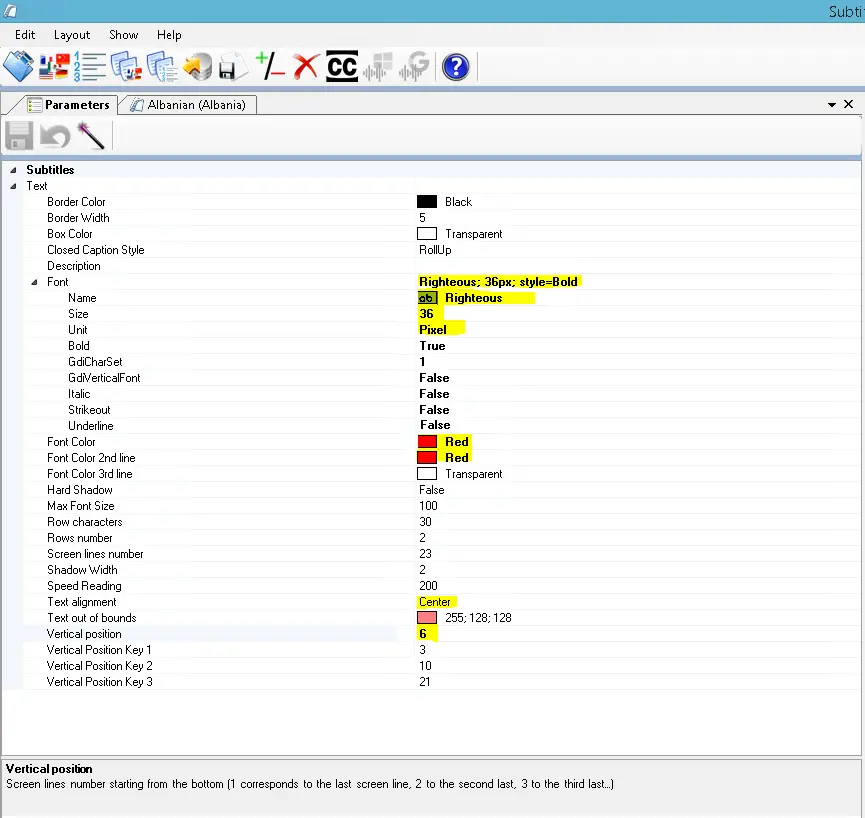
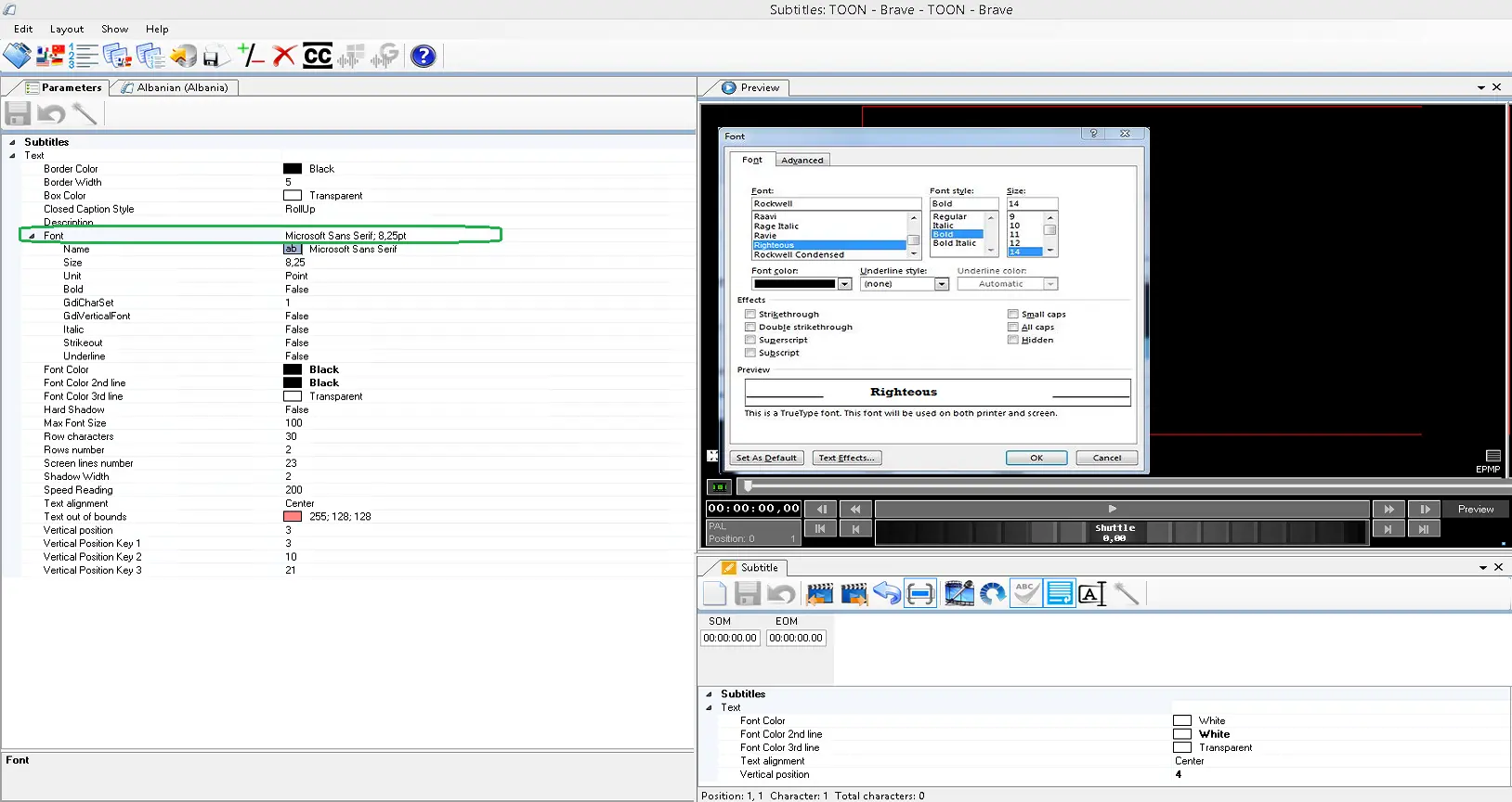
2.In Parameters tab, click the font settings to change the font type.
Parameters 1
3.Next, change the font color, font size, text alignment and its vertical position, as highlighted in yellow in screenshot below. Save the settings applied to Parameters tab.
Parameters 2
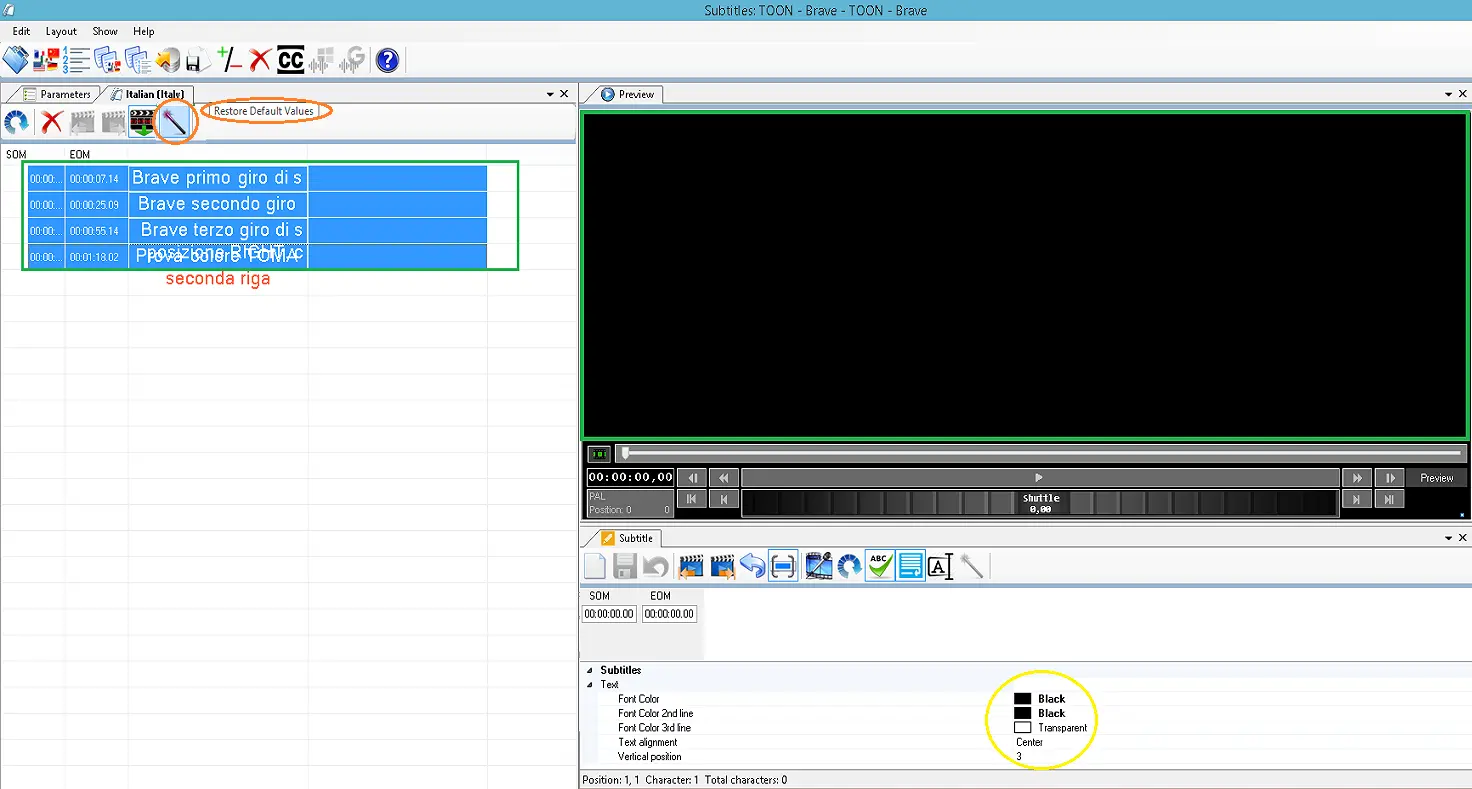
4.Back to Subtitles Tool, click on the asset tab where the asset file name is displayed to view the subtitles text in the subtitles file.
Subtitles Tool 5
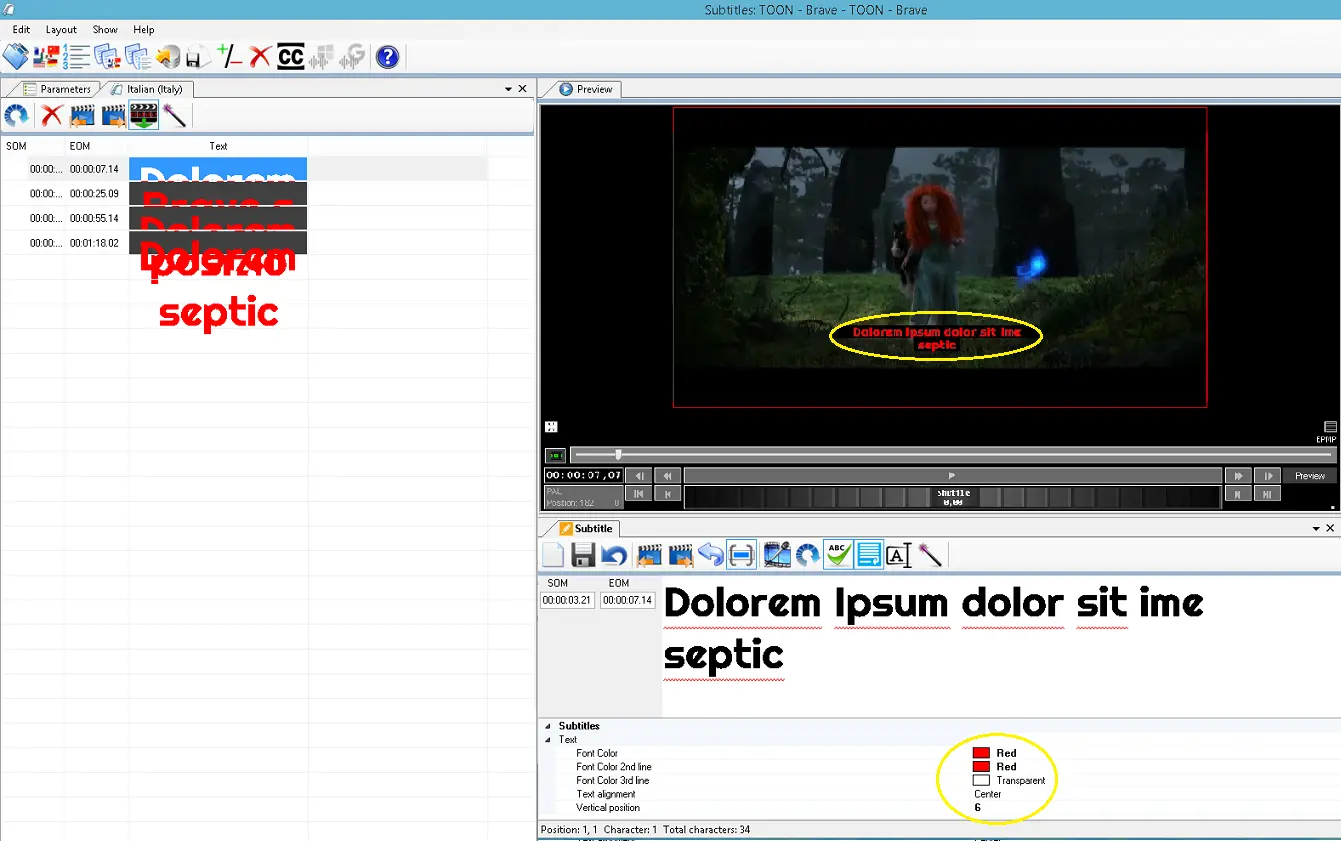
5.Select the subtitles lines that you wish to modify to the settings you had defined in step # 3 and click the “Restore Default Values” icon to edit the subtitles appearance.
6.The changes would be applied to the subtitles text instantly.
Subtitles Tool 6
Link template to asset in Media Library
After template is created and modified, you can link the template to asset in Media Library or link template to event in Executive Editor.
1.Launch Media Library, search the asset form and navigate to asset’s “Secondary Events” tab.
2.Click on DSK tab of secondary event and define the settings.
mam_asset_dsk
•Enable the Subtitles checkbox.
•Select subtitles format as “EBU”.
•As initial setup, click “File to import” to locate and import the subtitles file you had saved previously.
•Enter “777” in the “Pag”. Parameter.
3.Save the changes made to asset.
Modify Common Layer properties to “no-scale” for existing template
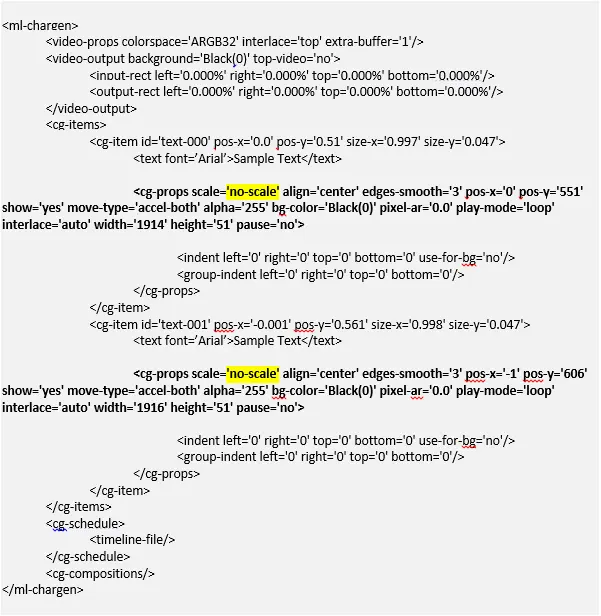
For experienced users, you can directly modify the common layer properties of the “.ml-cgc” file for existing subtitles to apply the custom font type and font size.
1.Locate the “.ml-cgc” template file and open it with notepad of other integrated toolset.
2.Set the parameters highlighted in yellow.
Common_layer_properties
3.Save the template file and exit.
4.With the "no-scale" setting in subtitles template file, when managing subtitles file Etere Preview would render the size in pixels or points defined in MAM for each set of subtitles file.
 Parameters_1
 Etere_CG_Editor
 Subtitles_Tool_5
 Common_layer_properties
 Subtitles_Tool_6
 mam_asset_dsk
 Parameters_2
 Subtitles_Tool_2
 Text_configuration
 Parameters_1
 Subtitles_Tool_1
 Parameter_tab
 Subtitles_Tool_4