71.16.4 Modules Shortcuts
Etere Ingest allows direct access to some of its modules, just by launching the Etere Ingest executable file (EtereRC.exe) with specific parameters; the modules which have this feature enabled are:
ETERERC.EXE USER.001 CF - Open the SDI Copies module.
ETERERC.EXE USER.001 WD - Open the Operations by Workflow module, and automatically executes the operations (e.g.: delete, asset duration check and schedule duration check) left activated at the last module exit.
ETERERC.EXE USER.001 AD - Open and automatically executes Automatic Deletions function.
ETERERC.EXE USER.001 TR - Open and automatically executes the Scheduled Ingest module.
ETERERC.EXE USER.001 SV - Open the Video Server File Check module.
Example: Create shortcut for “Operations by Workflow” in station 001
1.Locate ETERERC.EXE in application path, right-click and select “Create shortcut” to create a shortcut icon on desktop, name the shortcut as “OBW” (operation by workflow).
2.Right-click on shortcut “OBW” and select “Properties”.
3.In “Shortcut” tab, add “USER.001 WD” to Target parameter as indicated below and save the settings.
Shortcut tab
NB: All above listed shortcuts can also be used for other stations, just by changing the string '001' with the number of the desired station (e.g.: ETERERC.EXE USER.002 SV).
Multi-instance
Etere Ingest support multi-instance execution, in order to run multiple instances it's enough to launch the application multiple times as required.
Please note that in case multiple instance are run, Ingest logs will be recorded in the same file differentiating instance operations through a specific ID.
Sample of use
1.In order to launch a specific Etere Ingest module, just navigate to 'Start | Run' and insert the Etere's installation folder and the relative command, for example:
"C:\Program Files\ETERE\EtereRC.exe" USER.001 CF
2.Click the [OK] button and the SDI Copies module (CF) will be directly opened for the station 1.
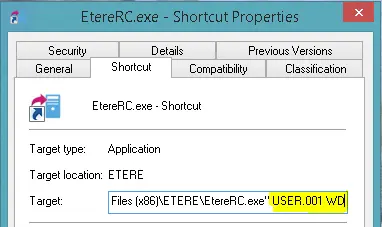 Shortcut_tab