59.5.1 Managing Reports
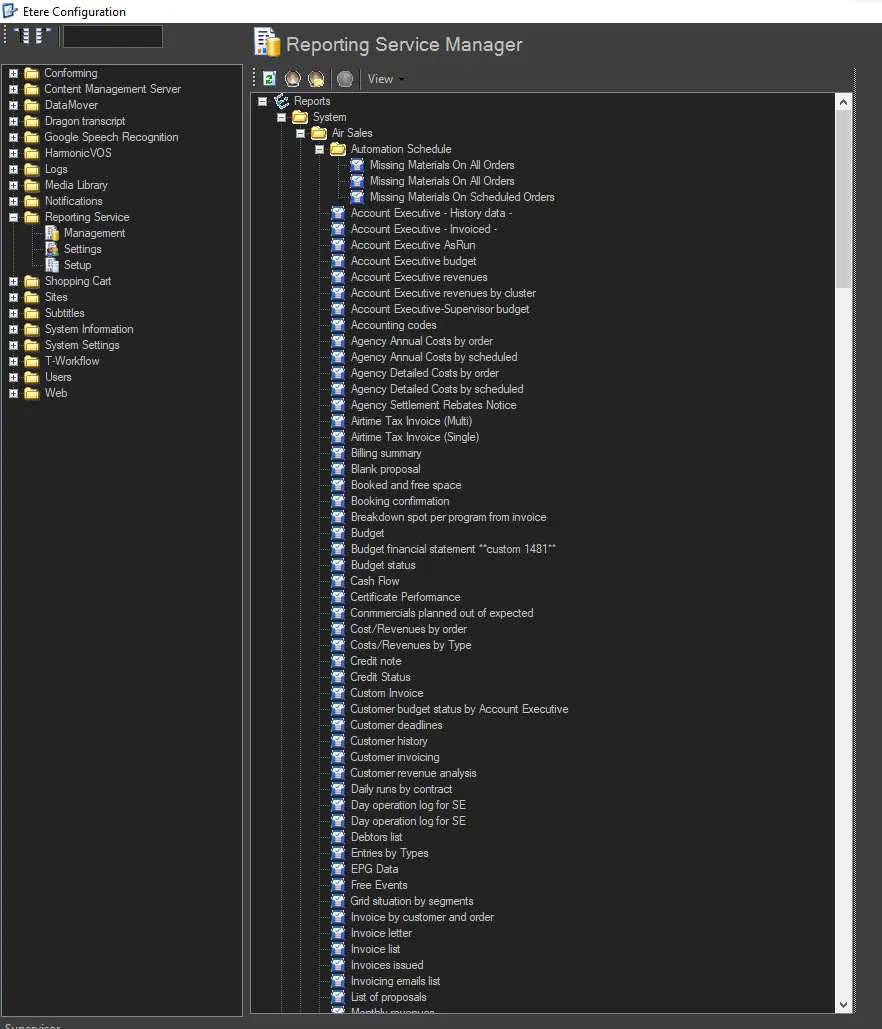
The Etere Reporting Service Manager section, located within the Etere Configuration > Configuration Editor module, enables the viewing and handling all reports available on the reporting web server. It allows the uploading of new or modified reports.
managing_reports
REPORTS LIST
Under this area, there can be found all reports present in the web server classified into two categories:
• System: All the default reports provided by Etere which have not been subjected to any modification,
• User: All custom reports are uploaded to the reporting server. These reports are system reports modified by Etere or the customer to create a tailored report.
Moreover, by selecting a report and making right-click on it, it will be possible to perform any of the following actions (which are also available on the top toolbar):
• Refresh: This function (available only in the toolbar) updates the list of reports (system and user) according to the ones present in the report server. It adds those present in the report server (not in the Etere system) and removes those in the Etere system (but not in the report server).
• Download: It allows you to download a specific selected report from the Reporting Web Server to, for example, customize it and upload it as a custom report. System reports will be downloaded in the user's language (i.e., translated), whilst user reports will be downloaded in their original language.
• Upload custom report: Use this function (available only in the toolbar) to upload a custom RDL report into the Reporting Web Server, thus making it available for other users. Once the report is uploaded, the operator will be asked to set its properties (i.e., the source report from which it has been customized).
The uploaded report will be stored as a 'User' report, categorized according to the source 'System' report (if selected).
• Bulk upload: This function (available only in the toolbar) allows the upload into the Reporting Web Server all reports present in a specified import path, which are named according to Etere's reports naming convention (i.e. [ReportCode]_[CustomerCode]_[ReportName]. RDL).
All uploaded reports will be stored as a 'User' report and automatically linked to the source 'System' report (i.e. [ReportCode]) from which they derive.
NB: Upload useful information about custom end-user reports (e.g., how to request them, their naming convention, etc.), which can be found in the chapter 59.5.1.2 End-user Reports.
• View source: It shows the XML code of the currently selected report. Moreover, the 'Save as...' option allows to download system reports without translating them, that is, in their original language.
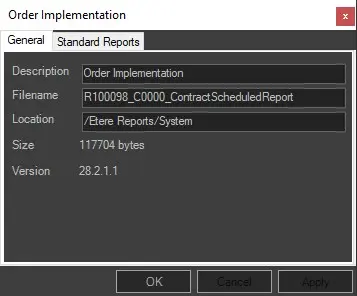
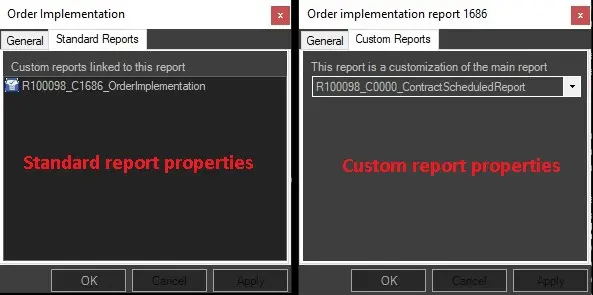
• Properties: This function (available also by double-clicking on a report) shows a general tab containing the name, location, size and version of the report, and a standard report tab which allows one to perform two different actions depending on whether the report is either a system or user report:
report_properties
- If the report is a system report, It shows all custom reports linked to the system report, allowing the deletion of those associations.
- If the report is a custom report: Here, the system report from which the custom report is derived will be indicated.
standard_custom_reports_tab
• Delete: This function permanently removes a report from the list (from the reporting server).
•View: This function (available only from the toolbar) allows to improve the way reports are listed in this section, making it possible to activate the following options:
- Categories: If enabled, reports will be grouped into categories (related to the Etere module) and sub-categories (described specific function).
- Descriptions: If enabled, the report description field will be used as a "friendly name" for displaying reports in the list as well as in their properties form (allowing to link custom reports to their source system report, selecting them by their "friendly name").
Please note that this view option requires an updated screen-language repository to display the translated descriptions correctly (see System Maintenance chapter); otherwise, a "Not found" text will precede the report name.
 managing_reports
 report_properties
 standard_custom_reports_tab