72.7.6.9 Multiple Versions of Closed Captions Files
When managing the subtitles in MAM, beside the current “active” version of closed captions, you can have up to additional 10 versions of closed captions files in different formats (of the same language) stored in the system. At any one time, only one version of the closed captions file can be put “active”.
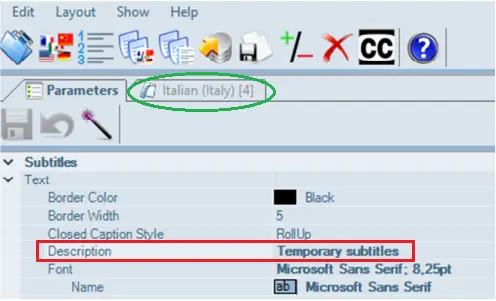
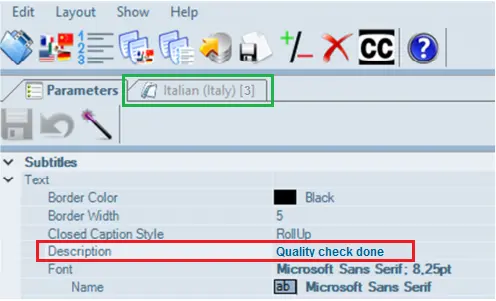
After the Subtitles Management module is launched, the “Description” field in the Parameters tab would reflect the current version of the active closed captions file.
Description
In the Subtitles tab (e.g. “Italian (Italy) [3]” in above) it displayed the closed captions version currently selected as “Active” version.
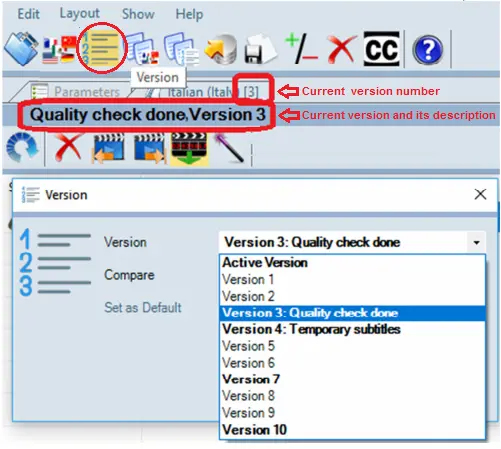
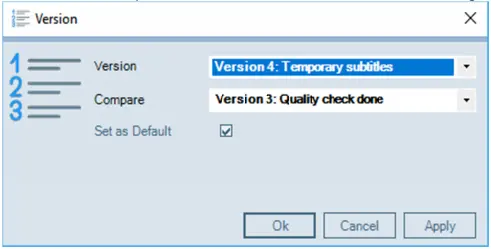
You can change to any version of the closed captions file by click on the “Version” icon to view all available versions before select an appropriate version.
Version
The version is written in the field level of table “sbt_fheader” where the “Active” version is in level 0. The other versions can be located in field level 2001 to 2010.
•The Active Version is the currently selected closed captions file version. The file version number and its description are displayed in the Subtitles tab.
•Versions written in BOLD indicate there is at least one assigned subtitle in the file.
•Use the Compare function to compare two versions of closed captions files written in BOLD.
•When selecting a closed captions file version different from the “Active” version, use the “Set as Default” option to confirm the changes.
live_subtitles_versions
Click <Apply> to accept changes and click <OK> to close the Version function. The new version of "Active" closed captions would be updated in the Subtitles Management module.
Parameters_changed
Copy Closed Captions Files between Versions
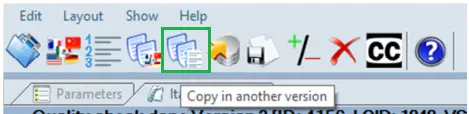
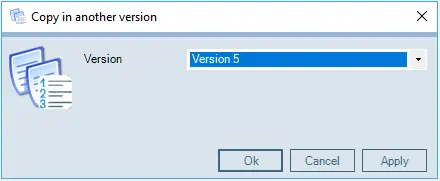
Using the “Copy in another version” function icon, you can simply copy the content in the "active" version to any version of the closed captions file by selecting the destination version
Click the icon indicated above to launch the "Copy in another version" function and select the destination closed captions version.
Copy in another version 1
Click <Apply> to confirm the copy action and click <OK> upon completion to exit from the Copy function.
Copy in another version 2
 Parameters_changed
 Copy_in_another_version_1
 Version
 Description
 Copy_in_another_version_2
 live_subtitles_versions