72.7.6.10 Import Subtitles from Audio File
In Live Subtitles, you can import audio file stored in cloud-device into subtitles text using the speech-to-text functions provided by Etere. The available import options are:
•Using Offline Microsoft Speech Recognition Engine
•Using Google Speech Recognition Engine
First of all, the requirements listed below must be fulfilled before start importing subtitles from audio file:
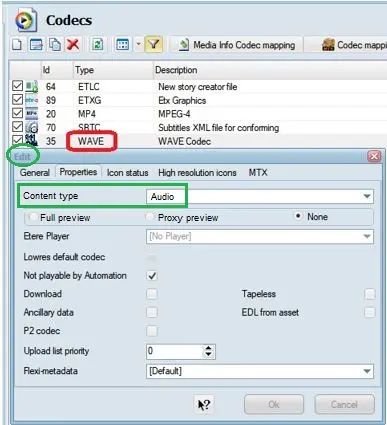
1.Before an audio file can be imported as subtitles in Live Subtitling, the audio file (e.g. Waveform audio file format “.wav” audio file) must be linked in Media Library using a codec with “Content type” defined as “Audio” asset in Configuration > Settings > Devices Settings > Codecs properties settings.
Content type
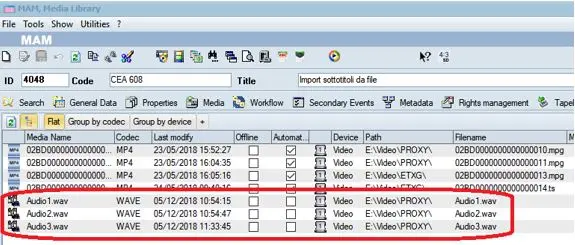
In Media Library, the audio asset would appeared as “.wav” file linked to an asset.
Media Library
2.The Google Speech Recognition is installed in the station.
3.For Google Speech Recognition, it require a Service Account file and “.JSON” file to be created and accessible from the station.
4.Define the BCP 47 Language Code to be used by Google Speech Recognition
5.The Etere feature “Speech to Text” is installed in the station.
6.The Microsoft Speech Recognition Engine has been installed in the station.
7.Both engines requires Etere license EA6763 to be activated in the station.
Using Offline Microsoft Speech Recognition Engine
Click on the icon ““Import subtitles from Audio file using Offline Microsoft Speech Recognition Engine” in the Live Subtitling module to launch the import process.
Offline_ms_speech_recognition
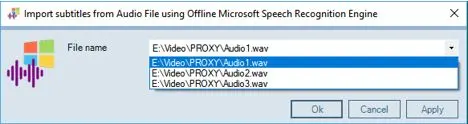
Select an audio file from the list of available files, click <Apply> and <OK> to confirm your selection.
Apply
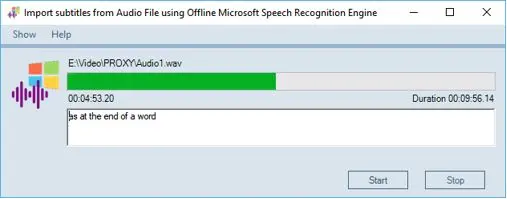
Click the <Start> button to begin the import process.
Audio_file_import
During import, a progress bar appeared indicating the imported duration against the total duration of the audio file, where you can terminate the import by simply click on the <Stop> button. Notice that the audio file content were constantly imported as text content in the text box during the import process.
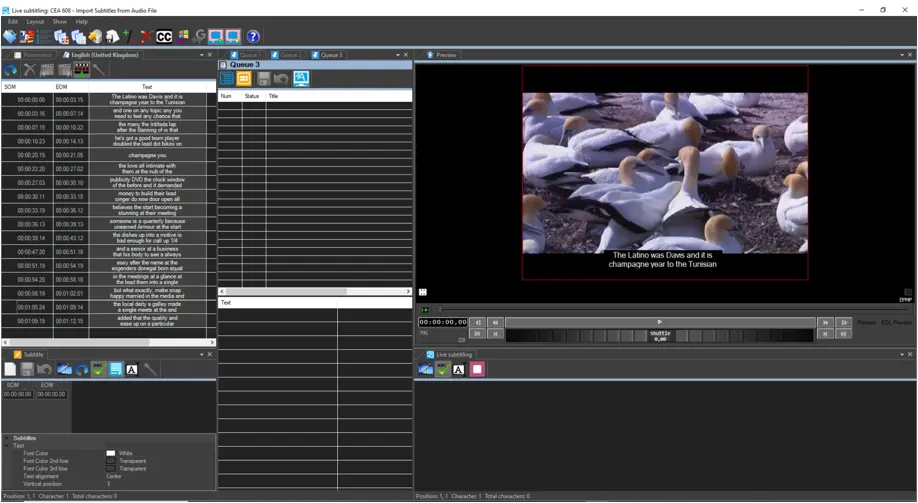
When import complete, the imported audio content would be displayed as subtitles text in Live Subtitling.
Live Subtitling
Using Google Speech Recognition Engine
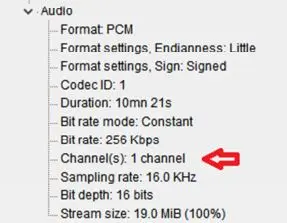
To process audio file using Google Speech Recognition Engine, the audio file must be encoded in “1 channel (mono) audio” to maintain the essential sound level through single channel.
When you execute mediaInfo on audio file, you can view the single channel setting in the file.
In addition, the following settings are recommended when transcoding the audio file:
Audio_file_mediainfo
•Format: Use FLAC or WAV for lossless compression of digital audio.
•Sample rate: 16.0 KHz
Now click on the icon ““Import subtitles from Audio file using Google Speech Recognition Engine” in the Live Subtitling module to launch the import process.
mam_google_speech_recognition
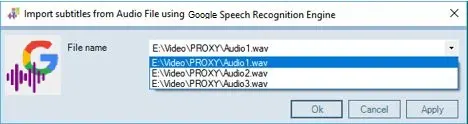
Next, select an audio file from a list of available files, click <Apply> and <OK> to confirm your selection.
Google_audio_file_selection
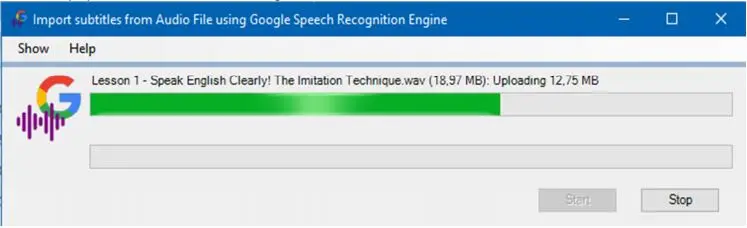
The process would upload the audio file into the bucket in Google Cloud Service.
The bucket's name would be created with adhere to the following criteria:
“etere-subtitiles-tools_xxxx_project_id”
where “xxxx” = customer code, and “project_id” = project id written in the ".json" credential file.
Google_audio_file_upload
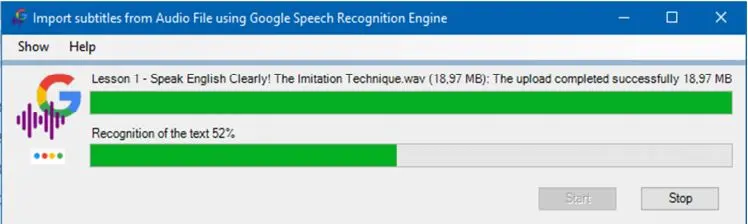
After upload, the recognition engine would starts to import the audio file into text content. The process is indicated with a progress bar.
Google_audio_file_recognition
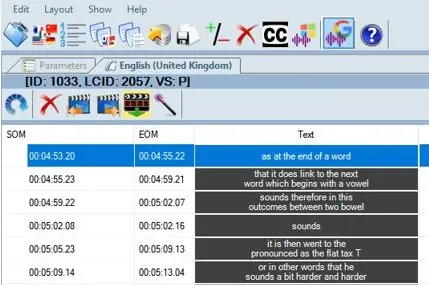
When import complete, the audio file would be removed from the bucket and the imported audio content would be displayed as subtitles text in Live Subtitling.
Audio_file_imported_google
NB: When creating buckets and uploading objects in cloud-device, adhere to the following requirements:
•Bucket name should contain only lowercase letters, numbers, dashes (-), underscores (_), and dots (.).
•Bucket name must start and end with a letter or number.
•Bucket name should contain 3 – 63 characters.
•Bucket name should not represent as an IP address in dotted-decimal notation, e.g. "192.168.10.100"
•Bucket name must not start with “goog” prefix, or contain “google” in close misspelling, e.g. “g00gle”.
 Content_type
 mam_google_speech_recognition
 Media_Library
 Live_Subtitling
 Apply
Apply
 Audio_file_import
 Offline_ms_speech_recognition
 Audio_file_mediainfo
 Audio_file_imported_google
 Google_audio_file_recognition
 Google_audio_file_upload
 Google_audio_file_selection