73.4.2.7 Advanced Search
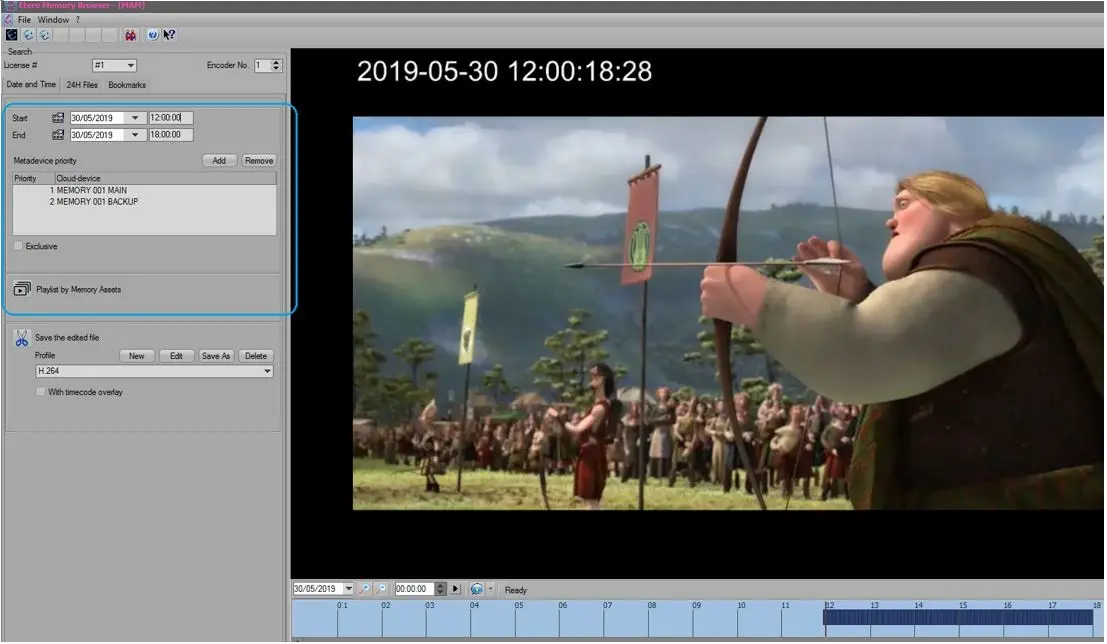
In Etere Memory’s Advanced Search, you can search for Memory assets by specifying the playlists by Memory assets; the process explores the Memory asset form and creates a playlist.
Memory’s Advanced Search
In the Advanced search, you can filter the Memory assets by:
• The start date and start time, as well as the end date and end time when the Memory assets were created, including Memory files that were saved under the “Save the edited file” feature;
• Search the defined cloud-device paths based on the priority defined. You can modify and prioritise the cloud devices using the <Add> and <Remove> buttons.
Note: Only the archive-type cloud devices will be displayed.
• You can use the “Exclusive” option to restrict the Memory assets from specific cloud devices;
• When multiple Memory files are filtered, you can select any file and “cut” the file after entering the SOM and EOM. If no file is selected upon execution of the Cut function, all files will be included starting from the SOM of each file;
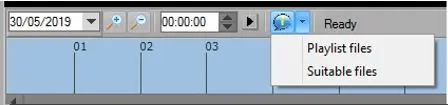
In addition, from the list of available Memory files, you can further differentiate the memory assets using the available options:
Memory files
• Playlist Files: This option lists the memory files selected for the playlist;
Playlist Files
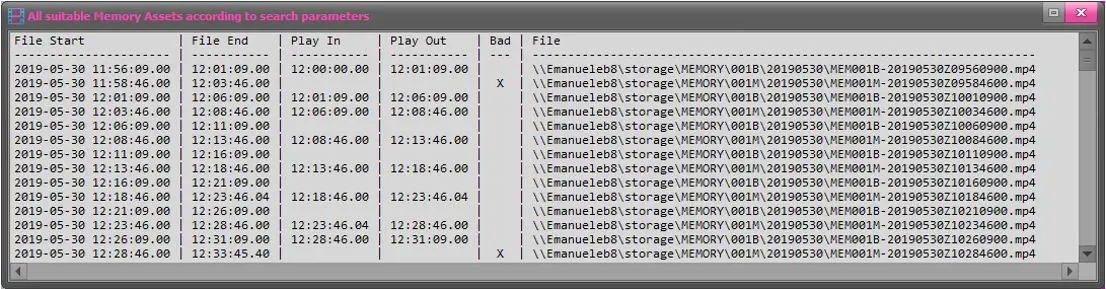
• Suitable Files: This option lists the memory files that match the search criteria and indicates the memory files used in the playlist.
Suitable Files
 Memory’s_Advanced_Search
 Memory_files
 Suitable_Files
 Playlist_Files