System
15.9 SNMP Console
The SNMP Console section defines the retrieval of SNMP messages from the system.
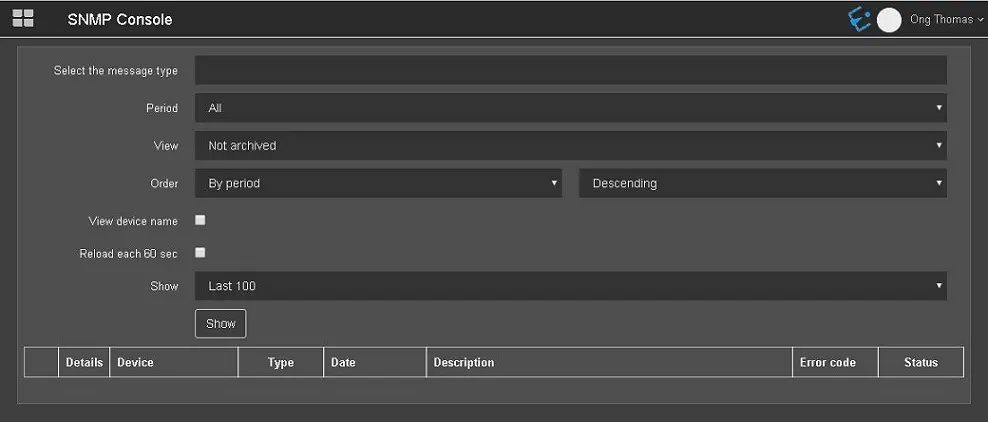
SNMP Console 1
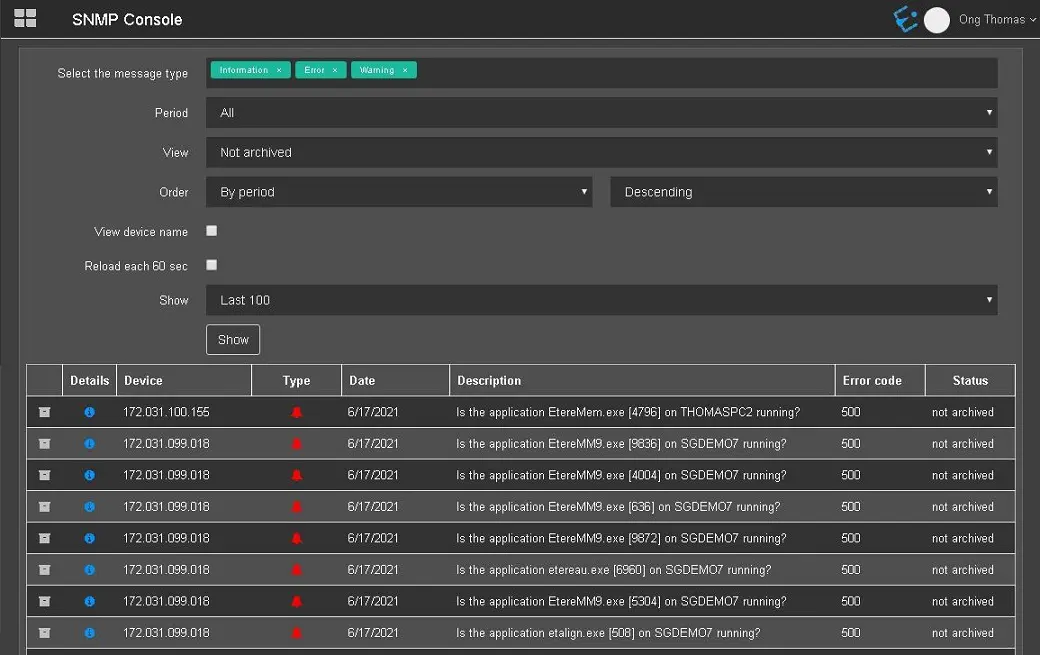
- Select the message type: You can select different types of SNMP messages to retrieve, e.g. Error, Information, Warning, or Unknown. The selected message type will be highlighted in green.
Select the message type.
Upon selection, you can deselect the message type by clicking on the "X" button of each message type to remove it from the list.
- Period: Select the available period to retrieve the messages, e.g. Today, Last week, Last month, or All messages;
- View: Select the status of messages to be displayed, e.g. already archived, not archived, or all messages;
- Order: Define how the SNMP messages should be displayed, either by period or display by type;
- Ascending/Descending: The order of display should be ascending or descending order;
- View device name: Enable this option to include the device name in the SNMP messages. If disabled, the device IP address will be displayed;
- Reload each 60 sec: Enable this option to reload the SNMP messages every 60 seconds;
- Show: Determine the number of SNMP messages to be displayed, e.g. last 100 messages, last 500 messages, or All messages.
Upon completion, click the Show button to retrieve the SNMP messages that match the set criteria.SNMP Console 2
 SNMP_Console_1
 Select_the_message_type
 SNMP_Console_2