65.4.3 Master Control Transitions Editor
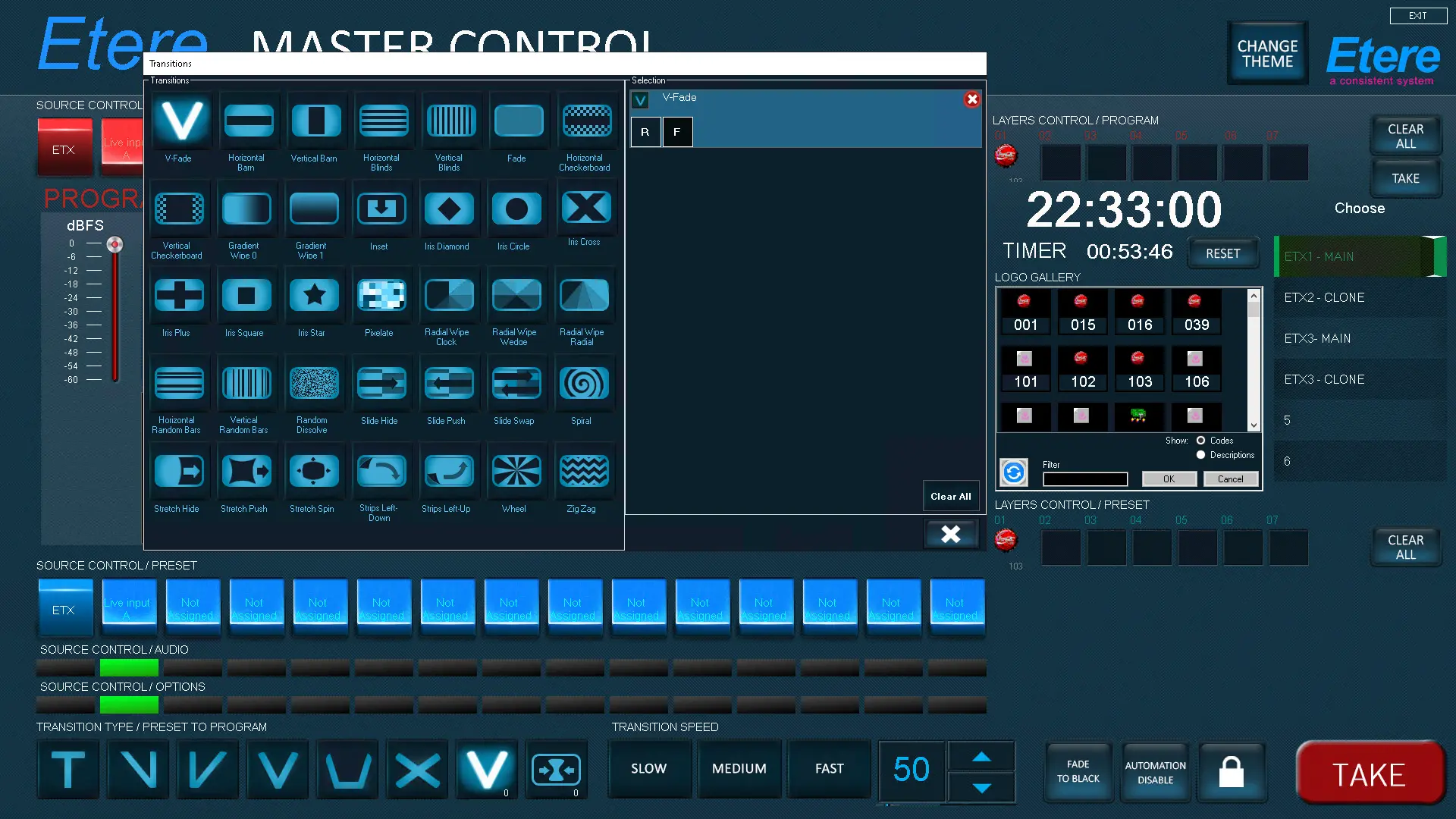
The Etere Master Control Transitions Editor is located at the lower main panel as indicated below.
etx_mcp_transitions_buttons
The functionality of each button in the transitions panel is described in the table.
- Cut: Use this button to “cut” the selected video file between events
- Fade and Take: Use this button to create a fade effect on the video and start transition.
The duration of fade can be selected using the pre-defined transition speed from the speed buttons (Slow – Medium – Fast) or select a custom speed number (number of frame) from the spin box using the arrow up ETX_MC_Squeeze_Panel_Arrow_Up or arrow down ETX_MC_Squeeze_Panel_Arrow_Down button.
- Take and Fade: Use this button to add a cut on the media file and start imposing fade effect on video.
The duration of fade can be selected using the pre-defined transition speed from the speed buttons (Slow – Medium – Fast) or select a custom speed number (number of frame) from the spin box using the arrow up ETX_MC_Squeeze_Panel_Arrow_Up or arrow down ETX_MC_Squeeze_Panel_Arrow_Down button.
- V Fade: Use this button to add a cue and apply fade effect on video file, set half of the duration for fade down and set the other half for fade up.
The duration of fade can be selected using the pre-defined transition speed from the speed buttons (Slow – Medium – Fast) or select a custom speed number (number of frame) from the spin box using the arrow up ETX_MC_Squeeze_Panel_Arrow_Up or arrow down ETX_MC_Squeeze_Panel_Arrow_Down button.
- U Fade Use this button to add a cue and apply fade effect on video file, set 1/3 of the duration for fade down, 1/3 of duration for black, and 1/3 of the duration for fade up.
The duration of fade can be selected using the pre-defined transition speed from the speed buttons (Slow – Medium – Fast) or select a custom speed number (number of frame) from the spin box using the arrow up ETX_MC_Squeeze_Panel_Arrow_Up or arrow down ETX_MC_Squeeze_Panel_Arrow_Down button.
- Cross Fade: This transition button add a crossed fading to the video file.
- Transition Speed When imposing fade on video, it enable the selection of predefined transition speed from the speed buttons (Slow – Medium – Fast), or select a custom speed number (number of frame) from the spin box using the arrow up ETX_MC_Squeeze_Panel_Arrow_Up or arrow down ETX_MC_Squeeze_Panel_Arrow_Down button.
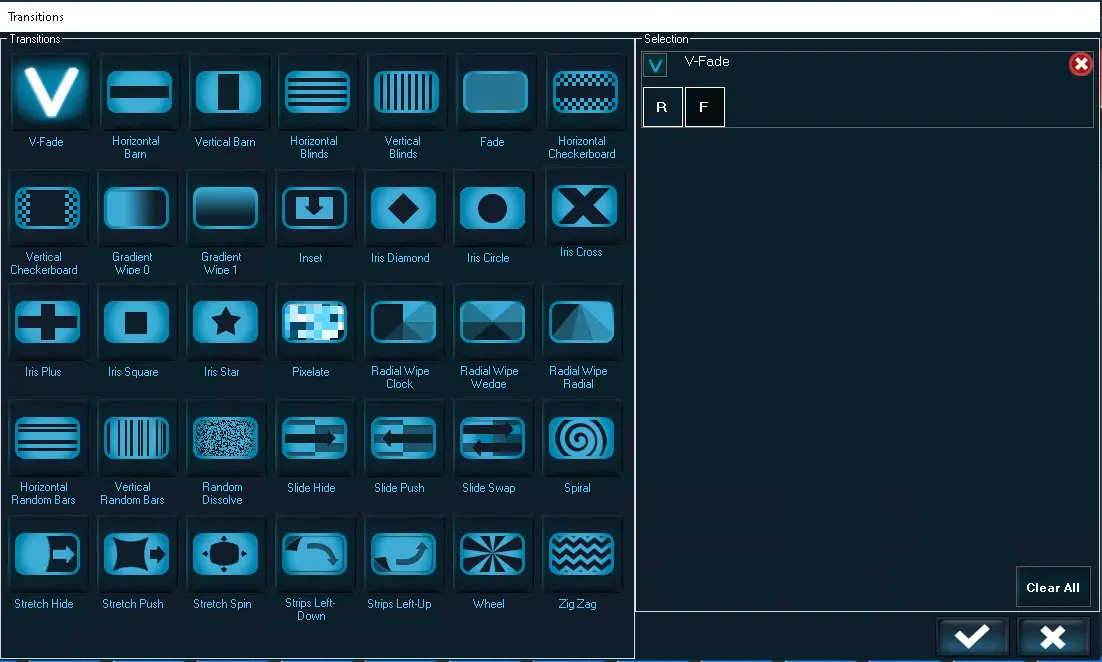
By double-clicking the Transition Wipe effects, the Transitions Form would eventually appear, providing additional Wipe effects on which rely on.
etx_mcp_transitions_form
etx_mcp_transitions
- Horizontal barn: The transition lines is moved horizontally.
- Radial wipe clock: the contents is sweeps around the center, clockwise from the top.
- Vertical barn: the transition lines is moved vertically.
- Radial wipe wedge. the contents is sweeps around the center, in both direction from the top.
- Vertical blinds: the transition strips moved vertically.
- Radial wipe radial: the contents is sweeps from top to the left.
- Horizontal blinds: the transition strips moved horizontally across the displays.
- Horizontal random bars: wipe contents with horizontal random bars.
- Vertical checkerboard: the transition checkerboard starts vertically from both sides.
- Vertical random bars: wipe contents with vertical random bars.
- Horizontal checkerboard: the transition checkerboard starts horizontally from top and bottom.
- Random dissolve: this transition replaces image by replacing individual tiny dots in random location until it is completely replaced.
- Fade: the screen gradually turns into single color display.
- Slide hide: slide the original content and expose new content.
- Gradient wipe style 0: part of the screen covered by gradient band, start from range 0.
- Slide push: slide new content by pushing the original content out.
- Gradient wipe style 1: part of the screen covered by gradient band, start from range 1..
- Slide swap: slide the original content and push out the new content at the same time.
- Inset: insert an pop-up image to the screen.
- Spiral: the content is wipe continuously and gradually in a widening curve.
- Iris Diamond: wipe transition with an iris diamond shape tile.
- Stretch hide: stretches the new content over original content from left to right.
- Iris circle: wipe transition with an iris circle shape tile.
- Stretch push: stretches new content in and push out original content, from left to right.
- Iris cross: wipe transition with an iris cross shape tile.
- Stretch spin: stretches new content over original content from the center outwards.
- Iris plus: tiled the transition with an plus sign tile.
- Strips left-down: the strips transition revealed the new content from upper left corner to bottom right corner.
- Iris square: wipe transition with an iris square shape tile.
- Strips left-up: the strips transition revealed the new content from bottom left corner to upper right corner.
- Iris star: wipe transition with an iris star shape tile.
- wheel: the contents are wiped from all wedges of the displays.
- Pixelate: the contents is displayed in expending pixelated squares.
- Zig zag: the wipe bands moved back and forth across the screen.
 etx_mcp_transitions
 etx_mcp_transitions_form
 etx_mcp_transitions_buttons